Disclosure: some links on this page may be affiliate links. If you sign up through them, I may earn a commission at no extra cost to you.
A lot of freelancers I know run the same mix of work: one steady retainer client billed by the hour, plus one fixed-price project on the side. It is a good mix. The retainer pays the bills and the project grows the portfolio. It is also a mix that most time trackers handle badly, because hourly work and fixed-fee work need two different questions answered. For the retainer, “how many hours do I bill?” For the fixed fee, “am I still making money on this?”
This guide looks at Harvest for freelancers through exactly that setup. Harvest’s Free plan allows one seat and two projects, which happens to fit one retainer and one fixed-fee job. I will walk through a working week, from setting up both projects to sending the invoices, and point out where the Free plan is enough and where it is not.
Plan details come from Harvest’s official pricing and features pages, checked today.
What Harvest’s Free plan gives a solo freelancer
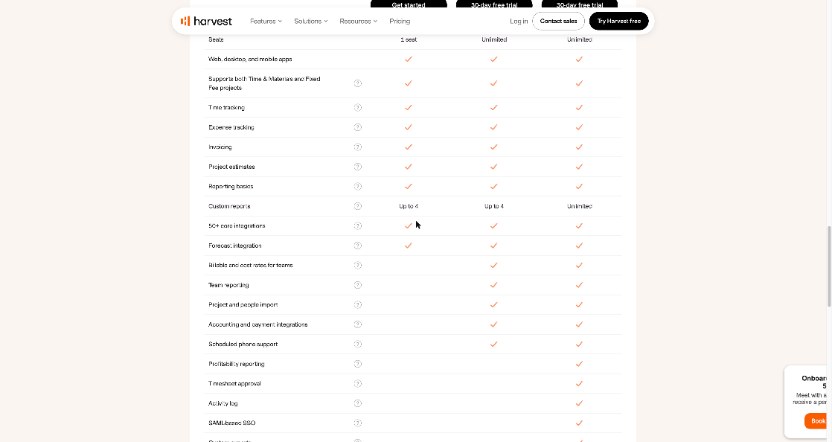
Harvest’s Free plan is $0 “forever” and is described as built for individual freelancers. Here is what it includes, according to the pricing page and its feature comparison:
- 1 seat and 2 projects
- Time tracking, expense tracking and invoicing
- Support for both Time & Materials and Fixed Fee projects
- Project estimates and basic reporting
- Up to 4 custom reports
- Web, desktop and mobile apps, including Mac and iOS apps
- 50+ core integrations, plus the Forecast integration
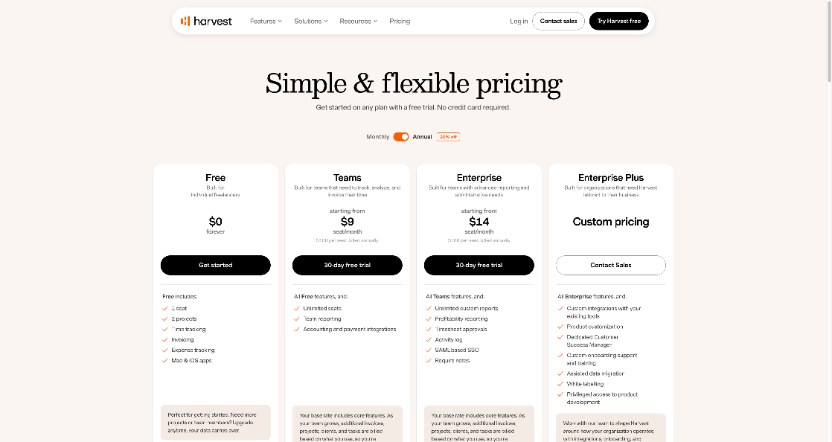
Two things are missing from the Free column that matter for freelancers. Accounting and payment integrations are ticked for Teams and Enterprise only. And the pricing page carries a small note that “the usage of some features may require the payment of fees”, pointing to Harvest’s Help Center. I will come back to both.
Day 1: Set up the two projects the right way
The single most important decision is the project type. Harvest supports both Time & Materials and Fixed Fee projects on every plan, including Free. Pick the wrong one and your reports will answer the wrong question all month.
Project 1: The retainer, as Time & Materials
Say your retainer client pays you by the hour for ongoing work, capped at an agreed number of hours a month. Set this up as a Time & Materials project with your hourly rate. Add a budget equal to the monthly hours cap. Harvest’s features page says budgets update as you track time, so you can see when you are close to the cap before you go over it.
Keep the task list short. Three or four tasks are plenty: “Strategy and calls”, “Production”, “Revisions” and maybe “Admin”. The point is that the invoice will make sense to the client at a glance.
Project 2: The fixed-fee job, as Fixed Fee
For the side project, say a website build for an agreed price, choose Fixed Fee. You still track every hour, but now the hours are not what you bill. They are what you compare against the fee to see your real hourly rate.
This is the part most freelancers skip, and it is where the useful insight is. If the fee was based on 40 hours and you are at 30 hours with half the work left, you want to know now, not after the final invoice.
Before you start, create a project estimate. Estimates are on the Free plan, and sending one before the work begins is a simple way to make the scope official.
Days 2 to 4: Track time without thinking about it
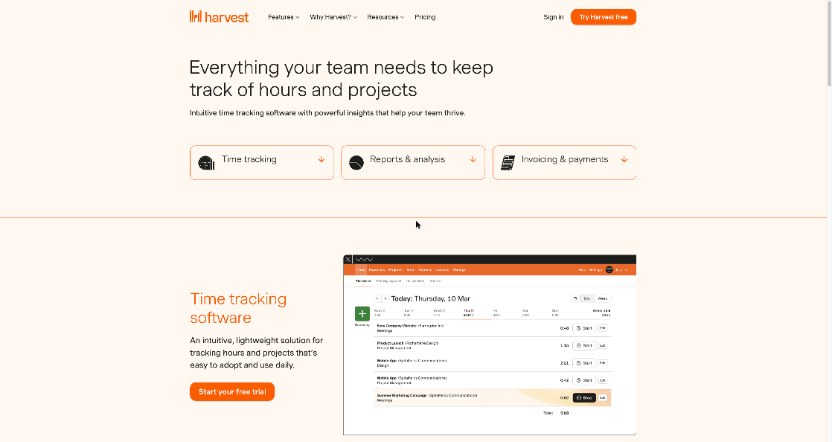
Harvest lets you use live timers or add entries directly to your day or week view, and you can track from a browser, desktop or phone. For a two-project freelancer, my routine looks like this:
- Start the timer when you switch clients, not when you start a task. Two projects means two timers at most, so this stays easy.
- Write a one-line note on each entry. On the retainer, this note becomes the line on the invoice. “Homepage copy edits, round 2” is better than “Production”.
- Fill gaps at the end of the day in the week view. If you forgot a timer during a call, add the entry from memory before you close the laptop.
- Log expenses as they happen. Expense tracking is on Free, so a stock photo licence or a font for the fixed-fee job can go straight onto the project.
Harvest also supports reminders to keep tracking consistent. Its features page describes these mainly for teams, so check the settings in your own account to see what is available to you.
A note on honest time on fixed-fee work
It is tempting to stop tracking on a fixed-fee job once you realise you are over. Don’t. The whole value of tracking that project is learning how long this kind of work really takes, so your next quote is better. Harvest’s reports show which projects and tasks are using your time, and that is only useful if the data is complete.
Day 5: Check the numbers before you invoice
Friday is review day. Open your reports and answer two questions.
For the retainer: how many billable hours are there this month, and how close are you to the cap? If you are near it, tell the client now. A short “we are at 18 of 20 hours, want me to pause or keep going?” message prevents an awkward invoice.
For the fixed-fee project: divide the fee by the hours tracked so far. That is your effective hourly rate on the job. Compare it with your retainer rate. If it is lower, that is not a disaster, but it is information for your next quote.
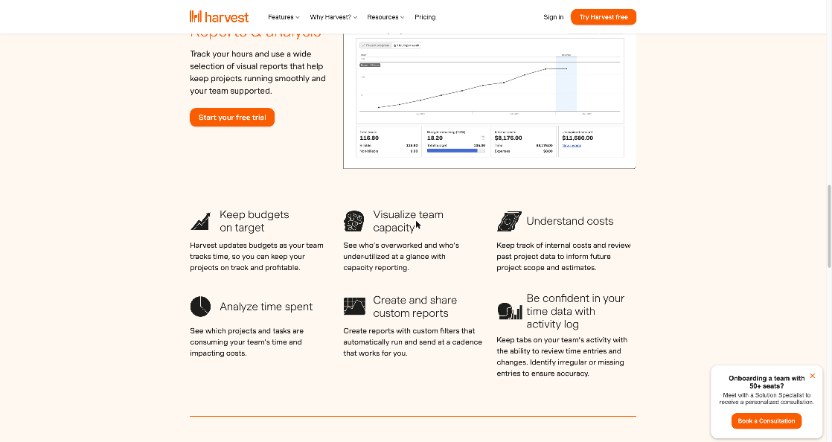
Free includes reporting basics and up to 4 custom reports, the same custom report limit as Teams. For two projects, that is plenty. I would save one report for “this month, retainer, billable hours” and one for “fixed-fee project, all time”, and leave the other two for later.
End of month: Turn time into invoices
Harvest’s invoicing works from the time and expenses you have already tracked, so you are not retyping hours into a separate tool.
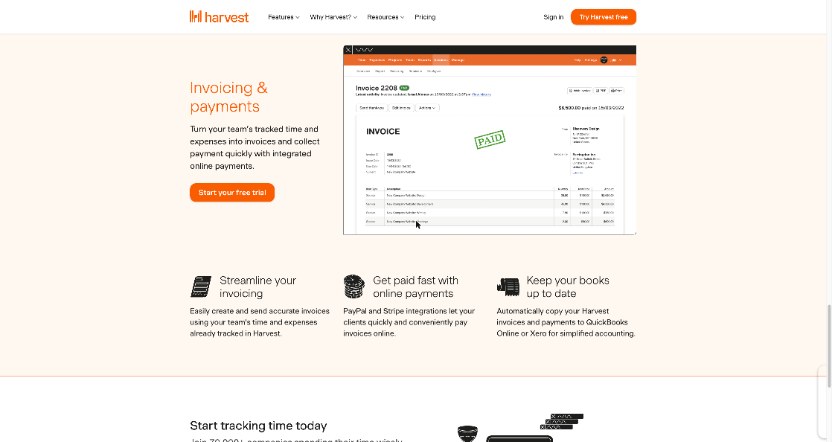
The retainer invoice pulls in the month’s billable hours and any expenses. Because you wrote a note on each entry, the line items explain themselves.
The fixed-fee invoice is usually billed in parts, for example a deposit at the start and the balance on delivery, according to your contract. The hours you tracked stay in Harvest for your own analysis; the client sees the agreed amounts.
Getting paid on the Free plan
Here is the catch I mentioned. Harvest’s features page says PayPal and Stripe integrations let clients pay invoices online, and that Harvest can copy invoices and payments to QuickBooks Online or Xero. But on the plan comparison table, “Accounting and payment integrations” is ticked for Teams and Enterprise, not Free.
So on the Free plan, plan on your clients paying the way they already do, such as bank transfer, and on keeping track of who has paid yourself. If online card payments are important to your cash flow, factor in Teams, or compare with other tools. I covered payment reminders and deposits in my FreshBooks payment reminders guide, if collecting money is your main pain.
When the two-project setup stops working
The Free plan works beautifully for this exact mix, and it stops working the moment the mix changes. Watch for these signs:
- A third client signs. Two projects is a hard number. A third ongoing client is the clearest sign it is time to look at Teams.
- You bring in a subcontractor. Free is one seat. Billable and cost rates for teams, team reporting and project imports are Teams features.
- You want online payments or automatic sync to QuickBooks Online or Xero. As above, those integrations are listed under Teams.
What Teams costs
Teams is listed “starting from” $11 per seat per month on monthly billing, or $9 per seat per month billed annually ($108 per seat per year). Enterprise starts from $17.50 per seat per month, or $14 billed annually. Harvest’s pricing page also explains that on Teams and Enterprise “additional invoices, projects, clients, and tasks are billed based on what you use”, so the base seat price is not the whole story. If you upgrade, look at that usage section in your own account before committing to a year.
The smart way to start: trial first, then Free
Harvest’s paid plans come with a 30-day free trial, and no credit card is required. During the trial you can use many premium features, such as profitability reporting and timesheet approvals (SAML single sign-on is the exception).
Here is the useful part for freelancers: Harvest’s FAQ says that if your trial account meets the Free plan’s requirements, you can switch to the free version during the upgrade process, using the “switch to the free version” link below the plan options. If you do nothing at the end of 30 days, the trial account is deactivated, but Harvest says your data is not deleted.
So my suggestion is: start the trial, set up your retainer and fixed-fee project, run a full month, and then decide. If one seat and two projects still describe your business, switch to Free. If you have already outgrown it, you will know exactly which Teams features you are paying for.
Who should use something else
Harvest is a good fit if you want clean time tracking and invoicing in one place for a small number of projects. It is less of a fit if:
- You juggle many small clients. The two-project limit will bite quickly on Free.
- You mainly want time tracking, and invoice elsewhere. In that case, compare with how invoicing works with Toggl Track.
- You need full accounting. Harvest syncs to QuickBooks Online and Xero on paid plans, but it is not an accounting tool itself.
My verdict
For a freelancer with one hourly retainer and one fixed-price project, Harvest’s Free plan is a very good match: both project types are supported, estimates and invoicing are included, and the reports tell you whether your fixed fee was priced well. The limits are clear, too. One seat, two projects, and no payment or accounting integrations on Free. If you know those going in, Harvest is one of the cleanest ways to stop guessing about your time.
FAQ
Is Harvest free for freelancers?
Yes. Harvest has a Free plan at $0 forever with 1 seat and 2 projects, including time tracking, expense tracking and invoicing.
Can I track fixed-fee projects on Harvest’s Free plan?
Yes. The plan comparison lists support for both Time & Materials and Fixed Fee projects on Free, Teams and Enterprise.
Can clients pay Harvest invoices online on the Free plan?
Harvest offers PayPal and Stripe integrations for online payments, but its comparison table lists accounting and payment integrations under Teams and Enterprise, not Free.
How much does Harvest Teams cost?
Teams starts from $11 per seat per month billed monthly, or $9 per seat per month billed annually. Additional invoices, projects, clients and tasks are billed based on usage.
What happens when the Harvest trial ends?
If you do not upgrade within 30 days, the trial account is deactivated, but your data is kept. If your account meets the Free plan’s requirements, you can switch to Free during the upgrade process.