
Disclosure: some links on this page may be affiliate links. If you sign up through them, I may earn a commission at no extra cost to you.
Most freelancers open a time tracker, press start, and only think about settings when the first invoice comes out wrong. With Clockify for freelancers, that usually means one of three problems: hours logged to no project, a rate that silently changed old entries, or a client asking why 7 minutes became 15. All three are settings problems, and all three are easier to prevent on day one than to fix at month-end.
So instead of another feature tour, this is the checklist I would work through before logging a single billable hour. For each setting I note which Clockify plan it sits on, because Clockify’s free plan is generous for tracking but several billing tools start on paid tiers. Plan details come from Clockify’s pricing page as it reads today.
First, what the free plan covers (and what it does not)
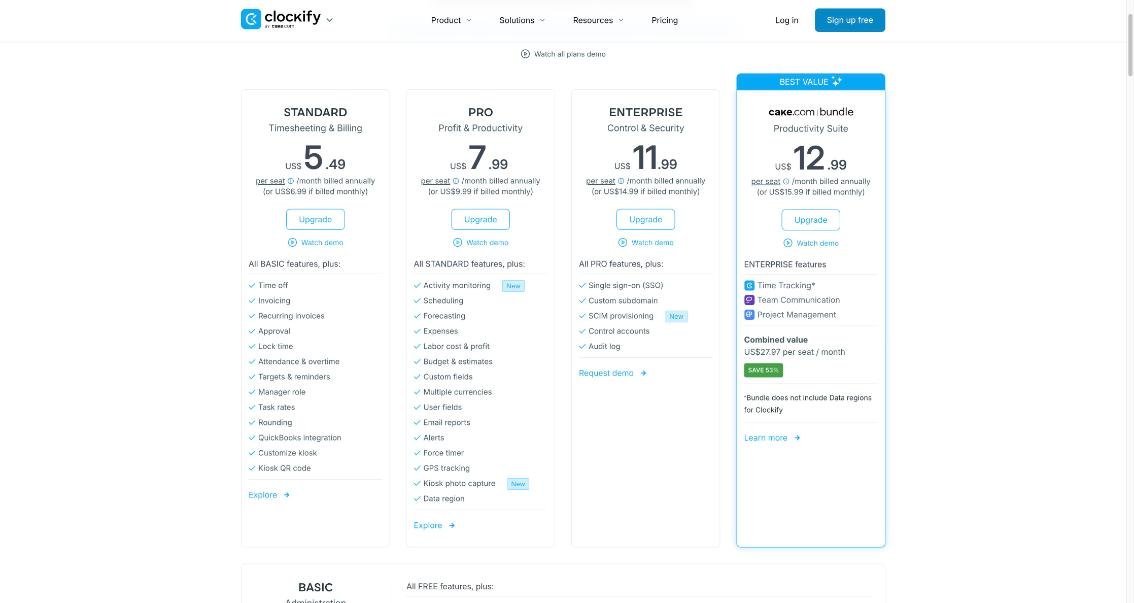
Clockify’s Free plan costs $0 and is listed “for up to 5 users”. It includes unlimited tracking, the time tracker, timesheet, auto tracker, calendar, mobile and desktop apps, a Pomodoro timer, idle detection and reminders, tracking integrations, team activity and reports. For a solo freelancer, that is everything you need to record time.
What it does not include is most of what you need to bill time. Billable rates, exporting and sharing data, required fields and historical rates start on Basic. Invoicing, rounding, task rates and locking time start on Standard.
| Plan | Price per seat (billed annually) | Billed monthly | Freelancer-relevant additions |
|---|---|---|---|
| Free | $0 | $0 | Unlimited tracking, timesheet, auto tracker, idle detection, reports |
| Basic | $3.99/month | $4.99/month | Billable rates, historical rates, required fields, export and share data, customized exports with your logo |
| Standard | $5.49/month | $6.99/month | Invoicing, recurring invoices, rounding, task rates, lock time, QuickBooks integration |
| Pro | $7.99/month | $9.99/month | Expenses, budgets and estimates, labor cost and profit, multiple currencies |
One rule to know before you invite anyone: Clockify says every active or invited user listed on your Team page occupies a paid seat. If you are a solo freelancer on a paid plan, inviting a client as a user to “see the hours” costs you a second seat. Shared report links (covered below) are the cheaper route.
Setting 1: get your profile basics right
Before anything else, open your profile and workspace settings and check your time zone, the first day of your week, and your date and time format. These look cosmetic, but they decide which day a late-evening entry lands on and how your weekly totals are grouped, and both of those show up in client reports.
If you bill by the hour, consider the decimal duration format too (listed on Basic). An invoice line of 2.75 hours is easier for a client to check than 2:45.
Setting 2: build clients and projects before you track
Create a client for every customer and a project for every separate piece of work you bill differently: a retainer, a fixed-fee project, an hourly support agreement. The temptation is one project per client, but the moment a client has both a retainer and a one-off project, you will want to report and invoice them separately.
I keep a simple naming rule: Client name – engagement type – start month. It makes the project list readable a year later, and it keeps old engagements from mixing with new ones in reports.
Setting 3: switch on idle detection and reminders
Idle detection and reminders are included on the Free plan, and they are the cheapest insurance a freelancer can buy. Idle detection catches the timer you left running over lunch; reminders nudge you when you forget to start one. Both protect the same thing: the honesty of the hours you put in front of a client.
Setting 4: let the auto tracker and calendar rebuild missed time
Also on Free, the auto tracker and calendar view help you reconstruct a day where you forgot the timer entirely. Use them as a recovery tool, not a billing tool: review what they show, then create proper entries against the right project. Anything you cannot connect to a client with confidence should stay off the invoice.
Setting 5: set billable rates at the right level
This is where most invoice errors start. Clockify supports several levels of hourly rate. Its rate example shows a workspace rate, a member rate, a project billable rate, a task rate and a project-specific member rate. Billable rates and historical rates are on Basic; task rates are on Standard.
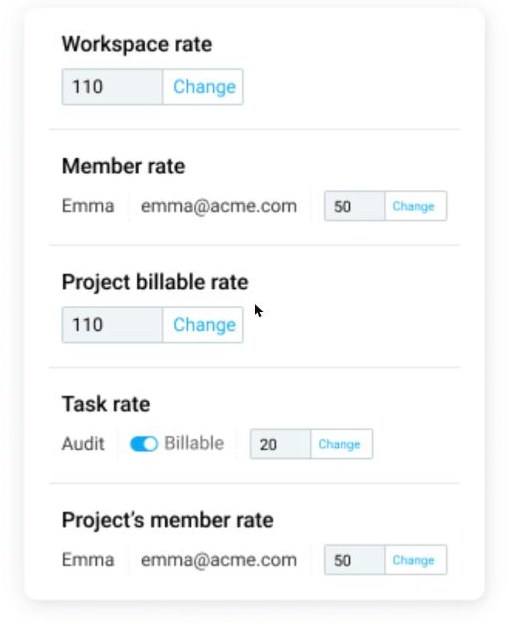
For a solo freelancer, a sensible setup is:
- Workspace rate = your standard hourly rate, as a safety net.
- Project rate = whatever you agreed with that client for that engagement.
- Task rates only if you genuinely charge different prices for different work inside one project (for example, strategy versus production).
Then use historical rates (Basic) when you raise your prices. Historical rates exist precisely so that changing a rate does not quietly rewrite the value of hours you already logged. Without that, a price rise in March can change the totals on February’s report.
Setting 6: make the important fields required
Required fields (Basic) let you insist that every time entry has, for example, a project or a description. For a freelancer, requiring a project is the single most useful rule: it makes “unassigned” hours impossible, and unassigned hours are the ones that never get billed.
If you also lock time (Standard) after each billing period, you stop old entries from being edited after you have already sent the invoice, which keeps your records consistent with what the client paid.
Setting 7: decide your rounding rule, then invoice from Clockify or elsewhere
Rounding is on Standard, and it applies to reports rather than to your raw entries. Clockify’s rounding options let you round up to a chosen interval (for example 15 minutes), round to the nearest interval, or round down.
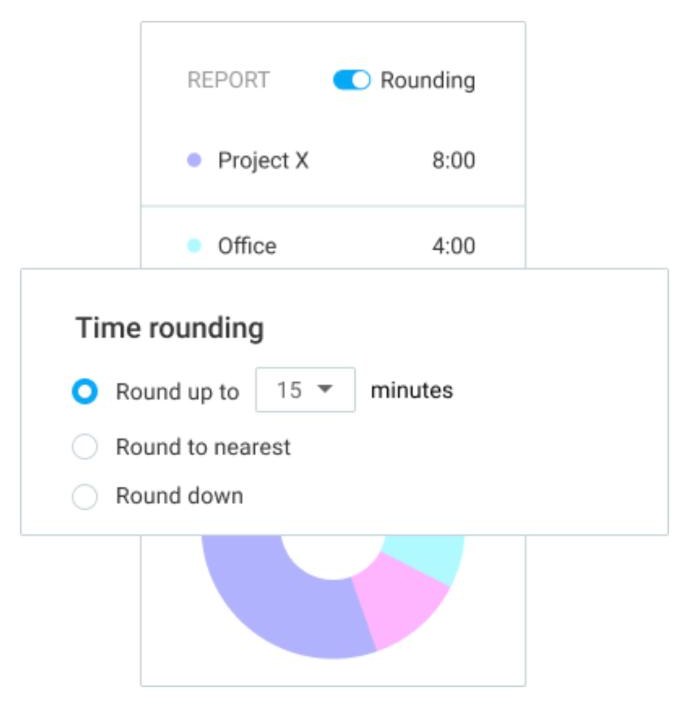
Whatever you pick, write it into your contract or proposal. “Time is billed in 15-minute increments, rounded to the nearest increment” is a sentence that prevents an awkward email. Rounding up on every entry can add up fast on a day of short tasks, so choose the rule you would be comfortable explaining line by line.
Invoicing is also on Standard. Clockify’s features page describes importing time into an invoice, editing it, adding your company logo and notes, and downloading or sending it to the client. Recurring invoices are included on the same plan, which suits fixed monthly retainers.
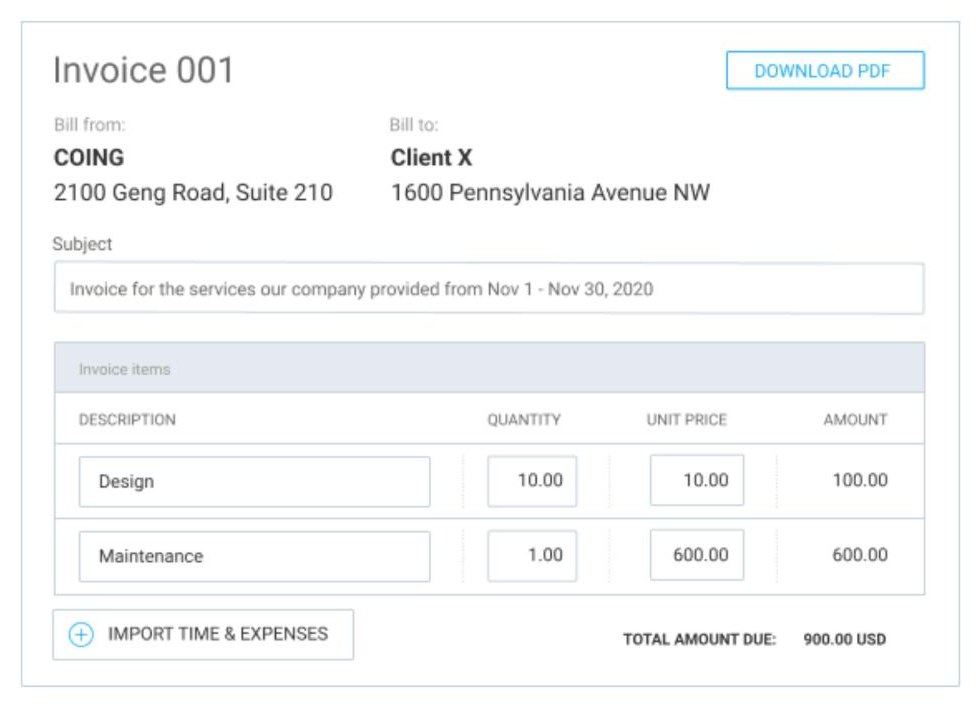
If you already invoice in a dedicated tool, you may not need Standard at all. Basic lets you export and share your data, so you can track in Clockify and bill elsewhere. My guide to FreshBooks payment reminders covers the invoicing side if you go that way, and my notes on Harvest for freelancers with retainer and fixed-fee clients compare a tool that bundles both.
See the interface first
If you have not used Clockify before, the official tour below is a quick way to see where these settings live before you create an account.
Sharing hours with clients without paying for a seat
Clockify’s features page lists sharing live reports via a link and downloading reports as PDF, CSV or Excel; export and share data is a Basic feature. For most freelancers that is better than inviting the client into the workspace: you control exactly which project and date range they see, and you do not take up a paid seat. Customized exports (also Basic) let you add your logo and remove columns the client does not need to see.
Which plan a solo freelancer actually needs
- Free if you only need an accurate record of hours and you price by project, not by the hour.
- Basic ($3.99 per seat per month billed annually, or $4.99 monthly) if you bill hourly, need rates and historical rates, and invoice in another tool. For one seat billed annually, that works out to $47.88 a year.
- Standard ($5.49 per seat per month billed annually, or $6.99 monthly) if you want rounding and invoicing inside Clockify. For one seat billed annually, that is $65.88 a year.
Pro is mostly for teams that need expenses, budgets and profit reporting. A solo freelancer can usually skip it unless expense tracking per client is essential.
Final thoughts
Clockify is easy to start and easy to misconfigure. Spend twenty minutes on these seven settings, decide in advance which plan you need for the way you bill, and your month-end report should match what you meant to charge. The free plan is enough to build the habit; upgrade only when a specific billing feature, such as rates, rounding or invoicing, earns its place.
FAQ
Is Clockify free for freelancers?
Yes. The Free plan costs $0 for up to 5 users and includes unlimited time tracking, timesheets, reports and the apps. Billable rates, exports and invoicing require paid plans.
Which Clockify plan includes invoicing?
Invoicing and recurring invoices start on the Standard plan, listed at $5.49 per seat per month billed annually or $6.99 billed monthly.
Can Clockify round my billable time?
Yes, on Standard. Rounding applies in reports, with options to round up, round to the nearest interval or round down.
Do I need to invite clients into Clockify?
No. Every active or invited user occupies a paid seat, so sharing a report link or an exported PDF is usually the better option for freelancers.
What happens to past hours when I raise my rate?
Use historical rates, available from the Basic plan, so that a new rate does not change the value of time you already logged.