
Most freelancers find out how international payments really work the hard way: a client in the US sends a wire, an intermediary bank takes a cut, your local bank adds its own conversion margin, and the amount that lands is noticeably smaller than the invoice. A Wise Business account is one of the most common ways freelancers try to fix that. This guide is not a general review. It focuses on one job: getting paid by overseas clients with a Wise Business account, and on the fees and limits you can check before a client ever sends money.
Everything below comes from Wise’s own pricing pages and help center, checked today. Wise prices differ by the country your business is registered in and they change from time to time, so treat the numbers as a starting point and confirm them on the Wise pricing page for your country before you rely on them.
What a Wise Business account actually gives a freelancer
The core idea is simple. Instead of asking a foreign client to send an international wire to your local bank, you give them local account details in their currency. A US client pays a US account number by ACH, a European client pays an IBAN by a normal euro transfer, and a UK client pays a UK account. To the client, it feels like paying a domestic supplier.
Wise says it supports sole traders and freelancers as well as companies, so you do not need to be incorporated. When you sign up, Wise checks whether it supports businesses in your country. Wise does not publish one simple list of supported business countries, so the sign-up flow is the place to confirm this for your location.
Once you are in, the main building blocks for a freelancer are:
- Local account details in several currencies, so clients can pay you domestically.
- Balances where money can sit in the currency you received it in.
- Conversion at the mid-market rate with a separate, visible fee.
- Invoices and payment links created inside the account.
- Accounting integrations with tools many freelancers already use.

Step 1: Check the one-time fee for your country
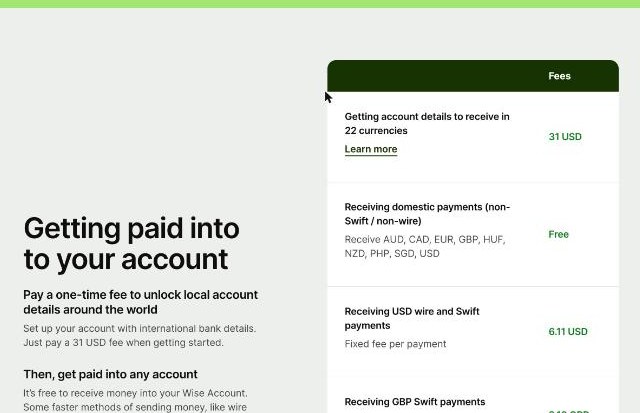
Wise does not charge a monthly subscription for its business account, but there is a one-time fee to unlock account details. On Wise’s US pricing page it is 31 USD. The UK page lists 50 GBP and the Ireland page lists 60 EUR. Wise’s help center explains that in most of the EEA and in Switzerland this is charged as a registration fee, while elsewhere signing up is free and the fee is charged when you get account details.
For a freelancer, this is easy to justify if you invoice foreign clients regularly. A single saved international wire fee can cover a large part of it. If you only get paid from abroad once or twice a year, do the math first.
Step 2: See which receiving fees apply to your clients
This is the section to read carefully, because it decides how much of each invoice you keep. Wise’s US business pricing page lists these receiving fees:
| How the client pays | Fee to you (per Wise) |
|---|---|
| Domestic payment (non-Swift, non-wire) in AUD, CAD, EUR, GBP, HUF, NZD, PHP, SGD or USD | Free |
| USD wire or Swift payment | 6.11 USD per payment |
| GBP Swift payment | 2.16 GBP per payment |
| EUR Swift payment | 2.39 EUR per payment |
The lesson is in the first two rows. A US client paying by ACH costs you nothing on the receiving side; the same client sending a wire costs you a fixed fee. So in your invoice, tell US clients explicitly to pay by ACH, not wire. Many accounts payable teams default to wires for foreign suppliers simply because nobody told them otherwise.
Wise also points out that the sender’s bank or intermediary banks may charge their own fees. Wise cannot control those, which is another reason to steer clients toward local transfers.
A note on which currencies you can get
Wise’s US page talks about account details in 22 currencies. However, Wise’s help center makes clear that you can only add a currency if it is available where your business is registered, and USD account details are not available in some regions. Check the list in your own account before you promise a client a specific payment method.
Step 3: Decide when to convert
Receiving the money is half the cost. Converting it into your home currency is the other half. Wise says it does not inflate the mid-market exchange rate and instead charges a separate conversion fee that varies by currency. On the US pricing page the fee starts from 0.23%, the UK page shows from 0.24% and the Ireland page from 0.2%. The exact percentage depends on the currency pair, so check it in the Wise calculator for your route.
Because money can sit in a balance, you do not have to convert the day it arrives. Some freelancers keep a USD balance to pay for software subscriptions billed in dollars and only convert what they need for living costs. That avoids converting money in and then back out again.
Step 4: Send invoices and payment links from Wise
Wise lets you create invoices for free inside your business account. You can download the invoice as a PDF or send it directly from Wise and track its status. Depending on availability, Wise’s invoice page lists bank transfer, Wise transfer, card, Interac, open banking and PayNow as ways a client can pay.
Wise also supports payment links. Its help center describes a permanent “open link” that you can add to any invoice template, including invoices you create in other tools, where the customer types in the amount. For freelancers who already invoice from another app, this is a neat way to add a “pay me” button without changing tools.
Card payments: check before you count on them
This is the detail most reviews skip. Wise’s help center says accepting card payments is currently unavailable to new Wise Business customers. Where it is offered, it is limited to businesses in certain locations (Australia, the EEA, Hong Kong, New Zealand, Singapore, the UK, Canada and the US) and has its own fees, such as 2.9% + $0.30 for domestic cards and 4.2% + $0.30 for international cards in the US. Card payouts can take up to 14 days. If your clients want to pay by card, check your own account before you put “card accepted” on an invoice.
Check Wise Business fees for your country
Step 5: Connect your accounting tool
If you already use invoicing or bookkeeping software, Wise lists integrations with QuickBooks, Xero, Sage, NetSuite, Wave, Zoho Books, FreeAgent, Odoo, Microsoft Dynamics 365 Business Central and Bonsai. Syncing transactions saves you from downloading statements every month, and Wise payment links can sit on invoices sent from those tools.
If you are still choosing an invoicing tool, I have written about FreshBooks payment reminders and the limits freelancers hit first in Zoho Invoice. Both pair naturally with a Wise account for receiving the money.
Limits and questions to expect
Wise says most currencies have no receiving limit. There are exceptions: for example, Wise lists receiving limits for India and the Philippines, and holding limits in Japan, Malaysia and Singapore. Wise may also ask about the purpose of large incoming payments, so keep your contracts and invoices tidy. That is good practice anyway.
Team features exist too. The account owner can give team members custom permissions, such as viewing balances or moving money, and payments can require approval. A solo freelancer may never need this, but it helps if you later bring on a virtual assistant or a bookkeeper.
The Wise business card is another regional feature. In Asia, Wise’s help center lists Singapore, Japan and the Philippines as supported for business cards, with a waitlist for other countries.
A simple setup checklist for overseas clients
- Sign up and confirm Wise supports businesses in your country.
- Pay the one-time fee and open account details in the currencies your clients use.
- Add the correct details to your invoice template, with a clear line such as “Please pay by ACH (US) or SEPA transfer (EU). Please do not send a wire.”
- Decide on a conversion rule: convert immediately, convert monthly, or keep part of the balance in the foreign currency.
- Connect your accounting tool, or add a Wise payment link to invoices created elsewhere.
- After the first payment, check what actually arrived against the invoice amount, so you know whether the client’s bank charged anything.
Who should not rely on Wise Business alone
- Freelancers whose country is not supported for business accounts. Confirm this in the sign-up flow before you send any client new bank details.
- Freelancers whose clients insist on paying by card. Card acceptance is currently not available to new Wise Business customers.
- Anyone who needs local account details in a currency Wise does not offer where they are registered. Check the currency list in your account first.
Wise’s official channel has a short overview if you prefer to see the account before signing up:
Final thoughts
A Wise Business account is most valuable for freelancers who invoice overseas clients regularly and can get those clients to pay locally. The one-time fee, free domestic receiving and transparent conversion fee make the real cost of each payment predictable. The two things to verify for your own situation are whether Wise supports businesses in your country and which currencies you can actually open. Do that, put clear payment instructions on your invoice, and most of the surprise fees disappear.
Get started with Wise Business
FAQ
Can freelancers open a Wise Business account?
Yes. Wise says its business account works for sole traders and freelancers, not only for registered companies. Wise checks during sign-up whether it supports businesses in your country.
How much does a Wise Business account cost?
There is no monthly subscription fee. There is a one-time fee to get account details, for example 31 USD on the US pricing page, 50 GBP in the UK and 60 EUR on the Ireland page.
Is it free to receive USD in Wise Business?
Receiving domestic USD payments such as ACH is free, according to Wise. USD wire and Swift payments cost 6.11 USD per payment on the US pricing page.
Can clients pay my Wise invoice by card?
Wise’s help center says card payments are currently unavailable to new Wise Business customers. Clients can still pay invoices by bank transfer and other methods Wise lists.
Does Wise Business integrate with accounting software?
Yes. Wise lists integrations with QuickBooks, Xero, Sage, NetSuite, Wave, Zoho Books, FreeAgent, Odoo, Microsoft Dynamics 365 Business Central and Bonsai.