
Disclosure: some links on this page may be affiliate links. If you sign up through them I may earn a commission at no extra cost to you.
It is Friday afternoon and you are writing an invoice. You know you worked a full week. You also know that Client A got far more of it than the retainer covers, Client B’s “quick fix” ate most of Tuesday, and Client C barely saw you. The trouble is that you only feel this. You cannot point to it, so you cannot have a calm conversation about scope, and next week looks exactly the same.
This article looks at Sunsama for freelancers through that one problem: seeing where your hours went by client, and catching overbooking before it happens rather than on Friday. Sunsama is usually reviewed as a calm daily planner for employees. Used with one channel per client, its planning and review rituals become a simple client-hours map. I will walk through the setup, the daily and weekly routine, what it costs, and when a plain time tracker is the better buy.
What Sunsama is, and what it is not
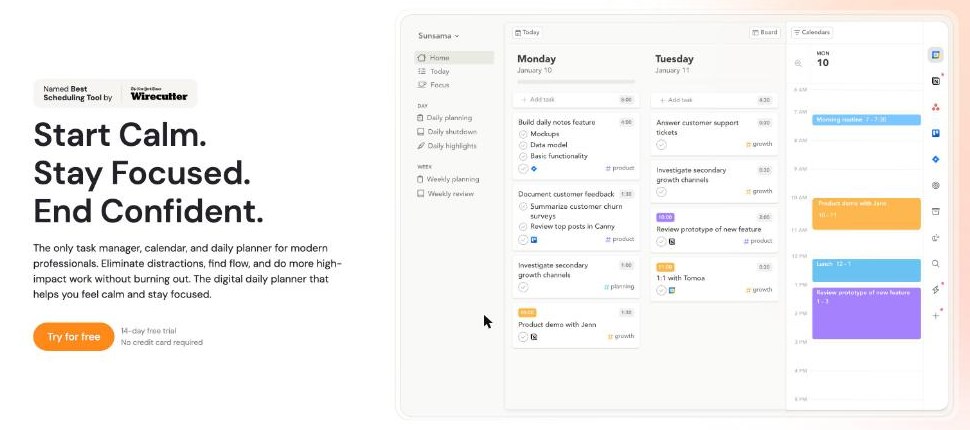
Sunsama describes itself as a task manager, calendar and daily planner in one. You pull tasks in from the tools you already use, plan a realistic day, drag tasks onto your calendar as time blocks, and close the day with a shutdown ritual. Its help centre lists integrations with tools such as Asana, Trello, Jira, ClickUp, Linear, GitHub, Gmail and Outlook, plus Google, Outlook and Apple calendars.
It is not a billing tool. It does not send invoices or replace a proper time tracker if your contracts require minute-level timesheets. What it gives you is planned time versus actual time, grouped in a way you choose. For most freelancers on retainers or fixed fees, that is the information that actually changes decisions.
The setup: one channel per client
Everything in this approach rests on one Sunsama concept: channels. In Sunsama’s own words, channels let you categorise tasks, events and objectives so you can see where your time goes each day, and the ritual flows show a breakdown of time by channel. Contexts group several channels so you can focus on one area at a time.
How I would structure it
- Context “Clients” with one channel per active client: #client-a, #client-b, #client-c.
- Context “Business” with channels for the work nobody pays for directly: #admin, #sales, #marketing.
- Context “Personal”, marked as personal in its settings.
That last step matters more than it looks. Sunsama’s documentation says tasks in a context marked as personal do not count toward your workload. So the gym, school pick-up and dentist appointments still appear on your plan without inflating the “am I overbooked?” number.
Sunsama’s own best-practice note suggests five to seven channels per context and warns against over-detailed taxonomies. For freelancers that fits nicely: one channel per client, not per project, until a client is big enough to justify more.
Shortcuts that make it stick
- When you type a new task, press # to assign a channel.
- Turn on AI channel recommendations in Settings > AI so new tasks get a suggested channel and fewer end up unassigned.
- Use Shift F to filter the whole workspace to one channel or context. A task you add while filtered is assigned to that channel automatically.
Link each channel to where the client’s work lives
The help centre lists channel links to a Slack channel, an Asana project, a Trello board, Apple Reminders and Toggl Track tags, clients or projects. If Client A runs everything in Asana and Client B lives in Trello, link each channel to that client’s board or project. Their tasks then arrive already sorted by client. If you already track time in Toggl, linking channels to Toggl clients keeps the two tools speaking the same language; I covered the billing side in my notes on Toggl Track invoicing.
You can also link a calendar to a channel. Sunsama says that when you import events from that calendar, the tasks get the linked channel, and when you timebox a task in that channel, the work session lands on that calendar. If a client gave you a seat in their Google Workspace, linking that calendar to their channel means your focus blocks for them appear where they can see them, and nowhere else.
The daily plan: catching overbooking before it happens
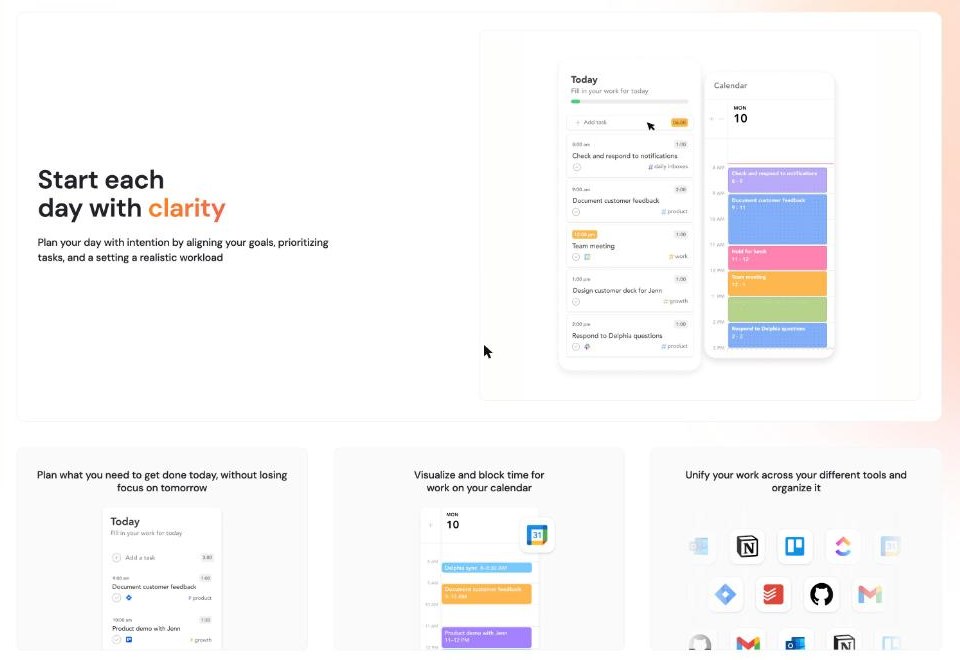
Sunsama’s guided daily planning walks you through a short flow each morning (or each evening, if you set your planning time after 3 PM, when it switches to planning tomorrow). The step that matters for multi-client freelancers is the predicted workload.
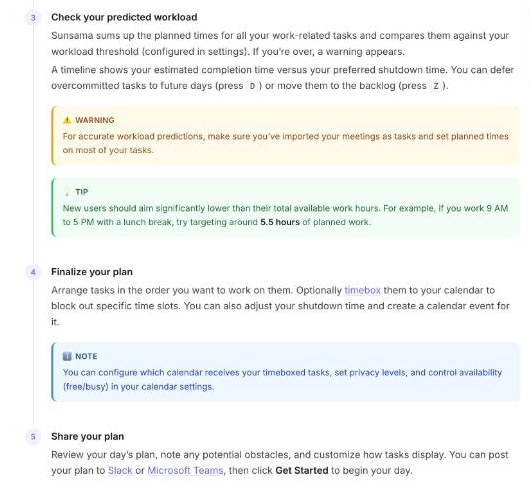
According to the user manual, Sunsama adds up the planned time of all your work tasks and compares it with a workload threshold you set. If you are over, it warns you, and a timeline shows your estimated finish time against your preferred shutdown time. You can then push tasks to another day or send them to the backlog with a keystroke.
Two details from the documentation are worth following:
- Import meetings as tasks and give most tasks a planned time. The manual warns that workload predictions are only accurate if you do. For freelancers, client calls are often the hidden half of the day.
- Aim lower than your total hours. The manual’s example: on a 9-to-5 day with lunch, target around 5.5 hours of planned work. Freelancers who also handle email, invoicing and sales should probably aim lower still.
Turning the warning into a client conversation
The workload warning is useful for you, but it becomes powerful when you use it with clients. When the plan for Wednesday is already over threshold and Client B asks for “a quick change today,” you are no longer guessing. You can see what would have to move, and to which day. Reply with that: “I can do it Thursday morning, or today if Client A’s report moves to Friday.” That is a scope conversation based on a plan, not on mood.
Sunsama also lets you share your daily plan to Slack or Microsoft Teams at the end of planning. If a client has you in their Slack, filter to their channel before sharing (Shift F works in daily planning too) so you post only their work, not your whole day.
The Friday answer: weekly review by client
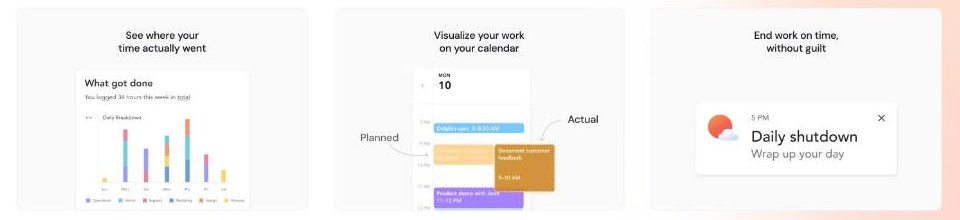
This is where the Tuesday question gets answered. Sunsama’s weekly review has three steps, according to its manual: review your weekly objectives, review your body of work with a time breakdown by day, and write a short reflection you can optionally share to Slack or Teams. Because every task carries a client channel, the time breakdown shows you how the week split between clients.
Three questions to ask in every weekly review
- Did any client get more time than their retainer covers? If yes, that is the week to raise it, while the numbers are fresh.
- Which client created the most unplanned tasks? Tasks added mid-day, not during morning planning, are your scope creep signal.
- How much went to #admin and #sales? Unbilled work is real work. If it is a quarter of your week, your rates need to cover it.
Use weekly objectives as client commitments. If you promised Client C a first draft this week, make it an objective and attach the related tasks to it. The review then shows not only time spent, but whether the thing they are paying for got done.
A note from the FAQ that will save confusion: if you open the weekly review between Sunday and Wednesday, you are reviewing the previous week; from Thursday to Saturday, you are reviewing the current one. Friday afternoon is a natural slot.
The daily shutdown: protecting the evening
Freelancers do not have a manager who sends them home. Sunsama’s daily shutdown ritual fills that gap: at your chosen time, you review what got done, move what did not, and close the day. If you skip it, the next morning’s planning starts by asking you to reconcile yesterday first, which is a gentle nudge rather than a punishment.
The client benefit is subtle. When you finish each day knowing exactly which client tasks moved to tomorrow, you stop sending late-night “just checking in” messages and replies. Clients notice when your messages arrive during working hours and with a clear next step.
What Sunsama costs

When I checked the official pricing page, Sunsama had a simple structure:
- 14-day free trial, no credit card required, with unlimited access to all features.
- Pro plan: $17 per month billed yearly, or $22 per month billed monthly (USD). It lists unlimited usage, unlimited integrations, and AI, MCP and Zapier access.
- Enterprise: contact sales, for SSO and SAML, SCIM, audit logs and custom privacy requirements. Not relevant to solo freelancers.
There is no free plan. For a freelancer, the honest question is whether $17 to $22 a month pays back. If the weekly review helps you bill or renegotiate even one extra hour a month, it usually does. If you are not going to run the rituals, it will not.
Use the trial well: set up your client channels on day one, run daily planning every working day, and do one weekly review at the end of week one and another at the end of week two. Two weeks of real data is enough to see whether the client breakdown changes anything.
Start a 14-day Sunsama trial on the official site
Sunsama or a time tracker?
They answer different questions. A time tracker answers “how long did I spend?”, which you need for hourly billing and timesheets. Sunsama answers “what should I do today, does it fit, and where did the week go?”, which you need to stop overbooking and to have scope conversations early. If clients pay you by the hour and require timesheets, keep your tracker; my Clockify settings guide covers a free option. If you work on retainers or fixed fees, Sunsama’s planned-versus-actual view may be all the tracking you need.
It also overlaps with tools like Akiflow, which pulls tasks from many inboxes into one place. I wrote about that in Akiflow for freelancers. The difference in emphasis: Akiflow leans toward fast capture and scheduling; Sunsama leans toward guided rituals and a realistic workload. If you need a coach more than a faster inbox, Sunsama is the closer fit.
Who should skip Sunsama
- Freelancers with one main client. A client breakdown is pointless with one client; a simple to-do list is cheaper.
- Anyone who needs invoices from timesheets. Sunsama does not invoice.
- People who will not do the morning plan. Without daily planning, the workload warning never fires and the weekly review has little to show.
- Tight budgets. There is no free tier after the trial.
Verdict
Sunsama is not built for freelancers, but its channels, workload warning and weekly review fit the multi-client problem surprisingly well. Set up one channel per client, give tasks planned times, keep personal tasks in a personal context, and you get a Friday view of where your hours went, plus a Wednesday warning before you agree to the extra request. If that turns even one vague “this client is taking too much time” feeling into a concrete conversation, the subscription has done its job.
FAQ
Is there a free version of Sunsama?
No. Sunsama offers a 14-day free trial with no credit card required. After that, the Pro plan is $17 per month billed yearly or $22 per month billed monthly.
Can Sunsama track time per client?
Indirectly. If you assign each task to a client channel and record planned and actual time, the ritual flows and weekly review show a breakdown by channel. It is not a timesheet tool for billing.
Do personal tasks count toward my workload in Sunsama?
Not if they are in a context marked as personal. Sunsama’s documentation says tasks in a personal context do not count toward workload.
Does Sunsama integrate with Toggl Track?
Yes. Sunsama’s help centre lists Toggl Track among the tools you can link to a channel, including Toggl tags, clients or projects.
Can I plan tomorrow in the evening instead of in the morning?
Yes. If you set your planning time after 3 PM, Sunsama switches to evening mode and plans the next day.