Disclosure: some links on this page may be affiliate links. If you sign up through them I may earn a commission at no extra cost to you.
Sooner or later a client sends the message: “We use Hubstaff for everyone who bills hours. Can you install it before Monday?” Most freelancers either say yes and hope for the best, or push back without knowing what they are pushing back on. Both are a mistake, because Hubstaff is not one fixed thing. Almost everything it records is a setting the client controls, and those settings decide how much of your screen, time and pay ends up in their hands.
This guide looks at Hubstaff for contractors from the side of the person being tracked. It explains what the app actually measures, which settings matter most to a freelancer, and a short list of things I would agree with the client in writing before installing it. Everything below comes from Hubstaff’s own pricing page, FAQ and help center.
What Hubstaff records, in plain terms
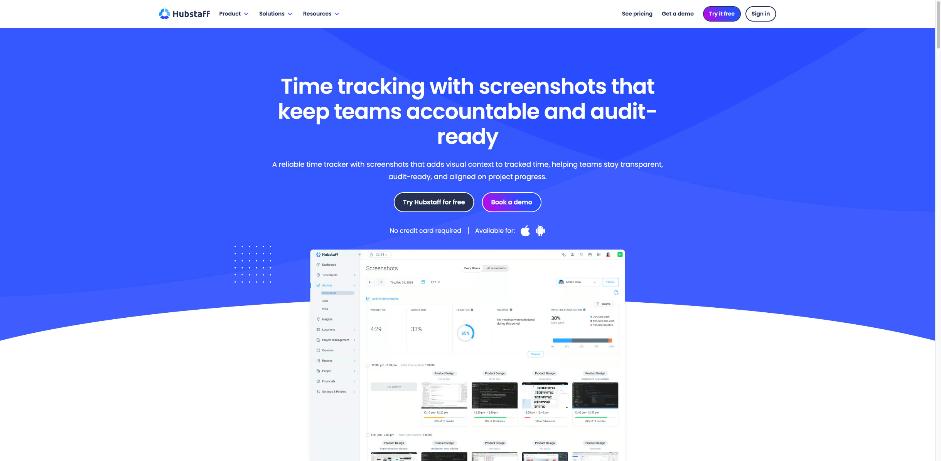
Hubstaff is time tracking software with productivity monitoring on top. When you press Start in the app, it begins recording. According to Hubstaff’s help center, it only records activity between Start and Stop, and it works out three things for each session.
Time, in 10-minute blocks
Tracked time is shown in 10-minute segments. If you start at 9:07, the first block shows only three minutes. That 10-minute block is the unit your client reviews and pays.
An activity percentage
This is the number that worries most contractors. Hubstaff’s help center says each tracked second is marked active or inactive: any keyboard or mouse input counts as active, no input counts as inactive. The seconds are added up into a percentage for each 10-minute block. Hubstaff also states clearly that it does not record specific keystrokes or mouse movements, only whether input happened.
Hubstaff’s own FAQ says that generally any activity above 50% is considered good, but that this varies by industry, role and session length. That last part is the important one for you. A developer reading documentation, a writer thinking through an outline or a designer reviewing a brief can all be working hard with very little keyboard input.
Screenshots, apps and URLs, if enabled
Screenshots are optional. The FAQ says they are configurable per user, can be turned off entirely, can be blurred, and that team members can be notified each time one is taken. Hubstaff can capture up to three screenshots every 10 minutes by default, and a “More screenshots” add-on raises that to up to ten every 10 minutes, including all secondary monitors in use. Apps and URLs tracking is a separate feature.
What it does not record
The FAQ is explicit: Hubstaff does not record keystrokes, video or audio. Location is only tracked through the mobile apps, while tracking time, and only after you grant location permission on the device.
The settings a contractor should care about
Because almost everything is configurable per user, the useful question is not “is Hubstaff invasive?” but “how is my profile going to be set up?” These are the settings I would ask about.
1. Screenshots: on, off or blurred
If your work involves client data from other clients, password managers, banking or personal email, unblurred screenshots are a real problem. Ask whether screenshots are needed at all for your role. If they are, ask for blurring and notifications. Also ask whether the client has bought the More screenshots add-on, because that is what extends capture to every monitor you use.
2. Who can delete screenshots, and what deleting costs you
This one surprises people. Hubstaff’s FAQ says team members can delete their own screenshots. The help center adds a detail that matters: a regular user removes the whole block of activity, which means the screenshot and the time attached to it. Only owners and managers (and project managers on their projects) can delete a screenshot and keep the time. Deleted screenshots and time cannot be recovered.
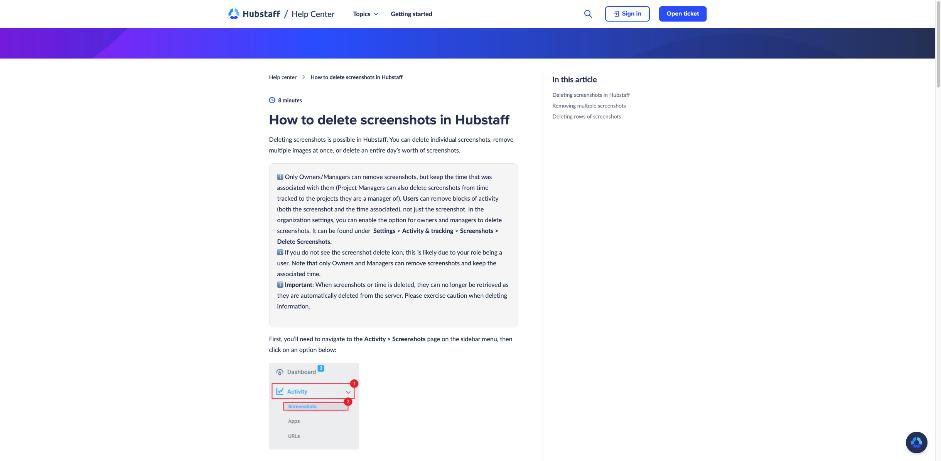
In practice, if a screenshot catches something private, deleting it yourself can mean deleting paid minutes. Agree upfront how that situation is handled: for example, you delete the block and add the time back as a manual entry with a note, or you ask a manager to remove only the image.
3. Idle time and whether it is kept
When there is no keyboard or mouse input for a while, Hubstaff can treat that time as idle. The help center explains that blocks at 0% activity can be removed from timesheets, and that a “Keep idle time” setting can be set to “Always” or “Never” on the Team and Enterprise plans. The pricing page also lists idle timeout, custom idle timeout and auto-discard idle time as plan-dependent features.
For a contractor this is the setting most directly connected to pay. If your work includes calls, reading or sketching on paper, ask what the idle timeout is and whether idle time is discarded automatically or reviewed first.
4. Manual time and approvals
Ask whether you can add manual time for offline work, and whether it needs approval. Timesheet approvals are listed on the higher plans. Knowing the process up front avoids arguments about meetings or phone calls that happened away from the computer.
5. Silent and automatic tracking
Hubstaff sells a “Silent app” add-on that tracks time and activity in the background on company-owned devices, with automatic start and stop policies. The FAQ itself recommends automatic background tracking for company-owned devices. If you work on your own laptop, it is reasonable to ask that you use the normal desktop app with visible Start and Stop controls.
6. Insights and unusual activity alerts
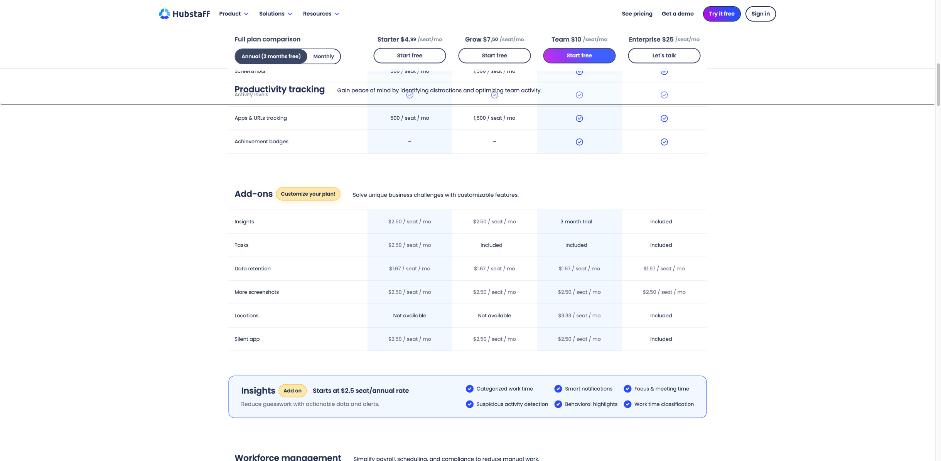
The Insights add-on adds categorized work time, focus and meeting time, smart notifications and suspicious activity detection. The FAQ says it can detect auto clickers or mouse jigglers and alert managers. Worth knowing: the client may see productivity categories and alerts, not just hours.
What the client pays, and why that matters to you
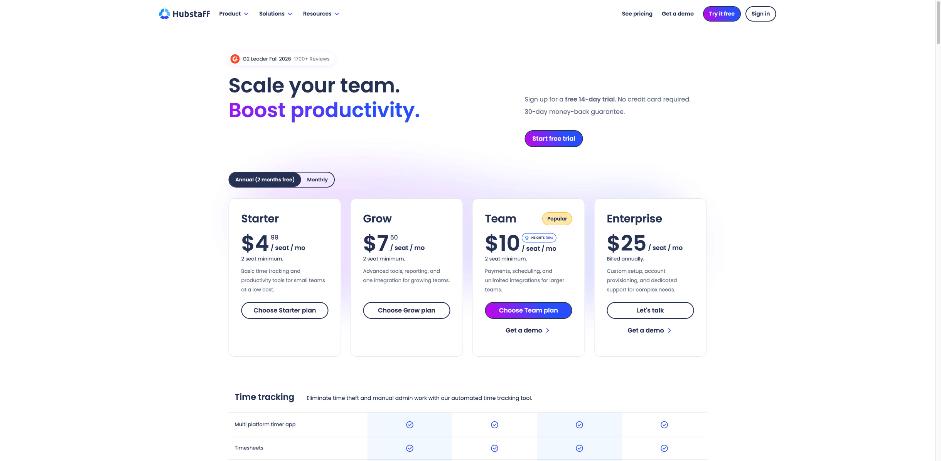
Hubstaff bills per seat, and the client pays for your seat. These are the per-seat prices on Hubstaff’s pricing page with annual billing selected:
| Plan | Per seat per month (annual) | Notes from the pricing page |
|---|---|---|
| Starter | $4.99 | 2-seat minimum, basic time tracking and productivity tools |
| Grow | $7.50 | 2-seat minimum, advanced tools, reporting, one integration |
| Team | $10 | 2-seat minimum, payments, scheduling, unlimited integrations |
| Enterprise | $25 | Billed annually, custom setup and dedicated support |
Add-ons are charged per seat on top: Insights from $2.50, More screenshots $2.50, Silent app $2.50, Tasks $2.50 and Data retention $1.67 per seat per month, with Locations at $3.33 on the Team plan. Some are included on higher plans.
Why should a contractor care about the client’s bill? Because the plan decides which settings exist. Idle-time controls and timesheet approvals are not on every tier, and screenshots on the lower tiers come with per-seat monthly caps in the pricing table. If a client says “we can’t change that”, the honest answer is sometimes “not on your plan”, and it helps to know that before you negotiate.
Two more details from the FAQ: there is a 14-day free trial with no credit card, and users who only need to view reports can be given a free Project Viewer role. If you manage your own subcontractors, that role is useful for letting someone see reports without paying for a tracking seat.
Payments through Hubstaff
The Team plan lists payments and payroll features, and Hubstaff’s FAQ lists integrations with platforms such as Deel, QuickBooks and Wise. Some clients approve your Hubstaff timesheet and pay from it directly, so the tracked hours become your invoice. If that is the setup, the settings above are not just about privacy, they are about what you get paid. If your client pays through Deel, my notes on receiving payments with Deel as a contractor cover the other half of that flow.
A one-page agreement before you install
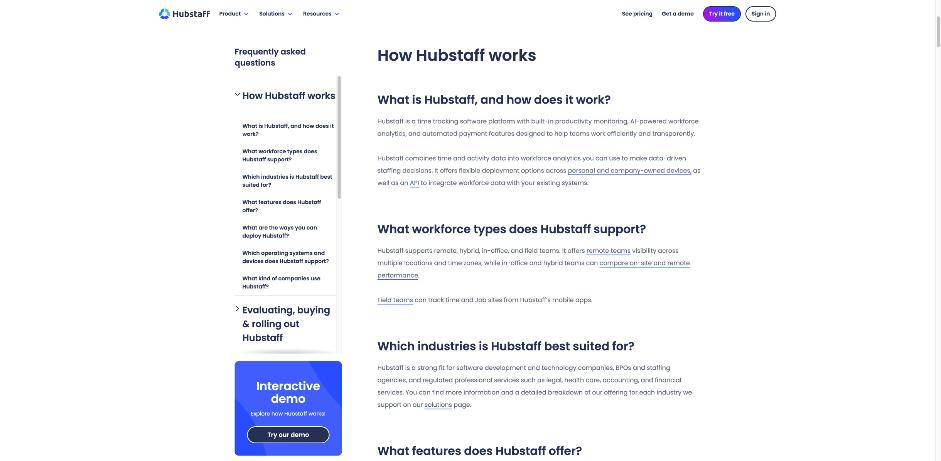
Hubstaff’s own FAQ recommends that companies disclose when and how they use Hubstaff to employees or contractors before using it. Take them at their word and ask for that disclosure in writing. A short email is enough. I would cover these points:
- Scope: which projects you track in Hubstaff, and that you track only when working on this client’s work.
- Screenshots: on or off, blurred or not, how many per 10 minutes, and which monitors.
- Apps and URLs: whether they are tracked, and that personal browsing outside tracked time is not in scope.
- Idle time: the timeout, and whether idle time is discarded automatically or reviewed with you first.
- Offline work: how calls, reading and research away from the keyboard are logged and approved.
- Deleting screenshots: what happens to the time if you remove a screenshot that captured something private.
- Device: normal desktop app with visible controls on your own machine, no Silent app.
- Activity scores: that activity percentage is not used as the sole measure of your output.
None of this is hostile: you are only asking the client to confirm settings Hubstaff itself says should be transparent.
Practical habits once it is installed
- Use a separate browser profile or desktop for the client. It keeps other clients’ tabs and personal accounts out of screenshots and URL logs.
- Stop the timer before switching contexts. Hubstaff only tracks between Start and Stop, so the cleanest protection is to stop it whenever you move to another client.
- Review your own data weekly. The FAQ says team members can review their hours, activity and screenshots. Check your timesheet before the client does.
- Add notes to low-activity blocks. A note like “reading API docs” next to a 20% block avoids a question later.
If you also track your own hours for other clients, keep that in a separate tool you control. My guide to Clockify settings for freelancers covers a simple setup for that.
When to say no
Hubstaff can be a fair arrangement, especially on hourly contracts where the client wants proof of work. But I would push back or renegotiate when:
- The project is fixed-price. Tracking activity on a fixed-price deliverable adds surveillance without changing what the client pays.
- The client wants screenshots of every monitor on your personal machine and will not blur them.
- Idle time is discarded automatically and your role involves a lot of thinking, reading or calls.
- The client asks for background tracking without visible controls on a device you own.
My take
Hubstaff is less scary than its reputation once you know that almost every feature is a per-user setting. It does not log keystrokes, video or audio, screenshots can be blurred or turned off, and you can review your own data. The real risks for a contractor are quieter: idle time being discarded, deleting a private screenshot also deleting paid time, and screenshots catching other clients’ work. Settle those in one short email before you install, and Hubstaff becomes a timesheet rather than a trust problem.
FAQ
Does Hubstaff record keystrokes?
No. Hubstaff’s FAQ says it does not record keystrokes, video or audio. The activity rate only checks whether keyboard or mouse input happened, not what was typed.
Can I delete Hubstaff screenshots as a contractor?
Yes, team members can delete their own screenshots. According to the help center, a regular user deletes the whole block, meaning the screenshot and the time attached to it. Owners and managers can delete only the image and keep the time.
What is a good Hubstaff activity percentage?
Hubstaff’s FAQ says anything above 50% is generally considered good, but that healthy activity varies by role, industry and session length.
Who pays for Hubstaff when a client asks me to use it?
Hubstaff bills per seat to the organization. Plans start at $4.99 per seat per month billed annually on Starter, with a two-seat minimum.
Does Hubstaff track my location?
Only through the mobile apps, while you are tracking time or using fleet tracking, and only after you grant location permission on your device.