
Hourly freelancing rarely runs on one rate. A long-standing client gets a retainer rate, a newer client pays your standard rate, and rush work or a specialist task is billed higher. Most freelancers handle that in a spreadsheet at invoice time, which is exactly where hours get lost or billed at the wrong price.
This guide looks at RescueTime Timesheets from that one angle: how to set it up so that every tracked hour lands on the right client, at the right rate, and comes out of the report ready to invoice. RescueTime is better known as a focus and distraction-blocking app, but its Timesheets side has a rate system that is more flexible than most freelancers expect. All features and prices below come from RescueTime’s pricing page and its Solo Timesheets feature page as they read today.

First, which RescueTime plan has Timesheets?
This trips people up, because the cheapest paid plan does not include it. RescueTime sells four plans, and only the “+” plans bundle Timesheets with Focus.
| Plan | What it includes | Monthly billing | Annual billing |
|---|---|---|---|
| Solo | Focus | $9/month | $7/month ($84/year) |
| Solo+ | Timesheets + Focus | $15/month | $12/month ($144/year) |
| Team | Focus | $12/month per user | $10/month per user ($120/year) |
| Team+ | Timesheets + Focus | $18/month per user | $16/month per user ($192/year) |
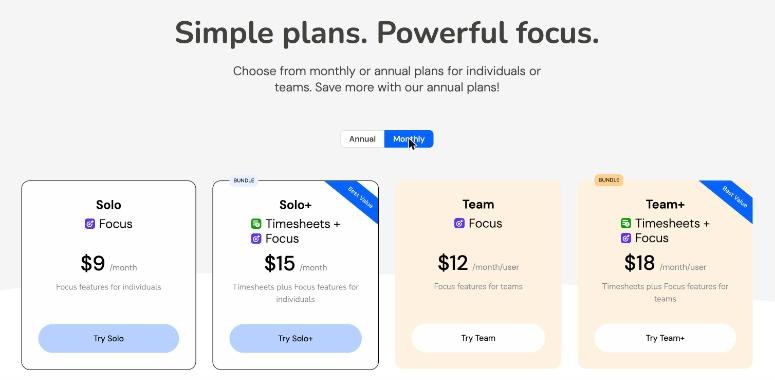
For a one-person business, the plan to look at is Solo+. Every paid plan comes with a 14-day free trial, and RescueTime says no payment is taken until the trial ends. A few other billing details from its FAQ are worth knowing: it accepts cards and PayPal, invoice billing is only for teams of 100 or more users, it does not charge sales tax or VAT on subscriptions, and if a payment fails the account may drop back to the Lite plan.
How RescueTime decides which rate an hour gets
The key to this whole setup is one small line in RescueTime’s project settings. When you create a project and switch on Billable, the form shows a rate field and this note: “Effective rate priority: task > project > client > user.”
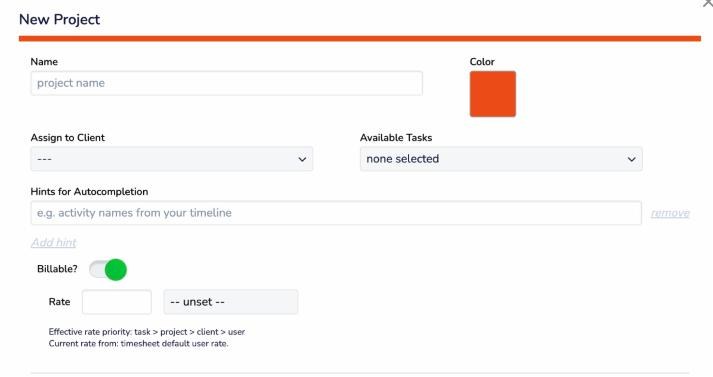
In plain terms, RescueTime lets you set billable rates at four levels: tasks, projects, clients and team members (for a solo freelancer, that last one is your own default rate). When an hour is tracked, the most specific rate wins:
- If the task has a rate, that rate is used.
- If not, the project’s rate is used.
- If the project has none, the client’s rate is used.
- If nothing else is set, your default user rate applies.
That order is what makes multiple rates manageable. You set a sensible rate once at the client level, then override only the exceptions.
A worked example: three clients, four rates
Here is an example setup for a freelance web designer. The rates are made up for illustration; plug in your own.
- Your default user rate: $50/hour. This catches any billable work you forget to assign, so nothing is ever billed at zero.
- Client A, a retainer client: $60/hour, set at the client level. All of Client A’s projects inherit it.
- Client B, a standard client: $75/hour, set at the client level.
- Client B, task “Rush fixes”: $110/hour, set at the task level. Because tasks beat clients in the priority order, only the rush work bills higher.
- Client C, project “Brand refresh”: $90/hour, set at the project level for one specialist project, while Client C’s other projects stay on its normal client rate.
The point is that you only ever touch a rate where it differs from the level above it. When Client B’s rush work is done, you stop logging time to that task and everything else for Client B stays at $75 without any edits.
Setting it up in RescueTime Timesheets, step by step
1. Import your clients and projects
If you already keep a list of clients and projects, RescueTime supports CSV imports of projects, clients and tasks, so you do not have to type them in one by one.
2. Turn on Billable and set rates at the right level
Use the client level for each client’s normal rate, the project level for a project priced differently, and the task level only for true exceptions such as rush work. Set your own default rate as the safety net. RescueTime also supports tracking and reporting in your preferred currency, which matters if your clients pay in different currencies.
3. Add autocompletion hints to each project
This is the step that decides whether the rates are worth anything. RescueTime tracks your apps and websites in the background, and “autocompletion hints” tell it which activity belongs to which project. The feature page says you can add details such as file names, apps or websites for each project. In practice, that might be the client’s Figma file name, their staging site domain, or the name of their shared folder.
RescueTime also offers suggestion review, where you approve its time suggestions before they go on your timesheet, and says it “learns from history,” getting better at matching time to projects the more you use it.
4. Log what the tracker cannot see
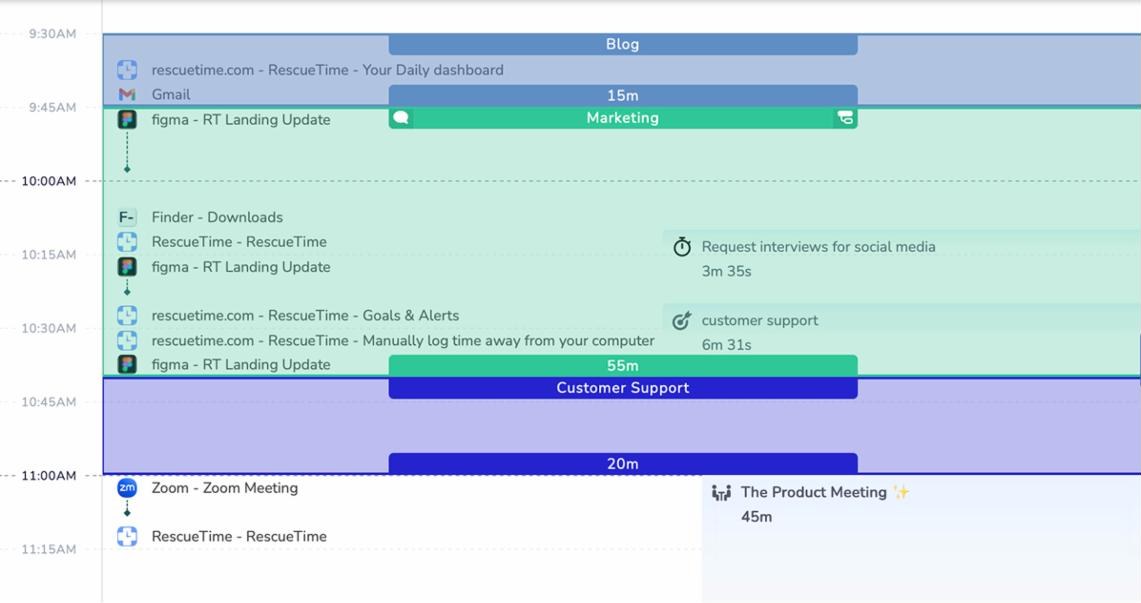
Client calls, workshops and thinking time away from the screen still bill. RescueTime lets you log offline activity, and you can connect your calendar so meetings appear on the timeline automatically. The feature page notes that meeting time from your calendar can be added to your projects.
5. Keep personal browsing off the timesheet
RescueTime’s customizable tracking lets you choose what appears on your timeline and what counts toward project time, so you can exclude personal or non-work activities. Do this before your first invoice, not after.
Turning tracked hours into an invoice
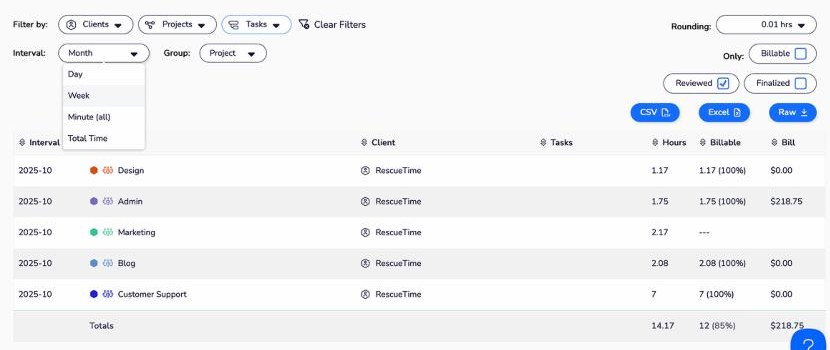
Once rates and hints are in place, the report is where the setup pays off. RescueTime’s reports can be filtered by billable hours, reviewed time only, client, task, project and date range, and grouped by project.
My suggested month-end routine looks like this:
- Filter by one client and the billing period.
- Tick “Reviewed” and “Billable.” That way only time you have approved, on billable projects, makes it into the total.
- Set rounding to match your contract. RescueTime lets you round tracked time “to the nearest precision or interval.” If your agreement bills in quarter hours, the report should too.
- Check the Bill column. The report shows hours, billable hours and a bill amount per row, calculated from the effective rates you set.
- Mark the period as finalized. RescueTime’s “finalized time” locks completed timesheets so they cannot be edited after review, which protects you if a client queries an invoice later.
- Export to CSV, Excel or raw data and attach it to the invoice, or paste the totals into your invoicing tool.
If you would rather run a lighter weekly check instead of a monthly one, the review routine I described for Rize’s automatic time log works with RescueTime too. The difference is that RescueTime’s rate hierarchy handles mixed rates inside the tool instead of at invoice time.
Where RescueTime Timesheets falls short for freelancers
A fair look at the limits, based on what RescueTime’s own pages describe:
- Check how far “invoices” goes. The Solo Timesheets page promises “timesheets, reports, and invoices in seconds,” but the features it actually lists for this are filtered reports and CSV, Excel and raw exports. I found no description of sending invoices or collecting payments, so plan on keeping your invoicing app and confirm the rest during the trial.
- The cheapest plan will not do this job. Billable rates and timesheets need Solo+ at $15 a month (or $12 a month billed annually), not Solo.
- Automatic tracking needs training. The hints and suggestion review are what make it accurate. Skip them and you will spend your month-end dragging blocks around.
- Background tracking is not for every client relationship. If a client contract restricts tools that record app and website activity on devices used for their work, check before installing.
Is RescueTime Timesheets worth it for an hourly freelancer?
If you bill by the hour at more than one rate, yes, it is worth a 14-day trial. The task, project, client, user priority order solves the most annoying part of mixed-rate billing, and features like reviewed-only filters, rounding and finalized time are exactly what you want between a tracker and an invoice. The Focus side, with distraction blocking, is a bonus included in the same price.
If you bill fixed project fees, it matters less. In that case, the more useful question is whether a project is running over its estimate, which I looked at in this Paymo guide to catching scope creep.
FAQ
Does RescueTime have timesheets?
Yes. RescueTime Timesheets tracks time by client, project and task and produces timesheet reports. It is included in the Solo+ and Team+ plans, bundled with RescueTime Focus.
How much is RescueTime Solo+?
Solo+ is $15 per month on monthly billing or $12 per month on annual billing ($144 per year). The Focus-only Solo plan is $9 per month, or $7 per month billed annually.
Can I set different hourly rates for different clients in RescueTime?
Yes. You can set billable rates for tasks, projects, clients and users. RescueTime uses the most specific one, in the order task, then project, then client, then user.
Does RescueTime round billable time?
Yes. Its timesheet features include time rounding to the nearest precision or interval you choose.
Can I export RescueTime timesheets for invoicing?
Yes. Timesheet data can be exported as CSV, Excel or raw data, and reports can be filtered by billable hours, reviewed time, client, project, task and date range.
Is there a free trial of RescueTime?
All paid plans include a 14-day free trial, and RescueTime says you are not charged until the trial ends.