
Disclosure: this article may contain affiliate links. If you buy through them, I may earn a commission at no extra cost to you.
Every freelancer has sent the awkward email. “Just checking in on invoice 1042…” You rewrite it three times so it sounds friendly, you send it a week later than you meant to, and the client still pays when they feel like it. The real problem is not the client. It is that following up depends on your memory and your mood.
FreshBooks can take most of that job off your plate. With FreshBooks payment reminders, a late fee rule and an upfront deposit, an invoice can chase itself on a fixed schedule while you get on with the work. In this guide I set up that system step by step, explain where each setting lives, and point out the details that are easy to miss, such as which settings apply to old invoices and which only apply to new ones.
Why FreshBooks payment reminders beat manual follow-ups
Manual chasing fails in predictable ways. You forget. You feel bad about nagging a client you like. You send the first reminder too late, so the second one never happens. Automated reminders fix all three, because the schedule is decided once, calmly, before any invoice is overdue.
FreshBooks lets you send up to three automated reminder emails per invoice. Each reminder fires a number of days before or after the due date that you choose. Combined with an optional late fee and a deposit request, that gives you three layers of protection:
- Deposits reduce how much money is at risk before work begins.
- Reminders keep the invoice visible without you writing a single email.
- Late fees give clients a clear reason to pay on time, as long as your contract supports them.
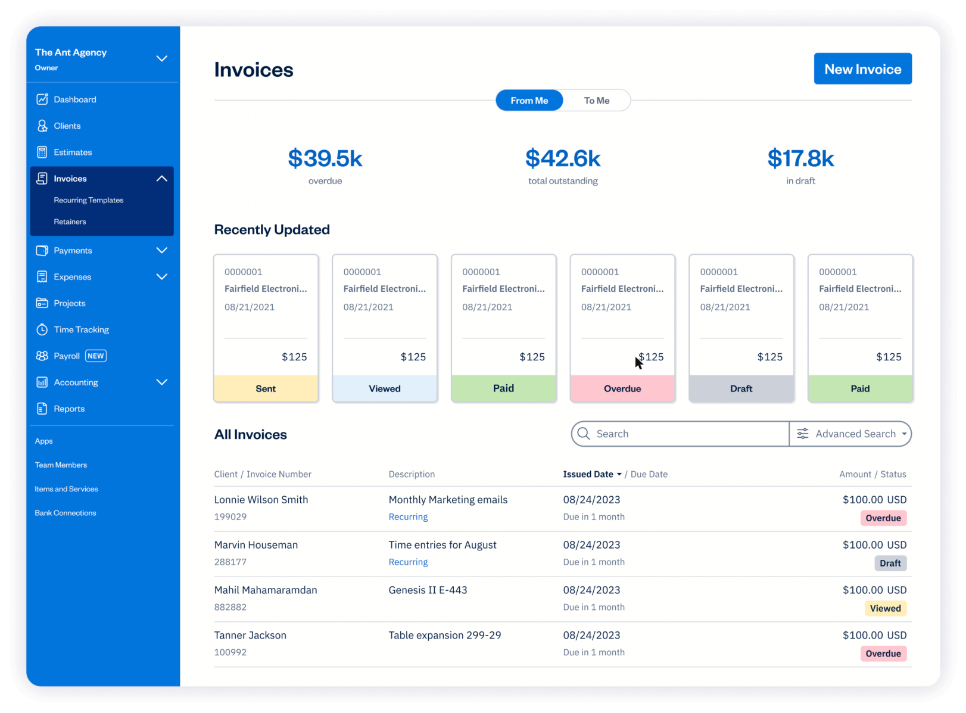
Step 1: Decide your reminder schedule before you touch the settings
The settings take two minutes. The thinking is what matters. Here is the schedule I would start with for most freelance work on 14- or 30-day terms:
| Reminder | Timing | Tone |
|---|---|---|
| #1 | 3 days before the due date | Friendly heads-up with the payment link |
| #2 | 3 days after the due date | Neutral: the invoice is now overdue |
| #3 | 14 days after the due date | Firm: mentions the late fee and next steps |
A “before” reminder is the most underrated of the three. Many late payments are not refusals. The invoice simply sank in an inbox. A short nudge before the due date catches those cases without anyone feeling chased.
Step 2: Turn on automatic reminders for a client
FreshBooks lets you set reminders at three levels: for all clients, for one client, or for one invoice. For a single client, the steps from FreshBooks’ help center are:
- Open the client profile, or open an invoice and find Client Settings.
- Select Send Reminders.
- Tick Automatically send payment reminders for this client’s invoices.
- For Reminder #1, enter the number of days and choose before or after the due date.
- Optionally add a personal message through the slider icon.
- Select Add Another Reminder to create the second and third reminders, then select Done.
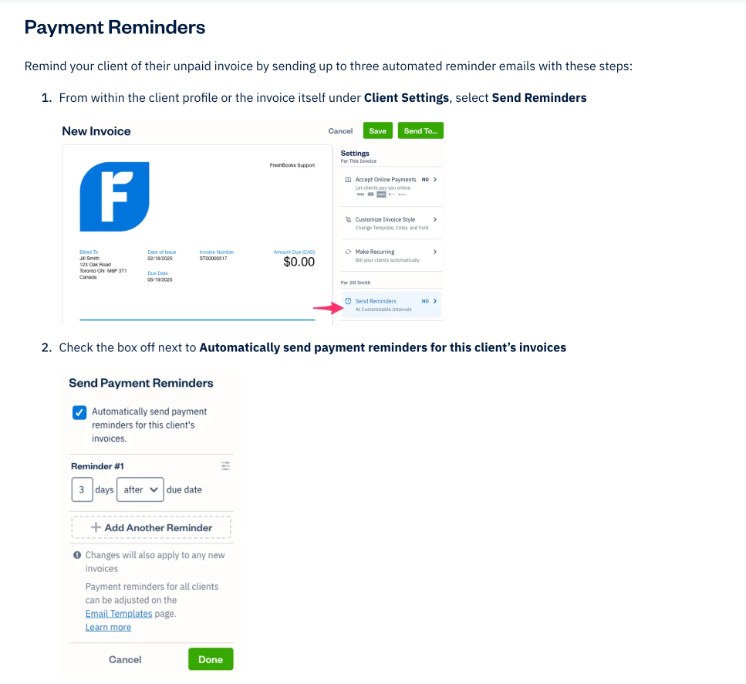
Two details are worth knowing. First, when you activate reminders for a client, FreshBooks applies them to that client’s existing and new invoices, and sends reminders for future dates. Second, reminders go to whoever the invoice was originally sent to, including any secondary contacts. If your client’s accounts payable person is not on the invoice, add them before the first reminder fires.
Setting reminders for every client at once
If you want the same schedule for everyone, FreshBooks points you to email customization instead of the client screen. Editing the three reminder emails there applies them to all clients’ new invoices and recurring templates from that point on, and overwrites previous reminder settings. Do this once when you set up your account, then adjust individual clients only when you have a reason to.
FreshBooks lists “Customize your email templates” among the Premium plan’s features on its pricing page, so check what your own plan allows before you rely on account-wide wording changes.
Step 3: Write reminders that sound like you
An automated reminder should still read like a person wrote it. Use the personal message field for each reminder and keep each one short. A pattern that works:
- Reminder #1: “Hi, a quick heads-up that this invoice is due on Friday. You can pay by card or bank transfer from the link below. Thanks again for the project.”
- Reminder #2: “Hi, this invoice is now a few days past its due date. If it is already in your payment run, please ignore this note.”
- Reminder #3: “Hi, this invoice is now two weeks overdue. As set out in our agreement, a late fee applies from today. Please let me know if anything is holding up payment.”
The second reminder gives the client an easy way to save face. The third one states the consequence plainly, without anger. Neither requires you to remember anything.
Step 4: Add a late fee rule (only if your contract allows it)
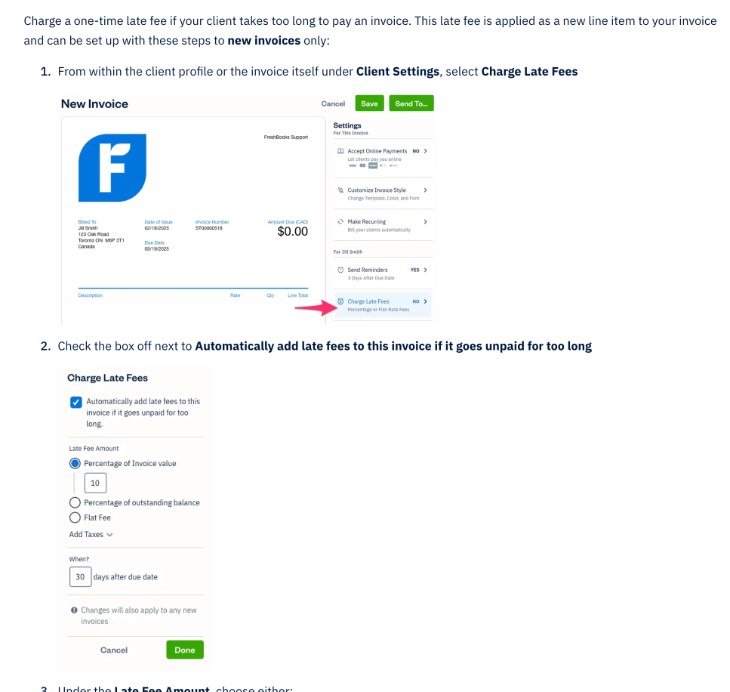
A late fee is the firmest layer, so set it up carefully. FreshBooks charges a one-time late fee, added to the invoice as a new line item. The steps are similar to reminders:
- In the client profile or under Client Settings on an invoice, select Charge Late Fees.
- Tick Automatically add late fees to this invoice if it goes unpaid for too long.
- Choose the fee type: a percentage of the invoice value, a percentage of the outstanding balance, or a flat fee.
- Add up to two sales taxes if they apply to the fee.
- In the When? field, enter how many days after the due date the fee applies, then select Done.
Late fee details that catch people out
- New invoices only. FreshBooks applies late fee settings to new invoices. Turning it on today will not add fees to invoices that are already overdue.
- It spreads to the client. Updating late fees on one invoice also applies to future new invoices for the same client.
- Percentage of value or of balance. If clients often pay part of an invoice, “outstanding balance” is the fairer choice, because the fee follows what is actually unpaid.
- Edit before it triggers. You can change the amount and timing only while the late fee date has not passed yet.
Before you switch this on, put the late fee in your contract or terms and mention it on your invoices. Rules on late payment charges differ between countries and states, so check what applies to you. I am not a lawyer, and this is not legal advice. Practically, a fee that surprises a client damages the relationship more than it helps your cash flow.
Match the timing to your reminders. In my schedule, the late fee applies 14 days after the due date, the same day Reminder #3 goes out, so the email and the fee tell the same story.
Step 5: Ask for a deposit so less money is at risk
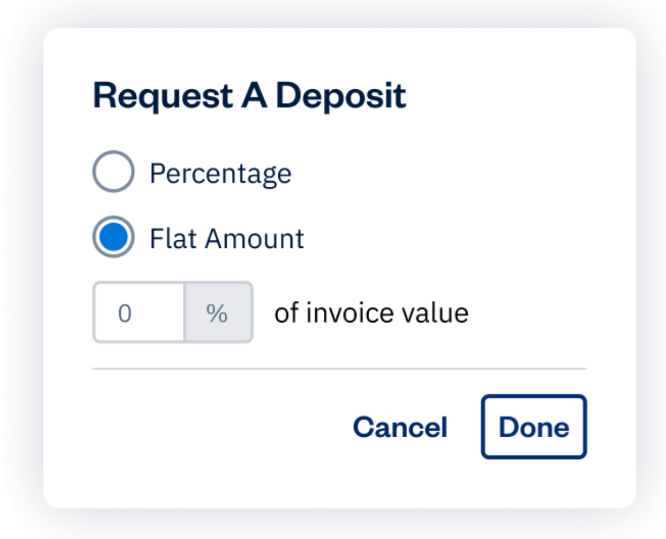
The best late payment is the one that never happens because most of the money arrived first. FreshBooks lets you request a deposit on an invoice:
- Go to Invoices and create a new invoice or edit an existing one.
- Under Amount Due, select Request a Deposit.
- Choose a percentage of the invoice value or a flat amount, then select Add Deposit.
- Save or send the invoice. It now shows the deposit due.
According to FreshBooks, the client has to pay the full deposit amount when paying online, so they cannot accidentally send a smaller partial payment through the payment link. For new clients, a 30% to 50% deposit before kickoff is a common freelance practice; pick whatever your contract states.
Step 6: Make paying easy
Reminders work best when the payment itself takes one click. FreshBooks’ pricing page lists card and debit payments, ACH bank transfer, Apple Pay, Google Pay and Buy Now, Pay Later on every plan. Turn on online payments for the invoice (under Client Settings, “Accept Online Payments”) so each reminder email carries a working payment link.
If you track hours before billing, connect this setup to your time tracking. I walked through a month-end billing run in my guide on Toggl Track client invoicing, and the same reminder logic applies once the invoice exists. If your inquiries come in through a booking page, my Calendly setup for freelancers covers collecting payment at the booking stage instead.
Set up reminders in FreshBooks
Which FreshBooks plan do you need for this?
FreshBooks prices its plans mainly by how many clients you can invoice. These are the regular monthly prices shown on the pricing page; at the time of writing, FreshBooks was also running a limited-time discount for the first months, so check the current offer before you buy.
| Plan | Regular price | Billable clients | Useful for this setup |
|---|---|---|---|
| Lite | $23 per month | 5 | Invoices, estimates, online payments |
| Plus | $43 per month | 50 | Adds proposals and client retainers |
| Premium | $70 per month | Unlimited | Adds email template customization and project profitability |
| Select | Custom | Unlimited | Lower card fees and capped ACH fees |
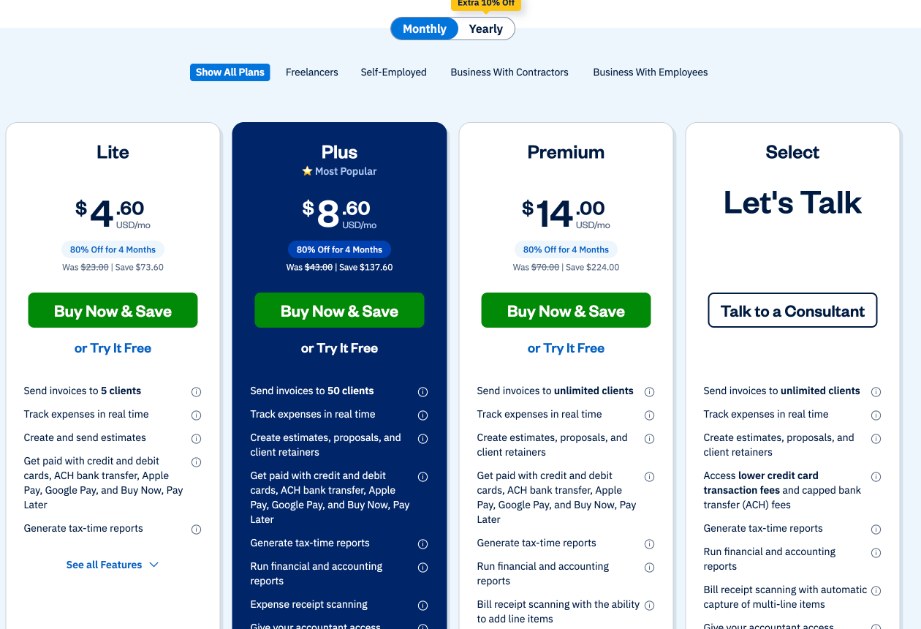
Add-ons can change the total: team members are listed at $11 a month per user, Advanced Payments at $20 a month, and FreshBooks Payroll at $40 a month plus $6 per user. FreshBooks also advertises a 30-day money-back guarantee.
My take: Lite is enough if you have a handful of regular clients. The five-client limit is the real constraint, so count active clients per month, not your whole history. If you work on retainers, Plus adds client retainers, which pair well with deposits for ongoing work.
Mistakes to avoid
- Turning on late fees without telling clients. Put the terms in your contract first.
- Only “after” reminders. The reminder before the due date prevents more late payments than the ones after it.
- Missing the right contact. Reminders go to the invoice recipients. Add the accounts team.
- Assuming late fees are retroactive. They only apply to new invoices.
- Forgetting online payments. A reminder without a payment link just creates another task for the client.
FAQ
How many payment reminders can FreshBooks send?
Up to three automated reminder emails per invoice. Each one can be set a number of days before or after the due date.
Do FreshBooks reminders apply to invoices I already sent?
Yes, when you turn reminders on for a client, FreshBooks applies them to that client’s existing and new invoices and sends reminders for future dates.
Can FreshBooks add late fees automatically?
Yes. You can add a one-time late fee as a percentage of the invoice value, a percentage of the outstanding balance, or a flat fee, a set number of days after the due date. It applies to new invoices only.
Can I request a deposit in FreshBooks?
Yes. Under Amount Due on an invoice, select Request a Deposit and choose a percentage or flat amount. Clients paying online must pay the full deposit.
Which FreshBooks plan includes payment reminders?
Reminders and late fees are part of FreshBooks invoicing. The pricing page lists email template customization on Premium, so check your plan if you want account-wide custom wording.
My verdict
FreshBooks will not make a bad client pay. What it does well is remove you from the follow-up loop. Set three reminders, a late fee that matches your contract, and a deposit for new clients, and most invoices will be paid without a single awkward email from you. For a freelancer with a few steady clients, that alone can justify the Lite plan.