Disclosure: this article may contain affiliate links. If you buy through them, I may earn a commission at no extra cost to you.
Most guides on Calendly for freelancers stop at “share your booking link.” That solves the easy part. The hard part of freelance scheduling is everything around the meeting: filtering out people who were never going to hire you, getting paid for consultations instead of giving them away, and turning a one-off session into a repeat client without chasing invoices in a separate tool.
This guide builds that whole path inside Calendly, step by step: a free discovery call, a paid strategy session, a prepaid package and a payment link for work that happens outside meetings. For each step I note which Calendly plan you need, using the plan details on Calendly’s own pricing and payments pages today.
The client intake flow in one picture
Before touching settings, decide what a new client goes through. Here’s the flow this guide builds:
- Discovery call (free, 20 minutes): a short call for qualified leads, protected by a few booking questions.
- Strategy session (paid, 60 minutes): a real working session that clients pay for at the moment they book.
- Package (prepaid): a bundle of sessions for clients who want ongoing help.
- Payment link or invoice: for project work that isn’t tied to a meeting at all.
The point of the structure is that every step filters. People who book a free call have answered your questions. People who book a paid session have already paid. People who buy a package have committed to several months. You spend your unpaid time only on the first step, and only with people who fit.
Which Calendly plan the flow needs
Calendly’s pricing page lists four tiers. Meeting invitees never need a seat or an account; seats are only for the people hosting meetings.
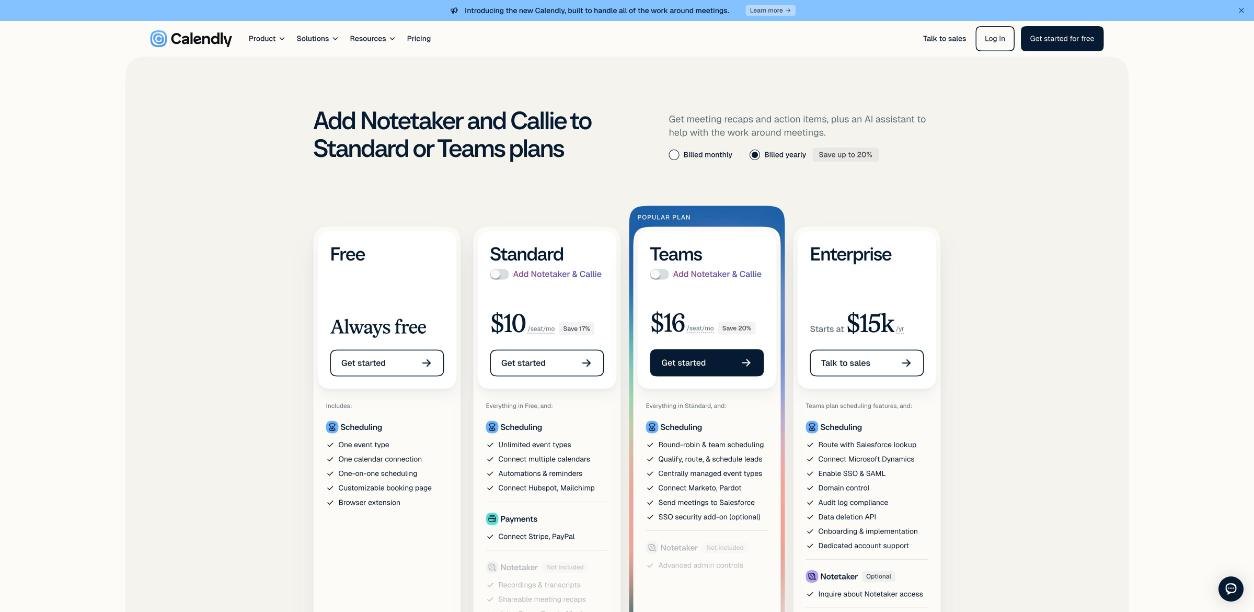
| Plan | Price per seat | What it means for a freelancer |
|---|---|---|
| Free | $0, always free | One event type, one connected calendar, unlimited one-on-one meetings, a customizable booking page |
| Standard | $12/mo monthly, $10/mo billed yearly | Unlimited event types, up to 6 calendars, reminders and automations, Stripe and PayPal payments |
| Teams | $20/mo monthly, $16/mo billed yearly | Round-robin scheduling, lead routing forms, Salesforce and Marketo connections |
| Enterprise | From $15k per year, 50 seats minimum | SSO, domain control, audit logs; not built for solo work |
The short version: the Free plan can run step one and nothing else, because it allows a single event type and doesn’t include payments. The moment you want a free call and a paid session side by side, you need Standard. For one person, that’s $10 a month on yearly billing. Teams only becomes relevant if you hire help and want bookings shared or routed between people.
Step 1: The free discovery call that filters itself
Create a 20-minute one-on-one event type and call it something that sets expectations, such as “Project fit call (20 min).” Short and specific works better than “Free consultation,” which invites people looking for free advice.
Add booking questions that qualify
Calendly lets you ask invitees questions when they book. Three are enough for most freelancers:
- What do you need help with? (one or two sentences)
- What’s your timeline?
- Which budget range fits this project? (offer three ranges, with your minimum as the lowest)
The budget question does most of the work. People below your minimum often choose not to book, and the ones who do arrive having already seen your range.
Protect your week with availability rules
Calendly’s pricing page lists availability controls on every plan, so even on Free you can limit discovery calls to a few slots, for example two afternoons a week. Unpaid calls are the easiest thing to over-book. Put them in a small box.
Use reminders and a cancellation policy on Standard
Automated meeting reminders and a meeting cancellation policy appear in Calendly’s comparison table as paid features, not Free ones. If no-shows on discovery calls cost you real time, those two features alone can justify upgrading.
Step 2: The paid strategy session
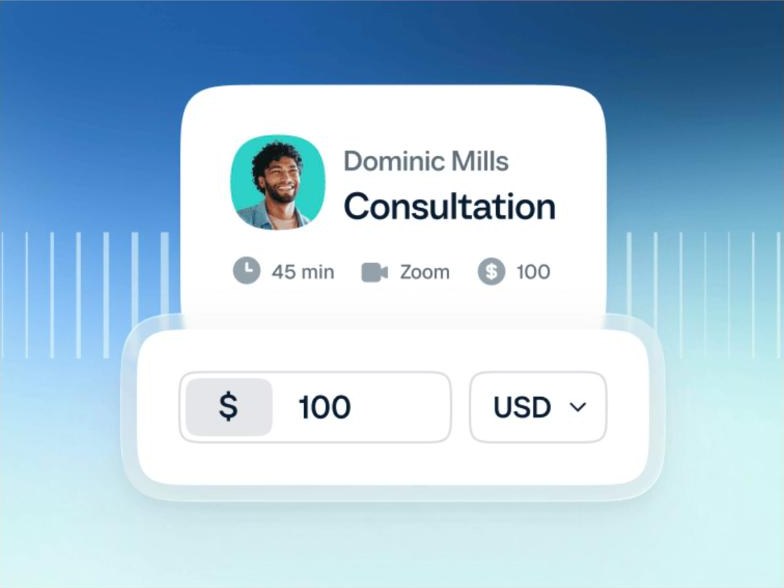
This is where Calendly stops being just a scheduler. On Standard and above, you can connect Stripe or PayPal and collect payment as part of the booking itself.
How to set it up
- Create a second event type, for example “Strategy session (60 min).”
- Connect your Stripe or PayPal account in Calendly’s integrations.
- In the event’s payment settings, set the price and currency.
- Write a short description that lists exactly what the client gets: the session, any notes or recording you send, and what happens next.
What it costs you
According to Calendly’s payments FAQ, Calendly doesn’t charge an extra fee for its payment features, but Stripe and PayPal transaction fees still apply. Funds are processed directly by your payment provider, and Calendly says clients can use Apple Pay or Google Pay through the Stripe integration, depending on their device and browser.
Why charging at booking helps
Calendly’s own FAQ makes the point that clients who pay upfront are more invested and more likely to show up. The bigger benefit is often on your side: you prepare differently for a paid session, and the client arrives ready to work rather than to “pick your brain.”
Set up paid bookings in Calendly →
Step 3: Packages for clients who come back
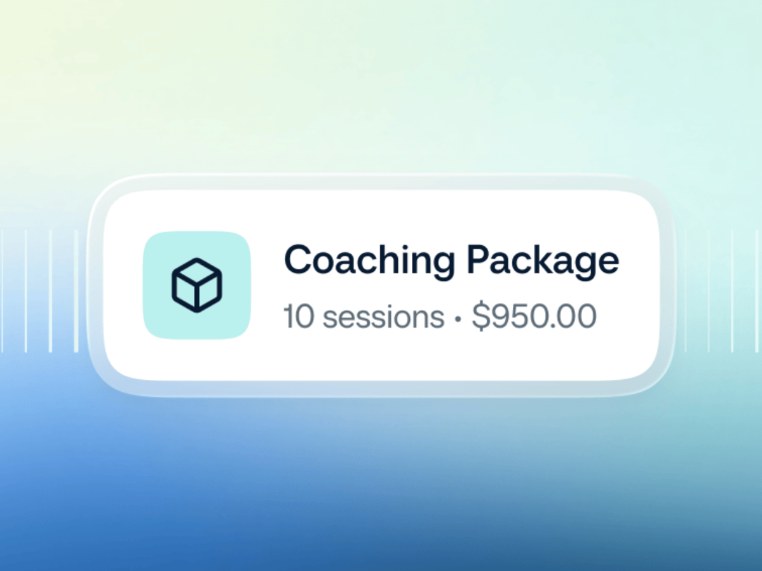
The third step turns a good session into ongoing work. Calendly’s payments page describes meeting packages as prepaid sessions that clients purchase once and schedule over time, and suggests them for coaching, consulting and long-term relationships.
A simple structure for freelancers:
- Monthly support package: four 45-minute sessions, booked whenever the client needs them within your availability.
- Project sprint package: three working sessions tied to a single deliverable.
Offer the package at the end of a paid strategy session, while the value is fresh. Calendly also lists discounts and coupon codes among its payment customizations, which is a clean way to credit the strategy session fee toward a package without manual refunds.
Step 4: Payment links and invoices for work outside meetings
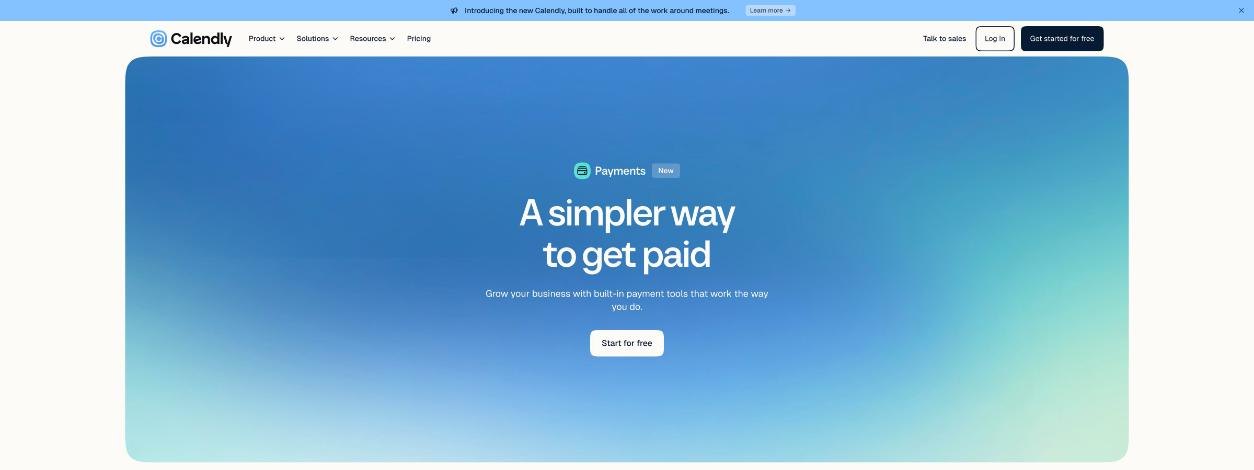
Freelancers get paid for plenty of work that never touches a calendar: a logo revision, a written audit, a website update. Calendly now covers that too. Its payments FAQ says you can use custom payment links to request payment for anything, including services that aren’t tied to bookings, and create invoices, share them by link or send them directly to contacts, then track their status.
Whether this replaces your invoicing software depends on your needs. If you mainly bill small, simple amounts and want everything next to your client’s booking history, keeping it in Calendly is convenient. If you need accounting integrations, tax handling or detailed reports, keep your accounting tool and use Calendly’s links only for quick one-off charges.
Calendly’s own channel has a short walkthrough of connecting Stripe and booking paid meetings, which covers steps 2 and 3 visually:
The extras worth knowing about (and the ones to skip)
Worth it for many freelancers
- Custom confirmation pages with redirects (paid plans): send clients who just booked to a page with your prep checklist or intake form.
- Removing Calendly branding (paid plans): a small touch, but it makes the booking page feel like part of your business.
- HubSpot, Mailchimp and Zapier connections (paid plans): useful if you already run a newsletter or a simple CRM and want bookings to land there automatically.
- Google Analytics and Meta Pixel tracking (paid plans): if you run ads to your booking page, you can measure which campaigns produce booked calls. If you advertise your services on Google Ads, tracking bookings as conversions is the difference between guessing and knowing.
Usually skip at first
- Notetaker: Calendly now offers an AI notetaker that joins Zoom, Google Meet and Microsoft Teams meetings and produces recaps. It’s sold as an upgrade on Standard and Teams, and Calendly notes it’s English-only for now. Useful, but not essential to the intake flow.
- Callie: a beta AI assistant you copy into email threads to suggest times and book meetings. Interesting for people who schedule a lot over email, but your booking link already does this job.
- Teams plan: round-robin and lead routing matter once you have colleagues. Solo, they add cost without a use.
If async communication is part of how you serve clients between sessions, my guide to Loom async video for small teams pairs well with this flow, and non-native English speakers writing client emails may find my Grammarly setup guide useful.
A sample week with the flow running
Here’s what this looks like for a freelance marketer on Standard:
- Tuesday and Thursday, 2–4 pm: four discovery-call slots open. Two get booked; one is filtered out by the budget question before it ever reaches the calendar.
- Wednesday: a paid strategy session, already paid through Stripe at booking.
- Friday: that client buys a four-session package with a coupon crediting the strategy session fee.
- End of month: a payment link goes out for a one-off landing page review.
Nothing in that week required an extra scheduling tool, a separate payment page or a manual “please send the money” email.
Build your intake flow in Calendly →
FAQ
Is Calendly free enough for freelancers?
Only for the simplest setup. The Free plan includes one event type and one calendar connection, with no payments. If you want a free call and a paid session at the same time, or reminders and a cancellation policy, you need Standard.
How much does Calendly cost for one person?
Standard is $12 per seat per month on monthly billing, or $10 per month billed yearly, according to Calendly’s pricing page. A freelancer working alone needs one seat.
Does Calendly take a cut of my payments?
Calendly says it doesn’t charge an additional fee for payment features. Stripe and PayPal transaction fees still apply.
Can clients pay after a session instead of at booking?
Yes. Calendly’s payments FAQ says payment links and invoices let you request payment at any time, separate from the booking.
Do my clients need a Calendly account?
No. Calendly’s pricing page states that meeting invitees don’t require an account or seat; only hosts need seats.