
Disclosure: some links on this page may be affiliate links. If you sign up through them, I may earn a commission at no extra cost to you.
Every freelancer who builds a website hits the same question on the same page: do I put my prices on it or not? Show them, and you filter out bad-fit clients before they write to you, but you may scare off a good client who would have paid more for a custom job. Hide them, and you get more inquiries, but many of them are people you would never work with. If you are building a Squarespace services page, the good news is that the platform supports all three answers: open rates, “starting at” rates with an intake step, and no rates at all. The trick is matching the setup to how you actually sell.
In this post I walk through each option, the Squarespace tools each one uses, and which plan details matter for a freelancer. I am not comparing Squarespace with other website builders here. The question is narrower: once you have chosen Squarespace, how should your services page work?

What Squarespace offers service-based freelancers
Squarespace is no longer only a website builder with nice templates. On its services page, it lists tools aimed at people who sell their time and skills:
- Service pages to organize what you offer, with AI tools to help describe your services.
- Custom intake forms so you get the details you need up front.
- Proposals, estimates and contracts that match your brand.
- Client tracking for details, notes and past activity.
- Appointments, powered by Acuity Scheduling, with payment at booking.
- Invoices and payment links, with checkout by card, digital wallet, bank transfer (ACH) or Tap to Pay in person, and options for deposits and payment plans.
That list maps neatly onto the three pricing strategies. Let me take them one by one.
Option 1: Show your rates and let clients book and pay
This works when your service is a product in disguise: a fixed-scope logo package, a one-hour consulting call, a monthly social media bundle, a website audit. The client knows what they get, you know how long it takes, and the price never changes.
On Squarespace, this setup is the simplest: a services page lists each package with its price, and each package links to a booking. Squarespace’s appointment tools (powered by Acuity Scheduling) let clients book and pay in one step. For larger packages, the deposit and payment plan options mean you do not have to choose between “pay everything now” and “pay nothing until the end”.
Who it suits: freelancers with repeatable, well-defined offers who are tired of answering “how much does it cost?” emails.
The risk: if every job is a little different, a fixed price either underprices complex work or overprices simple work. I would only publish full rates for services I have delivered at least a handful of times.
Start a Squarespace free trial
Option 2: “Starting at” rates plus an intake form
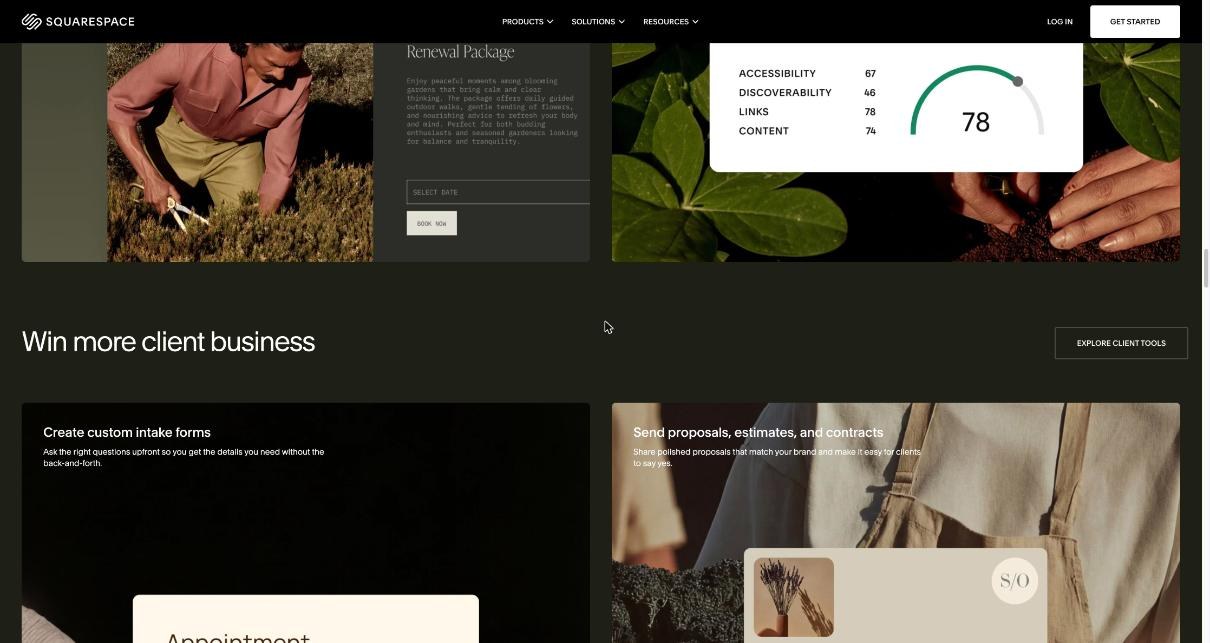
This is the option I recommend to most freelancers, and it is where Squarespace’s client tools come together. The services page shows a starting price for each service (“Brand identity from …”), which sets expectations and filters out tiny budgets. Instead of a “Buy” button, each service links to an intake form.
The flow then looks like this:
- Intake form. Ask the questions that change the price: scope, deadline, what already exists, budget range. Squarespace describes its intake forms as a way to get the details you need without the back-and-forth.
- Proposal or estimate. Send a branded proposal with the real price for this specific job. Squarespace lists proposals, estimates and contracts among its client tools.
- Contract. Get the agreement signed before work starts.
- Invoice. Bill the deposit, then the balance, from the same platform.
If you have read my earlier posts, you will recognize the pattern. I built the same intake idea with a dedicated form tool in my Jotform client intake form guide, and the proposal side in my breakdown of a PandaDoc proposal. The difference with Squarespace is that the website, the form, the proposal and the invoice live in one place, so you are not paying for and connecting three separate tools.
What to put in the intake form
Keep it short. Five to seven questions is plenty:
- Name and email.
- Which service they are interested in (prefilled if they came from a specific service section).
- What they need, in one or two sentences.
- Their deadline.
- A budget range, with your starting price as the lowest option.
- How they found you (useful for knowing which marketing actually works).
The budget question does a lot of quiet work. When the lowest option already matches your starting price, people with smaller budgets tend to self-select out, and nobody has to have an awkward conversation.
Option 3: Hide your rates and ask people to get in touch
Some freelancers have good reasons not to publish any numbers: every project is truly custom, they work with a small number of large clients, or their prices vary by market. In that case, the services page explains what you do and how you work, shows examples, and ends with a contact or intake form.
On Squarespace, this is the same setup as Option 2 minus the starting prices. You still want the intake form, because “Contact me” with only a message box brings the most unqualified inquiries of any approach.
The risk: more time spent on discovery calls with people who cannot afford you. If you go this way, consider putting a short line such as “Most projects start after a short call and a written proposal” so visitors know what to expect.
How to choose between the three
Here is the simple test I use:
| If this is true for you… | Choose |
|---|---|
| Your service has a fixed scope and you have delivered it many times | Option 1: show rates, book and pay |
| Scope varies, but you have a clear minimum you will not go below | Option 2: “starting at” + intake form |
| Every project is custom and you work with few, larger clients | Option 3: hide rates, intake form only |
| You get many inquiries that are far below your budget | Move from Option 3 to Option 2 |
| You spend hours writing proposals for small, repeatable jobs | Move those jobs to Option 1 |
You can also mix them on one page. A common setup is one fixed-price “starter” package that clients can book directly, with larger services using “starting at” prices and an intake form.
Getting paid: Squarespace invoicing for freelancers
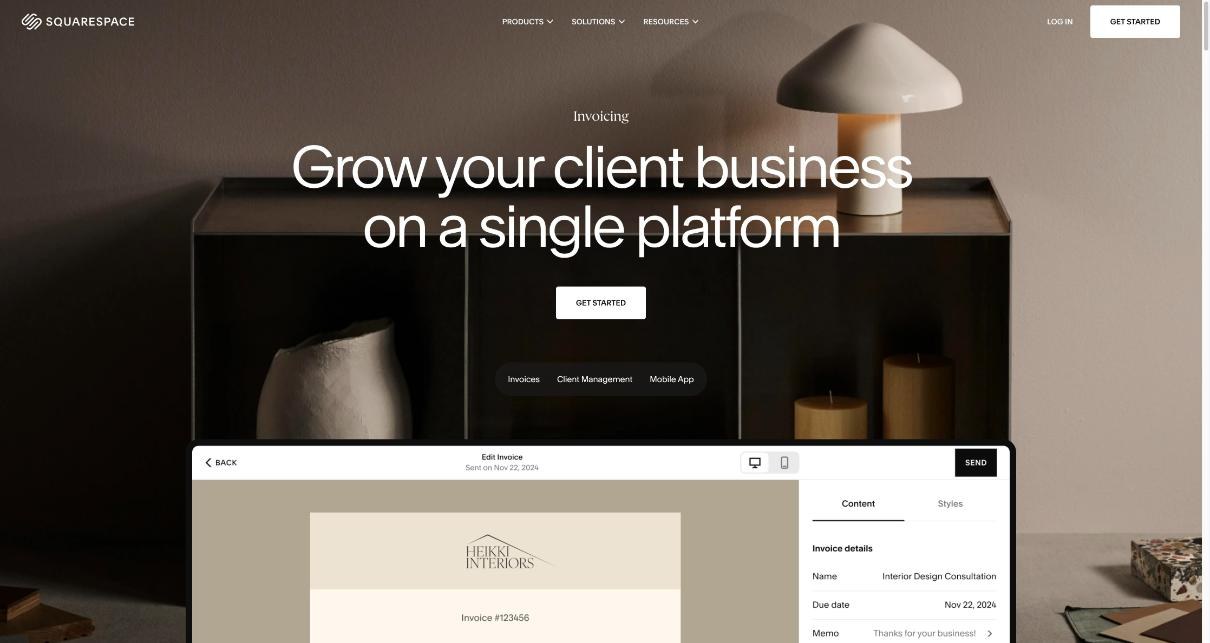
Whichever option you choose, the money arrives through invoices or payments at booking. Squarespace’s invoicing page focuses on four things: branded invoices that match your website, automatic billing for retainer or ongoing work, keeping records in one place, and marking invoices as paid no matter how the client paid.
Three details I care about as a freelancer:
- Recurring billing for retainers. Squarespace says you can bill clients on retainer or for ongoing work automatically. For a monthly retainer client, that removes the most forgettable task of the month.
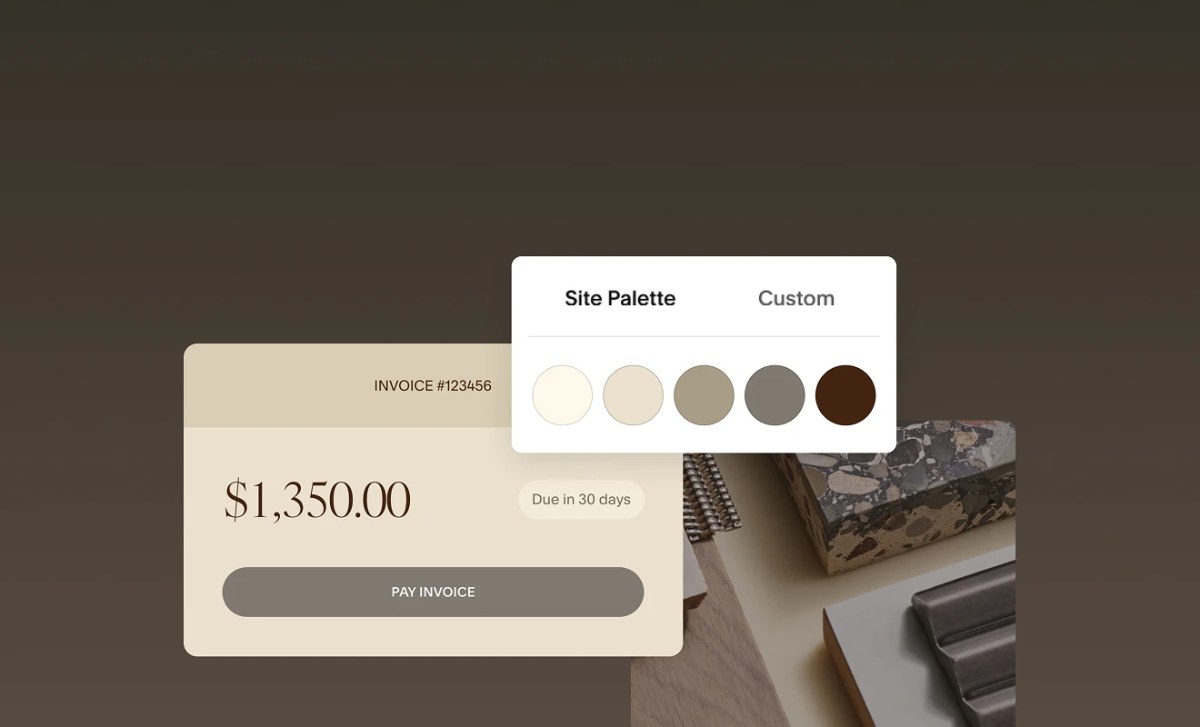
- Branded invoices. Invoices pick up your brand styles, so they look like they come from the same business as your website.
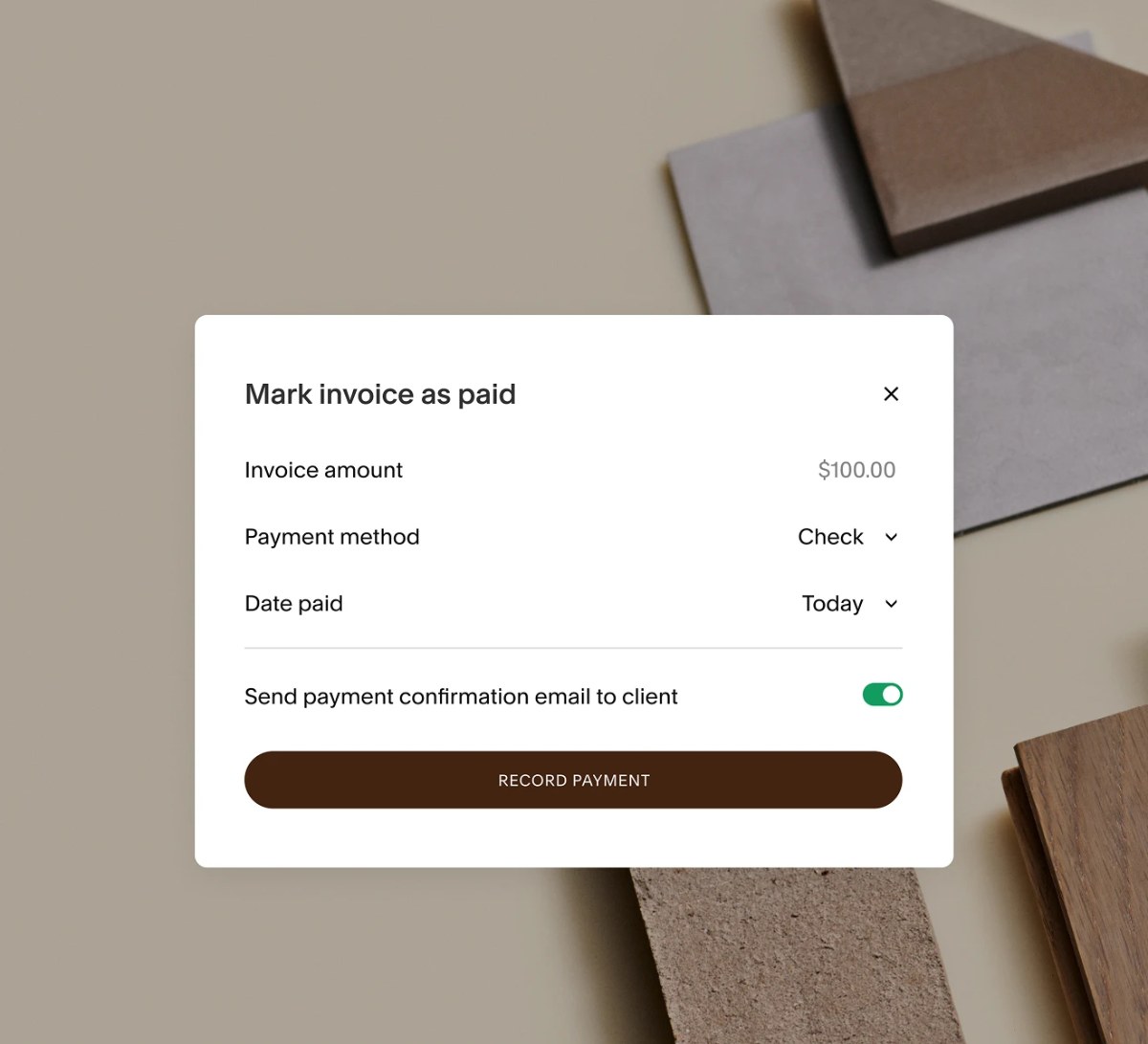
- Marking payments from anywhere. If a client pays by bank transfer outside Squarespace, you can still mark the invoice as paid and keep your records complete.

If late payments are your bigger problem, a dedicated accounting tool may still be worth it. I covered automatic reminders in my post on FreshBooks payment reminders, which is a good comparison point for how far you want automation to go.
Which Squarespace plan matters for a services page
Squarespace currently shows three website plans on its pricing page: Basic, Core and Advanced. Prices are shown in your local currency, and paying annually saves up to 36% according to the pricing page. There is a 14-day free trial. What matters for a freelancer is less the headline price and more these differences:
- Contributors. Basic allows up to 2 contributors. Core and Advanced allow unlimited contributors. If a virtual assistant or a partner needs access, this matters.
- Transaction fees. On Basic, the online store transaction fee is 2% and the fee on digital content and memberships is 7%. On Core, the store fee is 0% and digital content is 5%. On Advanced, both are 0%. These are on top of payment processing fees.
- Customization and analytics. Core and Advanced add advanced website analytics and full customization with CSS and JavaScript.
- Invoices. All three plans list “send invoices for free”.
For a freelancer who mostly invoices clients, Basic can be enough. If you sell packages through checkout (Option 1) at any real volume, the 2% store fee on Basic is the number to watch, and Core removes it. If you also sell digital products or memberships, compare the 7%, 5% and 0% fees against your expected sales. Before you buy, check on Squarespace’s pricing page which plan includes the specific client tools (intake forms, proposals, scheduling) you plan to rely on, because some of them may come with their own plans or limits.
A quick setup routine for your services page
- List your services and sort them into fixed-scope (Option 1) and variable-scope (Option 2 or 3).
- Write one short section per service: who it is for, what is included, how long it takes, and the price or starting price.
- Add the booking link for fixed-scope services and the intake form for the rest.
- Prepare one proposal template and one contract template so you can reply to an inquiry the same day.
- Set up an invoice template with your branding, plus a recurring invoice for any retainer clients.
- After a month, look at your inquiries. If many are below your budget, add or raise your starting prices. If you get almost none, consider showing more about your process and results.
If you already book calls through a separate scheduler, you do not have to switch on day one. My Calendly setup for freelancers works fine linked from a Squarespace page while you test the built-in tools.
FAQ
Should freelancers show prices on a Squarespace services page?
Show full prices for fixed-scope services you deliver often. For variable work, show a “starting at” price and use an intake form. Hide prices only when every project is truly custom.
Can I send invoices from Squarespace?
Yes. Squarespace’s pricing page lists “send invoices for free” on its Basic, Core and Advanced plans, and its invoicing tools support branded invoices, recurring billing for retainers and marking invoices as paid.
Does Squarespace take a fee on my sales?
It depends on the plan. Basic has a 2% online store transaction fee and 7% on digital content and memberships; Core has 0% and 5%; Advanced has 0% on both. Payment processing fees are separate.
Can clients book and pay for a session on Squarespace?
Yes. Squarespace offers appointment booking with payment, powered by Acuity Scheduling, and supports deposits and payment plans at checkout.
Is there a free trial?
Yes. Squarespace offers a 14-day free trial, and its services page says you can start without a credit card.