Disclosure: some links on this page may be affiliate links. If you sign up through them I may earn a commission at no extra cost to you.
Here is a situation most freelancers know. You quote a client 20 hours for a website refresh. The work feels like it is going fine. Then, the day you sit down to invoice, your time tracker says 31 hours. Now you have two bad options: bill the extra 11 hours and surprise the client, or swallow them and work at a much lower rate than you planned.
The problem is not the tracking. It is that you found out too late. This is where Paymo for freelancers is interesting. Paymo is a project management, time tracking and invoicing app, and a few of its settings let you see scope creep while there is still time to talk to the client about it. In this article I go through how I would set it up for exactly that job, which plan you need for each piece, and where Paymo is not the right fit.
If you only want a time tracker, I covered a different approach in my guide to Clockify settings to change before you log the first hour. This article is about connecting the quote, the hours and the invoice in one place.
What Paymo for freelancers costs
Paymo’s pricing page lists four plans. Prices below are in USD as shown on the page when I checked it. The page offers a 15-day free trial with no credit card, and a bigger discount when you pay annually.
| Plan | Annual billing | Monthly billing | Limits that matter for freelancers |
|---|---|---|---|
| Free | $0 | $0 | 1 user, 1 client, 2 projects, unlimited time tracking and invoices, 1GB storage |
| Solo | $5.9/month | $9.9/month | 1 user, 3 clients, 5 projects, flat rate and retainer projects, guest access, 5GB |
| Plus | $10.9/user/month | $15.9/user/month | Timesheet reports, project profitability, estimates and expenses, recurring invoices, project templates, 50GB |
| Pro | $16.9/user/month | $23.9/user/month | Gantt charts, timesheet approvals, team scheduling, leave management, 500GB |
When I checked, Paymo was also running a time-limited autumn offer of up to 40% off the first three months on monthly billing, so the monthly price you see may be lower for a while. The figures above are the regular monthly prices the page shows “after 3 months”.
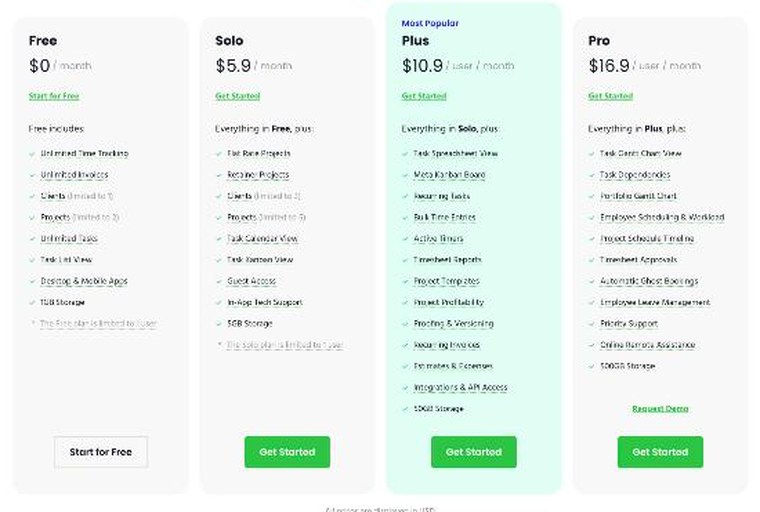
The important detail for this article: estimates, project profitability and timesheet reports are listed on Plus, not on Solo. The full scope-creep workflow below uses them, so a freelancer who wants all of it should budget for Plus. I point out which parts work on cheaper plans as I go.
Step 1: Turn the quote into a project budget
The early warning only works if Paymo knows what you promised. Paymo’s help center describes a neat way to do this: start from a temporary project, add time estimates and costs, then convert it into an estimate you send to the client. You can also create an estimate from an existing project under Accounting → Estimates, and group items by task lists or tasks.
For a freelancer, this means the scope you quote and the tasks you track later come from the same list. When the client approves the estimate, you change the project status and start work. No re-typing, and no gap between “what I quoted” and “what I am tracking against”.
Two practical tips:
- Write tasks as deliverables, not activities. “Homepage design, two rounds of revisions” is easier to defend later than “Design”.
- Put the revision limit in the task name or description. When round three arrives, you can point to the estimate.
Step 2: Set a time budget and an email alert
This is the setting that turns Paymo from a record of what happened into an early warning. According to Paymo’s help center, when you create or edit a project you can set a fixed time budget and switch on an email alert that fires when a chosen share of that budget has been tracked. The email goes to the project’s managers. On a solo account, that is you.
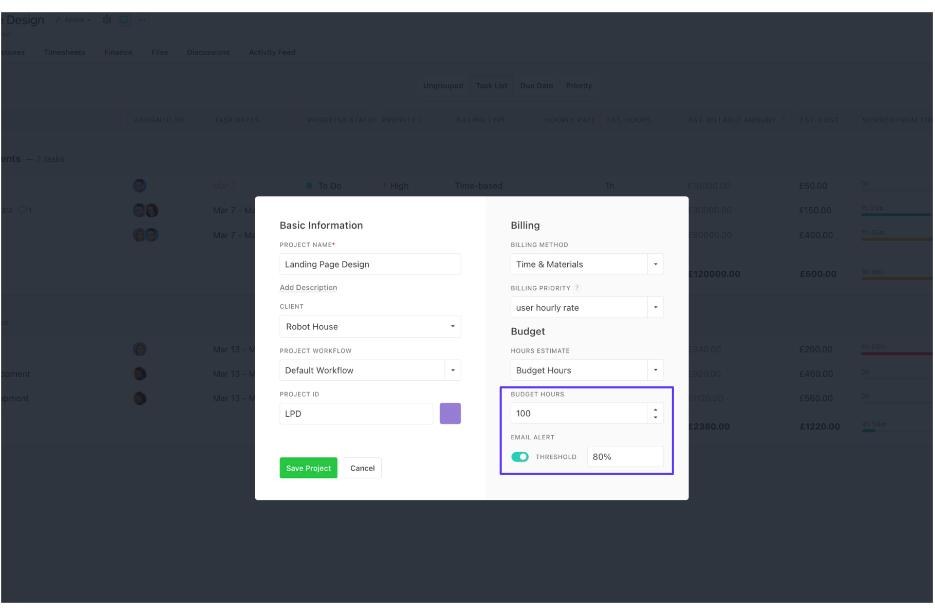
For the 20-hour example, here is how I would set it:
- Budget hours: 20, matching the quote.
- Email alert threshold: 60% to 70%, not 90%. At 90% you only have two hours left, which is too late for a calm conversation. At 60%, you get the email at 12 hours and can compare it with how much of the work is done.
The help center also says you can set a time budget reminder on individual tasks, and a due date alert that emails you a couple of days before a task is due. For a project with one risky task, such as “revisions”, a task-level budget is often more useful than the project total.
Paymo’s help article does not tie budget alerts to a specific plan, so I would confirm the feature is available on the plan you choose during the 15-day trial.
Step 3: Pick the right project type
Paymo’s project type decides how your tracked hours turn into money. The help center lists three main types when you create a project, plus retainers:
- Time & Materials: you invoice for the time you work. You choose a billing priority: user hourly rate, task rate, project rate or company rate. The help center notes that Free accounts cannot select user hourly rates.
- Flat Rate: the client pays an agreed price no matter how long the work takes. You can still track time to see what the project really cost you, but it does not change the bill.
- Retainer: a monthly price that reserves your time over a longer period. Retainer projects are listed on Solo and above.
- Non-billable: internal work you want to measure but not charge for.
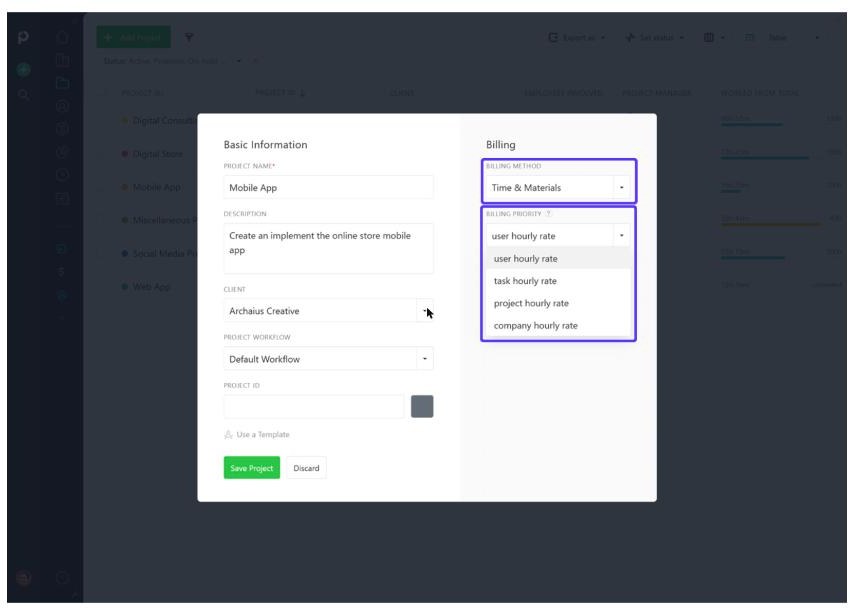
How does this connect to scope creep? On a flat rate project, every extra hour comes out of your effective rate, so the budget alert is your only protection. On a time and materials project, extra hours are billable, but the client may still be surprised, so the alert is your cue to send an update before the invoice does it for you.
One trap from Paymo’s help center is worth knowing. If you switch a project from Flat Rate or Non-billable to Time & Materials, existing tasks stay non-billable until you change them. Time entries on non-billable tasks will not appear on the invoice. If an invoice looks short after a switch, check each task’s billing type first.
Step 4: Retainers with a budget
Retainers are where scope creep hides best, because the work arrives in small requests. Paymo’s retainer settings include a frequency (for example monthly), start and end dates, a retainer hourly rate, an option to create the invoice automatically, and a budget you can set in hours or fees.
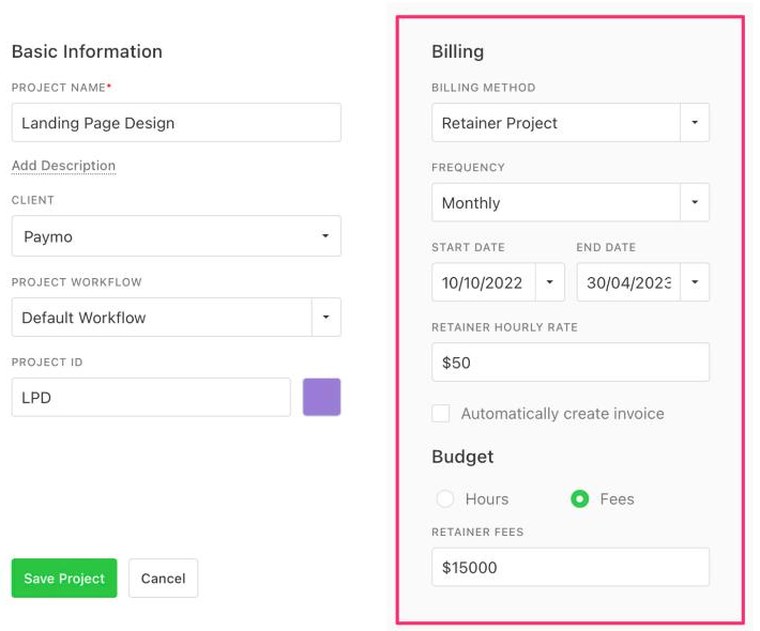
My rule for retainers is simple: set the budget in hours, not fees, even if the client pays a fixed fee. Hours tell you much earlier that “a few quick tweaks” have turned into a second part-time job. When a month runs over, you have the numbers ready for a conversation about raising the retainer or reducing scope.
Step 5: Invoice from the timesheet, with the report attached
When it is time to bill, Paymo’s help center says you go to Accounting → Invoices → Add invoice and use “Add outstanding time/costs”. You can pull in time from the timesheet, expenses, flat rate projects or tasks, or retainer periods. You can also invoice directly from a project’s overview with “Invoice Unbilled”.
Two details help with scope disputes:
- Attach a time report. When you add time from the timesheet, Paymo lets you attach a time report so the client can see which tasks the hours went to. When the bill is higher than the quote, a task-by-task report is far easier to accept than a single total.
- Invoice only approved entries if you want. The help center says you can invoice all time entries or only approved ones. Timesheet approvals are listed on Pro, which is more useful for small teams than for solo freelancers.
On Plus, project profitability and timesheet reports let you look back after the project and see where the hours went. That is the data you need to quote better next time, which is the real fix for scope creep.
A simple script for the scope conversation
The alert is only useful if you act on it. When the 60% email arrives and the work is clearly less than 60% done, I send a short note like this:
“Quick update on the website refresh: we have used about 12 of the 20 quoted hours. The extra revision round on the homepage took longer than planned. To finish everything on the list, I estimate around 8 more hours than quoted. Would you like me to continue at my usual rate, or should we drop the blog template from this phase?”
Clients rarely mind a clear update in the middle of a project. They mind a surprise at the end. Paymo’s job here is to give you the moment and the numbers.
Who should skip Paymo for this
- Freelancers who only bill fixed-price projects and never track time. The workflow depends on tracking. If you will not track, you will not get alerts.
- Anyone who needs more than one client or two projects for free. The Free plan limits you to one client and two projects. Solo raises this to three clients and five projects, which can still be tight.
- Solo freelancers who want estimates but do not want to pay for Plus. Estimates and project profitability start on Plus.
- People who already run everything in an all-in-one client portal and only need a light time tracker.
If client limits are your main concern, I also looked at how another tool counts clients in working within the FreshBooks client limit.
My verdict
Paymo is a good fit for freelancers who quote by the hour or by the project and want to know when a job is running over before the invoice tells them. The combination of estimates built from project tasks, time budgets with email alerts, clear project types, retainers with budgets, and invoices that pull straight from the timesheet covers the whole path from quote to payment.
For the full workflow, Plus is the realistic plan because estimates and project profitability live there. If you mainly run retainers and fixed projects for a few clients, Solo can be enough. Use the 15-day trial to set up one real project with a budget alert at 60% and see if the email arrives when it should.
FAQ
Is Paymo free for freelancers?
Paymo has a Free plan for one user with unlimited time tracking and invoices, limited to one client and two projects. Paid plans start with Solo at $5.9 a month billed annually or $9.9 billed monthly, according to Paymo’s pricing page.
Can Paymo alert me when a project goes over budget?
Yes. Paymo’s help center says you can set a fixed time budget on a project and turn on an email alert when a chosen share of the budget has been tracked. The email goes to the project managers. You can also set time budget reminders on tasks.
Which Paymo plan includes estimates?
Paymo’s pricing page lists estimates and expenses on the Plus plan and above.
Why don’t my time entries show up on a Paymo invoice?
Paymo’s help center says this usually happens when a task’s billing type is not time-based, often after switching a project from Flat Rate or Non-billable to Time & Materials. Change the task billing type to time-based and the entries can be invoiced.
Does Paymo support retainer projects?
Yes. Retainer projects are listed from the Solo plan up. They have a frequency, an hourly rate, an optional automatic invoice and a budget in hours or fees.