Disclosure: some links on this page may be affiliate links. If you sign up through them I may earn a commission at no extra cost to you.
The first time a freelancer sets up professional email, the same question comes up: do I need a separate account for hello@, invoices@ and my own name? If you sign up for Google Workspace and answer “yes”, you end up paying for three users when only one person ever logs in.
This guide is about setting up Google Workspace for freelancers the lean way: one paid user, several addresses, and a clear rule for when Business Standard is worth more than Business Starter. Plan prices, storage and feature lists below come from Google’s own pricing page and Help Center as they read today. Google’s pricing can differ by country and changes from time to time, so treat your checkout page as the final word.
What you are actually paying for: users, not addresses
Google Workspace bills per user per month. A “user” is a person with their own login, inbox, Drive and calendar. An email address is something else, and that difference is where freelancers save money.
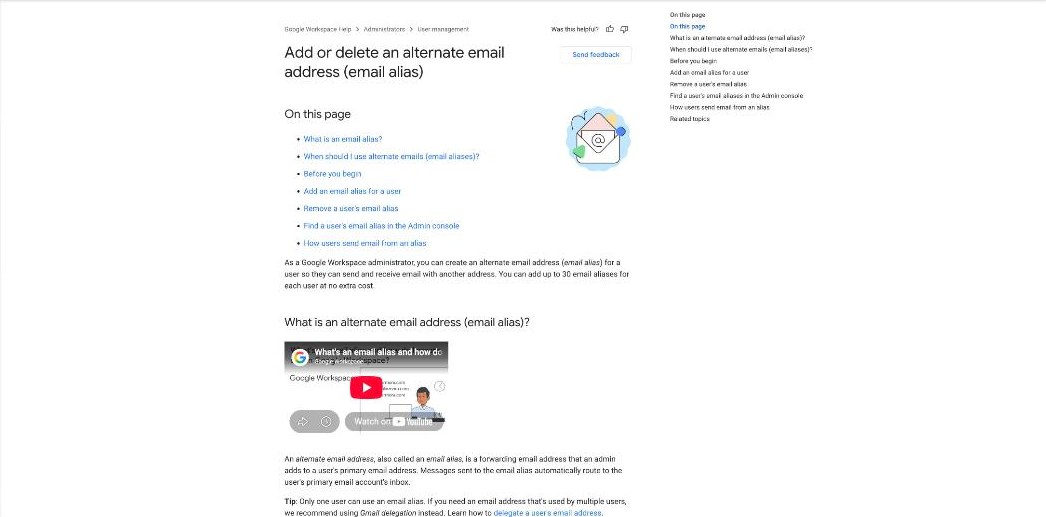
Google’s Help Center explains that an admin can add up to 30 email aliases for each user at no extra cost. An alias is an extra address that delivers into the same inbox. So one user called [email protected] can also receive mail at hello@, invoices@, projects@ and so on, without any extra seat.
Two limits are worth knowing before you plan your addresses:
- An alias belongs to one user only. Google notes that if several people need to use the same address, delegation is the recommended route instead.
- Aliases receive mail into your main inbox. Google’s article also covers how users can send from an alias, so a reply to a hello@ message can go out from hello@ rather than your personal address.
For a one-person business, that is everything you need. Pay for one user, add the aliases, and filter them into labels.
A simple alias setup for a solo freelancer
Here is the structure I recommend. It keeps the inbox tidy without creating more accounts to secure.
- yourname@ as the primary user. This is the login and the address you give to existing clients.
- hello@ as an alias for the website contact form and public listings.
- invoices@ as an alias you put on invoices and give to client accounts departments.
- tools@ as an alias for SaaS sign-ups, so receipts and notifications do not bury client mail.
Then create Gmail filters that label mail by the address it was sent to. You now have four “inboxes” for the price of one seat. If you later hire an assistant, you can add a second user then, and only then.
One more thing: with one login guarding your whole business, protect it properly. I covered why a password manager matters for freelancers in my Bitwarden Premium guide.
Business Starter vs Business Standard for one person
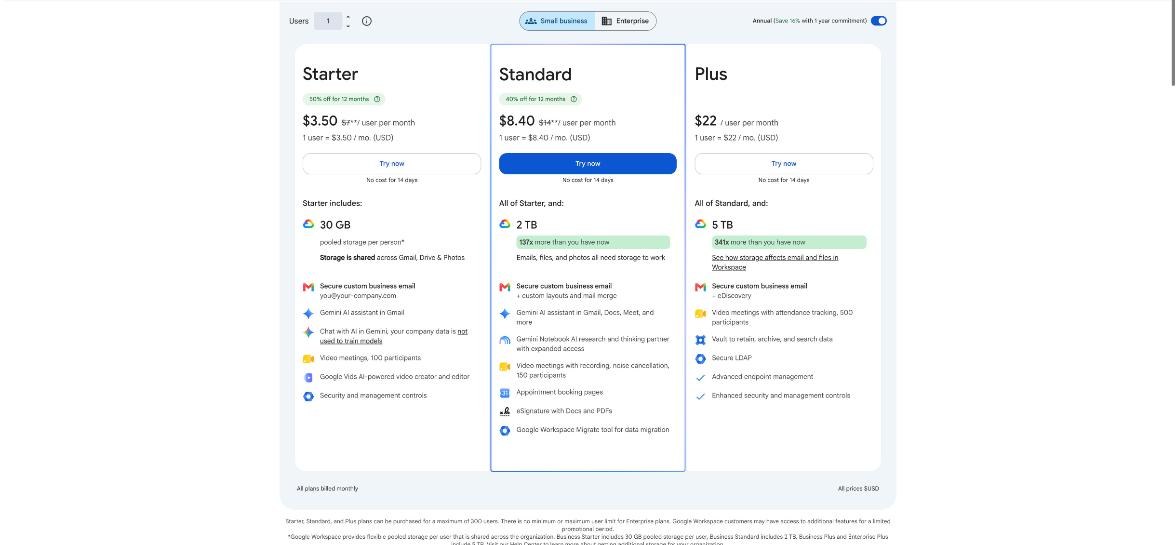
Google lists three Business plans on its pricing page. With the annual commitment, which Google says saves 16% compared with flexible billing, the listed prices are:
| Plan | Listed price (per user/month, annual plan) | Pooled storage per user | Key extras |
|---|---|---|---|
| Business Starter | $7 | 30 GB | Custom email, Gemini in Gmail, Meet with 100 participants, Google Vids |
| Business Standard | $14 | 2 TB | Appointment booking pages, eSignature, Meet recording and noise cancellation, 150 participants |
| Business Plus | $22 | 5 TB | Vault, eDiscovery, 500 participants with attendance tracking, advanced endpoint management |
When I checked, the pricing page also showed an introductory offer for new customers on Starter and Standard for the first 12 months, limited to the first 20 users. Offers like this vary, so look at what your own sign-up page shows rather than counting on it.
For a freelancer, Business Plus is almost never the answer. Its extras are about compliance and device management for organisations. The real decision is Starter versus Standard, and it comes down to four features.
1. Storage: 30 GB or 2 TB
Storage is pooled across Gmail, Drive and Photos. 30 GB is fine for a writer, consultant or developer who mostly sends documents. It is tight for designers, video editors and photographers who keep client files in Drive. If you already pay for a separate cloud storage plan, compare that cost with the step up to Standard, because Standard’s 2 TB may replace it.
2. Booking pages that take payment
This is the feature that most often justifies Standard for freelancers. Google Calendar has appointment booking pages, and Google’s own comparison spells out the difference.
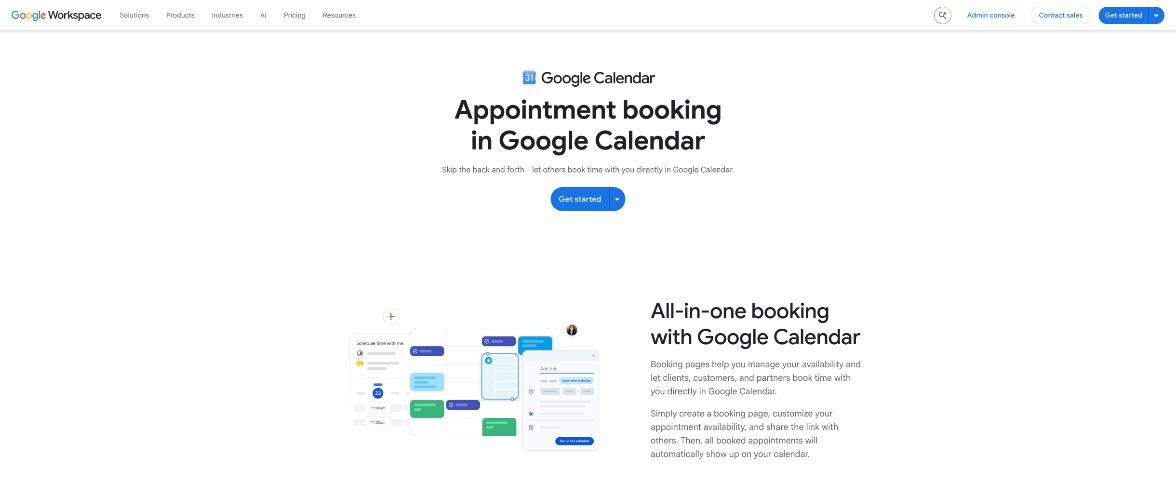
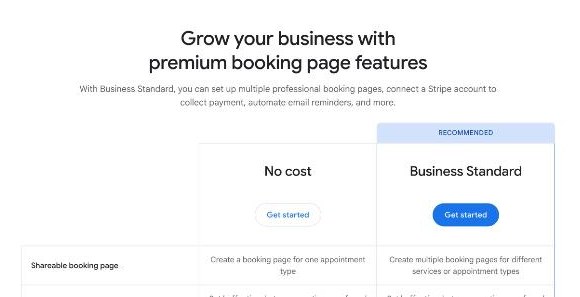
According to Google’s appointment scheduling page, the no-cost version lets you create a booking page for one appointment type, with buffer times, custom questions and a daily booking limit. With Business Standard, you can create multiple booking pages for different services, send automated email reminders, verify emails to prevent spam bookings, check across multiple calendars, and connect a Stripe account to collect payment at the time of booking.
If you sell paid discovery calls, consultations or coaching sessions, Standard can replace a separate scheduling subscription. If your bookings are free intro calls only, a free scheduler may be enough; I compared what a free tool covers in booking links on the Cal.com free plan and in my notes on Calendly for client intake.
3. eSignature with Docs and PDFs
Business Standard includes eSignature for Docs and PDFs, according to the pricing page. For a freelancer who sends a contract or statement of work with every new client, that can remove the need for a separate signing tool. If you sign only a few documents a month, a free plan elsewhere may be enough; I looked at that option in my SignWell free plan review.
4. Meeting recordings
Starter includes Google Meet with up to 100 participants. Standard adds recording and noise cancellation and raises the limit to 150. If you record client workshops or training sessions for later reference, this is the feature you will notice first after downgrading.
A quick decision rule
- Choose Business Starter if you mainly need professional email on your domain, you store under 30 GB, and you already use other tools for scheduling and contracts.
- Choose Business Standard if two or more of these apply: you charge for calls and want payment at booking, you sign contracts often, you record meetings, or your files need more than 30 GB.
- Skip Business Plus unless a client contract requires data retention or eDiscovery features.
Here is the cost logic in plain numbers. On the listed annual prices, Standard costs $7 more per user per month than Starter. If that replaces even one paid tool you would otherwise keep, such as a scheduling app that collects payments or a storage plan, Standard usually pays for itself. If it replaces nothing, Starter is the better deal.
Setting it up in the right order
- Start the 14-day trial on the plan you think you need. Google offers a no-cost trial on Starter, Standard and Plus.
- Connect your domain and verify it, following Google’s setup steps.
- Create one user: your name.
- Add aliases in the Admin console for hello@, invoices@ and any others.
- Set up “send as” so you can reply from the alias that received the message.
- Create Gmail filters that label mail by recipient address.
- If on Standard, build your booking pages and connect Stripe before the trial ends, so you know the paid features are worth keeping.
Doing step 7 during the trial is the important part. It is much easier to downgrade before you start paying than to realise later that you never used the features you upgraded for.
Who should not use Google Workspace for this
- If you only need one address and never use Google Docs, Sheets or Meet, a cheaper email-only host may be enough.
- If your clients all work in Microsoft 365 and send you Word files with tracked changes all day, you may prefer to match their tools.
- If you need several people to share one address, plan for delegation or a Google Group rather than aliases, because Google says an alias can belong to only one user.
My take
Google Workspace is one of the easiest ways to get professional email as a freelancer, and the alias limit is generous enough that a one-person business never needs a second seat just for extra addresses. Starter covers the basics well. Standard earns its higher price when you use its booking pages with Stripe payments, eSignature or the extra storage, so test those during the trial before you commit.
FAQ
Do I need to pay for each email address in Google Workspace?
No. You pay per user. Google says each user can have up to 30 email aliases at no extra cost, so a freelancer can use addresses like hello@ and invoices@ with one paid user.
How much does Google Workspace cost for one freelancer?
Google’s pricing page lists Business Starter at $7, Business Standard at $14 and Business Plus at $22 per user per month on the annual plan. Prices and introductory offers can vary by country, so check your sign-up page.
Can Google Workspace take payments for bookings?
Yes, with Business Standard. Google says Standard booking pages can connect a Stripe account to collect payment at the time of booking.
Is there a free trial?
Yes. Google offers a 14-day no-cost trial on its Business plans.
What is the difference between an alias and a user?
A user has their own login, inbox and storage and is billed. An alias is an extra address that delivers into an existing user’s inbox and costs nothing.
Can two people share one alias?
No. Google notes that an alias can only belong to one user. For a shared address, Google recommends Gmail delegation.