Disclosure: some links on this page may be affiliate links. If you sign up through them I may earn a commission at no extra cost to you.
Most cloud storage reviews measure the wrong number for freelancers. They compare gigabytes of storage, when the thing that actually runs out for a videographer, photographer or designer is how much clients can download. You can have half your storage empty and still have a client staring at a “limit exceeded” message the day before their launch.
This guide looks at pCloud for freelancers from that delivery side: how its shared link traffic works, what the Premium-only link settings add, how to size a plan around real projects, and when the free pCloud Transfer tool is the better choice. Plan prices and limits below come from pCloud’s own pricing page and help center as they read today.
Why link traffic matters more than storage for client delivery
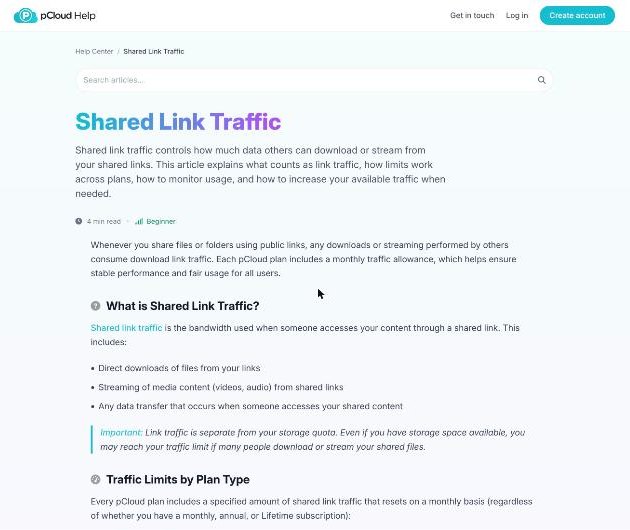
pCloud describes shared link traffic as the bandwidth used when someone accesses your content through a shared link: direct downloads, streaming of video or audio, and any other data transfer through that link. Its help center is explicit that link traffic is separate from your storage quota.
Every plan includes a monthly allowance that resets each month, and pCloud says this applies whether you are on a monthly, annual or Lifetime plan:
- pCloud Basic (free): 50 GB per month
- Premium 500 GB: 1,000 GB per month
- Premium Plus 2 TB: 4 TB per month
- Ultra 10 TB: 20 TB per month
The traffic allowance is roughly twice the storage on each paid plan. That sounds generous until you remember that every download by every person counts.
A quick worked example
Say you edit videos and deliver a 40 GB project folder to a client. The client downloads it once, their editor downloads it again, and someone at their agency grabs a copy for the archive. If two people also stream the main cut in the browser before downloading, the total can easily reach 150 to 200 GB for one project.
On the free plan’s 50 GB, that delivery does not fit at all. On Premium 500 GB, with 1,000 GB of monthly link traffic, you could deliver around five projects of that size in a month. On Premium Plus, with 4 TB, you would be closer to twenty. That is the number to plan around, not the storage figure on the pricing card.
What happens if you go over
This is the part I like least, and it is worth knowing before a deadline. When you exceed your monthly traffic, pCloud says your shared links stay active, but only paid pCloud users can access and download from them. Free pCloud users and people without an account see a message that the traffic limit has been exceeded. Most clients fall into that second group.
The fix is to buy extra traffic (monthly or annual options are offered from the pricing page) or upgrade your plan, and pCloud says a new limit applies immediately after an upgrade. Still, I would rather never test it with a client waiting.
How to check your traffic before it becomes a problem
pCloud gives you usage numbers in two places:
- Account-wide: on the web at my.pCloud, go to Shared, then Links, then the Statistics tab to see current traffic use and what remains.
- Per link: the Shared Links table shows traffic, downloads and views for each link. Hover a link, click the gear icon and choose Link Stats for detail, including total traffic and creation date.
The mobile app has the same per-link view under Shared links, then View Statistics. A habit I would recommend: check the Statistics tab the day before any big delivery, and again mid-month if you have several projects going out.
The Premium link settings worth paying for
pCloud lets anyone create a shared link, and recipients get an instant browser preview without needing a pCloud account. Two settings, though, are listed as Premium features in the help center, and both matter for client work.
Password protection
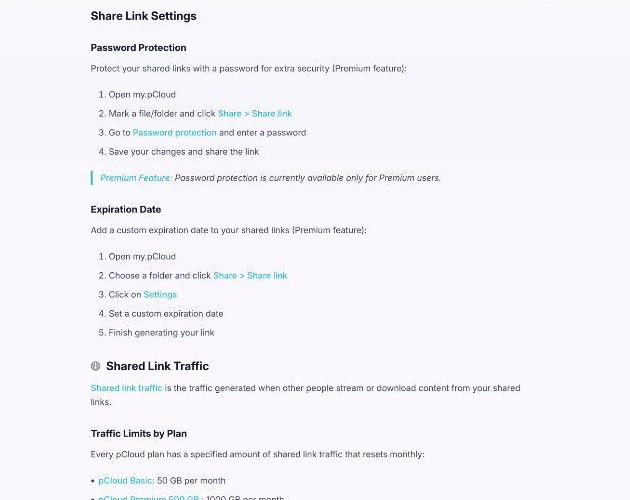
Add a password to a shared link so only people you give it to can open it. For unreleased work, client documents or anything under an NDA, this should be your default. Send the password through a different channel from the link itself, for example the link by email and the password by message.
Expiration dates
Set a custom date after which the link stops working. This does two jobs for a freelancer. It protects work you do not want circulating forever, and it protects your traffic allowance from an old link that someone forwards months later. pCloud’s own advice on managing traffic includes using link expiration for exactly this reason.
My rule of thumb: a delivery link should expire about two weeks after the client’s final approval, which gives them time to download and archive without leaving the link open indefinitely.
Requests, branded shares and versions
pCloud’s plan page also lists file requests (letting others upload files to a folder), branded shares, and restoring previous file versions with data recovery from up to 30 days ago. File requests are handy for collecting raw footage, brand assets or signed documents from clients without asking them to create an account. If you already use a client portal, check what it covers first; I compared what one all-in-one tool does and does not replace in my Plutio app-by-app audit.
pCloud pricing for freelancers
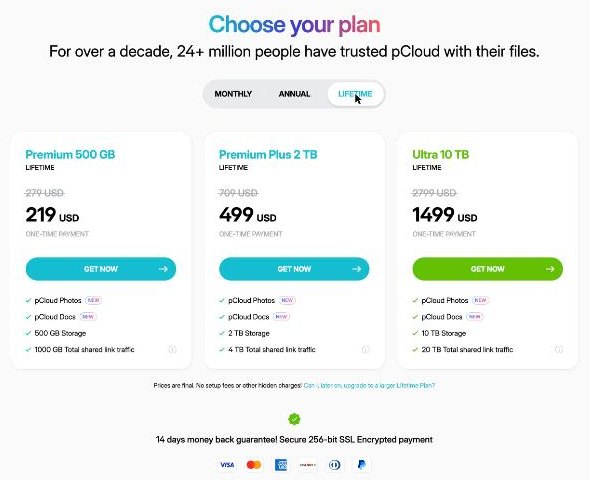
pCloud sells the same three paid plans on monthly, annual or Lifetime (one-time) billing. These are the listed USD prices today; pCloud’s Lifetime prices are shown against higher crossed-out figures, so treat the current numbers as a price that can change.
| Plan | Monthly | Annual | Lifetime | Link traffic / month |
|---|---|---|---|---|
| Premium 500 GB | $4.99 | $49.99/yr | $219 one-time | 1,000 GB |
| Premium Plus 2 TB | $9.99 | $99.99/yr | $499 one-time | 4 TB |
| Ultra 10 TB | $29.99 | $299.99/yr | $1,499 one-time | 20 TB |
pCloud lists a 14-day money-back guarantee and says prices have no setup fees. Every Premium plan also includes pCloud Photos and pCloud Docs, its browser editors for documents, spreadsheets, presentations, PDFs, text and markdown.
Which plan fits which kind of freelancer
- Writers, consultants, developers: the free account may be enough for occasional sharing, but Premium 500 GB is cheap insurance if you want password-protected, expiring links.
- Designers and photographers: Premium 500 GB usually covers storage and delivery. Move up if you keep full RAW archives in the cloud.
- Video editors and videographers: start your sizing from link traffic. Premium Plus 2 TB with 4 TB of monthly traffic is the realistic starting point for regular large deliveries.
Lifetime or annual?
At today’s listed prices, Premium 500 GB Lifetime costs about the same as four and a half years of the annual plan (4.4 to be exact), and Premium Plus 2 TB Lifetime about five years. Lifetime makes sense if you are confident about your storage needs for longer than that. If your business is still changing shape, annual keeps you flexible. This is not financial advice, just the arithmetic on the listed prices.
When pCloud Transfer is the better tool
pCloud also runs a separate service, pCloud Transfer, that lets you send files up to 5 GB for free without registering. pCloud’s own help center suggests it for one-time large file transfers as an alternative to shared links.
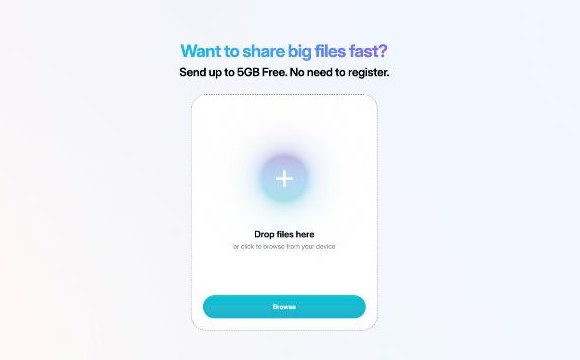
I would use Transfer for one-off sends under 5 GB, such as a proof set to a new client or a file to a printer, and keep shared links from your main account for project folders, ongoing work and anything you want to track with link statistics.
A simple client-delivery setup in pCloud
- Create a top-level Clients folder, then one folder per client and one subfolder per project.
- Inside each project, keep 01-Incoming (with a file request for client assets), 02-Working (never shared) and 03-Delivery.
- Share only the Delivery folder, with a password and an expiry date.
- Note the link’s creation date and planned expiry in your project notes or invoice.
- Check link statistics after delivery to confirm the client actually downloaded the files.
- After the expiry date, keep the project archived in your account, not shared.
If you run your business email through Google, you might wonder why not just use Google Drive. Drive works well inside Google Workspace; I covered a lean setup in my guide to Google Workspace for freelancers. pCloud makes more sense when you want a separate delivery space with link traffic statistics and the option of a one-time Lifetime payment.
Who should not use pCloud for client delivery
- Freelancers who deliver huge files to many people every month and would rather not monitor a traffic allowance.
- Anyone whose clients need to collaborate inside a full office suite every day, where Google Workspace or Microsoft 365 may fit better.
- Freelancers who only send a few small files a month, where the free account or pCloud Transfer is already enough.
My take
pCloud is a solid delivery tool for freelancers, as long as you size it by link traffic rather than storage. Premium’s password protection and expiry dates are worth the upgrade on their own, the per-link statistics answer the “did they download it?” question, and pCloud Transfer covers quick one-off sends for free. The one thing to respect is what happens when traffic runs out: links stay up, but most clients will not be able to download. Check your usage before big deliveries and you will rarely see it.
FAQ
Does pCloud shared link traffic reset every month on Lifetime plans?
Yes. pCloud says link traffic resets monthly regardless of whether you have a monthly, annual or Lifetime plan.
Can clients download from my pCloud links without an account?
Yes. Recipients get a browser preview and can download without a pCloud account, as long as you have not exceeded your monthly link traffic.
What happens when I run out of link traffic?
Links stay active, but only paid pCloud users can access them until you buy more traffic, upgrade, or the allowance resets.
Are password-protected and expiring links free?
No. pCloud lists password protection and custom expiration dates as Premium features.
How big a file can I send with pCloud Transfer?
pCloud Transfer lets you send up to 5 GB for free without registering.
Is there a free pCloud plan?
Yes. pCloud offers a free account with up to 10 GB of storage and 50 GB of monthly shared link traffic.