
Disclosure: some links on this page may be affiliate links. If you sign up through them I may earn a commission at no extra cost to you.
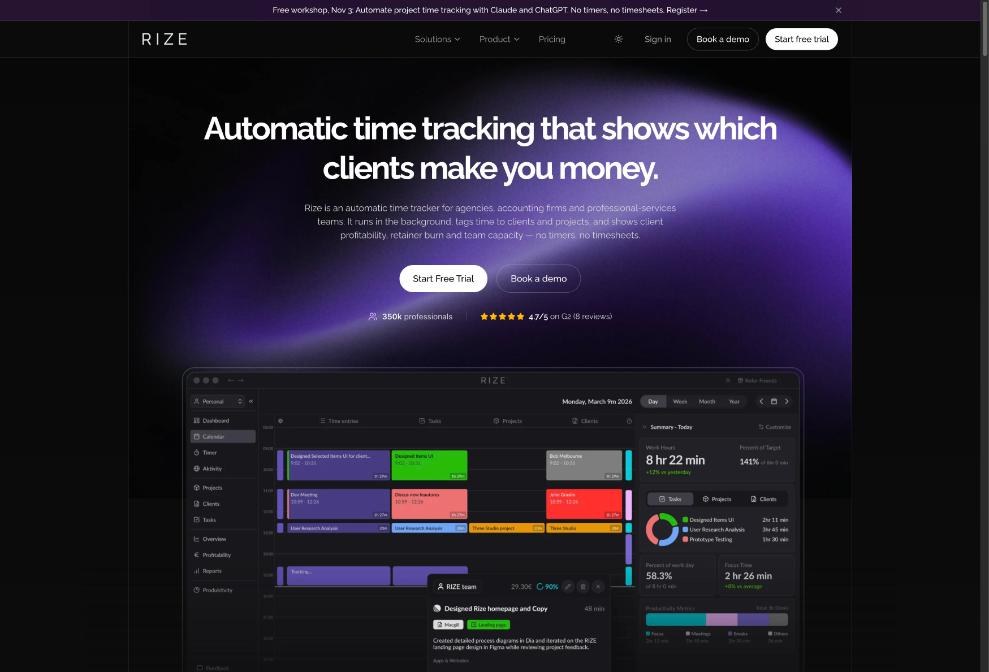
The pitch for Rize time tracking is that you never start a timer again. It runs in the background, records which apps and websites you use, and uses AI to sort that time into clients, projects and tasks. For a freelancer who forgets timers, that sounds perfect. But it raises a fair question that most reviews skip: can you actually put an automatically captured log in front of a client and bill from it?
My answer is yes, but only if you add a short human step between “Rize captured it” and “the client pays for it.” This guide covers that step: a Friday review routine that turns Rize’s automatic log into a client report you can defend, plus the plan you need for it and the situations where Rize is the wrong tool.
What Rize records, and what it does not
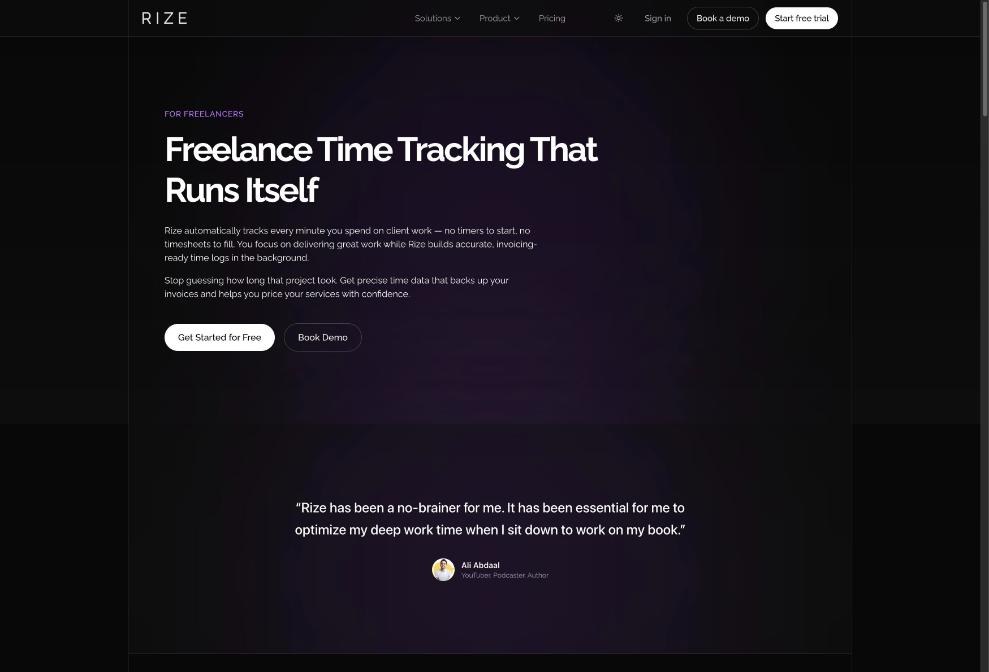
Rize runs on macOS and Windows. According to its freelancer page, it records what you work on in the background and categorizes activity by app and window title, not by screenshots. Rize also says your data stays on your machine by default and that you control what gets tracked. That makes it very different from employee monitoring software, and it is a point worth making to clients who worry about how their hours are measured.
What Rize does not do is know, on its own, which client a given hour belongs to. It suggests that. Rize’s documentation describes three ways time gets attached to a client:
- AI suggestions: Rize suggests a client for every time entry based on your recent work patterns, keywords associated with clients and your historical data. You accept with one click or pick a different client.
- Keywords: you add keywords for each client in the Edit Client modal, and matching time is assigned automatically.
- Projects: you link projects to a client, and time spent in those projects counts toward that client’s totals.
Suggestions improve as you use Rize, but a suggestion is still a guess. That is why the review routine below matters.
Which Rize plan you need to bill clients
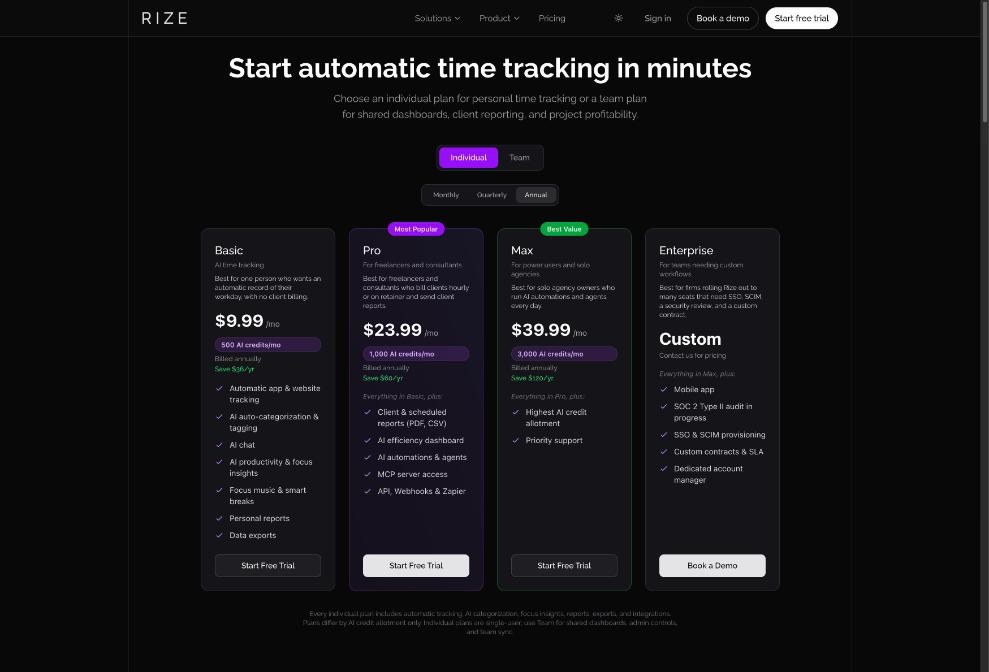
This is the part that catches people. Rize’s individual plans include the same tracking, but they differ in features and AI credits. Client reports, the feature you need to send a breakdown to a client, start on Pro.
| Plan | Billed monthly | Billed annually | AI credits | Client reports |
|---|---|---|---|---|
| Basic | $12.99/mo | $9.99/mo | 500/mo | No (personal reports only) |
| Pro | $28.99/mo | $23.99/mo | 1,000/mo | Yes, PDF and CSV, plus scheduled reports |
| Max | $49.99/mo | $39.99/mo | 3,000/mo | Yes |
Quarterly billing sits in between ($11.49, $26.99 and $43.99 per month). Rize describes Basic as best for someone “with no client billing,” and Pro as the plan for freelancers and consultants who bill hourly or on retainer and send client reports. Pro also adds API, webhooks, Zapier and MCP server access, which helps if you want time data to flow into another tool.
A few billing terms are worth knowing before you start:
- There is a 7-day free trial with full access and no credit card. If you have not added a card when it ends, the trial closes and you are not charged.
- There is no permanently free tier.
- Fees are not refunded or prorated when you cancel. The plan stays active until the end of the paid period, and you can still export past data afterwards.
- AI credits power chat, reports, automations and agents. If they run out, AI features pause, but tracking never stops. One-time credit packs start at 500 credits for $10.
Set up clients so the AI has something to work with
Do this once, before the first week you plan to bill from Rize.
1. Create one client per invoice recipient
Match Rize clients to the way you invoice. If one company pays two separate invoices for two departments, make two clients. Your report will then map one-to-one to an invoice.
2. Add keywords that only that client uses
Good keywords are distinctive: the client’s brand name, its project codename, its domain, the name of its shared folder. Avoid generic words like “website” or “design,” which will pull in time from everyone.
3. Link projects to clients
If you use projects in Rize, assign each project to its client in the Edit Client modal. Time on a project then counts toward that client automatically.
4. Set rates and billable defaults
Rize lets you toggle the billable status of any time entry and apply default rates across entire clients or projects. Set the default rate for each client now, so the report shows a billable amount without manual math.
The Friday review routine
This takes 15 to 20 minutes a week for a typical solo freelancer, and it is the step that makes an automatic log billable.
Step 1: Clear the unassigned time
Open the week in Rize and look for time entries without a client. For each one, accept the AI suggestion if it is right, or pick the correct client. On the activity timeline you can select an activity and choose “Add to Client”; on the entry timeline you can drag to create a client entry for work Rize did not see, such as a phone call away from your computer.
Step 2: Check the borderline entries
The entries that cause disputes are short ones: a five-minute email, a quick look at a file. Decide your policy once (for example, you bill client email and calls, you do not bill time spent on your own invoicing) and apply it consistently by toggling billable status.
Step 3: Rewrite descriptions in client language
Client reports include descriptions for each entry. A window title like a file name means nothing to a client. Spend a minute turning the main entries into short, plain descriptions such as “Revised homepage hero copy after feedback round 2.”
Step 4: Compare against your plan or quote
If a project was quoted for a number of hours, compare the weekly total now, not at the end of the month. If you want a deeper method for catching overruns, my guide to catching scope creep with Paymo before the invoice goes out works just as well with Rize data.
Step 5: Teach Rize from your corrections
Whenever you reassign the same kind of entry twice, add a keyword for that client. Over a few weeks the unassigned pile gets smaller and the routine gets shorter.
Turning the log into a client report
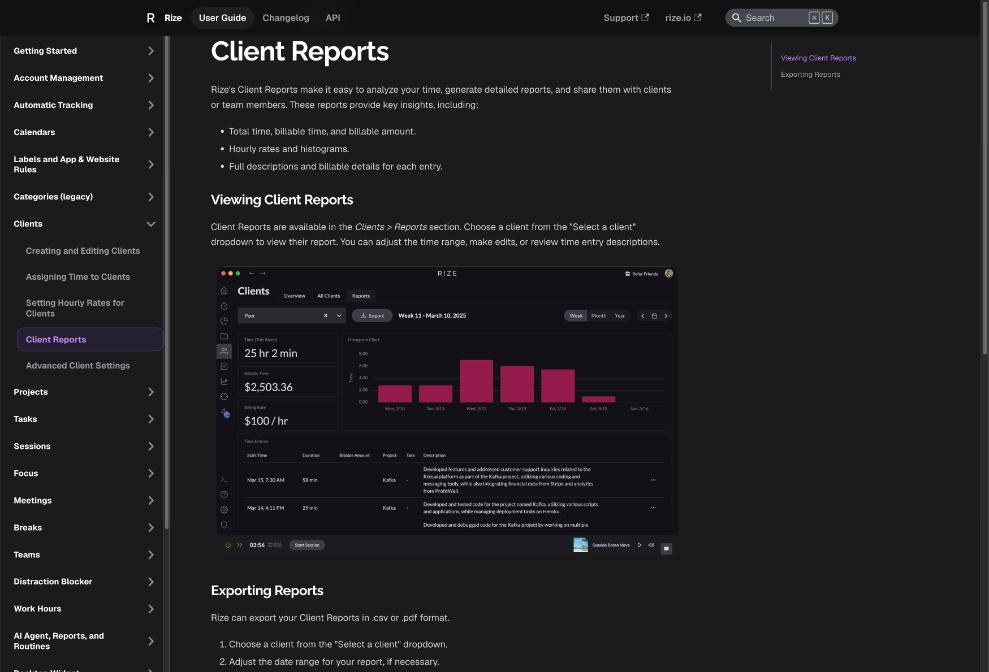
At the end of the billing period, open Clients, then Reports, and choose the client from the dropdown. Rize’s documentation says the report shows total time, billable time and billable amount, hourly rates and a histogram, plus full descriptions and billable details for each entry. You can adjust the date range, make edits and export as CSV or PDF.
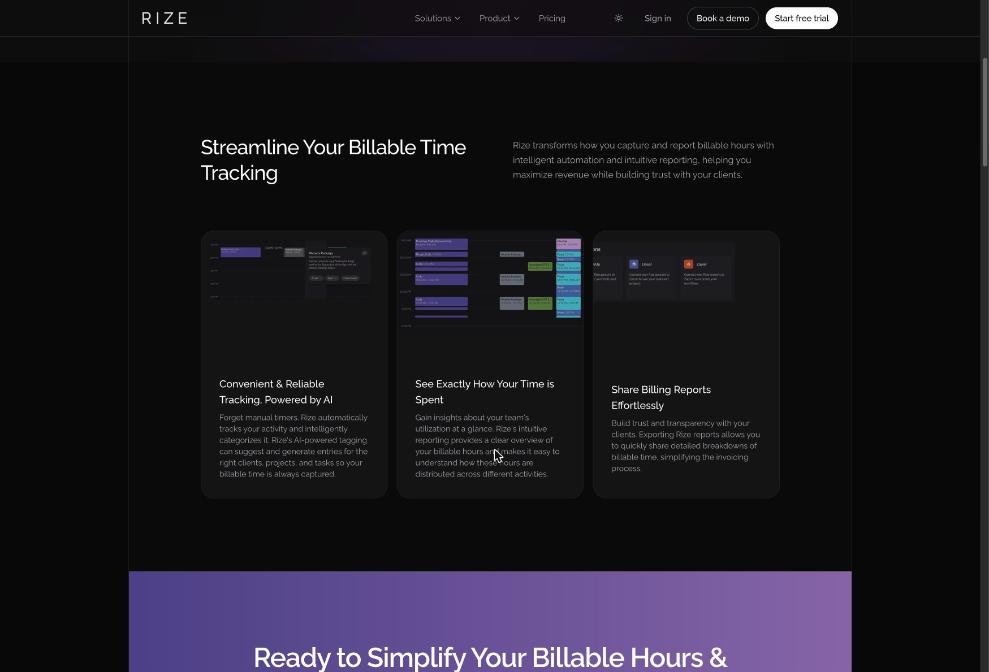
Rize itself does not send invoices. Its freelancer page positions the exports as invoicing-ready data that works with tools such as FreshBooks, Wave, QuickBooks or a spreadsheet. My workflow is:
- Export the PDF report for the client’s records.
- Export the CSV and copy the totals into your invoicing tool.
- Attach the PDF to the invoice email, so the client sees the breakdown without asking.
On Pro and Max you can also schedule reports, which is handy for retainer clients who want a weekly summary without you remembering to send it.
What to tell clients about automatic tracking
Some clients will ask how you measure hours. A short, honest explanation works best: you use an automatic tracker that records time by app and window title rather than screenshots, you review and assign every entry each week, and the report they receive is the reviewed version. That last sentence is the important one. An automatic log on its own is a record of activity; a reviewed log is a record of billable work.
When Rize is not the right tool
- You only bill fixed-price projects. If clients never see hours, you may only need Basic for your own insight, or a simpler free tracker.
- Much of your billable work happens away from the computer. Rize tracks desktop activity. Site visits, workshops and calls on your phone need manual entries every time.
- You use Linux. Rize lists macOS and Windows as supported platforms.
- You want tracking and invoicing in one app. Rize exports to invoicing tools rather than sending invoices itself.
- You prefer a free manual timer. If you are disciplined with timers, my list of Clockify settings to change before logging your first hour covers a free alternative.
Verdict
Rize time tracking is a good fit for freelancers who bill by the hour or on retainer and keep forgetting to start timers. The automatic capture is the easy part; the value comes from a weekly review that assigns, cleans up and describes your time before it reaches a client. Basic is fine if you only want to see where your day goes. If you send clients hour breakdowns, budget for Pro, because client reports start there. Use the 7-day trial to run one full Friday review before you pay.
FAQ
Can I bill clients directly from Rize?
Rize produces client reports with billable time, rates and amounts that you can export as PDF or CSV. It does not send invoices itself, so you copy the totals into your invoicing tool and attach the report.
Which Rize plan includes client reports?
Client and scheduled reports are listed on the Pro plan and above. Basic includes personal reports and data exports but is described as best for people with no client billing.
Does Rize take screenshots of my screen?
Rize says it categorizes activity by app and window title, not screenshots, and that your data stays on your machine by default.
Is there a free version of Rize?
There is no permanently free tier. Rize offers a 7-day free trial with full access and no credit card required.
What happens to my data if I cancel Rize?
Rize says you keep access to your account and can export past data after cancelling, but new activity is not tracked. Fees are not refunded or prorated.
Does Rize work on Mac and Windows?
Yes. Rize lists macOS (Mojave 10.14.6 or later) and Windows 10 or later as supported platforms.