
Most people set up Fireflies.ai the same way: connect a calendar, accept the defaults, and let the notetaker join whatever meetings come next. For a sales team, that is fine. For a freelancer, the defaults can cause small but real problems. The notetaker may turn up in a client’s internal meeting you were invited to as a guest. AI features you never asked for quietly spend credits. And once the included credits are gone, a paid account can be moved onto a credit subscription automatically.
None of this is hidden. It is all in Fireflies’ own pricing page and help centre. But it is spread across several articles, and most reviews skip it. This guide collects the settings a one-person business should check on the first day, before the notetaker joins its first client call.
What Fireflies.ai does, briefly
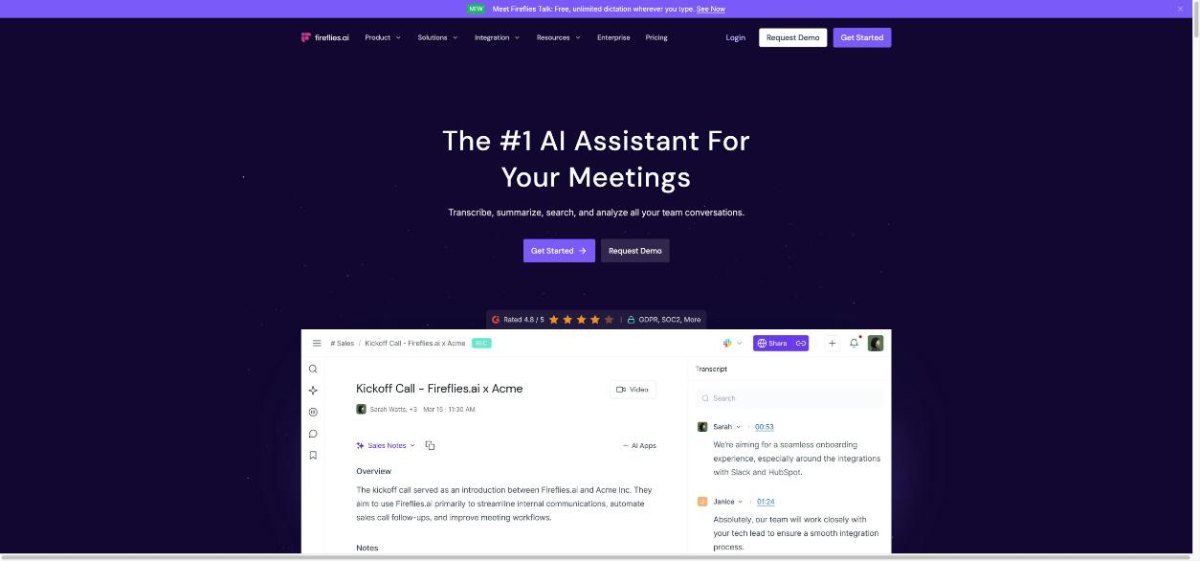
Fireflies.ai is an AI meeting assistant. Its notetaker, called Fred, joins calls on Zoom, Google Meet, Microsoft Teams and other platforms, records them, and produces a transcript and summary. The company says it transcribes in more than 100 languages and is used across more than 1 million companies. You can also upload audio or video files, use a desktop app, a mobile app or a Chrome extension, and ask questions about past meetings with its AI assistant, AskFred.
For freelancers, the value is simple: you can listen to the client instead of typing notes, then search every call later when a scope question comes up.
Fireflies.ai pricing at a glance
These are the plans listed on the Fireflies pricing page when I checked. Annual billing is shown first, with the monthly price in brackets. The page says annual billing saves up to 44%.
| Plan | Price per seat/month | Storage | Recording limit per meeting | Included AI credits |
|---|---|---|---|---|
| Free | $0 | 400 mins per team | 2 hours | 20 |
| Pro | $10 annual ($18 monthly) | 8,000 mins per seat | 2 hours | 20 |
| Business | $19 annual ($29 monthly) | Unlimited | 3 hours | 30 |
| Enterprise | $39, annual only | Unlimited | 4 hours | 50 |
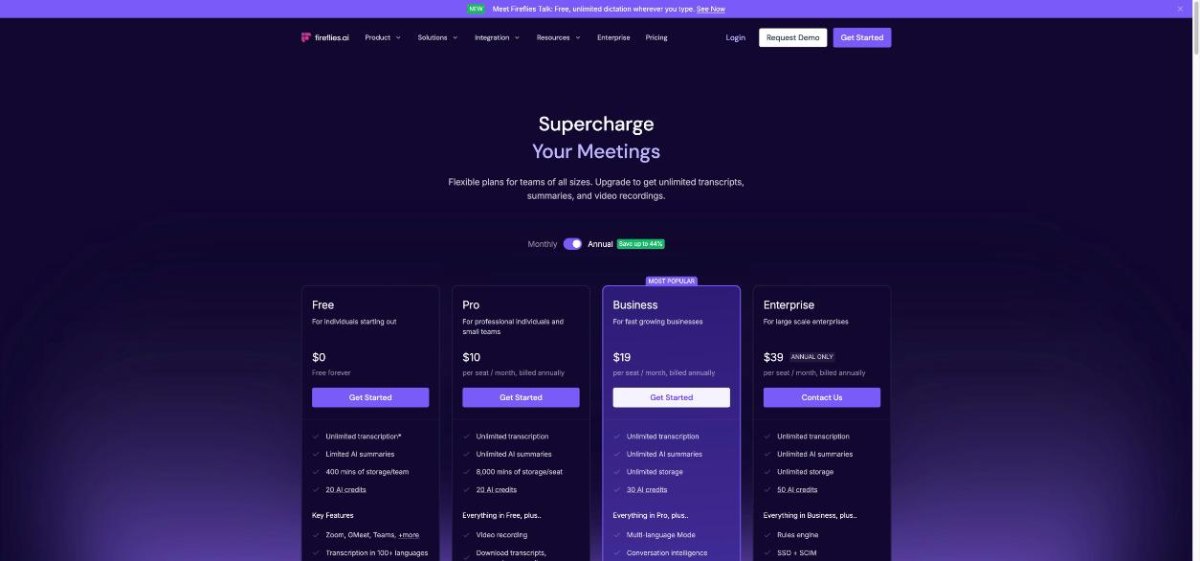
Free includes unlimited transcription but limited AI summaries. Pro adds unlimited summaries, video recording, and downloads of transcripts, summaries and recordings. For most solo freelancers, the decision is between Free and Pro. Business mainly adds team features, unlimited storage and a longer recording limit.
One detail that matters for a solo business: Fireflies counts every teammate added to your workspace as a paid seat, but you can share individual meeting recap links with clients or collaborators without adding them, free of charge. You rarely need more than one seat.
Setting 1: Decide which meetings Fred may join
This is the first setting to change. Fireflies’ help centre lists four auto-join options under Meeting Settings:
- All meetings with a web-conferencing link: Fred joins every calendar meeting with a video link.
- Only meetings that I own: Fred joins meetings where you are the host.
- Only meetings with teammates: Fred joins meetings with your Fireflies teammates.
- Only when I invite [email protected]: Fred joins only when you invite it manually.
For freelancers, “all meetings” is the risky choice. Clients often invite contractors to their own internal stand-ups, workshops and stakeholder calls. A notetaker turning up uninvited in someone else’s meeting is awkward at best. “Only meetings that I own” is a sensible default: your discovery calls and check-ins get recorded, while meetings a client hosts do not.
If you want finer control, Fireflies also supports Recording Rules, which let Fred join or skip meetings based on keywords, email addresses or domains. A rule that skips a particular client’s domain is useful when that client has said no to recording.
Two more details from the help centre are worth knowing. First, joining is not the same as capturing: the notetaker has to be admitted to the meeting before it can record, so if it sits in a waiting room, nothing is captured. Second, Google Meet may label Fireflies Notetaker as a “potential risk” in the waiting room. Fireflies says this is a Google Meet visibility warning, not a sign that the tool is unsafe, but it is worth warning clients so they are not alarmed.
Setting 2: Consider recording without the bot
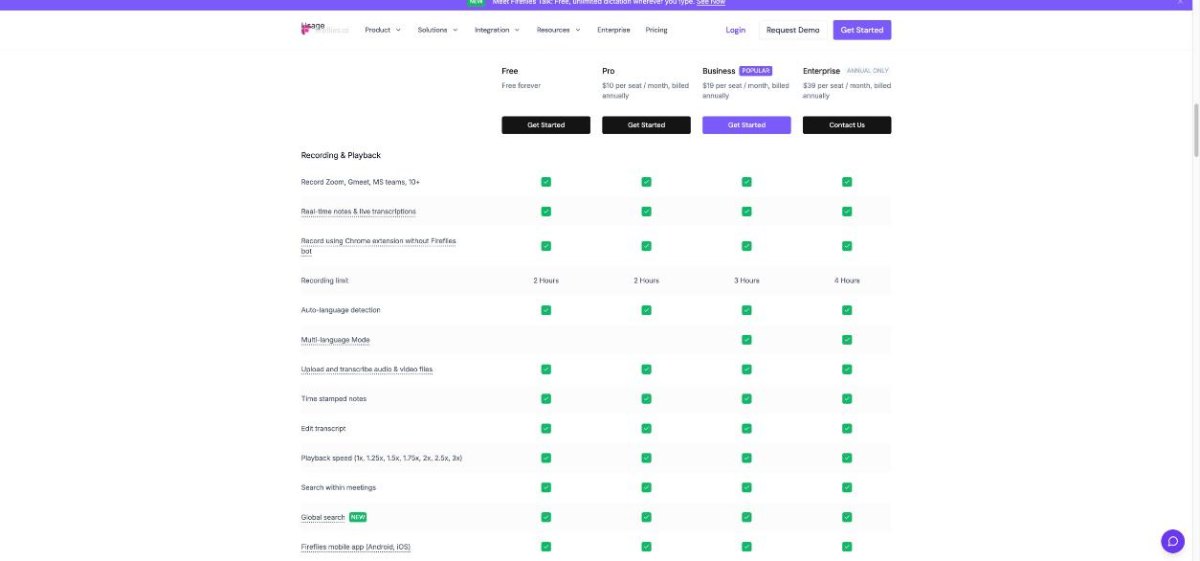
The Fireflies plan comparison lists “Record using Chrome extension without Fireflies bot” on every plan, including Free. For freelancers who work with clients that dislike bots, this matters. You still get a transcript, but there is no extra participant in the call.
Recording without a visible bot does not remove your duty to tell people they are being recorded. Ask at the start of the call, every time, and respect a no. If you would rather have a tool built around bot-free notes, I compared that approach in my look at Krisp for bot-free client call notes.
If a client prefers a custom name rather than “Fireflies Notetaker,” Fireflies says Pro and Business users can buy an add-on to change the bot name.
Setting 3: Turn off AI features you do not use
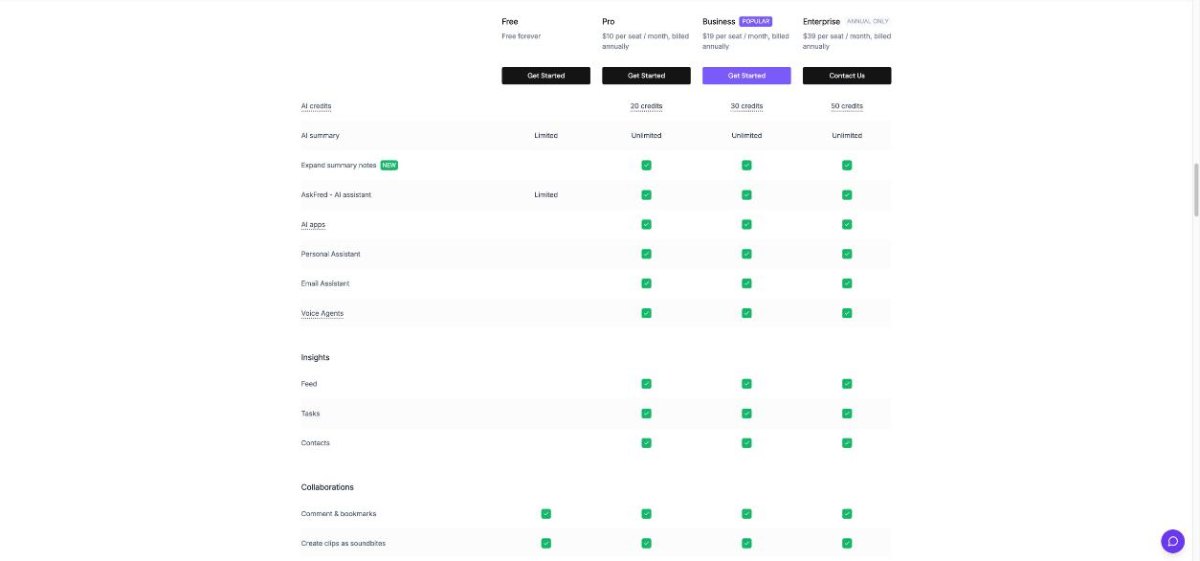
This is the setting most people miss. Fireflies separates transcription from its advanced AI features. According to its AI credits help article, standard transcription, note-taking and recap emails are covered by your plan and do not use AI credits. Advanced features do, including:
- AI Skills, which generate custom notes from more than 100 templates
- Magic and keyword soundbites
- Custom summary sections
- AskFred during a live meeting (Live Assist)
- The Slack Assistant and Voice Agents
- Personal Assistant features
Personal Assistant bundles Daily Digest, Meeting Prep and Tasks. Fireflies says Daily Digest and Meeting Prep are enabled by default, run on a schedule, and consume AI credits. Tasks is always on and free. If you do not read a daily digest, switch Daily Digest and Meeting Prep off in AI Skills settings so they stop drawing on your credits.
Fireflies also notes that credits are charged per query with dynamic pricing, so a complex request uses more credits than a simple one. Summary templates do not use credits, and reprocessing a summary is free; only custom summary sections cost credits.
Setting 4: Pause the AI credits auto-upgrade
The included credits are small and they are one-time, not monthly: 20 on Free and Pro, 30 on Business, 50 on Enterprise. They do not expire, but they also do not stack when you upgrade. Moving from Free to Business gives you 30 credits, not 50.
Here is the part a freelancer on a tight budget should know. According to the help centre, if a paid user runs out of included credits and has no AI credits subscription, Fireflies automatically subscribes them to the lowest tier, which is $5 a month for 50 credits. If you already have a credit subscription and run out, Fireflies automatically upgrades you to the next tier. Free users see a paywall instead and are not charged automatically.
The credit packs listed in the help centre are:
| Credits per month | Monthly price | Annual price (per month) |
|---|---|---|
| 50 | $5 | $4 |
| 200 | $20 | $16 |
| 1,000 | $90 | $72 |
| 2,500 | $200 | $160 |
Larger packs exist too. Unused purchased credits do not carry over to the next billing cycle.
To stop surprise upgrades, Fireflies explains the steps: go to Settings, then Billing, find AI Credits, click Edit, choose Edit Subscription, toggle off Auto upgrade, and click Update. You can also cancel an AI credits subscription from the same place; access continues until the end of the current billing period.
A $5 charge is not a disaster. The point is that a freelancer should decide on purpose whether AI credits are worth paying for, rather than discovering a new line on the card statement.
Setting 5: Watch storage and recording limits
On the Free plan, storage is 400 minutes per team. If you run three one-hour client calls a week, that fills up in a little over two weeks. Pro raises this to 8,000 minutes per seat, which is about 133 hours of meetings, and Business has no storage cap.
Each recording is also capped: 2 hours on Free and Pro, 3 hours on Business and 4 hours on Enterprise. Long workshops or full-day strategy sessions may need splitting, or a Business plan.
If you stay on Free, get into the habit of exporting or noting the key points from each call, then deleting old recordings you no longer need. Note that downloading transcripts, summaries and recordings is listed as a Pro feature.
Setting 6: Connect only the integrations you use
Fireflies says it integrates with more than 100 apps, from Google Meet and Microsoft Teams to Dropbox, HubSpot, Salesforce, Miro and Canva. The pricing page lists unlimited integrations from Pro upward.
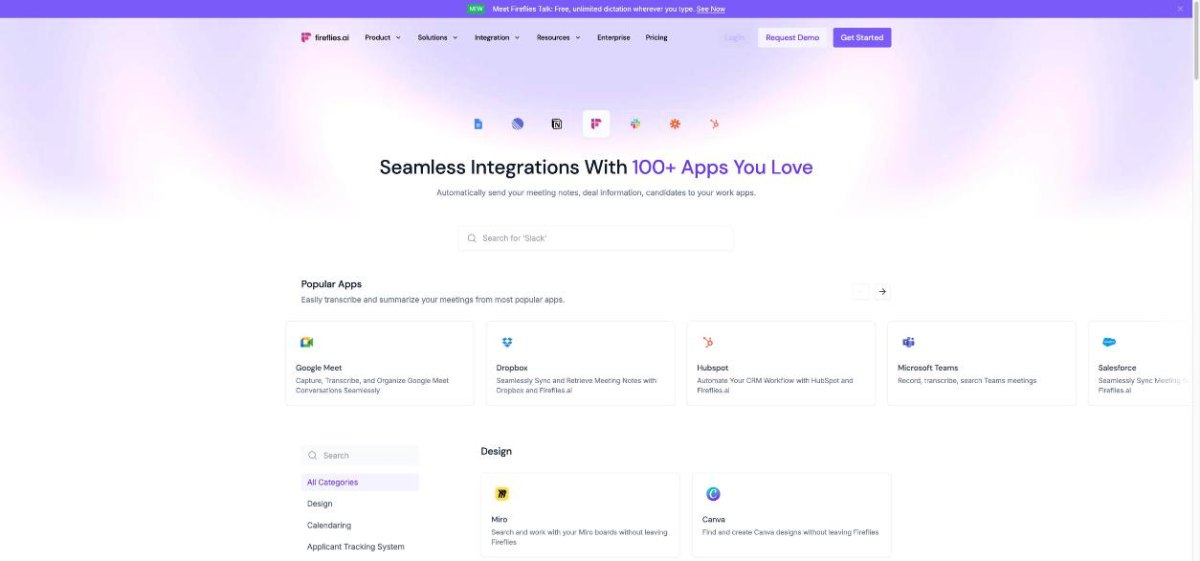
For a freelancer, fewer is better. Every integration is another place where client conversations get copied. A practical setup is one calendar, one video platform, and perhaps one place to store notes, such as the tool where you keep client files. Be careful with CRM autofill as well: Fireflies lists CRM autofill for HubSpot and Salesforce among the features that use AI credits.
A day-one checklist
- Set auto-join to “Only meetings that I own,” or to manual invites only.
- Add Recording Rules to skip any client who has declined recording.
- Install the Chrome extension if some clients do not want a bot in the call.
- Turn off Daily Digest and Meeting Prep if you will not use them.
- Pause AI credits auto-upgrade in Settings, then Billing.
- On Free, plan around the 400-minute storage cap.
- Connect only the integrations you need.
- Tell every client you record calls, and ask at the start of each one.
Who Fireflies.ai suits, and who it does not
A good fit: freelancers who run many client calls on Zoom, Meet or Teams and want searchable transcripts without paying much. The Free plan is enough to try it, and Pro at $10 a month on annual billing covers most solo needs with unlimited summaries and plenty of storage.
Less of a fit: freelancers whose clients dislike any recording, and people who mainly want polished notes written in their own words. If your main goal is turning a discovery call into a proposal, a different style of tool may suit you better; I covered one in Granola for freelancers on discovery calls.
Verdict
Fireflies.ai is a capable, affordable notetaker, and its free plan is generous on transcription. The defaults, though, are designed for teams. A freelancer should narrow auto-join to their own meetings, switch off the scheduled AI features they do not read, and pause the AI credits auto-upgrade. With those few settings changed, Fireflies becomes a quiet, predictable tool rather than one that surprises you or your clients.
FAQ
Is Fireflies.ai free?
Yes. The Free plan costs $0 and includes unlimited transcription, limited AI summaries, 400 minutes of storage per team and 20 AI credits on sign-up.
How much is Fireflies.ai Pro?
Pro is $10 per seat per month billed annually, or $18 billed monthly, according to the Fireflies pricing page.
Does Fireflies.ai charge AI credits for transcription?
No. Fireflies says standard transcription, note-taking and recap emails are covered by your plan. AI credits apply to advanced features such as AI Skills, soundbites, custom summary sections and Live Assist.
How do I stop Fireflies from joining every meeting?
In Meeting Settings, change the auto-join option to “Only meetings that I own” or “Only when I invite [email protected],” or turn auto-join off. Recording Rules give finer control.
Can I use Fireflies.ai without the bot joining the call?
Yes. The plan comparison lists recording with the Chrome extension without the Fireflies bot on all plans.
Why was I charged $5 for AI credits?
If a paid account runs out of included AI credits, Fireflies automatically subscribes it to the lowest credit tier, $5 a month for 50 credits. You can turn off auto-upgrade under Settings, Billing, AI Credits.