
Disclosure: some links in this guide are partner links. If you sign up through them, I may earn a commission at no extra cost to you. Plan details and transfer steps come from Kinsta’s pricing page and MyKinsta documentation as they read today.
A Kinsta site transfer is the cleanest way I know to build a WordPress site on my own hosting account and then give it to the client without a migration. The site stays where it is, the client accepts it into their own Kinsta company, and from that moment the hosting bill and the ownership sit with them. The catch is that the whole thing runs on a clock and a few role rules that nobody mentions in the sales call, so this guide walks through the handoff the way I would plan it in a freelance project.
If you have read my notes on Hostinger agency hosting for freelancers, this is the opposite model. There, I keep the client sites under one plan and give the client a login. Here, the client ends up owning the account outright, and I step back to a user role or leave completely.
What a Kinsta site transfer actually moves
The most useful sentence in Kinsta’s documentation is that a site transfer only changes which company the site belongs to in MyKinsta. The site is not copied, moved or migrated, so it keeps serving visitors during the transfer. You do not touch DNS records, nameservers or the domain registrar because of the transfer itself.
Kinsta lists what goes across with the site:
- Both the live and staging environments
- SSH/SFTP settings and caching configuration
- Enabled features, SSL certificates and domain settings
- DNS records in MyKinsta, if you use Kinsta DNS and tick the domain during the transfer
- PHP, Redis and Premium staging add-ons, which move automatically; every other add-on is disabled when the site changes company
There is one detail I like a lot as a freelancer. If the site runs on a bigger PHP memory pool than the client’s plan includes, MyKinsta adds a PHP performance add-on on the receiving side so the site keeps the same performance. That protects the work you tuned, but it also means the client may see an add-on line they did not expect. More on that in the proposal section below.
Who is allowed to start and accept the transfer
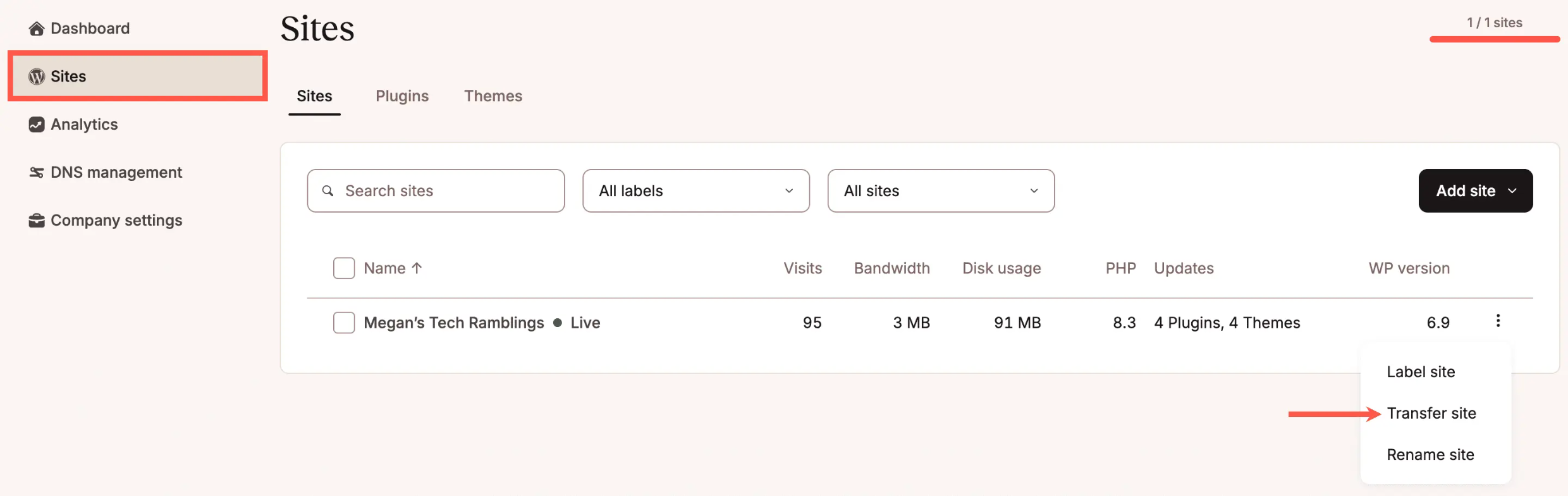
This is where handoffs stall. On the sending side, only a Company Owner or Company Administrator can start a site transfer. On the receiving side, the person must also be a Company Owner or Company Administrator of the destination company. A client’s marketing manager with a developer role cannot accept it for the business.
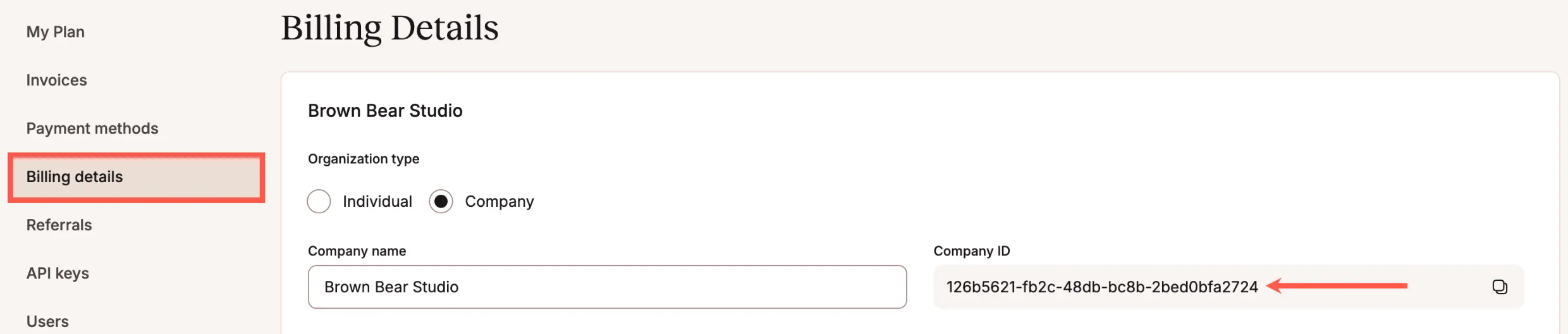
You also need either the destination company ID or the email address of an owner or administrator there. Kinsta support will not hand out a company ID or user emails for privacy reasons, so you have to get it from the client. If the client has no Kinsta account yet, you only need the email address they want to use; they create the account and company as part of accepting.
The 72-hour window and why I schedule it like a meeting
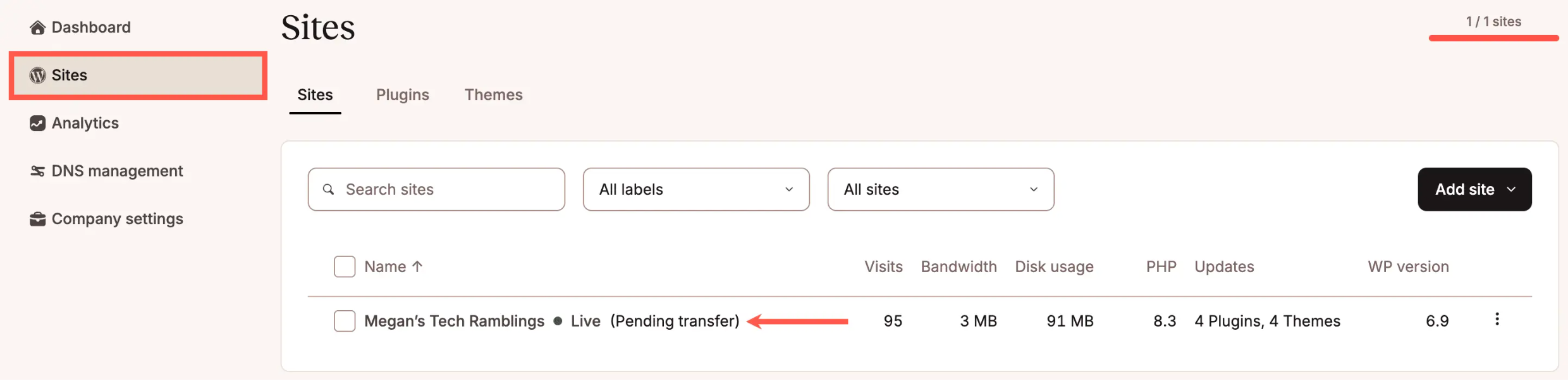
After you click Transfer site, the site shows as Pending transfer in your MyKinsta. The client gets an email. If nobody on the destination side accepts within 72 hours, the request is canceled automatically and you start again.
Three days sounds generous until you send it on a Friday afternoon to a client who reads email on Tuesdays. So I treat the transfer like a call: I agree a time with the client, send the transfer while we are both online, and stay available while they register and accept. Until they accept, I can also revoke the transfer from the site’s Info page, which is handy if I notice a last-minute bug.
What the client sees on their side
The client’s experience depends on two things: whether they already have a Kinsta account, and whether you recommended a plan in the transfer form.
- No account, no plan recommended: the email’s register button takes them to Kinsta’s plans page to pick a plan and sign up.
- No account, plan recommended: the button goes straight to signup for the plan you chose.
- Existing account with several companies: they can pick which company receives the site, or create a new one.
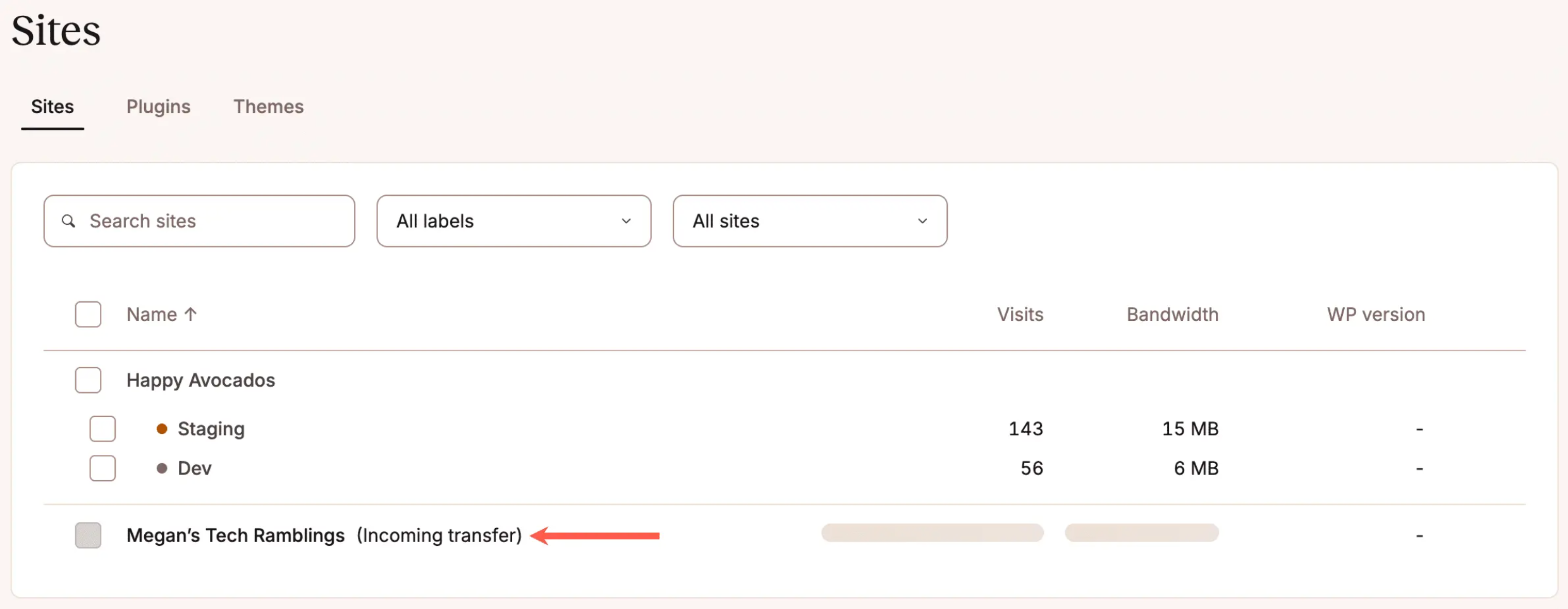
Inside MyKinsta, the site appears as an Incoming transfer. They click it, choose Commit transfer and then Accept transfer. If active add-ons come with the site, they must accept them as part of the transfer and can cancel them afterwards. If their plan lacks a free site slot or KinstaDNS slot, MyKinsta asks them to upgrade after they accept.
My advice: always recommend a plan. A client who lands on a full pricing table with no guidance will either email you in a panic or pick something oversized. A one-line recommendation in the transfer form removes that decision from the handoff day.
What the client will pay after the handoff
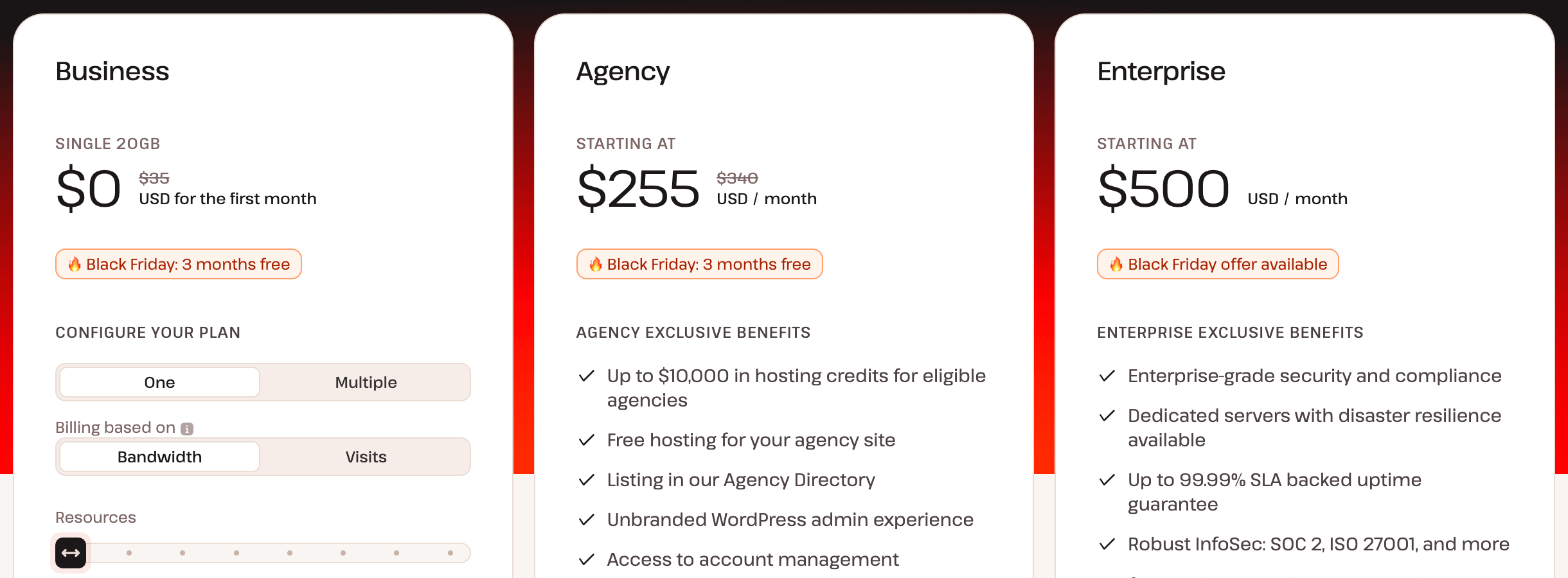
Because the client becomes the account owner, the client pays Kinsta directly. Here is what the pricing page lists today, so you can put real numbers in the proposal:
| Plan | Regular monthly price | What is included |
|---|---|---|
| Single 20GB (Business) | $35/mo | 1 WordPress install, 20GB bandwidth, 10GB storage, 125GB CDN bandwidth, 14 days backup retention, unlimited migrations |
| WP 2 | $70/mo | 2 installs, 40GB bandwidth, 20GB storage |
| WP 5 | $115/mo | 5 installs, 65GB bandwidth, 30GB storage |
| Agency | from $340/mo | Agency-only benefits such as an unbranded WordPress admin and, for eligible agencies, hosting credits |
Annual billing is cheaper on every Business plan; the Single 20GB plan works out to $315 a year after the first month in the current offer. Kinsta is also running a Black Friday promotion for new customers until December 1, 2026: 50% off for three months on monthly plans, three months off on annual plans, and a first month free on select plans. Since your client signs up as a new customer during the handoff, it is worth timing a transfer inside that window when the project allows.
Add-ons are where a client’s bill can quietly grow. Kinsta lists Redis caching at $100 per site per month, Premium staging environments at $20 per site per month, and PHP performance at $10 per 500MB per month. If you enabled Redis on your side for testing and forget to switch it off, it travels with the site and lands on the client’s invoice.
The clause I add to the proposal
Like the Elementor Pro license question, hosting ownership belongs in the proposal, not in the last email. My clause covers four points:
- Where the site is built: on my Kinsta company during the project, at my cost.
- When it moves: on a scheduled handoff call after final approval, with a transfer the client accepts within Kinsta’s 72-hour window.
- Which plan and add-ons: the plan I will recommend in the transfer and any add-ons that will move with the site, with their listed prices.
- What access I keep: whether the client invites me back as a user for maintenance, and in which role.
Point four matters because after acceptance the site no longer belongs to your company. If you sell a care plan, the client has to add you as a user in their company. If they would rather not, the care plan simply does not happen, and it is better to know that before the build.
A handoff checklist for Kinsta sites
- Get the client’s preferred email or company ID a week before launch.
- Confirm the person who will accept is a Company Owner or Company Administrator.
- Switch off add-ons the client should not pay for, especially Redis, before sending.
- Check the PHP memory pool you set, since a bigger pool can trigger a PHP performance add-on on their side.
- If the domain uses Kinsta DNS, tick it in the transfer so the records move with the site.
- Recommend a plan in the transfer form, and enter your Affiliate ID there if you are in Kinsta’s affiliate program.
- Send the transfer during a scheduled call and stay until the client clicks Accept.
- If it was the only site on your plan, decide whether to cancel your plan; the transfer does not cancel it for you.
That last point catches people. Kinsta says plainly that transferring a site does not cancel the WordPress hosting plan. The slot frees up for the next project, which is fine if you build on Kinsta often and wasted money if you do not.
When a Kinsta site transfer is the wrong tool
This workflow suits clients who will pay for managed hosting and want to own the account. It is the wrong fit when:
- The client’s budget is closer to shared hosting. Starting from $35 a month for one site, Kinsta is a premium choice, and selling it to a price-sensitive client creates friction you will hear about later.
- You want to keep hosting as recurring revenue. Then a model like agency hosting under your own account, or Kinsta’s Agency plan with its unbranded WordPress admin, fits better than handing everything over.
- The client will not create an account or name an administrator. Without someone on their side who can accept, the request just expires after 72 hours.
My take
For freelancers who build on managed WordPress hosting, the Kinsta site transfer removes the riskiest part of a handoff: the migration. The site stays put, the client owns the account and the bill, and your role after launch becomes a clear, written choice instead of an awkward login you never handed back. The work is all in the planning: the right person on the client side, a recommended plan, add-ons switched off, and a time when you are both online inside the 72-hour window.
Kinsta site transfer FAQ
Does a Kinsta site transfer cause downtime?
Kinsta says the site is not moved or migrated during a transfer, only reassigned to another company in MyKinsta, so it keeps running as normal and no DNS change is needed for the transfer itself.
Does the client need a Kinsta account before I send the transfer?
No. You can send the transfer to the email address they want to use. They register an account and company from the transfer email, either on the plans page or straight on the signup page for the plan you recommended.
What happens if the client does not accept in time?
The request is canceled automatically after 72 hours. The site stays in your company, and you can send a new transfer.
Are staging environments included?
Yes. Kinsta transfers both the live and staging environments. Premium staging add-ons move with the site; other add-ons except PHP and Redis are disabled.
Can I still work on the site after the transfer?
Only if the client adds you as a user in their Kinsta company. After acceptance, the site belongs to their company, not yours.
Does transferring my only site cancel my Kinsta plan?
No. Kinsta asks you to confirm that the transfer does not cancel the plan. You cancel it separately under Company settings if you no longer need it.