
Disclosure: this article may contain affiliate links. If you buy through them, I may earn a commission at no extra cost to you.
Most advice about Loom async video stops at “cancel your meetings and record instead”. That is not very useful on a Monday morning. A small team needs to know which recurring meetings can actually become a recording, which ones must stay live, and how long each recording should be. This guide gives you that list, a script for each video, and a weekly rhythm you can copy.
I also map the rhythm to Loom‘s current plans, because the free plan’s limits decide how far you can go before paying. All plan details below come from Loom’s official pricing and feature pages as I read them in October 2026.
What Loom is, in one minute
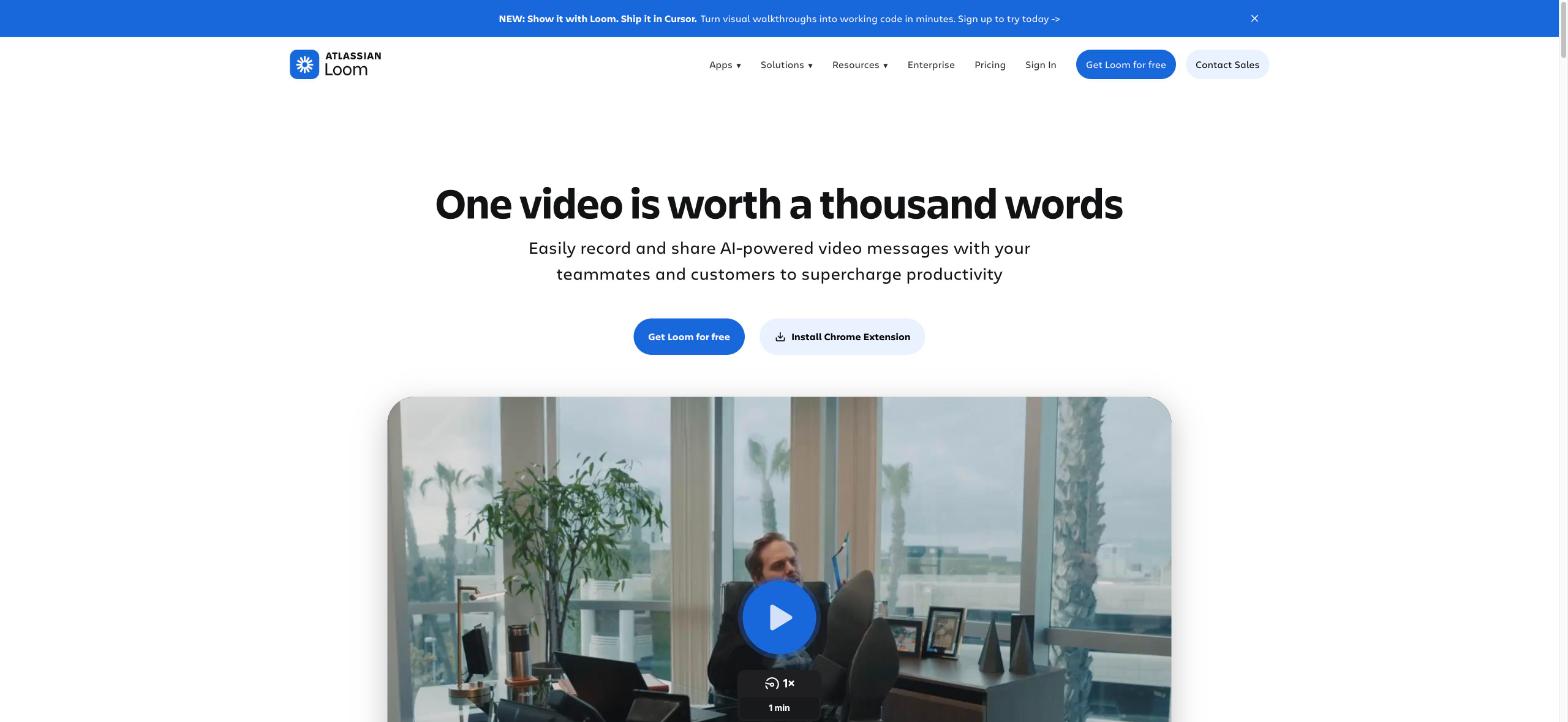
Loom is a screen and camera recorder that turns a recording into a shareable link. It is now part of Atlassian. You record your screen with an optional camera bubble, stop, and send the link. Viewers do not need to join a call.
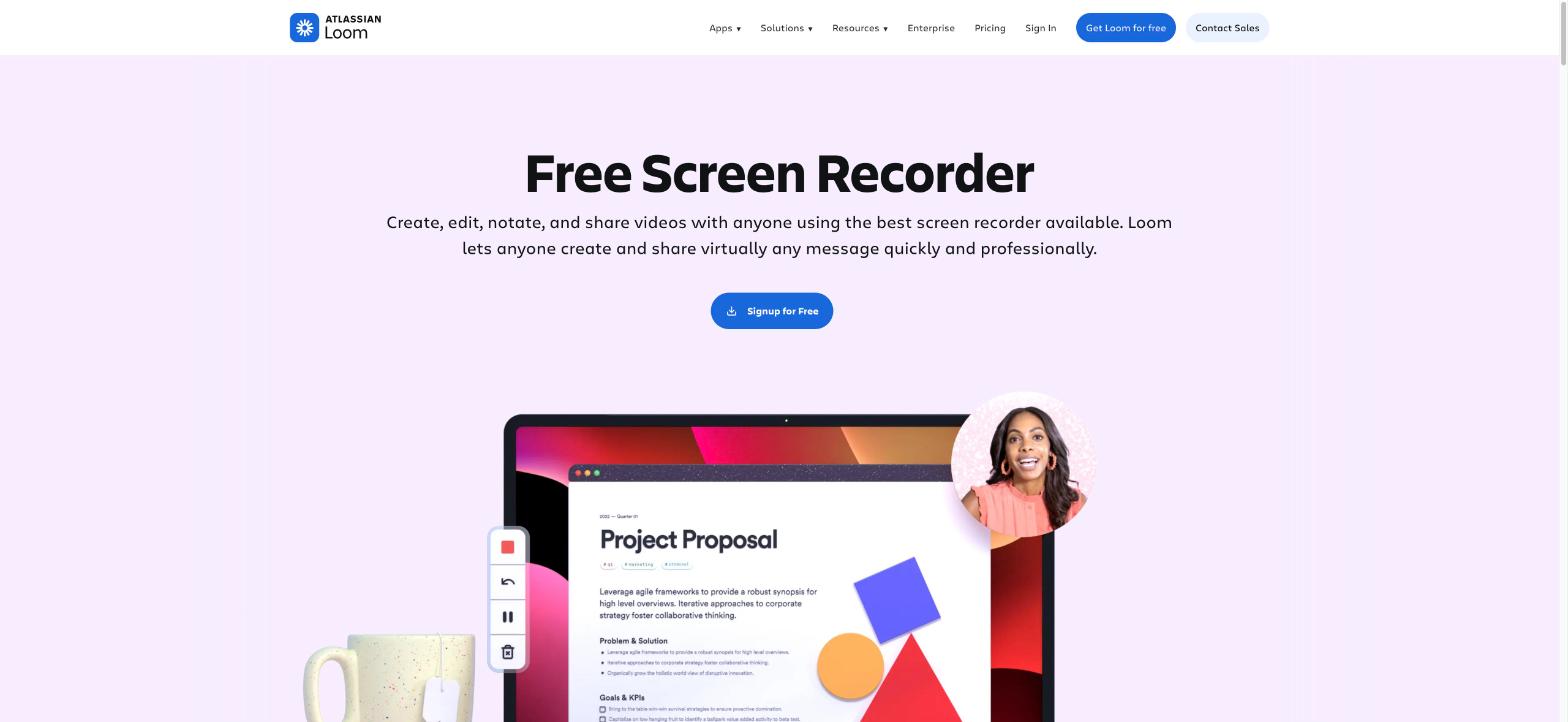
According to Loom’s own pages, it runs as a Chrome extension, a desktop app for Mac and Windows, and mobile apps for iOS and Android.
Four features matter for replacing meetings:
- Comments and emoji reactions on the video, so the discussion happens next to the content. Viewers can also reply with a video comment.
- Transcriptions and closed captions, listed in 50+ languages, so people can read instead of watch.
- Viewer insights, so you can see whether the video was watched.
- Integrations with Slack, Jira, Confluence, GitHub and Gmail, plus embeds in tools such as Notion.
The rule: when Loom async video works and when it fails
Before the list, here is the test I use. It is simple on purpose.
A meeting can become a video when information flows mostly one way and nobody needs an answer within the hour. Status, demos, walkthroughs and announcements all pass this test.
Async fails when any of these three things is true:
- The topic is emotional. Feedback about a person, a conflict, bad news. A recording feels cold and gives no room to react.
- The answer depends on the answer. If each reply changes the next question, a comment thread will take three days to do what a call does in fifteen minutes.
- It is urgent. If a decision is needed today, do not wait for people to find time to watch.
I add one safety valve, which I call the two-round rule: if a video’s comment thread goes back and forth twice without a decision, stop typing and book a 15-minute call. Async is a default, not a religion.
Five meetings to replace with Loom
Each meeting below has a target length and a script. The target lengths are my own recommendations. I keep them at five minutes or less for a practical reason: that is the recording cap on Loom’s free plan, and it is also about as long as a colleague will watch without skipping.
1. The Monday status meeting (2 to 3 minutes per person)
The round-the-table update is the easiest meeting to drop. Everyone talks for a few minutes while the rest wait for their turn.
Script:
- What I finished last week (show it on screen, do not just say it).
- My top three priorities this week.
- Where I am blocked, and who I need.
Everyone posts their link in one Slack thread by Monday noon. People comment only where they can unblock something.
2. The project or demo update (4 to 5 minutes)
Showing work in progress is where screen recording beats a live call. You can rehearse, the demo does not crash in front of people, and viewers can pause on the detail they care about.
Script:
- One sentence on the goal of the project.
- Show what changed since the last update.
- Show what is not working yet.
- End with one clear question you need answered, and a deadline for answering.
That last line matters most. A video without a question gets a thumbs-up emoji and nothing else.
3. The feedback review (3 to 5 minutes)
Reviewing a design, a document, a landing page or a pull request rarely needs everyone in a room. Open the work, talk through it, and point at things as you go. On paid plans Loom lists a drawing tool and mouse emphasis for exactly this.
Script:
- What I like and would keep.
- Up to three changes I would make, in order of importance.
- What I am unsure about and leave to the author.
4. The how-to handoff (under 5 minutes per task)
“Can you jump on a call and show me how to do it?” is a meeting that repeats with every new hire and every holiday cover. Record it once.
Script:
- What this task is and when it has to be done.
- The steps, performed on screen at normal speed.
- The one mistake people usually make.
One task per video. Then keep the links where the team already looks for answers. If your wiki lives in Notion, Loom videos can be embedded there; I covered that tool in my Notion review.
5. The weekly announcement or all-hands (3 to 5 minutes)
If one person talks and the rest listen, it is a broadcast, not a meeting. Numbers, news, a new client, a policy change: record it.
Script:
- The headline first, in the opening 20 seconds.
- Two or three supporting points, with the numbers on screen.
- What changes for the team, and from what date.
- Where to ask questions (the comments, with a cut-off day).
Here viewer insights are useful: you can check that the team has actually watched before the change takes effect.
Two meetings to keep live
1. One-to-ones
A one-to-one exists for the things people will not put in a recording: doubts, frustration, career questions, honest feedback. It fails the “emotional” test straight away. Keep it live, keep it regular, and do not let it turn into a status update. The Monday video already covers status.
2. The weekly decision meeting
Planning, prioritising, retrospectives and anything with real disagreement fail the “answer depends on the answer” test. Keep one live session a week for them.
The difference is that this meeting now gets shorter and better. Everyone has already watched the updates, so the agenda is only the open questions that the videos raised. My rule: no item goes on the live agenda unless it was first posted as a video or a written note.
A simple weekly rhythm
Put together, the week looks like this for a team of roughly three to ten people.
| Day | Format | What happens | Target length |
|---|---|---|---|
| Monday | Loom | Status video from each person, plus the weekly announcement | 2 to 3 min each |
| Tuesday | Loom | Feedback reviews on work shared so far | 3 to 5 min |
| Wednesday | Live | Decision meeting, open questions only | 30 to 45 min |
| Thursday | Loom | Project or demo updates | 4 to 5 min |
| Any day | Live | One-to-ones, on their usual schedule | 30 min |
| As needed | Loom | How-to handoffs, one task per video | Under 5 min |
Three habits keep this from falling apart:
- A reply deadline. Agree that Loom videos are watched within one working day. Without it, async simply means “ignored”.
- One place for links. A single Slack channel or thread per video type, so nobody hunts for Monday’s updates.
- No retakes. A slightly clumsy two-minute video recorded once is the point. If people start polishing, the meeting was cheaper.
Loom plans mapped to this rhythm
Loom’s pricing page currently lists four plans.
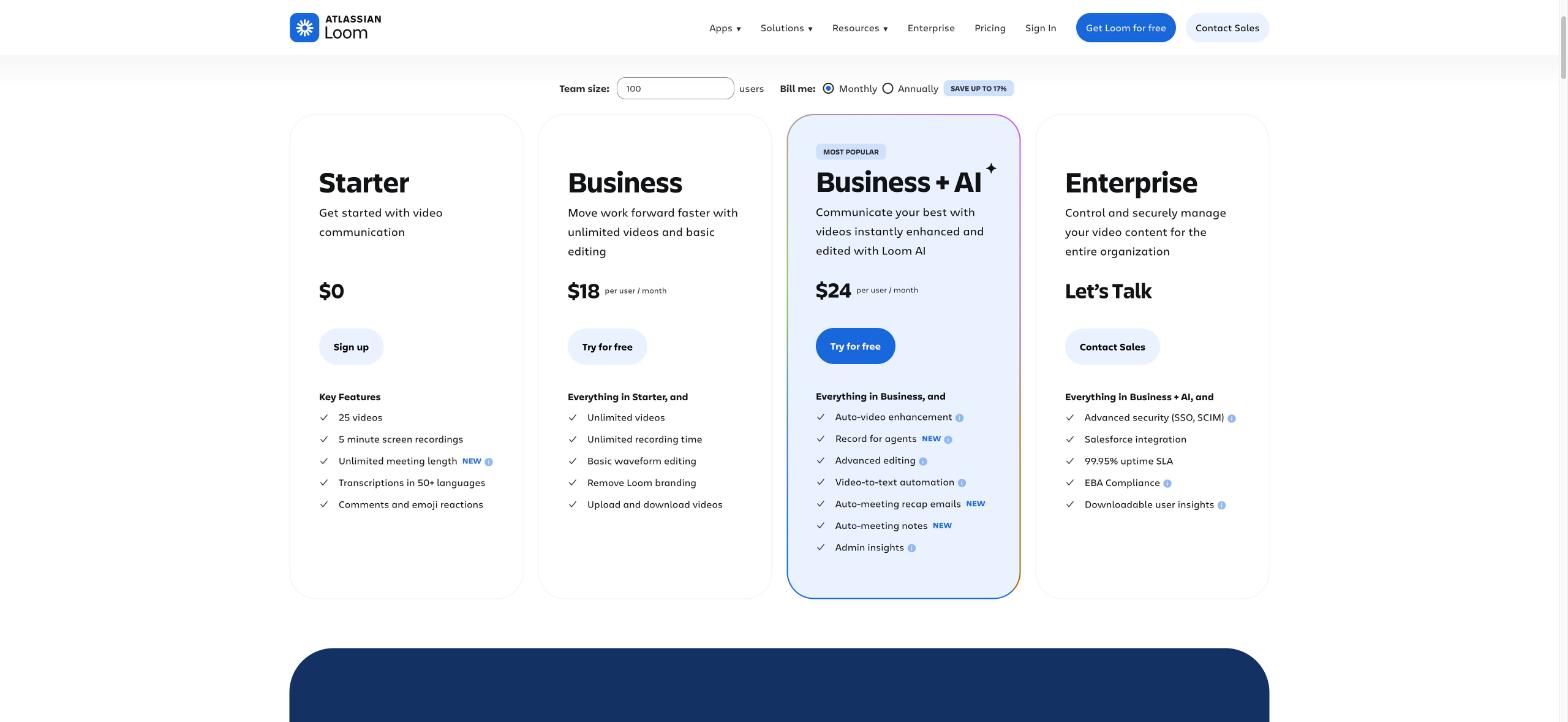
- Starter, $0. Up to 25 videos per person, 5 minutes per recording, video quality up to 720p, up to 50 members. It includes transcriptions, closed captions, comments, emoji reactions, viewer insights and privacy controls.
- Business, $18 per user per month. Unlimited videos and recording length, quality up to 4K, trim and stitch editing, the drawing tool, removal of Loom branding, password-protected videos, upload and download, and engagement insights.
- Business + AI, $24 per user per month. Everything in Business plus Loom AI: summaries and chapters, filler word and silence removal, edit by transcript, auto meeting notes and recap emails, and AI workflows that turn a video into a document.
- Enterprise, custom pricing. Adds SSO and SCIM, advanced admin and privacy controls, and a Salesforce integration.
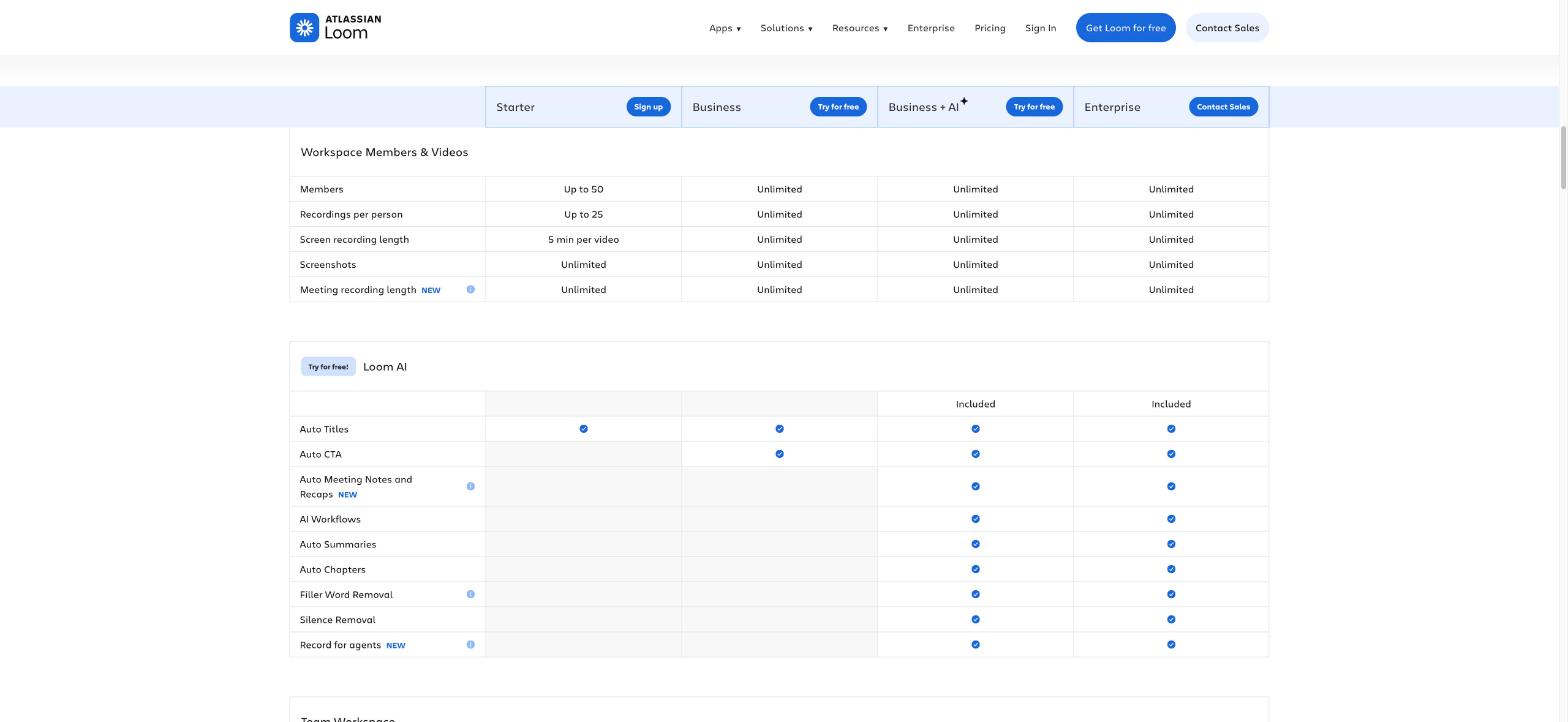
Loom says annual billing saves up to 17%, and that Business + AI can be tried free for 14 days. Most Loom AI features are only on Business + AI and Enterprise; the comparison table on the pricing page shows auto titles on every plan.
How far the free plan gets you
Every script above fits inside the 5-minute cap, which is deliberate. The real limit is the 25-video count.
Do the arithmetic for your own team. In this rhythm, one person records a Monday status and perhaps one review or demo a week. At two videos a week, that person reaches 25 videos in about twelve weeks. At three a week, in about eight.
So Starter is a fair way to test the rhythm for a month or two, not a permanent home for a team that records weekly. I could not confirm from the pricing page exactly what happens when someone reaches the cap, so check that inside your workspace before you rely on it.
When to pay
Business is the plan this rhythm naturally lands on, because it removes both limits. Since pricing is per user, look at who really records. People who mostly watch and comment may not need the same seat as people who record daily; Loom’s pricing FAQ describes separate Creator and Creator Lite member types, so read that part before you add the whole team.
Business + AI is worth the extra $6 per user only if you will use the summaries, chapters and video-to-document features. For a five-person team, by my arithmetic, that difference is $30 a month on monthly billing. If not, skip it.
Where Loom is not the right tool
Loom is built for quick, disposable work communication. It is not a full video editor. If you produce polished content such as podcasts, courses or YouTube videos, a transcript-based editor is a better fit; see my guide to Descript for podcasters for that kind of work.
FAQ
Is Loom free for small teams?
Yes, there is a free Starter plan. Loom’s pricing page lists up to 25 videos per person, 5 minutes per recording and up to 50 members. That is enough to try the weekly rhythm, but regular recorders will reach the video limit within a few months.
How long should a Loom video be?
My recommendation is two to five minutes for internal updates. If you need more than five, split the topic into two videos or write it down instead.
Which plan includes Loom AI?
Loom AI is included in Business + AI and Enterprise. From the AI group, the comparison table lists only auto titles on Starter, and auto titles plus auto CTA on Business, although both include transcriptions and closed captions.
Can Loom replace every meeting?
No. Keep one-to-ones and decision meetings live. Use the test from this article: if the topic is emotional, needs back-and-forth, or is urgent, talk in real time.
Conclusion
Replace the five meetings where one person talks and the others listen: status, demos, feedback reviews, how-to handoffs and announcements. Keep the two where people need each other in real time: one-to-ones and decisions. Keep every video under five minutes, end it with a question, and apply the two-round rule when a thread drags on.
Start on the free plan for a few weeks, count how many videos each person really records, and only then decide who needs a paid seat.