Disclosure: this article may contain affiliate links. If you buy through them, I may earn a commission at no extra cost to you.
A MailerLite welcome email sequence is usually the first automation a small business builds, and on the Free plan it is also the one most likely to break. Not because MailerLite hides the feature (automations are included on Free), but because the Free plan allows only a few steps per workflow, and most welcome-sequence templates you find online assume you have plenty.
So in this guide I design the sequence the other way around: start from the Free plan’s limits, then build the most useful welcome flow that fits inside them. You get two blueprints, the reasoning behind every step, a sending budget so you do not run out of emails halfway through the month, and the exact point where paying for Comfort starts to make sense. All plan details come from MailerLite’s pricing page and help center as I checked them today.
The Free plan limits that shape your sequence
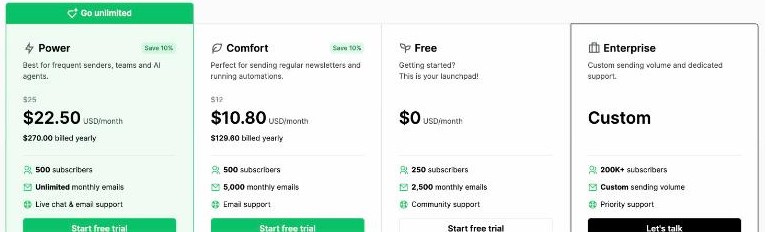
MailerLite currently has four plans: Free, Comfort, Power and Enterprise. The Free plan gives you up to 250 subscribers, 2,500 emails a month and two user seats, plus campaigns, automations, one website, one landing page and signup forms. In the plan comparison table, the automation-related limits are the ones that matter here:
| Limit | Free | Comfort | Power |
|---|---|---|---|
| Subscribers (entry tier) | 250 | 500 | 500 |
| Monthly emails | 2,500 | 10× your subscriber tier (5,000 at 500) | Unlimited (fair use) |
| Active automations | 3 | 50 | Unlimited |
| Steps per automation | 5 | 100 | 100 |
| Active forms | 3 | 10 | Unlimited |
| Price at 500 subscribers | $0 | $12/month, or $10.80/month billed yearly | $25/month, or $22.50/month billed yearly |
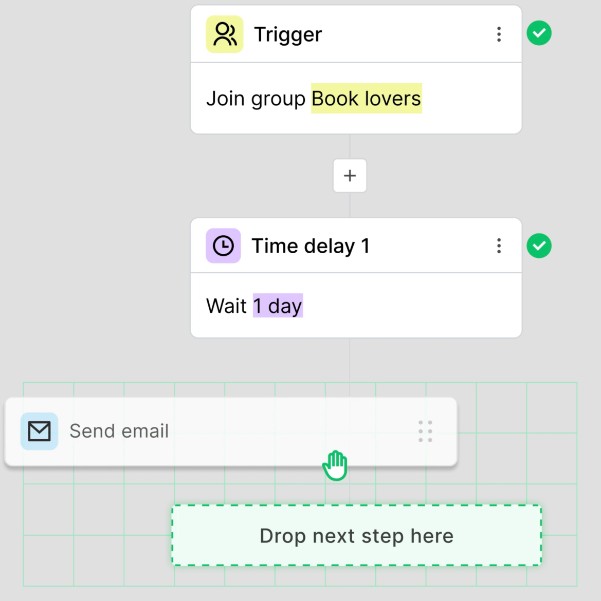
The number that decides the design is five steps per automation. In MailerLite, a step is any building block below the trigger: a Send email action, a Delay, a Condition, or another action such as moving someone to a group. A three-email sequence needs two delays between the emails, so it already uses all five steps.
How MailerLite automations are built
Every workflow starts with a trigger, such as a subscriber joining a group or completing a form. Below the trigger you stack steps. According to MailerLite’s help center, the Delay step is the most commonly used step after the email itself, and it can wait for a set number of minutes, hours, days, weeks or months, or until a specific time of day or day of the week. The Condition step splits subscribers into a yes branch and a no branch based on rules such as whether they clicked a link in an earlier email in the workflow.
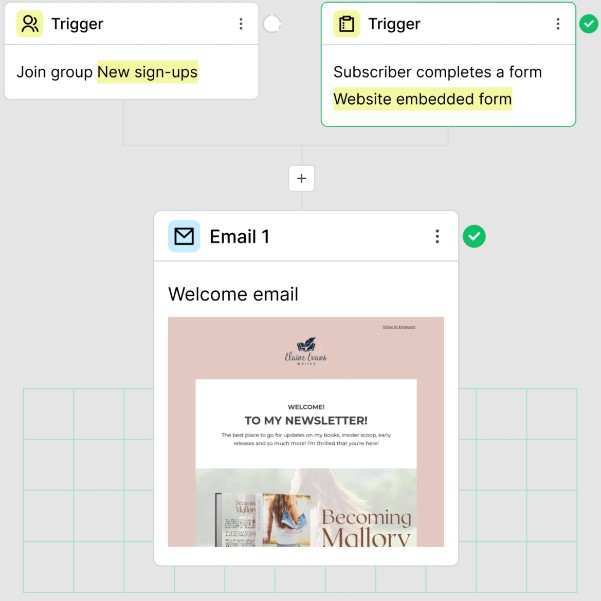
One detail from the help center is easy to miss: conditions are checked immediately. If your condition asks “did they click the link in Email 1?”, you must put a Delay before it, otherwise MailerLite checks before anyone has had a chance to open the email. That rule matters a lot when you only have five steps to spend.
Blueprint A: the straight three-email welcome
This is the version I recommend for most small businesses, bloggers and freelancers starting out. It uses exactly five steps.
- Email 1 (immediately): deliver and introduce. Send whatever you promised on the signup form (a checklist, a discount code, a guide) in the first lines, then one short paragraph about who you are and what they will get from your emails.
- Delay: 2 days.
- Email 2: your best proof. Link to your single most useful article, case study or resource. Not five links, one. The goal is to show the subscriber that opening your emails is worth it.
- Delay: 3 days.
- Email 3: the next step. A clear, low-pressure call to action: book a call, browse a product, reply with a question, or follow your newsletter schedule.
Why only three emails? Because a three-email welcome done well beats a seven-email welcome you cannot build on Free. If you later want more, the upgrade path is straightforward (more on that below).
A timing trick that costs no extra steps
Instead of “wait 2 days”, MailerLite’s Delay step can wait until a specific day of the week or time of day. If your audience reads email on weekday mornings, set the second delay to “wait until 9am” style timing rather than a fixed number of days, so Email 3 never lands at 2am on a Sunday. You get better timing without spending another step.
Blueprint B: the welcome that adapts to clicks
If your business has two clear types of subscriber (for example, people who want a service versus people who want free tips), you can trade one email for a condition. This also uses five steps:
- Email 1: welcome, plus two clearly different links (“I want help with X” and “Just send me tips”).
- Delay: 2 days.
- Condition: did the subscriber click the “help with X” link in Email 1?
- Yes branch, Email 2a: your service, with a booking link.
- No branch, Email 2b: your best free resource and what to expect from your newsletter.
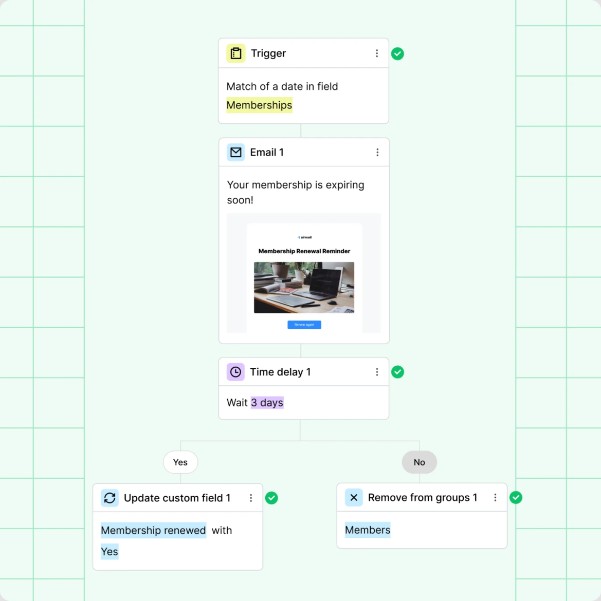
Each subscriber still only receives two emails, but they are the right two. If you offer consultations, the yes-branch email can link straight to your booking page; my guide to setting up Calendly for freelancers shows how to turn that link into a filtered discovery call or a paid session.
Use your three automations wisely
Free allows three active automations, so treat them like three slots:
- Slot 1: the main welcome sequence (Blueprint A or B), triggered by your main signup form or group.
- Slot 2: a lead-magnet delivery for a second form, if you offer a different freebie on a specific page. Keep it to one or two emails, then rely on your regular newsletter.
- Slot 3: keep it free for testing. I like to leave one slot open so I can try a new idea without switching off something that works.
Resist the temptation to chain automations together with “move to group” actions: on Free, each of those actions spends one of your five steps.
Check your sending budget before you switch it on
The Free plan’s 2,500 monthly emails cover both your automations and your regular campaigns. MailerLite counts a send as one email to one subscriber, so a campaign to 250 people uses 250 of your allowance. Here is a quick budget for a list near the 250-subscriber limit:
| Activity | Sends per month |
|---|---|
| Weekly newsletter to 250 subscribers (4 to 5 issues) | 1,000 to 1,250 |
| Blueprint A for 60 new subscribers (3 emails each) | 180 |
| One extra promotional campaign to the full list | 250 |
| Total | about 1,430 to 1,680 |
That fits comfortably. Two newsletters a week to the full list, however, would push you to roughly 2,000 to 2,500 sends before the welcome sequence even starts, which is where Free gets tight.
Also keep in mind how MailerLite counts subscribers: anyone with an active status counts, unsubscribed and bounced addresses do not, and any address that was active at any point in the billing cycle still counts even if you delete it later. Cleaning your list mid-month will not free up space immediately.
Writing the three emails
The structure matters more than clever copy. A few rules I follow:
- Subject lines that say what is inside. “Your checklist is here” beats “Welcome to the family!” for Email 1.
- One job per email. Deliver, prove, invite. If an email tries to do all three, it does none of them well.
- Plain, short paragraphs. Most welcome emails are read on a phone.
- Ask for a reply in Email 1. A simple “hit reply and tell me what you are working on” starts a conversation and tells you what to write about.
If English is not your first language, it is worth running each email through a grammar checker before you activate the workflow; I covered a practical setup in Grammarly for non-native English speakers.
Build your welcome sequence in MailerLite
Editing a live sequence without losing people
Two rules from MailerLite’s help center save a lot of trouble. First, you must pause a workflow before you edit its steps. Second, deleting a Delay step cancels every subscriber who is currently waiting on that delay (you can find and re-add them in the automation activity), while deleting an email or action simply moves waiting subscribers to the next step. So if you want to change timing, edit the delay length rather than deleting the step. MailerLite also lets you apply a changed delay to new subscribers only, which keeps people already in the queue on their original schedule.
When to upgrade to Comfort
Free is a real starting point, not a trial. I would move to Comfort when one of these becomes true:
- You want a welcome sequence longer than three emails, or a branch plus more than two emails. Comfort raises the limit to 100 steps per automation.
- You need more than three active automations (Comfort allows 50) or more than three active forms (Comfort allows 10).
- Your list is approaching 250 subscribers, or your sends are approaching 2,500 a month.
- You want to remove the MailerLite logo from your emails, or use features such as the AI writing assistant, multivariate testing and the preference center, which the pricing page lists for Comfort.
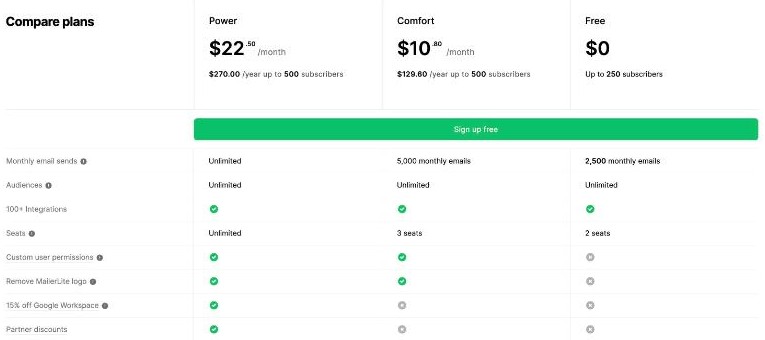
Power is for frequent senders: it removes the monthly email cap (subject to fair use) and adds unlimited automations, seats and sites. For most small businesses running one welcome sequence and a weekly newsletter, Comfort is the sensible next step. MailerLite also offers a 14-day trial of premium features with no credit card, which is a good way to test a longer sequence before paying.
Is MailerLite the right tool for a first welcome sequence?
For a small business or creator starting from zero, yes. The automation builder is visual and easy to follow, the Free plan includes real automations rather than a teaser, and the upgrade to Comfort is inexpensive at small list sizes. The main trade-off is that the Free plan’s five-step limit forces you to keep the sequence short, which, as this guide argues, is not a bad discipline.
It is less suited to businesses that need complex, many-branch journeys from day one, or that send to their full list several times a week on a tiny budget. In those cases, plan for Comfort or Power from the start.
Start with MailerLite’s Free plan
FAQ
Can I create a welcome email sequence on MailerLite’s Free plan?
Yes. Automations are included on Free, with up to three active automations and five steps per automation. That is enough for a three-email sequence with two delays.
Do delays count as steps in MailerLite?
Yes. Delays, conditions, emails and actions are all automation steps, so plan your five Free-plan steps carefully.
How many emails can I send on MailerLite Free?
2,500 emails a month, counting each email to each subscriber as one send. Automations and campaigns share the same allowance.
How many subscribers does MailerLite Free allow?
Up to 250 active subscribers. Unsubscribed and bounced contacts do not count.
How much does MailerLite Comfort cost?
At the 500-subscriber tier, Comfort is listed at $12 a month, or $10.80 a month billed yearly. Prices rise with your subscriber count.
What happens if I delete a delay step in a live automation?
Subscribers waiting on that delay are cancelled from the workflow. You can re-add them from the automation activity, but it is safer to edit the delay length instead.