Disclosure: some links on this page may be affiliate links. If you sign up through them I may earn a commission at no extra cost to you.
Freelancers rarely lose work because a task is hard. They lose it because a request arrived in the wrong place: a client email at 11 p.m., a voice note after a call, a “quick tweak” buried in a long thread. Using Todoist for freelancers works best when you treat it less as a to-do list and more as a single front door for every client request, with a few rules that decide where each task lands.
Most Todoist guides explain features one by one. In this article I set up Todoist around one question instead: how do you make sure nothing slips between clients? I’ll cover how requests get in (email forwarding, the Gmail and Outlook add-ons, Quick Add and voice), how to organize several clients on the free plan versus Pro, the filters that show you the right work each morning, and when it’s worth paying. All plan details come from Todoist’s own pricing page and help center.
Why Freelancers Need a Capture System, Not Just a List
A salaried employee usually gets work from one manager in one tool. A freelancer gets it from several clients, each with their own habits. One client emails, another sends Slack messages, a third mentions changes on calls. If each of those channels becomes its own to-do list, you end up checking five places before you can decide what to do next.
The fix is simple in principle: every request goes into Todoist within a minute of arriving, tagged with the client it belongs to. Todoist is good at this because it has several fast capture routes and a flexible way to slice tasks afterwards.
Step 1: Decide How Clients Are Represented
This is the decision that shapes everything else, and it depends on your plan.
On the free Beginner plan: clients as labels
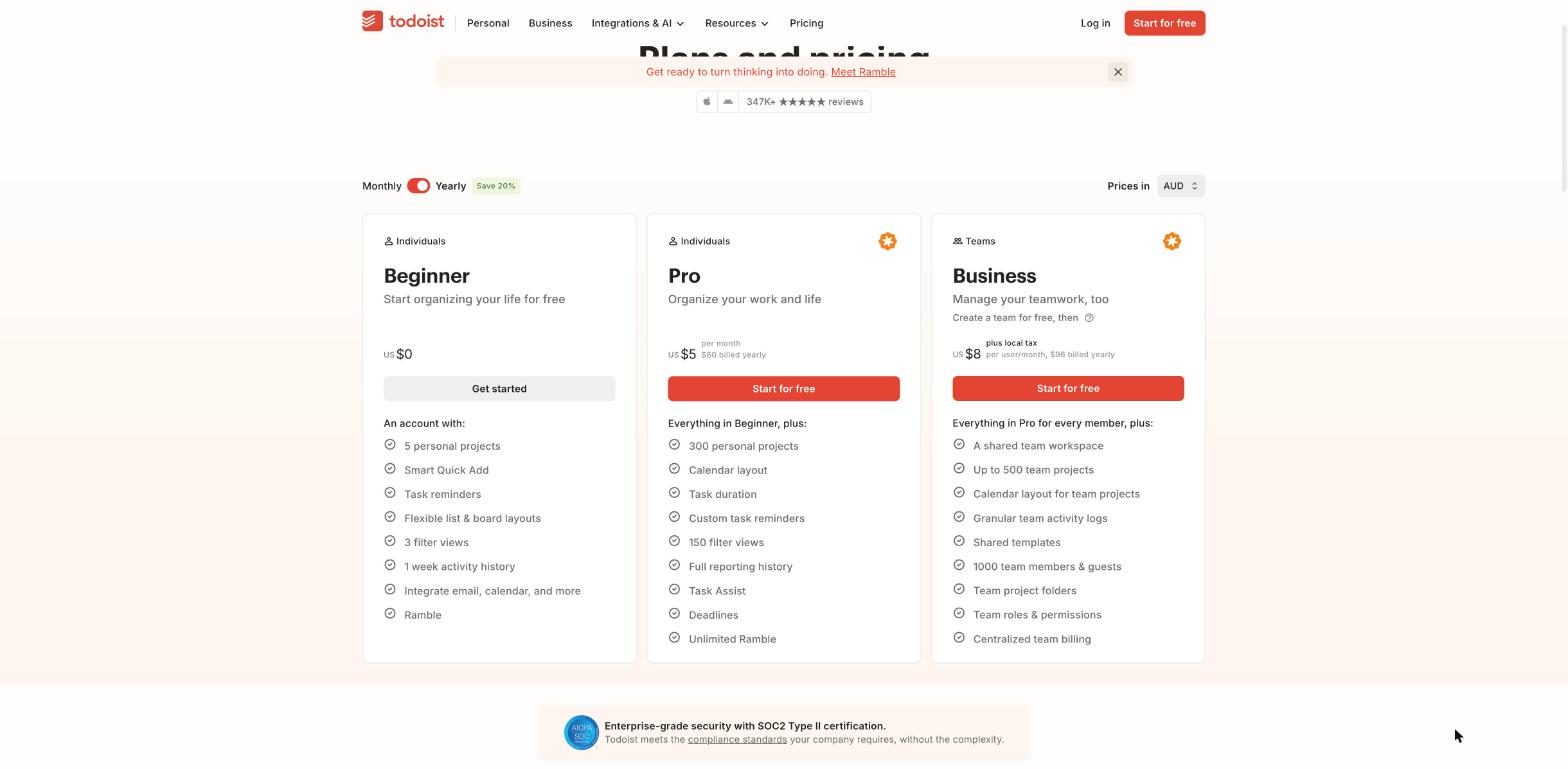
The free plan allows 5 active personal projects and 3 filters. If you have more than four or five clients, one project per client won’t fit. Instead, I’d create a small set of projects by type of work (for example Client Work, Admin, Marketing) and use a label for each client, such as %acme or %studio-b. Labels aren’t the limiting factor here: every plan allows up to 500 of them.
A note on syntax: Todoist now writes labels with %. It says the older @ still works for now but is planned to be retired by the end of 2026, so it’s worth building the new habit from the start.
On Pro: clients as projects
Pro allows 300 active projects, so you can give each client its own project, with sections for phases such as Briefs, In Progress and Waiting on Client. Labels are then free to describe the kind of task instead, such as %revision, %invoice or %call. This is the cleaner setup if you can justify the cost.
Keep in mind that every plan caps a project at 20 sections and 300 active tasks, which is plenty for most freelance clients.
Step 2: Give Every Request a Fast Way In
Capture has to be quicker than “I’ll remember it later”, or it won’t happen. Todoist offers four routes that cover almost every situation.
Forward emails straight to a project
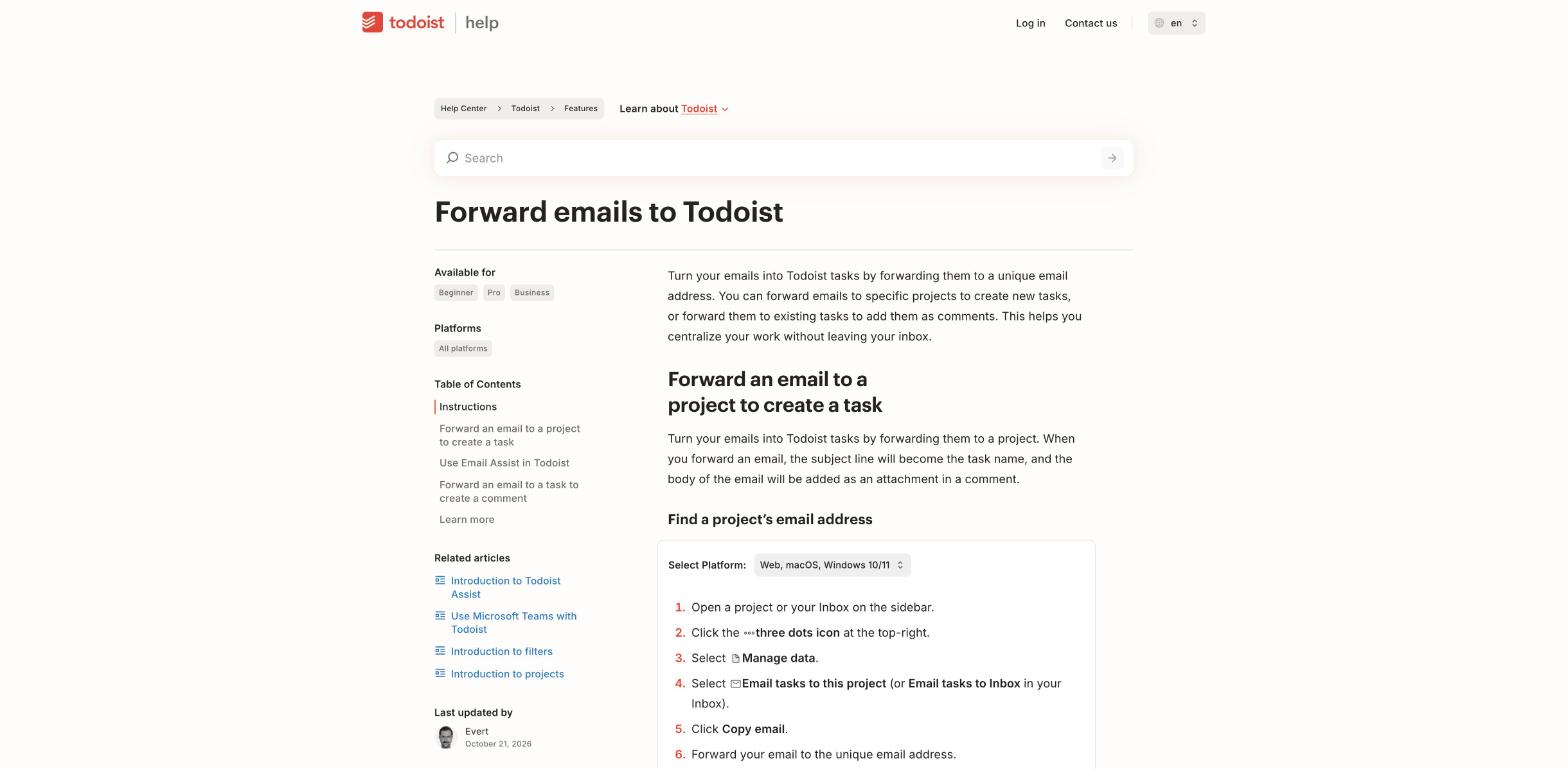
Each project, and your Inbox, has its own email address. In the project’s menu, choose Manage data, then Email tasks to this project, and copy the address. According to Todoist’s help center, this works on all plans. The email’s subject becomes the task name and the body is attached as a comment, so the client’s original wording stays with the task.
A few details worth knowing:
- You can forward to a project, but not to a specific section.
- To set a date from the email, include the word “date”, for example “date tomorrow”.
- Email Assist, which rewrites the task and pulls out dates for you, is a Pro and Business feature.
I save each client project’s address as a contact in my email app, named something like “Todoist – Acme”. Forwarding a request then takes a few seconds.
Use the Gmail or Outlook add-on
If you’d rather not forward, Todoist has a Gmail add-on and Chrome extension, plus an Outlook add-in, all available on every plan. The task links back to the original email. One limitation from Todoist’s documentation: only you can open that Gmail link. If you share a project with a client or collaborator and want them to see the email, forward it instead.
Type it with Quick Add
For requests that arrive by chat or phone, Quick Add is the fastest route. Its natural-language syntax lets you file a task completely in one line:
#Acmeputs it in the Acme project, and/Revisionspicks a section.%revisionadds a label.p1top3set priority.- Plain dates work, such as “friday” or “every other Tuesday”.
{march 30}sets a deadline (Pro and Business).!30 min beforeadds a reminder.
So a line like “Update homepage hero copy #Acme %revision p2 thursday {friday}” files the task, labels it, prioritizes it, schedules it for Thursday and sets a hard deadline for Friday.
Say it with Ramble
Ramble turns spoken notes into tasks, which is handy straight after a client call. Todoist says it works on web, desktop and mobile and understands around 40 languages. Pro and Business get unlimited sessions, while the free plan gets 10 sessions a month (shared with Task Capture).
Step 3: Separate “When I’ll Work on It” From “When It’s Due”
This is the most useful distinction for freelancers, and it’s easy to miss. In Todoist, a date is when you plan to work on a task. A deadline is the hard cutoff. Deadlines are a Pro and Business feature.
Using both lets you schedule work earlier than its due date without losing sight of the real cutoff. A logo revision due Friday can sit on Wednesday’s list, and if Wednesday gets busy and you push it, the Friday deadline is still visible. On the free plan, I’d put the deadline in the task name, for example “(due Fri)”, as a workaround.
Reminders follow a similar split. The free plan gets automatic reminders only. Pro adds custom reminders, which matter if you promise clients updates at specific times.
Step 4: Build Filters That Answer Your Daily Questions
Filters are where Todoist earns its place in a multi-client week. They’re saved views built from a query, and they let you see work across all clients without opening each project.
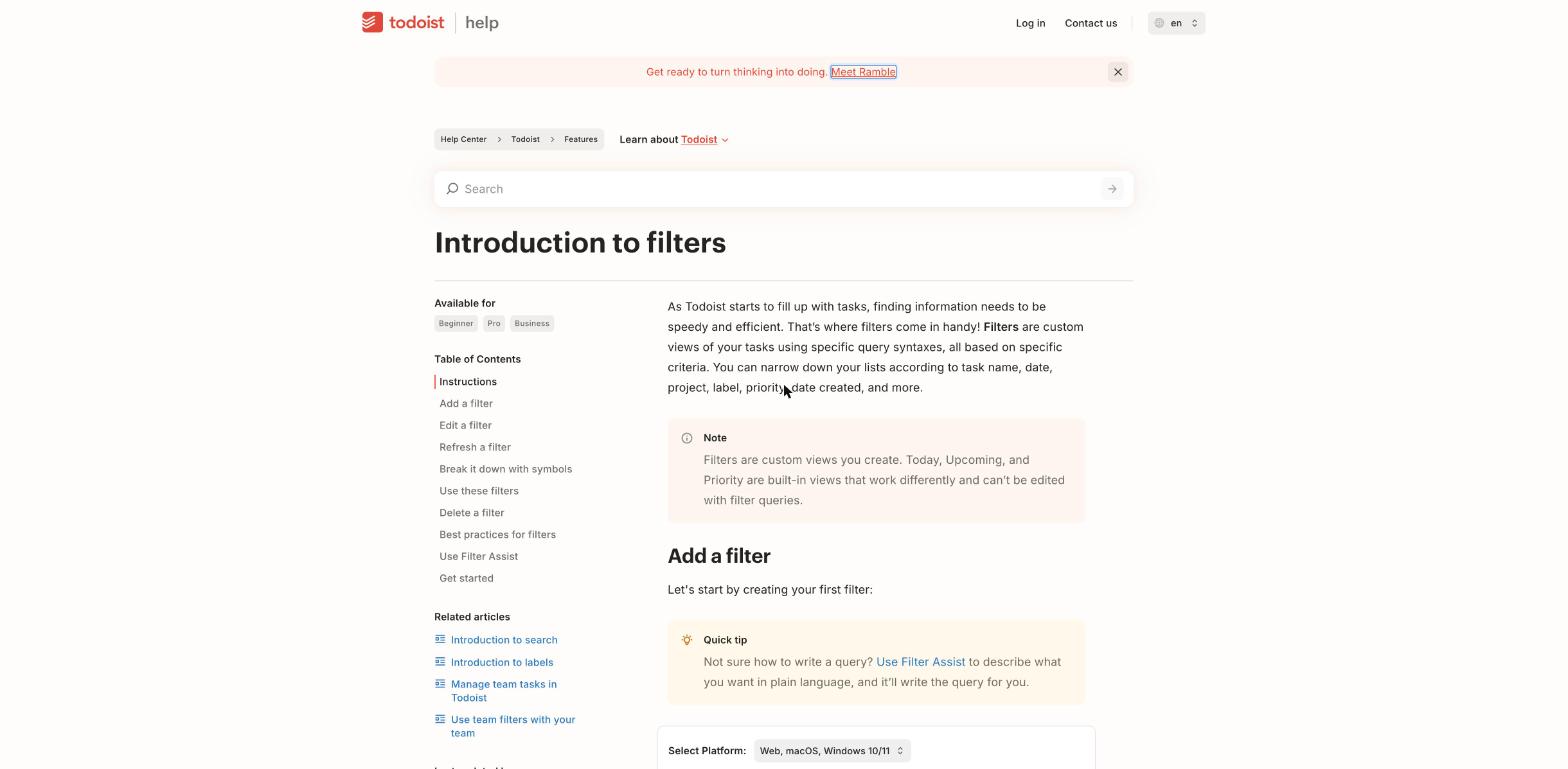
The query symbols are simple: & means AND, | means OR and ! means NOT. With the 3 filters on the free plan, I’d create these:
- Today across clients:
(today | overdue). Your daily working list. - One client’s open work:
%acmeon the free plan, or#Acmeon Pro. Open this before a client call. - Undated requests:
no date. Anything captured but not yet scheduled. Review it once a day so requests don’t sit unplanned.
On Pro, with 150 filters available, a few more are worth adding:
deadline before: todayto catch missed deadlines.today & %revisionto batch revision work.##Clientsto include every client sub-project, if you nest them under one parent.assigned to: othersif you work with a subcontractor in a shared project.
If query syntax feels fiddly, Todoist’s Filter Assist will write the query from a plain description. Todoist lists Filter Assist as free.
Step 5: Reuse a Client Onboarding Template
Every new client involves the same early steps: collecting goals, sending welcome documents, a first call, setting the first deadline. Todoist’s free templates gallery includes a Client Management template built around exactly this.
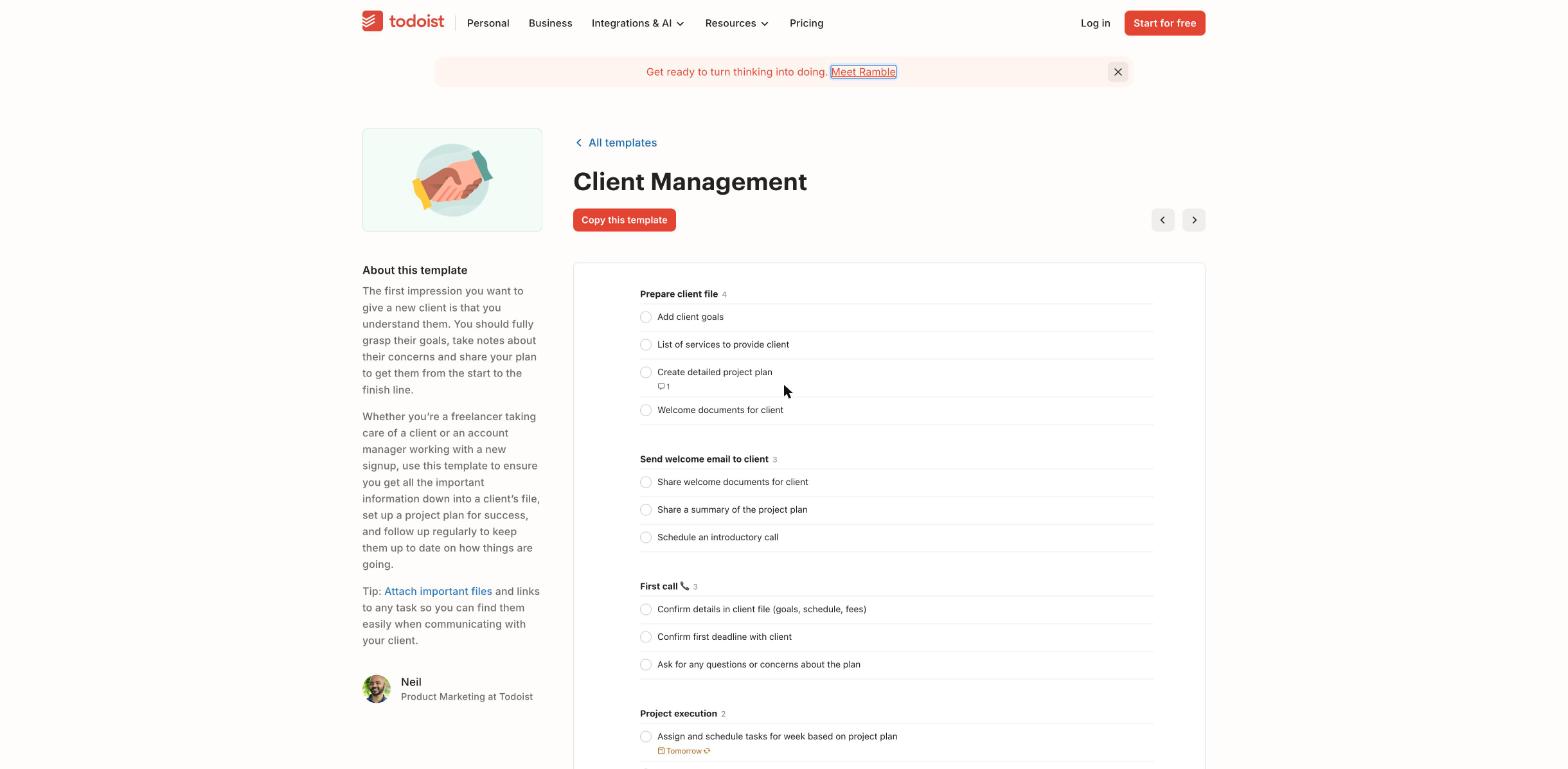
I’d copy it once, adjust the tasks to your own process (add “send contract” and “collect deposit”, for example) and then save your version with Save as template. Todoist says saving templates and CSV import work on all plans, with up to 100 templates. Each new client then starts from the same checklist.
Step 6: Decide Whether Clients Should See Your Tasks
You can share a personal project with others by name or email. On both Beginner and Pro, a shared personal project can include up to 5 people. That’s enough to share a project with one client contact, or with a subcontractor.
Whether you should is a different question. Many freelancers prefer to keep internal tasks private and send clients a summary instead. If you do share, use comments for discussion. Each comment can hold up to 15,000 characters and one attachment, which keeps feedback attached to the right task rather than scattered across email.
If client access is central to how you work, it’s worth comparing with tools built around guest permissions. I looked at that in how ClickUp guests, permissions and seats work for a solo freelancer.
Step 7: Connect Your Calendar and Time Tracking
Todoist syncs with Google Calendar or Outlook Calendar, one provider at a time, on all plans. Calendar events show up in Todoist as read-only, and tasks with a date, time and duration sync to a “Todoist” calendar. The calendar layout and time-blocking inside Todoist are Pro and Business features.
For billable hours, Todoist integrates with Toggl Track, so you can start a timer from a task. If you track time in a dedicated tool, my guides to Clockify settings for freelancers and Harvest for a retainer and a fixed-fee job pair well with this setup.
Here’s Todoist’s own getting-started video if you’re new to the app:
Free or Pro: When Paying Makes Sense
| Feature | Beginner (free) | Pro |
|---|---|---|
| Price | $0 | $7/month or $60/year |
| Active projects | 5 | 300 |
| Filters | 3 | 150 |
| Custom reminders | No (automatic only) | Yes |
| Deadlines | No | Yes |
| Activity history | 1 week | Full |
| Calendar layout | No | Yes |
| Ramble voice capture | 10 sessions/month | Unlimited |
| Email forwarding, add-ons, templates | Yes | Yes |
My rule of thumb:
- Stay free if you have a handful of clients, mostly flexible due dates and you’re happy using labels for clients. The capture routes, which matter most, are all free.
- Upgrade to Pro once you juggle more clients than five projects comfortably hold, or once hard deadlines and custom reminders become part of your promises to clients. Full activity history is also useful when a client asks when something was done.
- Business ($10 per user per month, or $8 billed yearly) is for teams with a shared workspace. A solo freelancer rarely needs it.
Common Mistakes to Avoid
- Capturing without a label. A task without a client label or project disappears from your client filters. Make the label part of every capture.
- Using dates as deadlines. On Pro, keep dates for planning and deadlines for commitments.
- Never reviewing the undated filter. Unscheduled requests are the ones that get forgotten.
- Building too many projects on the free plan. Five projects go quickly. Organize by type of work and let labels carry the client.
FAQ
Is Todoist free for freelancers?
Yes. The Beginner plan is free and includes 5 personal projects, 3 filters, email forwarding, the Gmail and Outlook add-ons and templates. Pro costs $7 a month or $60 a year.
Can I email tasks to Todoist on the free plan?
Yes. Every project and the Inbox has its own forwarding address on all plans. Email Assist, which extracts dates and rewrites tasks, is a Pro and Business feature.
How should I organize multiple clients in Todoist?
On the free plan, use a few projects by type of work and a label per client. On Pro, give each client its own project and use labels for task types.
Can I share a Todoist project with a client?
Yes. A shared personal project can include up to 5 people on Beginner and Pro. Comments and attachments keep feedback on the right task.
What’s the difference between a date and a deadline in Todoist?
A date is when you plan to work on a task. A deadline is the hard cutoff. Deadlines are available on Pro and Business.