Disclosure: this article may contain affiliate links. If you buy through them, I may earn a commission at no extra cost to you.
Every freelancer I know has a folder, a notes app or an email thread that quietly holds the keys to their clients’ businesses: a WordPress admin login, a Google Ads manager account, a domain registrar, a hosting panel. Most of it arrived by email. Some of it was typed into a chat. Very little of it is ever removed when a project ends. This guide looks at 1Password for freelancers through one practical problem: who should hold which client login, how it should travel between you and the client, and how to close access cleanly when the work is done.
I am not going to rank password managers or list every feature. The question here is narrower and, I think, more useful: which 1Password plan fits a solo freelancer versus a small studio, and which sharing method to use in each direction. All prices and features below come from 1Password’s pricing pages and support articles as published today.
Try 1Password free for 14 days
The three directions a client password travels
Before choosing a plan, it helps to see that client credentials move in three different directions, and each needs a different tool.
- Client to you, at the start. The client gives you access to their website, ad account or hosting.
- You to the client, at handover. You created accounts during the project (a new domain, an analytics property, a plugin licence) and the client must own them.
- Inside your own team. If a subcontractor or assistant helps you, they need some logins but not all.
Email and chat handle all three badly. The password sits forever in an inbox, it cannot be withdrawn, and you cannot tell later who saw it. A password manager does not remove the risk, but it gives each direction a cleaner path.
Solo freelancer: 1Password Individual plus item sharing
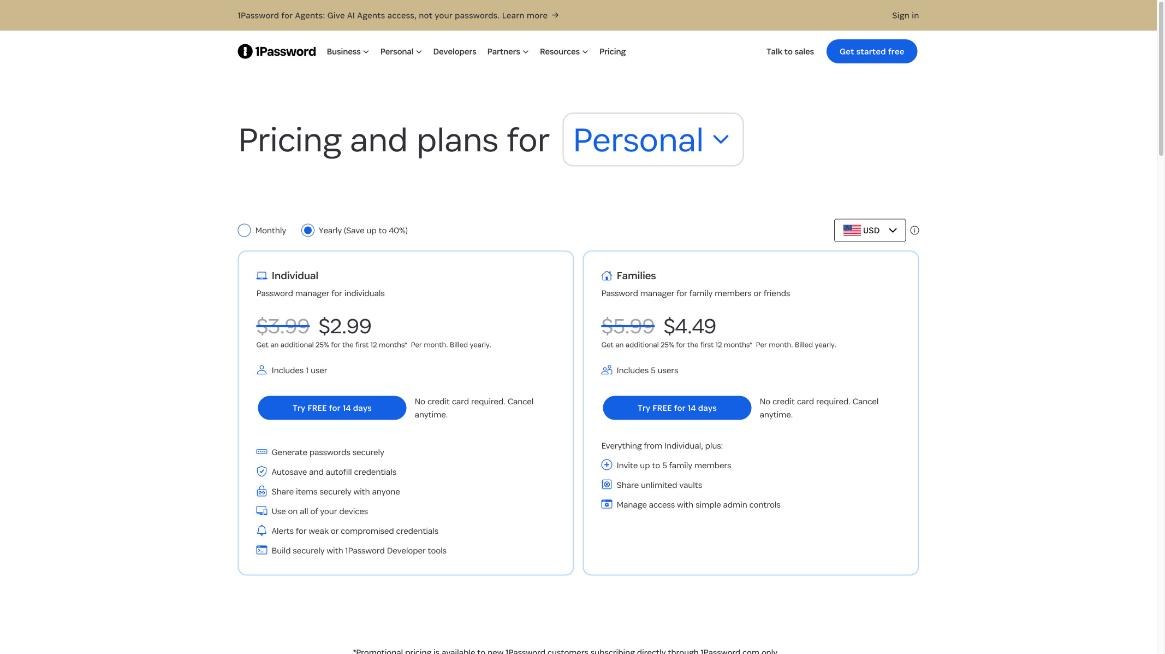
If you work alone, the Individual plan covers most of what you need. It includes one user, password generation, autofill on all your devices, alerts for weak or compromised passwords, and secure item sharing with anyone. Its list price is $3.99 a month billed yearly; at the time of writing, new customers who subscribe directly through 1Password.com get $2.99 a month for the first year with annual billing. There is a 14-day free trial with no credit card.
How item sharing works for handovers
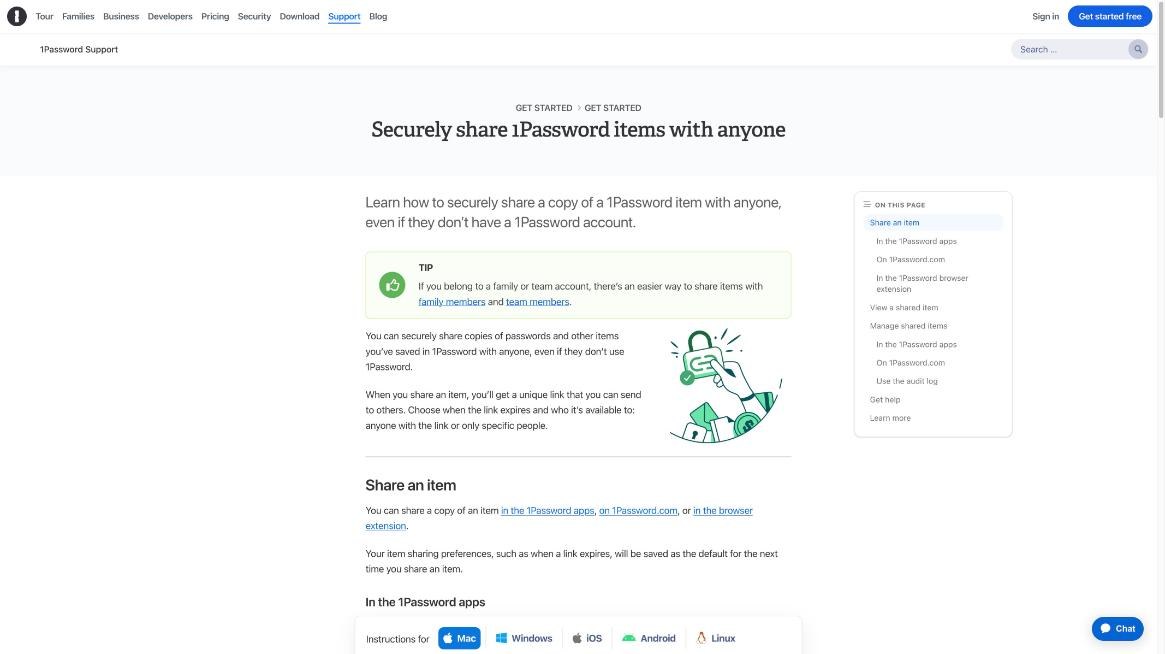
Item sharing is the feature that makes Individual workable for client work. You select a saved item, choose Share, and 1Password gives you a unique link. Before copying the link, you set two things:
- When the link expires. Pick the shortest window that still lets the client act on it.
- Who can open it. Either anyone with the link, or only specific email addresses. If you add an email, the recipient must verify that address before the item opens.
The recipient does not need a 1Password account. They open the link in a browser, view and copy the details until the link expires, and, if they use the 1Password browser extension, they can save a copy to their own account.
Three details that matter in client work
First, a shared link is a copy, not a live connection. If you change the password after sharing, the client will not see the change until you share the item again. For a handover, that is fine and even desirable: you send the final credentials once.
Second, you can withdraw a link. In the app, open the item, view its sharing history and delete the link. If you sent the wrong item or the client says they never received it, delete the old link and send a new one rather than leaving two copies active.
Third, shared items that contain files cannot be saved by the recipient at the moment. If a handover includes a licence file or a recovery-code document, send those separately.
What Individual does not solve
Item sharing works best in the direction from you to the client. It does not help when the client wants to send you a password, unless they also use 1Password. In that case, ask them to use whatever sharing feature their own password manager offers, or better, ask them to invite you as a user in the service itself. Most platforms freelancers touch, including WordPress, Google Ads, Google Analytics and most hosting panels, let the owner add a separate user with limited permissions. A personal login that can be removed is always better than a shared password.
See 1Password Individual pricing
Small studio: Teams Starter Pack
Once you work with even one regular subcontractor, a personal plan starts to strain. You want a shared vault for one client that your assistant can use, and another vault they cannot see. That is what the business plans are built for.
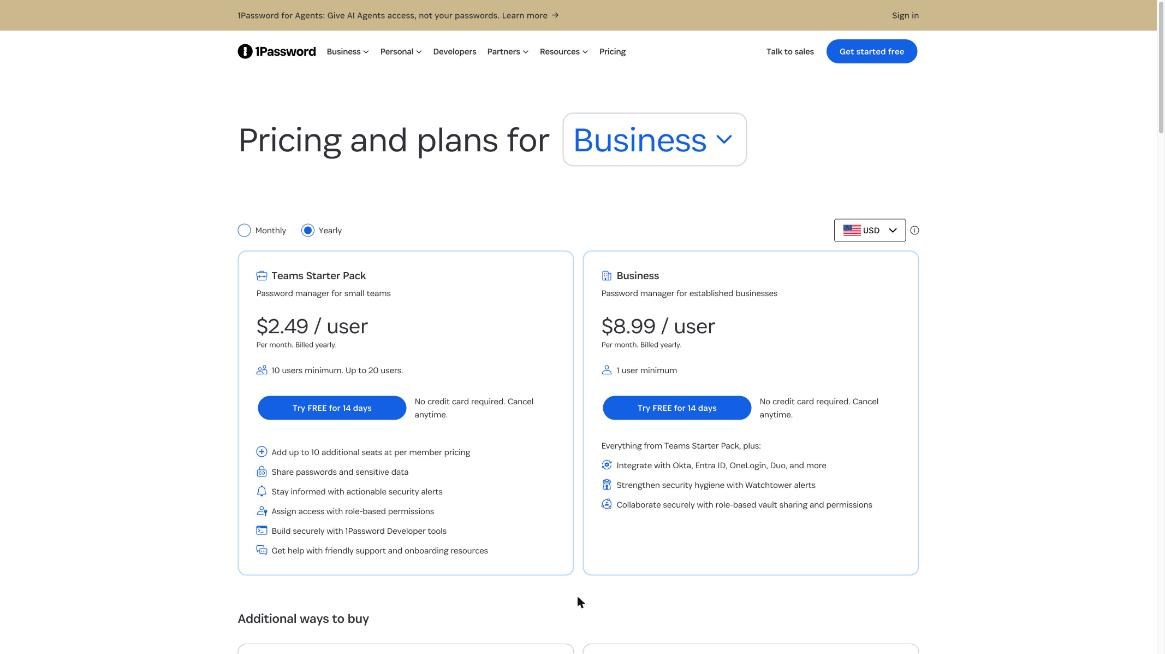
The Teams Starter Pack costs $24.95 a month billed annually, which is $299.40 a year, and includes 10 members. You can add up to 10 more seats at $4.99 per seat per month on annual billing, for a maximum of 20 members. 1Password lists the per-user equivalent as $2.49, with a 10-user minimum, so you pay the pack price even if you are a team of three.
For a studio, the useful parts are:
- Shared vaults with role-based permissions, so a subcontractor can see the vault for the one client they work on and nothing else.
- Guest accounts. The comparison table lists limited-access guest accounts for specific vaults: 5 on Teams Starter Pack and 20 on Business. A guest is a good fit for a client who wants to keep their own credentials in a vault you share with them.
- Item sharing with anyone, with expiry dates and share history, the same as on Individual.
The Business plan costs $8.99 per user per month billed annually ($107.88 per user per year), with a one-user minimum. It adds identity-provider integrations such as Okta and Entra ID, Watchtower alerts, more granular vault sharing and permissions, and an audit log. For most freelancers and studios under ten people, that is more than needed; it starts to make sense when a client requires you to show who accessed what. With Business you can also manage and stop item shares from the audit log.
A vault layout that keeps client access tidy
Whatever the plan, the structure matters more than the software. Here is the layout I would set up for a studio.
- One vault per client, named after the client, not the project. Projects end; clients come back.
- A separate “Studio” vault for your own tools: invoicing, email, the scheduling app, the domain registrar where you hold your own domains.
- A “Handover” checklist note in each client vault, listing every account you created for that client and the date ownership was transferred.
- Subcontractors only in the vaults they need, removed on the day their part of the work ends.
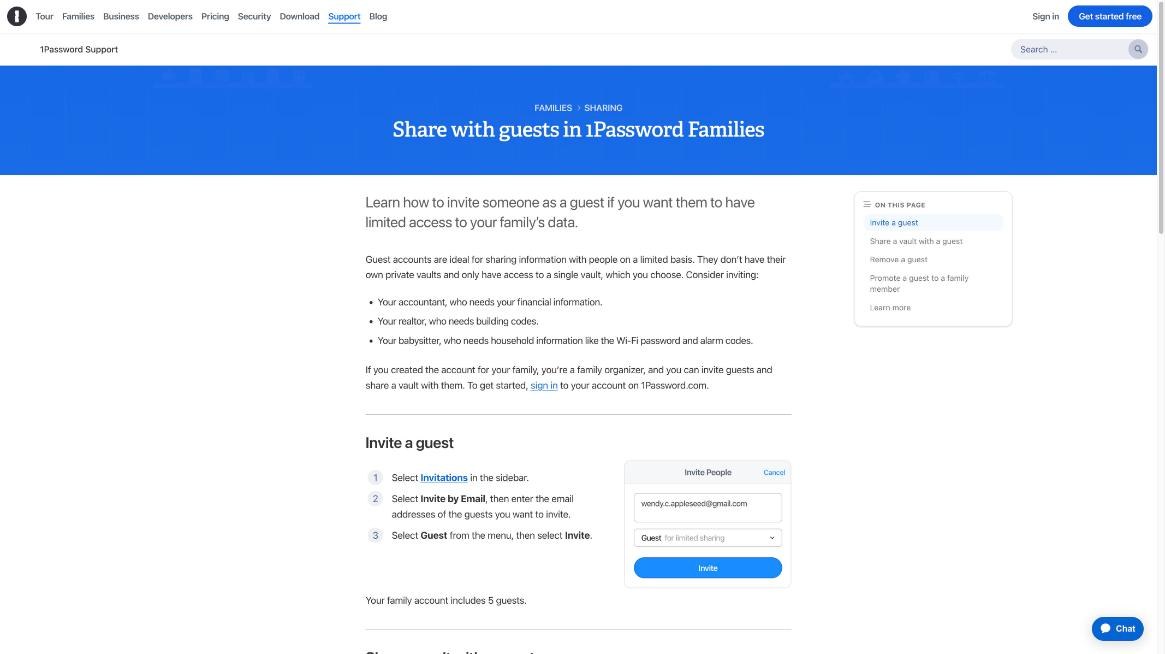
One warning from 1Password’s own guest documentation is worth applying to clients and subcontractors alike: when you remove someone from a vault, they may have copied items before you removed them. If that is a concern, change the passwords they had access to. For client work, I treat this as a standard step at the end of every engagement where someone else had vault access.
The end-of-project routine
The weakest moment in freelance security is not the start of a project. It is the end, when everyone is relieved and nobody cleans up. This is the routine I would run on the last day, alongside sending the final invoice (if you use FreshBooks, the setup I described in FreshBooks payment reminders and deposits pairs well with it).
- List every account you created for the client during the project, from the Handover note in their vault.
- Transfer ownership inside each service where possible (domain, analytics, ad account), so the client becomes the owner rather than just knowing a password.
- Send the remaining credentials as 1Password item links restricted to the client’s email address, with a short expiry.
- Ask the client to remove your user from their WordPress, hosting and ad accounts, or to downgrade it if you are staying on a maintenance retainer.
- Remove subcontractors from that client’s vault, and change any passwords they could see if the client asks for it.
- Archive the client vault rather than deleting it, so you can still answer “what did we set up?” six months later.
If you track project stages on a board, add this routine as the final column. I use the same idea in Trello for freelancers, where the last list on every client board is a short close-out checklist.
Compare 1Password business plans
Which plan should you choose?
| Your situation | Plan | Why |
|---|---|---|
| Solo, a handful of clients | Individual | Item sharing covers handovers; lowest cost |
| Solo, clients who want shared vaults | Teams Starter Pack | Guest accounts for specific vaults |
| Studio with 2 to 20 people | Teams Starter Pack | Flat price for 10, role-based vault access |
| Clients require audit trails or SSO | Business | Audit log, identity-provider integrations |
Families deserves a note because it is tempting: five users and unlimited shared vaults for a low price. 1Password describes it as a plan for family members or friends, so I would keep it for personal use and not run client work through it.
Pros and cons for freelance use
Pros
- Item sharing works with clients who do not use 1Password.
- Share links can expire and can be limited to specific email addresses.
- Links can be deleted later from the item’s sharing history.
- Teams Starter Pack gives a small studio shared vaults and guests at a flat price.
- 14-day free trial on personal and business plans.
Cons
- Shared links are copies; updates require a new share.
- Recipients cannot save shared items that contain files.
- Teams Starter Pack is priced for 10 members even if you are fewer.
- Removing access does not undo copies people already made.
Final thoughts
The value of 1Password for freelancers is less about storing passwords and more about giving each client credential a proper route in and a proper route out. A solo freelancer can get there with the Individual plan, expiring item links and a habit of asking clients for their own user accounts. A small studio gets more from the Teams Starter Pack, mainly because of per-client vaults and guest access. Either way, the routine at the end of a project is what actually protects your clients, and it costs nothing but ten minutes.
FAQ
Can I share a password with a client who doesn’t use 1Password?
Yes. Item sharing creates a link that anyone can open in a browser. You choose when it expires and whether only specific email addresses can open it.
How much does 1Password cost for a freelancer?
Individual is $3.99 a month billed yearly at list price, with a first-year promotional price of $2.99 a month for new customers buying directly. Teams Starter Pack is $24.95 a month billed annually for up to 10 members.
Can I stop sharing an item after sending the link?
Yes. Open the item, view its sharing history and delete the link.
If I update a password, does the client’s shared link update too?
No. The link contains a copy. Update the item and share a new link.
How many guests can I invite on the business plans?
1Password lists 5 limited-access guest accounts on Teams Starter Pack and 20 on Business.
Is there a free trial?
Yes, 14 days on Individual, Families, Teams Starter Pack and Business, with no credit card required.