
Disclosure: this article may contain affiliate links. If you buy through them, I may earn a commission at no extra cost to you.
Most client intake forms are built like questionnaires: a long list of fields, added one by one, until someone says “that should cover it”. The result is a form that collects plenty of data and still leaves you writing a follow-up email to ask the one thing you actually needed. A Jotform client intake form can do much better than that, but only if you design it the other way round.
So in this guide I start from the decisions. Before any client becomes a project, a freelancer or small agency has to decide a handful of things: is this a fit, which service is it, what will it roughly cost, does anything need signing, and where does the information go next. Each section below takes one decision, shows the fields that answer it, and points to the Jotform feature that makes it work. All plan details come from Jotform’s own pricing page and help centre as they read today.
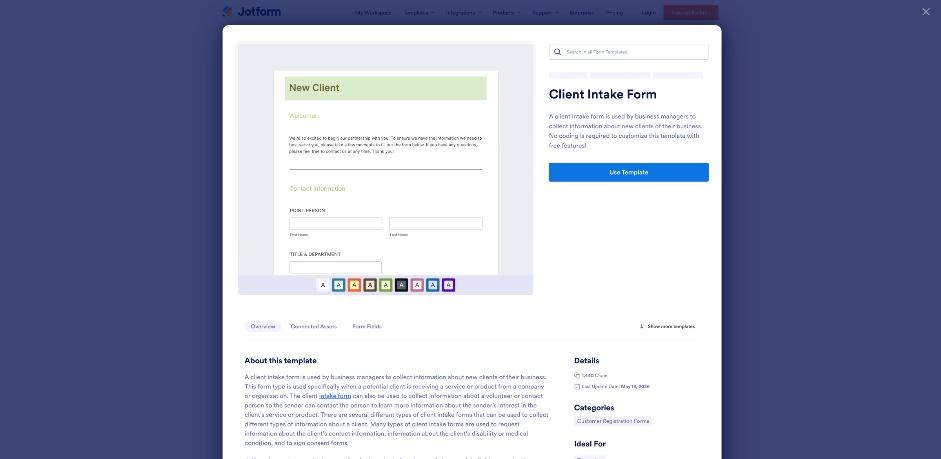
Why a decision-first Jotform client intake form works better
The template above is useful, and I would still start from it rather than a blank form. But a template cannot know how you qualify clients or how you price. If you keep every field it suggests, you ask questions you never use. If you delete too many, you lose the ones that save a call.
The fix is to write down your decisions first, then keep only fields that feed one of them. A field that does not change a decision either goes, or moves to a later onboarding form once the client has said yes. That also keeps you inside Jotform’s field limits, which matter more than people expect on the free plan.
Decision 1: Is this client a fit?
This is the decision that saves the most time, so it goes first. Three or four fields usually answer it:
- What do you need help with? A single-choice field with your real services, plus “Something else”.
- When do you need it done? A dropdown with time ranges rather than a date picker, so people do not invent precise deadlines.
- Budget range. A dropdown of ranges that starts at your minimum. If your smallest project is a certain amount, do not offer a range below it.
- How did you find me? Optional, but useful later for deciding where to spend marketing time.
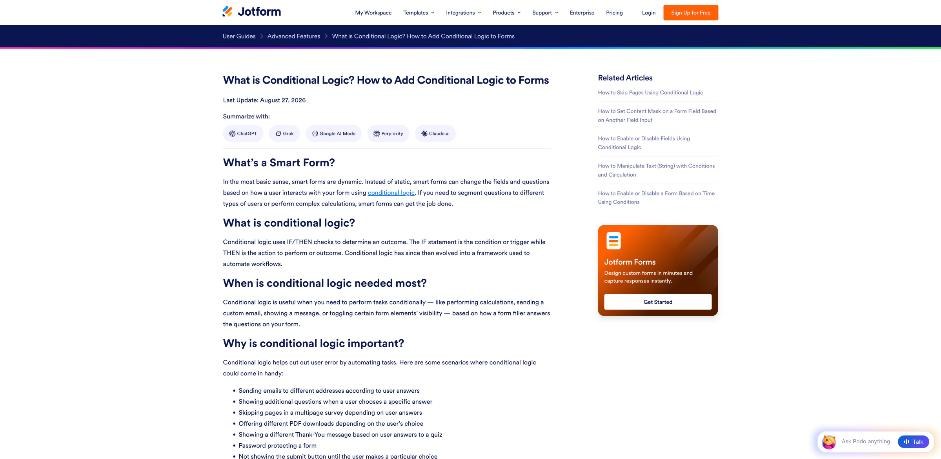
The trick is what happens next. Jotform’s conditional logic, found under Settings and then Conditions in the form builder, supports several condition types according to its help centre: show or hide a field, update or calculate a field, enable, require or mask a field, skip to or hide a page, change the thank-you page, and change the email recipient. For fit, two of them do the heavy lifting.
If the budget is below your minimum, use Change Thank You Page to show a polite message with alternatives, such as a template you sell or a colleague who takes smaller work. If the timeline is “this week” and you never take rush jobs, do the same. The client gets an honest answer immediately, and you never receive an enquiry you would have declined anyway.
Decision 2: Which service, and which questions does it need?
Once a client passes the fit check, the form should only ask questions that apply to the service they picked. A website client and a copywriting client need very different details, and showing both sets to everyone doubles the length of the form.
Use Show/Hide Field conditions keyed on the service field, or put each service on its own page and use Skip To/Hide a Page. I prefer pages for anything with more than four service-specific questions, because the client sees a short form either way and you can edit each service’s page without touching the others.
Good service-specific questions are concrete and easy to answer: number of pages, existing brand assets (upload field), links to examples they like, the platform they use today. Avoid open questions like “Tell me about your business” here. Keep one optional free-text field at the end for anything else.
A practical note on file uploads: every upload counts towards your account’s available space. On Jotform’s free Starter plan, that is 100 MB in total, according to the pricing page. If clients will upload brand guides, videos or large images, either ask for a shared link instead or plan on a paid tier.
Decision 3: What will this roughly cost?
Not every freelancer wants to show prices on an intake form, but if your services have predictable pricing, an estimate saves a round of emails. Jotform’s Update/Calculate Field condition lets a hidden or visible field calculate a value from earlier answers, for example a base price per service plus an amount per page or per extra deliverable.
I would show the result as an “estimated starting price” with a short line explaining that the final quote follows a call. It sets expectations early and filters out mismatched budgets better than a range field alone.
If you take deposits, Jotform can collect payments inside the form. Its payment integrations page lists around 40 gateways, including Square, PayPal, Authorize.Net, Stripe, Stripe Checkout and Braintree, and describes them as charging no additional transaction fees from Jotform. Your gateway’s own fees still apply. Payment submissions have their own monthly limit on each plan, which I cover in the plan section below.
Build your intake form in Jotform
Decision 4: Does anything need to be signed?
Some intake flows need agreement before any work starts: terms of service, an NDA, or a consent to store personal information. Jotform handles this through Jotform Sign, which it markets as free e-signature software, and through the monthly signed-documents allowance included with each plan.
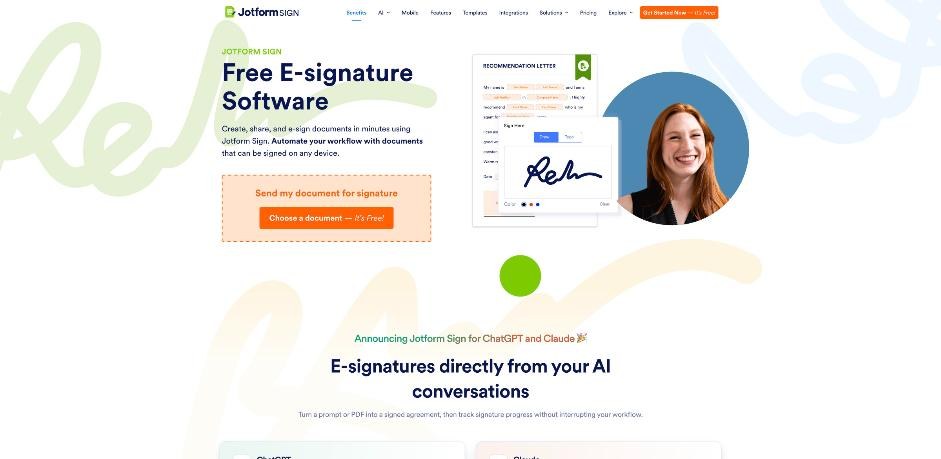
My rule here is to keep signing out of the first form unless it is legally required at that stage. Asking someone to sign terms before you have even spoken can feel heavy. A cleaner flow is: intake form, short call, then a signing request for the accepted proposal. The free Starter plan includes 10 signed documents a month, which is enough for many solo freelancers.
If you work in healthcare or with sensitive client data, check the HIPAA line carefully. Jotform’s pricing page marks HIPAA-enabled features as unavailable on Starter, Bronze and Silver, and available on Gold and Enterprise.
Decision 5: Where does the information go next?
An intake form that only sends an email notification leaves you copying data by hand. Two Jotform features make the hand-off cleaner.
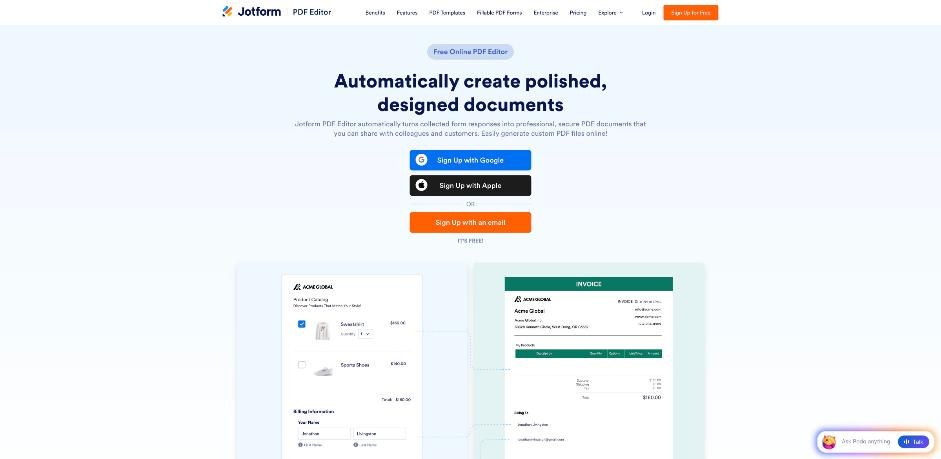
First, the Change E-mail Recipient condition. If you work with a partner or subcontractor for certain services, route those submissions directly to them. Second, Jotform’s PDF Editor. According to Jotform, each submission can be turned into a PDF document automatically, the PDF Editor is available on every plan, and the PDF can be attached to notification or autoresponder emails. A tidy PDF summary of the brief is much easier to file with a project than a raw notification email.
Finally, decide what the client sees after submitting. A thank-you page that links to your booking page closes the loop. If you use a scheduling tool, I walked through one setup in Calendly for freelancers, from inquiry to paid session. The difference is that a scheduling-first flow asks questions while booking, whereas this form qualifies first and only offers a booking link to clients who pass.
Which Jotform plan does this intake form need?
Here are the limits that matter for intake, taken from Jotform’s pricing page. Prices shown are per month when billed annually, with the monthly-billing price in brackets.
| Plan | Price | Forms | Monthly submissions | Upload space | Payment submissions / month | Signed documents / month |
|---|---|---|---|---|---|---|
| Starter | Free | 5 | 100 | 100 MB | 10 | 10 |
| Bronze | $34 ($39 monthly) | 25 | 1,000 | 1 GB | 100 | 100 |
| Silver | $39 ($49 monthly) | 50 | 2,500 | 10 GB | 250 | 250 |
| Gold | $99 ($129 monthly) | 100 | 10,000 | 100 GB | 1,000 | 1,000 |
| Enterprise | Custom | Unlimited | Unlimited | Agreed with sales | ||
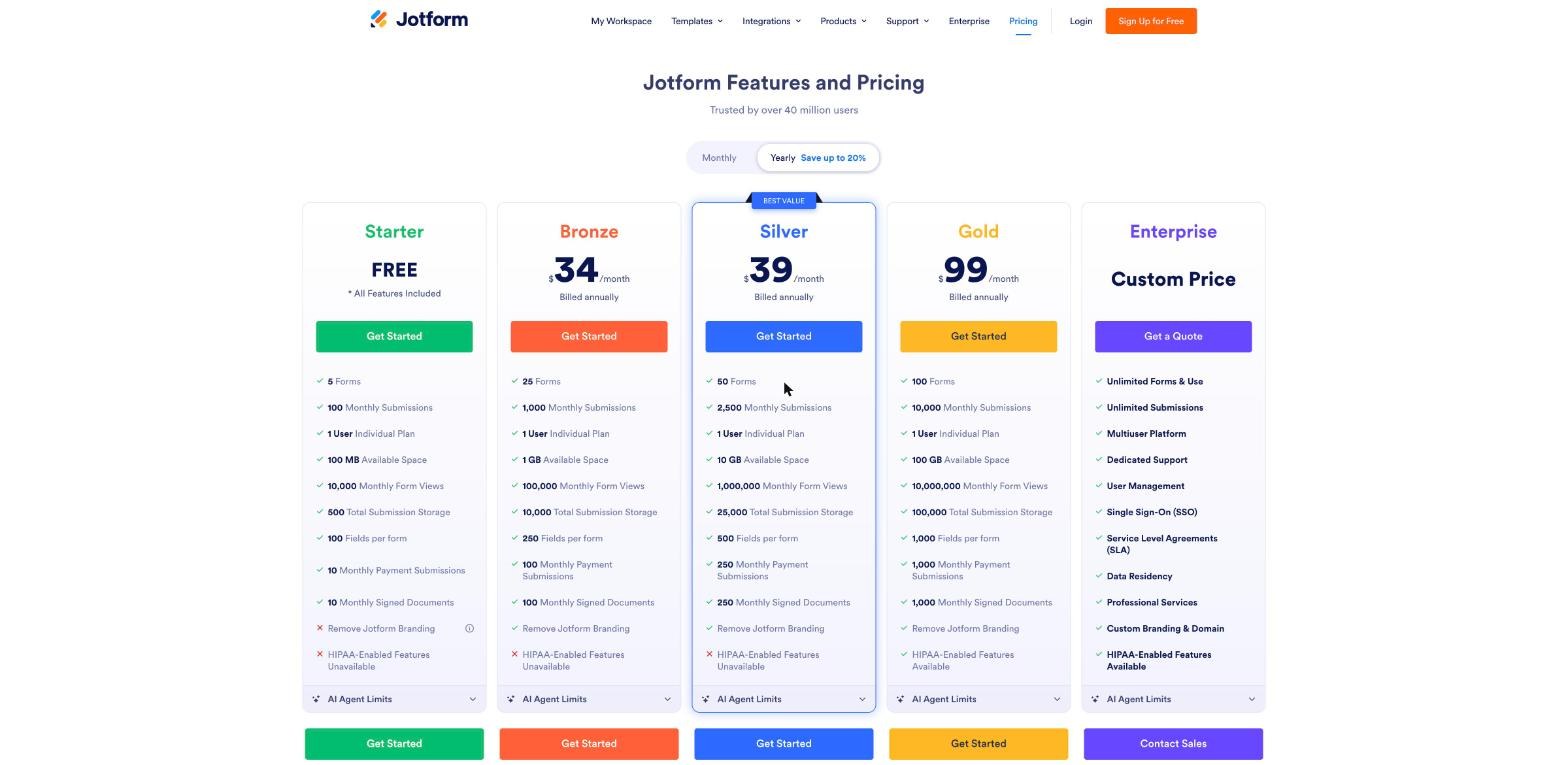
Two other Starter limits are worth knowing: 100 fields per form and 500 submissions in total storage. Jotform’s help centre explains that monthly limits reset at the start of each usage cycle and that deleting entries does not free monthly counts. When you exceed a monthly limit or upload space, forms are disabled and show a “Form over quota” message. When you exceed total submission storage, Jotform says it deletes the oldest entry to make room for the new one, so export or back up old enquiries regularly if you stay on the free plan.
Branding is the other deciding factor. Forms on the Starter plan include Jotform branding, and removing it starts with Bronze. For a solo freelancer with a few enquiries a week and no payments, Starter is enough to launch. Once you take deposits through the form, need more than 10 signatures a month or want the form to look fully like your brand, Bronze is the realistic minimum.
Mistakes I would avoid
- Asking for everything up front. Detailed onboarding questions belong in a second form after the client says yes.
- Required fields for nice-to-haves. Make only the decision fields required. Every extra required field costs completions.
- No exit for poor fits. Without a custom thank-you page for low budgets or rush jobs, you will spend time writing polite rejections by hand.
- Forgetting the storage cap. On the free plan, old submissions disappear once you pass 500 in storage.
- Uploading large files on Starter. Ask for links instead of files until you are on a plan with more space.
If you also bill by the hour once a project starts, my Toggl Track month-end billing walkthrough covers the other end of the client relationship.
My verdict
Jotform is a strong choice for a freelancer’s intake form because the features that turn a questionnaire into a decision tool are available without code: conditional pages, calculated estimates, routed notifications, automatic PDFs and in-form payments with no extra Jotform transaction fee. The free Starter plan is enough to build and test the whole flow. The limits to watch are payment submissions, signed documents and the 500-entry storage cap, and those are what usually push a growing freelancer to Bronze.
Start with Jotform’s client intake template, delete every field that does not feed a decision, and add the logic one decision at a time. You will end up with a shorter form that does more.
FAQ
Is Jotform free for a client intake form?
Yes. The Starter plan is free and includes 5 forms, 100 monthly submissions, 100 MB of upload space and 500 submissions in total storage. Forms on Starter show Jotform branding.
Can a Jotform client intake form take a deposit?
Yes. Jotform integrates with gateways such as Stripe, PayPal and Square and says it adds no extra transaction fee. Each plan has a monthly limit on payment submissions, starting at 10 on Starter.
How do I show different questions for different services?
Use conditional logic under Settings and then Conditions. Show/Hide Field conditions work for a few questions, and Skip To/Hide a Page conditions work better for longer service-specific sections.
What happens when I hit Jotform’s submission limit?
Jotform sends a notification, and forms that exceed a monthly limit are disabled with a “Form over quota” message until the limit resets or you upgrade.
Is Jotform HIPAA compliant on every plan?
No. Jotform’s pricing page lists HIPAA-enabled features only on the Gold and Enterprise plans.