Disclosure: this article may contain affiliate links. If you buy through them, I may earn a commission at no extra cost to you.
Most people meet Otter.ai as a meeting bot that joins Zoom calls. But a lot of the people who ask me about it have a different job: they already have recordings. Interviews on a phone, lectures in Voice Memos, a focus group on a camera, a podcast raw file. For that job, Otter.ai transcription works through imports, and imports have their own limits that are easy to miss on the pricing page.
This guide is only about that use case: getting transcripts out of files you already have. I went through Otter’s current pricing table and its help center articles on importing, accuracy and vocabulary, and worked out how far each plan actually stretches for recorded interviews, lectures and long sessions. All limits and prices below come from Otter’s official pages as they read today.
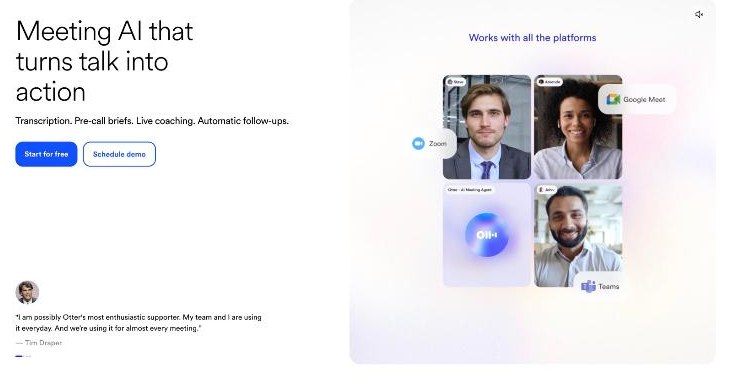
The three numbers that decide whether a plan fits
For imported files, three limits matter far more than the headline minutes:
- How many files you can import (per month, or per lifetime on the free plan).
- The maximum transcription time per conversation, which caps how long a single recording can be.
- The monthly minutes for imported files, which is a separate line from live recording minutes on Otter’s comparison table.
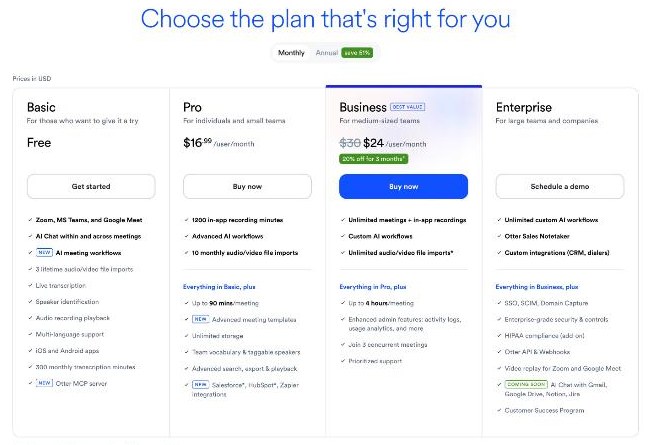
| Basic (free) | Pro | Business | |
|---|---|---|---|
| Price | Free | $16.99/user/mo monthly, $8.33 billed annually | $19.99/user/mo billed annually |
| File imports | 3 lifetime per user | 10 per month per user | Unlimited |
| Max time per conversation | 30 minutes | 90 minutes | 4 hours |
| Imported file minutes per month (no rollover) | 300 per user | 1,200 per user | 6,000 per user |
| Conversation history | 25 most recent | Unlimited | Unlimited |
| Custom vocabulary | 5 terms | 100 names + 100 other terms | 200 + 200 per user, 800 + 800 team |
| Export formats | mp3, txt | mp3, txt, pdf, docx, srt | Same, plus bulk export |
Business is also shown with a monthly price on Otter’s pricing page, and promotions sometimes appear there, so check the current monthly figure before you buy. Otter’s transcription works in English, Spanish, French, German, Japanese and Chinese.
How far each plan stretches with real recordings
Basic: a test drive, not a workflow
Basic gives you three imports for the lifetime of the account, and each conversation is capped at 30 minutes. That is enough to test transcription quality on your own audio, which I recommend doing before paying for anything. It is not enough for a recurring job. A single one-hour interview is already beyond the per-conversation limit, and the conversation history only keeps the 25 most recent conversations.
My advice: use those three imports on the hardest audio you have, for example a noisy café interview or a lecture recorded from the back of the room. If Otter handles that well, the paid plans will only get easier.
Pro: generous minutes, tight file count
Pro looks like it is about minutes, 1,200 a month, but for imports the binding limit is usually the file count. Ten imports of up to 90 minutes each is at most 900 minutes, which is less than the 1,200-minute allowance. So on Pro you run out of imports before you run out of minutes, unless your files are long.
| Your monthly workload | Fits Pro? | Why |
|---|---|---|
| 4 lectures of 90 minutes | Yes | 4 imports, 360 minutes, each within the 90-minute cap |
| 8 interviews of 45 minutes | Yes | 8 imports, 360 minutes |
| 15 interviews of 40 minutes | No | 15 files is more than 10 imports, even though 600 minutes fits |
| 2 focus groups of 2 hours | No | Each recording is longer than the 90-minute cap |
If you are slightly over ten files, one workaround is to merge two short recordings into a single file under 90 minutes before importing. It works within the limits, but it mixes two conversations into one transcript and summary, so I would only do it for related sessions.
Business: for long sessions and high volume
Business removes the file count limit, raises the per-conversation cap to four hours, and allows 6,000 imported minutes per user each month. It also adds bulk export and lets you import directly from Dropbox. If you record long workshops, focus groups or full-day trainings, Business is the plan that matches the job, not just the one with more minutes.
Importing a recording, step by step
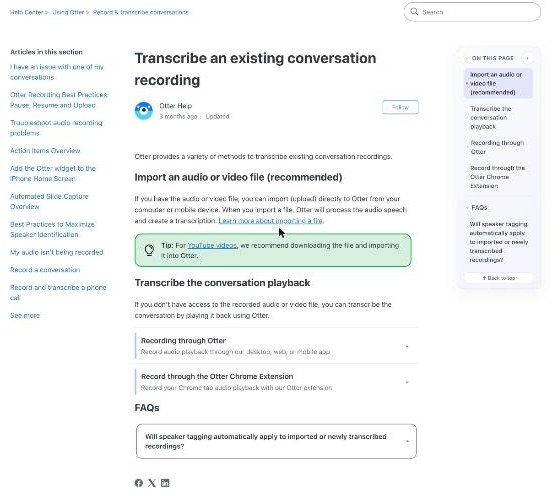
Otter’s help center describes importing as the recommended way to transcribe an existing recording. The process is simple:
- On the Otter home page, click Import in the upper right and choose Browse.
- Browse to or drag in the file. You can drag several supported files at once; each one uploads and processes on its own.
- Wait for the upload to finish, then you can close the pop-up. Processing continues on Otter’s servers, and you can track progress in the lower left corner.
- Optionally, turn on email notifications for imports in Account Settings so you hear when a transcript is ready.
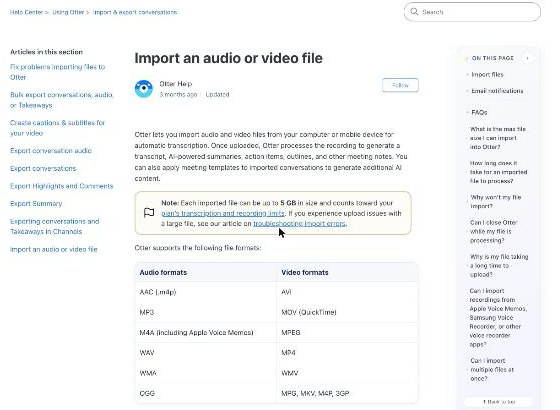
Each file can be up to 5 GB and counts toward your plan’s transcription and recording limits. For large files, Otter recommends keeping your computer awake during the upload, because a device going to sleep can interrupt it.
Supported file formats
Otter lists AAC, MP3, M4A (including Apple Voice Memos), WAV, WMA and OGG for audio, and AVI, MOV, MPEG, MP4, WMV, MPG, MKV, M4P and 3GP for video. Recordings from Apple Voice Memos, Samsung Voice Recorder and other recorder apps work as long as they are saved in one of these formats.
What if you do not have the file?
If a recording only exists online, Otter’s advice for YouTube videos is to download the file and import it. If you cannot get the file at all, you can play the audio and record the playback with Otter. Otter recommends its desktop app for this so you can wear headphones, or its Chrome extension, which captures a browser tab’s audio directly. It notes that Safari does not support recording audio playback on the same computer.
Getting a cleaner transcript from an imported file
Otter is clear that transcript quality depends on the audio. Background noise, people talking over each other, a poor microphone or low volume all reduce accuracy, and Otter recommends reviewing and editing transcripts for anything important. A few habits help:
Add names and jargon before you import
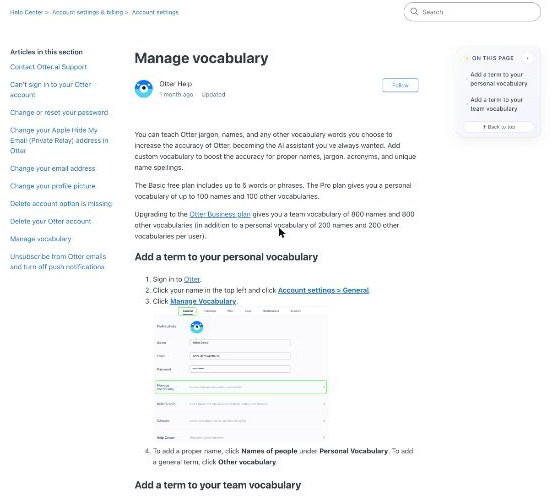
Custom vocabulary is the most useful setting for interviews, because names and specialist terms are what automatic transcription usually gets wrong. You add terms in Account settings > General > Manage Vocabulary, with separate lists for names of people and other vocabulary. Basic allows only five terms, Pro gives a personal list of 100 names and 100 other terms, and Business adds a team vocabulary of 800 names and 800 terms that applies to everyone in the workspace.
Tag speakers once, benefit later
Otter says that if a speaker has already been tagged, it uses that speaker profile to label them automatically in future recordings and imports. New speakers need to be tagged manually after processing. For a series of interviews with the same host, tag the host carefully in the first transcript and later files get easier.
Do not expect “um” and “uh” in the text
Otter ignores filler words and hesitation sounds such as “um”, “ah” and “uh”, even if you add them to custom vocabulary. That makes transcripts easier to read, but if you need a strict verbatim record of every hesitation, for some research or legal uses, plan to add those by hand.
Otter vs editing tools for recorded audio
Otter is built for reading and searching conversations: summaries, action items, outlines and AI Chat are generated for imported files too. It is not an audio or video editor. If your end goal is a polished podcast episode, a text-based editor is a better fit; I covered that workflow in Descript for podcasters. If you are replacing meetings with recorded updates rather than transcribing past recordings, see my notes on Loom for small teams.
Which plan I would choose
- Testing only: Basic, using the three lifetime imports on your most difficult recordings.
- Students and occasional interviewers: Pro, as long as you stay at or under ten files a month and each one is under 90 minutes. Annual billing brings it to $8.33 a month.
- Journalists, researchers and trainers: Business, if you import more than ten files a month or record sessions longer than 90 minutes.
FAQ
Can Otter.ai transcribe an audio file I already recorded?
Yes. You can import audio and video files from your computer or phone, up to 5 GB each, and Otter generates a transcript, summary, action items and an outline.
How many files can I import on Otter’s free plan?
The Basic plan includes three file imports for the lifetime of each user, with a 30-minute limit per conversation.
What is the longest recording Otter.ai can transcribe?
It depends on the plan: 30 minutes per conversation on Basic, 90 minutes on Pro and 4 hours on Business and Enterprise.
Which file formats does Otter.ai accept?
Audio formats include MP3, M4A, WAV, AAC, WMA and OGG. Video formats include MP4, MOV, AVI, WMV, MPEG, MPG, MKV, M4P and 3GP.
Do unused Otter minutes roll over?
No. Otter’s comparison table lists both the recording and the imported file transcription limits as monthly limits with no rollover.