
Every freelancer I know has an onboarding routine that lives in their head. A client says yes, and then comes the same small pile of chores: make a folder, send the welcome email, add the client to a tracker, create the project, send the questionnaire, book the kickoff call. None of it is hard. All of it is easy to forget when you are also finishing work for the last client.
This is where Zapier client onboarding automations look attractive. Zapier connects the apps you already use, so a signed contract or a paid invoice can start that whole pile without you. But I do not think a one-person business should automate every step. Some steps are worth handing to a machine. A few are the moments where the client decides whether they like working with you, and those should stay personal.
So this is not a feature tour. It is a walk through a realistic onboarding chain for a solo freelancer, with the task maths for each step, the plan it needs, and my honest view on which steps to keep doing by hand.
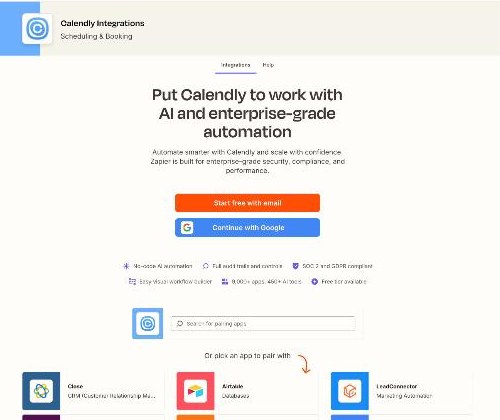
What Zapier does, briefly
Zapier is a no-code automation platform. You build a “Zap”: a trigger in one app (a new form response, a new payment, a new calendar booking) followed by one or more actions in other apps (create a folder, send an email, add a row). Zapier also includes its own building blocks: Zapier Forms for collecting information, Zapier Tables for storing records, and AI features such as Copilot for drafting Zaps from a plain-English description.
For freelancers, the useful mental model is simple: Zapier is the glue between the tools you already pay for. It does not replace your proposal tool, your invoicing app or your project manager. It moves information between them so you do not have to copy and paste a client’s name and email five times.
Zapier pricing for a solo freelancer
Zapier prices by tasks, not by the number of Zaps. Here is what the pricing page showed when I checked it, with monthly billing selected:
| Plan | Monthly billing | Yearly billing | What matters for a freelancer |
|---|---|---|---|
| Free | $0 | $0 | 100 tasks a month, unlimited two-step Zaps, Tables and Forms included |
| Professional (750 tasks) | $29.99/month | $19.99/month | Multi-step Zaps, premium apps, webhooks, AI fields, conditional form logic |
| Professional (1.5K tasks) | $58.50/month | Lower with yearly billing | Same features, more room |
| Team | From $103.50/month for 2,000 tasks | From $69/month | Up to 25 users, shared Zaps and connections, SAML SSO |
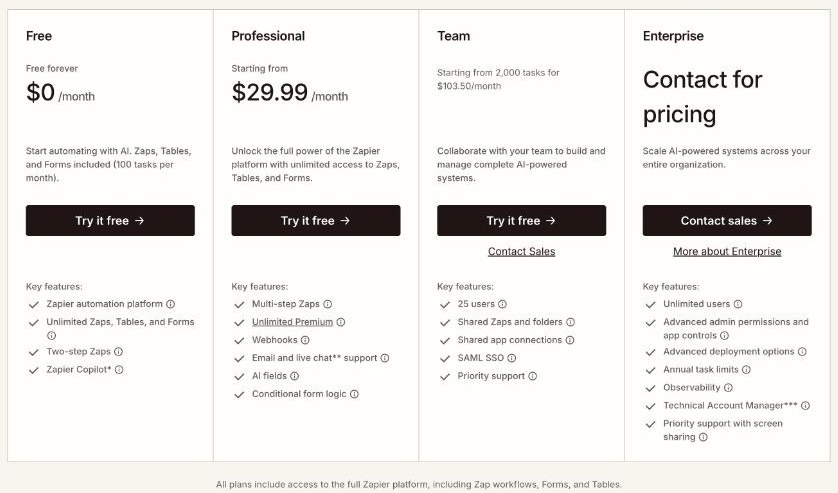
The Team plan is built for shared accounts, so a solo freelancer can ignore it. The real decision is Free versus Professional, and that decision comes down to one feature: multi-step Zaps. The Free plan only allows two-step Zaps, which means one trigger and one action. A proper onboarding chain has several actions, so you either split it into several small Zaps or you pay for Professional.
What counts as a task (and what does not)
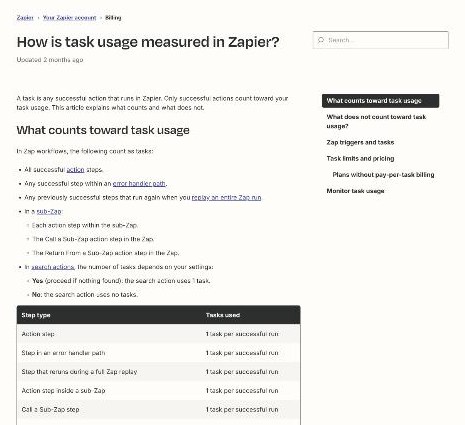
This is the part most people skip, and it changes the maths a lot. Zapier’s help centre defines a task as any successful action that runs. In practice:
- Counts as a task: every successful action step, such as creating a folder, sending an email or adding a project.
- Does not count: trigger steps, Filter and Paths steps, actions that error or halt, and steps that never run because a filter stopped the Zap.
- Also free: steps for Zapier Tables and Zapier Forms, plus built-in utilities such as Formatter, Delay, Looping, Digest and Storage.
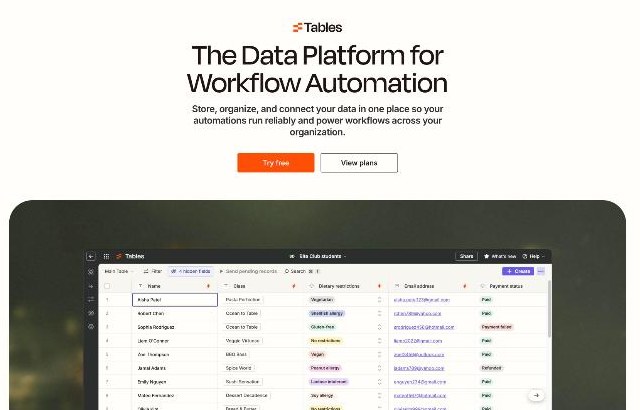
That last point is good news for freelancers. If you keep your client tracker in Zapier Tables and collect intake details with Zapier Forms, those steps do not eat into your allowance. Your tasks go on the steps that touch outside apps.
One more rule to know before you build: when you hit your plan’s task limit, Zapier switches to pay-per-task billing and emails you. That extra usage is capped at three times your plan’s limit, and after that new runs are held until the billing cycle resets. On plans without pay-per-task billing, runs are simply held once you reach the limit. For a freelancer, a held onboarding Zap means a new client who never got their welcome email, so it is worth checking usage now and then.
The onboarding chain, step by step
Here is a chain that fits most service freelancers: designers, writers, developers, consultants. The trigger is whatever means “this client is real” in your business. For some people that is a signed proposal; for others it is the first paid invoice. I prefer the payment, because a signed proposal without a deposit is still a maybe.
Step 1: The trigger (no task)
A new paid invoice in your payment tool, a new signed document in your proposal tool, or a new submission on an intake form. Triggers never use tasks, so it does not matter how often Zapier checks for new events.
Step 2: Add the client to a tracker (no task if you use Zapier Tables)
Create a record with the client’s name, email, project type, start date and status. If you use Zapier Tables, this step is free. If you use an outside spreadsheet or database app, it costs one task.
Step 3: Create a client folder (1 task)
A new folder in your cloud storage, named in a consistent way, for example “2026-11 Client Name – Website”. Consistent names are the quiet benefit here. After a year, every folder is easy to find.
Step 4: Create the project (1 task)
A new project or board in your project tool, ideally copied from a template so the standard stages are already there.
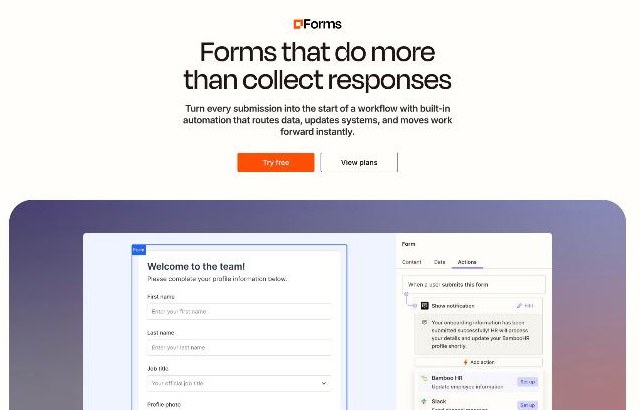
Step 5: Send the intake questionnaire (1 task, or none with Zapier Forms)
An email with a link to your questionnaire. If the questionnaire is a Zapier Form, the responses can flow back into the same table without using tasks. I wrote about screening leads before the first call in my Fillout client intake form guide; the same thinking applies here, except this form is for clients who have already said yes.
Step 6: Notify yourself (1 task)
A message to yourself in chat or email: “New client: name, project, folder link.” This sounds silly for a one-person business, but it replaces the step where you would otherwise open four apps to check that everything worked.
The total
With Tables as the tracker, this chain uses about four tasks per new client. A freelancer who signs three or four clients a month uses around 12 to 16 tasks for onboarding. That fits easily inside the Free plan’s 100 tasks, and very easily inside Professional’s 750.
So the question is not volume. It is structure. On the Free plan, each Zap can only have one action, so you would build this as four or five separate two-step Zaps that all start from the same trigger. That works, but it has a cost: the steps cannot pass information to each other. Your welcome email cannot include the link to the folder that another Zap just created, because they run separately.
On Professional, the whole chain lives in one multi-step Zap, and later steps can use earlier results: the folder link goes into the email, the project link goes into your notification, and a filter can stop the Zap if the payment is not a deposit. For many freelancers, that alone is worth the yearly price of $19.99 a month.
Steps I would keep personal
Automation is good at moving data. It is not good at making a client feel looked after. These are the steps I would not hand to Zapier, even on a paid plan.
The first real message
Let Zapier send the practical email: folder link, questionnaire, what happens next. But send a short personal note yourself within a day. Two or three sentences about their project, written by you, tell the client that a person is on the other side. An automated “Hi {first name}, I’m so excited!” does the opposite.
The kickoff call
You can automate the booking link. Do not automate the agenda. Clients often mention the thing that will actually make or break the project in the first ten minutes of a call, and you want to be present for it, not reading a script.
Scope questions
If the intake form shows that the client expects more than the proposal covers, that is a conversation, not a workflow. An AI step can flag the mismatch, but you should handle it. If proposals are where your scope usually slips, my Proposify break-even review covers how a proposal tool can make scope clearer before the client ever pays.
Late payment follow-ups
An automated reminder from your invoicing app is fine. A chain of escalating automated messages to a client you are still working with can damage the relationship. After the first reminder, I would rather write the message myself.
Common mistakes when automating onboarding
- Triggering on the wrong event. A “new contact” trigger fires for leads who never buy. Use a payment or signature event.
- No filter. If you sell small one-off jobs and larger projects, add a filter so the full onboarding chain only runs for projects. Filters do not use tasks.
- Testing with a real client. Run the Zap with a test record first. A half-built Zap that emails a real client “Hi [Name]” is hard to explain.
- Forgetting the off switch. When you change your proposal or payment tool, turn off the old Zaps. Old triggers sometimes keep firing in ways you do not expect.
- Building too much on day one. Start with the folder, the tracker and the notification. Add steps once the basic chain has run for a few clients without problems.
Who Zapier suits, and who it does not
Zapier suits freelancers who already use three or more separate apps for proposals, payments, files and projects, and who sign new clients often enough that the setup pays back. It is especially useful if you like keeping a tidy record of every client.
Zapier is less useful if you use an all-in-one client portal that already handles proposals, contracts, invoices and onboarding in one place. In that case, the “glue” job mostly disappears. It is also probably not worth paying for if you sign one client every couple of months; the Free plan with two or three two-step Zaps will cover you.
Verdict
Zapier is a strong fit for client onboarding when you treat it as a quiet assistant, not as your voice. The Free plan’s 100 tasks are enough for a typical solo freelancer’s onboarding volume, but the two-step limit makes a proper chain awkward. Professional, from $19.99 a month on yearly billing, is where onboarding becomes one clean workflow with filters and linked steps. Automate the folders, trackers, links and reminders. Keep the first personal message, the kickoff call and the scope conversations for yourself.
FAQ
Can I automate client onboarding on Zapier’s free plan?
Yes, but only with two-step Zaps, meaning one trigger and one action each. You can build several small Zaps from the same trigger, but they cannot share information such as a folder link.
How many Zapier tasks does client onboarding use?
It depends on your chain. The example in this article uses about four tasks per new client, because triggers, filters, and Zapier Tables and Forms steps do not count as tasks.
How much does Zapier Professional cost?
When I checked, Professional started at $29.99 a month with monthly billing or $19.99 a month with yearly billing, for 750 tasks a month. Prices rise with higher task tiers.
What happens if I run out of Zapier tasks?
Zapier switches to pay-per-task billing and emails you, up to three times your plan’s task limit. After that, or on plans without pay-per-task billing, new Zap runs are held until your billing cycle resets.
Should a freelancer use Zapier Tables or a spreadsheet as a client tracker?
If cost matters, Tables has an advantage because Tables steps do not use tasks. A spreadsheet works too, but each row you add from a Zap counts as a task.