
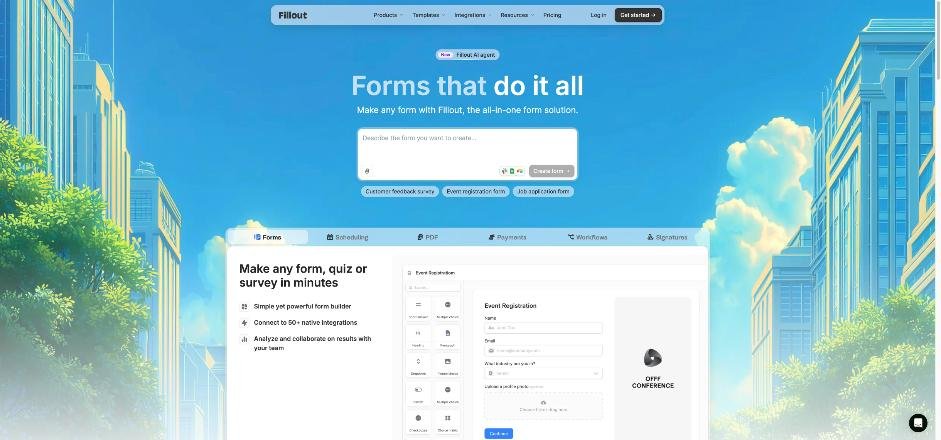
Most freelancers I know lose more time on the wrong inquiries than on the wrong clients. Someone fills in a contact form with “Hi, how much for a website?”, you reply, they reply, you book a call, and twenty minutes in you learn the budget is a tenth of your minimum. A Fillout client intake form can do that first filter for you, before anyone books time on your calendar.
This post is not a general review of Fillout as a form builder. It is one build: an intake form for a solo freelancer that asks the right questions, scores the answers, and only offers a booking slot to the inquiries that fit. I will show which Fillout features each step uses, and which plan you need for it, based on Fillout’s pricing page as it stands today.
Why an Intake Form Beats a Contact Form for Freelancers
A contact form collects a message. An intake form collects decisions. The difference matters because the three things that decide whether a project is worth a call are almost never in the first message:
- Budget range. People will pick from a list when they would never type a number.
- Timeline. “Next week” and “sometime next quarter” lead to very different replies.
- Scope. A landing page and a full site are not the same conversation.
Once those answers are structured, a form can react to them. That is the part Fillout handles well on its free plan, which is why I picked it for this build.
What Fillout’s Free Plan Covers for This Build
Fillout’s free plan is unusually generous for a solo freelancer. According to its pricing page, Free includes unlimited forms, unlimited seats and 1,000 responses a month, plus multi-page forms, form embedding, payment collection, answer piping, scheduling forms, PDF generation, conditional logic, unlimited file uploads, Fillout Workflows, resume in-progress forms, calculations and scoring, and pre-fill and hidden fields.
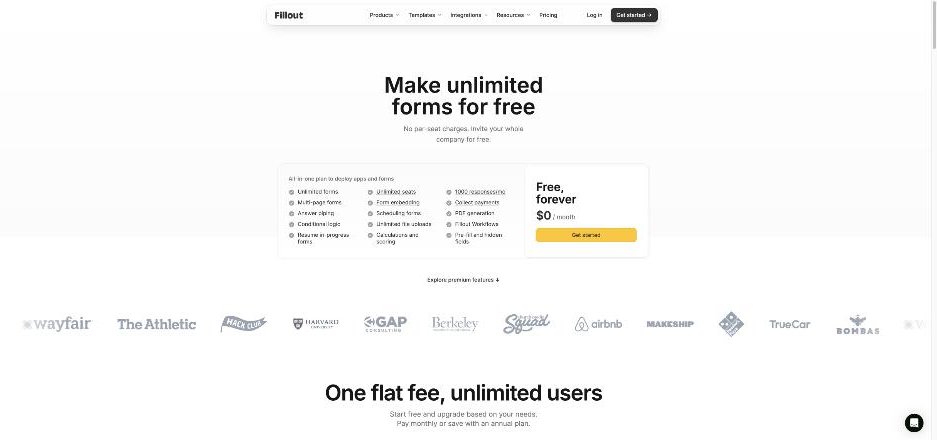
A freelancer rarely gets anywhere near 1,000 inquiries a month, so the response cap is not the limit to watch. The limits that matter for intake are a few specific features that sit on paid plans. I will flag each one as we go.
Step 1: Start From the Client Intake Template, Then Cut It Down
Fillout has a ready-made Client Intake Form template in its lead generation templates. It is a sensible starting point, but it is written for a general service business, with fields like full address that a freelancer does not need on day one.
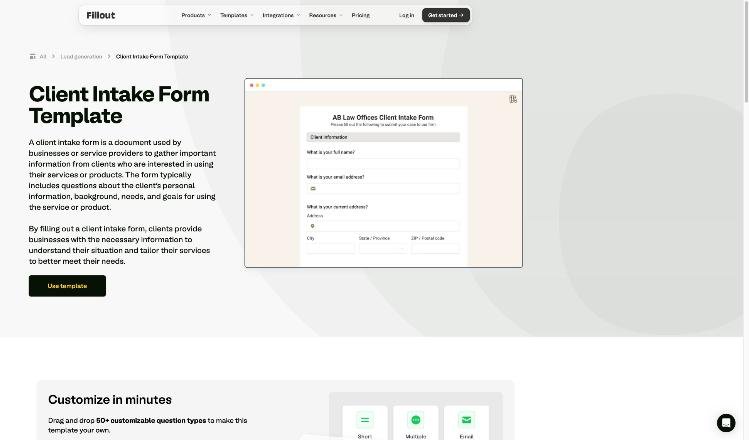
Here is the cut-down structure I use, split over three short pages so it never feels like paperwork:
Page 1: Who you are
- Name
- Company or project name
- Website (optional)
Page 2: The project
- What do you need? (multiple choice: your main services, plus “Something else”)
- Budget range (multiple choice with your own brackets)
- When do you need it live? (multiple choice: within 2 weeks, within a month, 1 to 3 months, no fixed date)
- Anything I should look at? (file upload for briefs or examples)
Page 3: The next step
This page changes depending on the answers, which is where the real work happens.
Step 2: Score the Answers
Fillout includes calculations and scoring on the free plan. Give each answer on page 2 a few points. For example:
- Budget at or above your minimum: high points. Below it: zero.
- Service you actually offer: points. “Something else”: zero.
- Timeline you can realistically meet: points. “Within 2 weeks” when you are booked: fewer.
Keep the scoring simple. You are not building a credit model, you are separating “book a call” from “send a polite reply”. Three answers and a threshold are usually enough.
Answer piping, also free, lets you reuse earlier answers in later questions. A line like “Thanks, Sarah, a landing page in the next month sounds doable” on page 3 makes the form feel like a conversation instead of a filter.
Step 3: Route Good Fits to Your Calendar
With conditional logic, leads above your score threshold see a booking step and everyone else sees a different ending. For the booking step, Fillout has its own scheduling forms, included on the free plan.
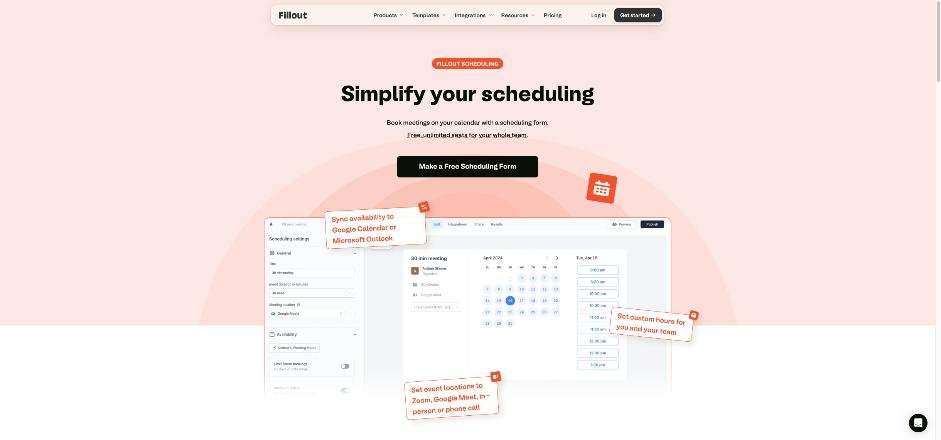
According to Fillout’s scheduling page, you can sync availability to Google Calendar or Microsoft Outlook, set custom hours, choose Zoom, Google Meet, in-person or phone as the location, let invitees reschedule or cancel with one click, and send automated email and SMS reminders to reduce no-shows. You can also add buffer times, limit how far ahead people can book and set a minimum notice period. That last one is handy if you do not want a stranger booking a call for tomorrow morning.
If you already live in your calendar app, compare this with booking links inside your calendar. I looked at that approach in what Fantastical Openings does for client calls. The difference here is that the booking only appears after the lead has passed your questions.
If you prefer to keep using Calendly, Fillout can embed Calendly scheduling, but on its comparison table Calendly scheduling is not included in Free. It starts on Starter.
The ending for leads that do not fit
Do not just say no. A kind ending with a link to a cheaper option, a template you sell, or a freelancer friend you refer to keeps your reputation intact. Note that custom endings and redirect on completion are listed under Starter, so on Free you work with the standard ending screen. For many freelancers, a well-written standard ending is enough.
Step 4: Send Every Inquiry Somewhere You Will See It
An intake form is only useful if the answers land in your pipeline. Fillout lists most integrations as available on every plan, including Airtable, Google Sheets, Notion, Webhook, HubSpot, Mailchimp and 50+ more, along with CSV export and REST API access.
For a one-person business, I would keep it boring:
- Google Sheets or Notion as the lead list, with the score in its own column.
- Your CRM if you already have one. If your pipeline lives in Gmail, the stages in my Streak CRM for Gmail freelance pipeline post map neatly onto the scored leads this form produces.
Fillout Workflows, which is on the free plan, can handle follow-up steps after a submission. Start with one: notify yourself when a high-score lead submits, so the best inquiries get a reply first.
Step 5: Optional Extras Once the Basics Work
- Deposits. Fillout can collect payments on all plans, and the scheduling page mentions collecting payments before or after a booking through its Stripe integration. A small paid strategy session filters even harder than scoring.
- Signatures. Collecting signatures is listed from Starter up, which can work for a simple project agreement at the end of the process.
- PDF of the answers. PDF generation is free, useful if you like attaching a one-page brief to your proposal.
- Testimonials at the other end. The same habit of structured forms works when a project ends. I covered that routine in Senja testimonials at project handoff.
Build Your Intake Form in Fillout
Which Fillout Plan a Freelancer Actually Needs
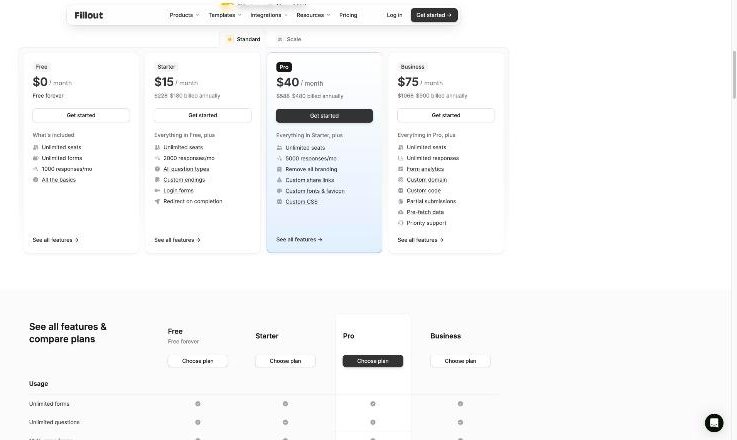
Fillout charges one flat fee with unlimited users, rather than per seat. Here is the paid lineup from its pricing page, shown at annual billing:
| Plan | Price (billed annually) | Responses per month | Adds for intake forms |
|---|---|---|---|
| Free | $0 | 1,000 | Logic, scoring, scheduling, payments, integrations |
| Starter | $15/month ($180/year) | 2,000 | Custom endings, redirect on completion, Calendly scheduling, signatures |
| Pro | $40/month ($480/year) | 5,000 | Remove all branding, custom share links, custom fonts and favicon, custom CSS |
| Business | $75/month ($900/year) | Unlimited | Form analytics, custom domain, custom code, partial submissions |
On monthly billing the yearly totals are higher: the pricing page shows $228 for Starter, $588 for Pro and $1,068 for Business, before the annual discount of about 20%.
My reading for a solo freelancer:
- Stay on Free if you are happy with Fillout’s own scheduling, a standard ending screen and Fillout branding on the form.
- Move to Starter if you want a custom “not a fit” ending, a redirect to your own thank-you page, Calendly instead of Fillout scheduling, or signatures.
- Consider Pro only if Fillout branding on a client-facing form bothers you, or you need custom CSS to match your site.
- Business is rarely needed for intake, though partial submissions (seeing what people typed before abandoning) can be telling if your form gets plenty of traffic.
Common Mistakes With Intake Forms
- Too many questions. Every extra field costs submissions. If you would not ask it on a first call, do not ask it in the form.
- Hiding the budget question. Put it on page 2, phrased as ranges. People skip forms that ask for a number on page 1.
- A cold rejection. The “not a fit” ending is still part of your brand.
- No reply promise. Tell people when they will hear from you, even if they booked a call.
Frequently Asked Questions
Is Fillout free for freelancers?
Yes. Fillout’s free plan includes unlimited forms, unlimited seats and 1,000 responses a month, plus conditional logic, calculations and scoring, scheduling forms and most integrations.
Can a Fillout client intake form book calls automatically?
Yes. Fillout’s own scheduling forms, included on the free plan, sync availability with Google Calendar or Microsoft Outlook. Combined with conditional logic, you can show the booking step only to leads that meet your criteria.
Does Fillout work with Calendly?
Fillout supports Calendly scheduling, but its pricing comparison lists it from the Starter plan up, not on Free.
How much does Fillout cost?
Billed annually, Starter is $15 a month, Pro is $40 a month and Business is $75 a month. Monthly billing costs more, and the Free plan stays at $0.
Can I remove Fillout branding from my intake form?
Removing all branding is listed as a Pro plan feature.