
Almost every freelancer’s first CRM is a spreadsheet. One row per lead, a column for email, a column for status, a column for the quote you sent, and a notes column that grows until nobody can read it. Sooner or later the sheet stops working, and HubSpot’s free CRM is the obvious next step because it costs nothing and never expires. The hard part is not signing up. It is moving the spreadsheet in without losing what made it useful.
This guide follows a typical freelance lead sheet into HubSpot, column by column: which columns map cleanly, which ones need to become deals or tasks, which ones the free plan cannot hold the way you expect, and what the import limits are on free tools. All plan details and limits come from HubSpot’s product pages, pricing page and knowledge base as they read today.
The spreadsheet most freelancers start with
Lead sheets vary, but most have some version of these columns:
- Name, email and phone of the person you are talking to.
- Company and website, if the client is a business.
- Source: referral, LinkedIn, a cold pitch, a directory listing.
- Status: new, call booked, proposal sent, won, lost.
- Project and quote: what they want and what you priced it at, sometimes in different currencies.
- Last contact and next step: dates and a short reminder.
- Notes: everything else.
The problem with this layout is that one row mixes three different things: a person, a business and a piece of work. HubSpot keeps those apart, and that is the main thing to understand before you import anything.
How HubSpot’s free CRM splits one row into records
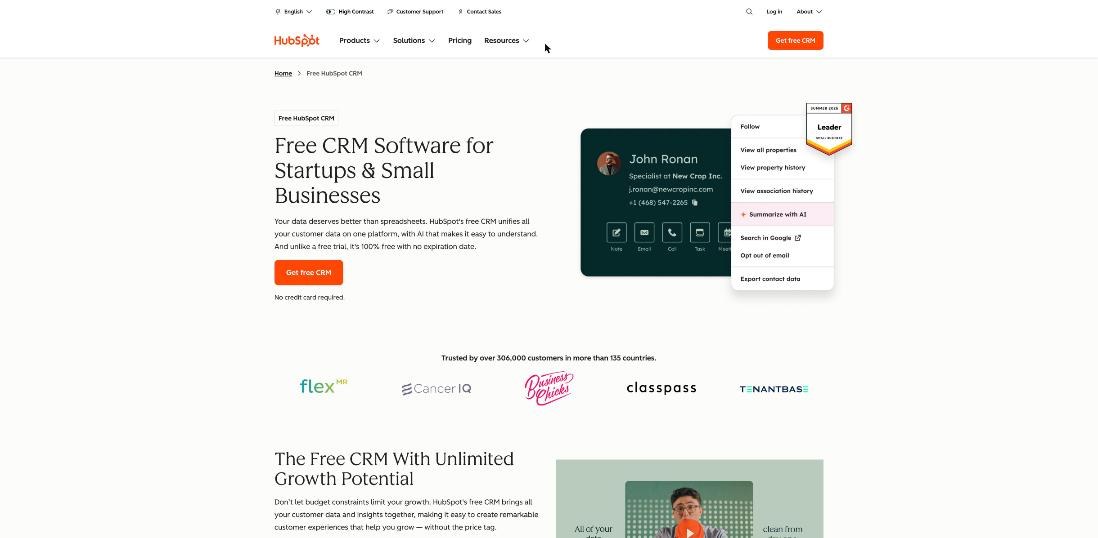
HubSpot describes its free CRM as 100% free with no expiration date and no credit card required, and the free tools are available for up to two users. Inside it, your spreadsheet row becomes several linked records:
- Contact: the person, identified by email.
- Company: the business, identified by name or website domain.
- Deal: the project you quoted, with an amount and a stage in a pipeline.
- Tasks and notes: your reminders and history, attached to the records above.
Once a client sits in HubSpot this way, a second project for the same person is a second deal, not a duplicate row. That alone fixes the most common spreadsheet mess: three rows for one client, each with a different status.
Mapping each column into HubSpot
Here is where each typical column ends up, and what to watch for.
| Spreadsheet column | Goes to | What to check |
|---|---|---|
| Contact: Email | Required to create contacts and the key HubSpot uses to match records | |
| First and last name | Contact: First name, Last name | Split a single “Name” column before importing |
| Company | Company: Name | Companies need a name or a domain |
| Website | Company: Company domain name | Only the domain is kept; anything after it is removed |
| Source | Contact: a dropdown property | Create the property and its options first |
| Status and quote | Deal: Deal stage and Amount | Stages must already exist in your pipeline |
| Currency | Deal amount in one currency | Multiple currencies is a paid feature |
| Next step | Task | Easier to recreate by hand for active leads |
| Notes | Note on the contact | Imported notes cannot be updated by a later import |
Email is the column that decides everything
HubSpot’s knowledge base lists Email as the required property for creating contacts. It is also the identifier HubSpot uses when you import again to update records. If some leads in your sheet have no email, because you only spoke on LinkedIn for example, decide now whether they belong in the CRM yet. Clean the column first: one address per cell, no “see notes”, and no shared inbox addresses standing in for a person.
Website becomes a domain, nothing more
For companies, HubSpot needs at least a name or a company domain. The knowledge base adds a detail that catches people out: the company domain property only accepts values up to the top-level domain, and anything after it is removed on import. A cell containing a client’s portfolio page URL becomes just their domain. That is usually what you want, but if the full URL mattered to you, keep it in a separate custom property.
Status and quote become a deal
This is the biggest change from the spreadsheet. To import deals, HubSpot requires a Deal name, a Pipeline and a Deal stage, and both the pipeline and the stage must match options that already exist in your account. So set up your deal stages before the import, using the same words as your status column, or rename the values in the sheet to match. A freelancer pipeline can be as simple as Enquiry, Call booked, Proposal sent, Won and Lost.
Currency is where the free plan pushes back
If you quote some clients in USD and others in EUR or GBP, the free CRM is not built for that. HubSpot lists multiple currencies as a Starter feature. On free tools, keep deal amounts in one currency, your reporting currency, and store the original quote in a text property if you need it. It is a small inconvenience, but it matters if you use the deal board to forecast income.
Notes and next steps
You can import notes and tasks, but HubSpot’s knowledge base states that existing emails, meetings, notes and tasks cannot be updated through import. Import your notes once, as a history entry, and do not plan to refresh them from the sheet later. For next steps, it is often quicker to create tasks by hand for the five or ten leads that are actually active.
Import limits on HubSpot’s free tools
The limits are generous for a freelancer’s list, but they are worth knowing. According to HubSpot’s knowledge base, files must be .csv, .xlsx or .xls, contain only one sheet, have a header row and fewer than 1,000 columns. On free tools you can:
- Import files up to 20MB.
- Complete up to 50 imports per day.
- Import up to 500,000 rows per day.
- Run up to three imports at the same time.
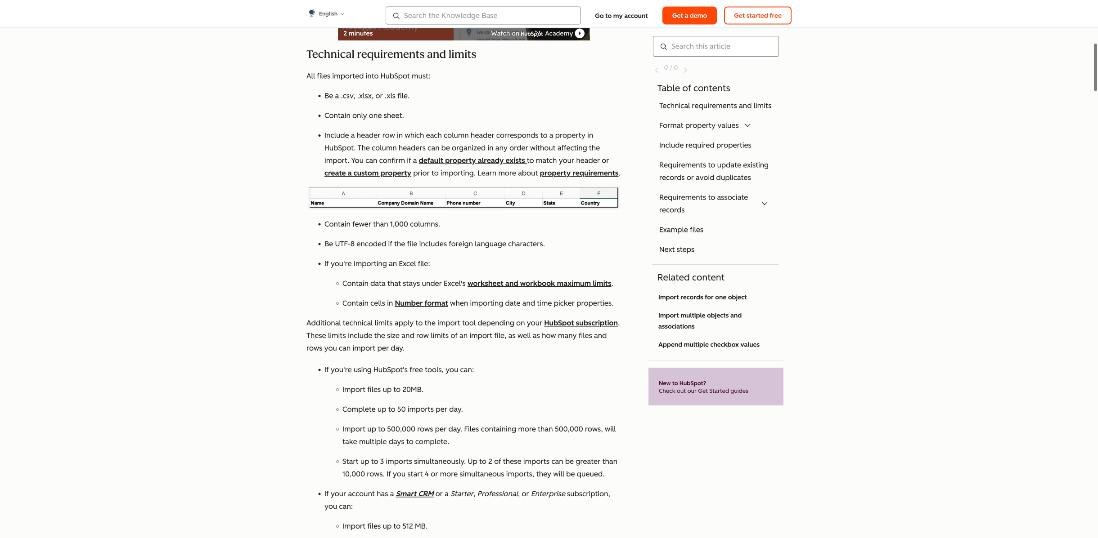
A freelancer’s lead sheet will not get near those numbers. The one rule that does matter is “one sheet per file”. If your workbook has tabs for leads, clients and archived leads, export each tab as its own CSV.
One file or several: running the import
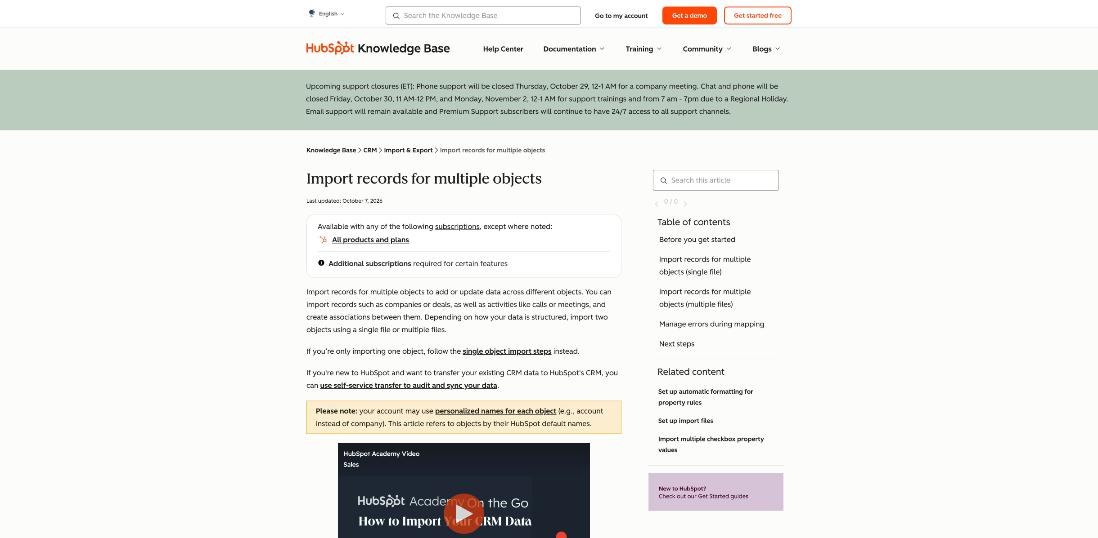
HubSpot can import a single file containing several objects, such as contacts, companies and deals together, and associate them with each other. Its knowledge base describes this under Advanced imports (all objects), started from Data Management, then Data Integration, or from the Import button on any record list.
For most freelancers, a single file works well: each row already holds the person, the company and the project. A safe order of work looks like this:
- Create custom properties you need, such as Lead source, with their dropdown options.
- Set up deal pipeline stages to match your status values.
- Clean the sheet: split names, one email per cell, one currency for amounts.
- Import a test file of five rows and check the records it creates.
- Import the rest, then add tasks by hand for active leads.
The five-row test is the step people skip and regret. It shows mapping mistakes while they are still easy to fix.
What you get once the data is in
After the import, the free CRM covers most of what a solo freelancer needs day to day. HubSpot lists contact management, deals and pipeline management, tasks, a reporting dashboard and the Breeze AI assistant in the free tier, along with email tracking, a meeting scheduler and payment links. Payment availability depends on where you are based, so check that one for your country.
A few free-tier limits from HubSpot’s pricing page are worth knowing before you build habits around them:
- Email templates: up to three per account.
- Snippets: up to three.
- Meeting links: one personal meetings link, with HubSpot branding.
- One-to-one email: includes HubSpot branding.
- Users: free for up to two.
Three templates is enough for an enquiry reply, a proposal follow-up and a check-in with past clients. If you send many different templates, you will feel this limit first.
When the free plan stops being enough
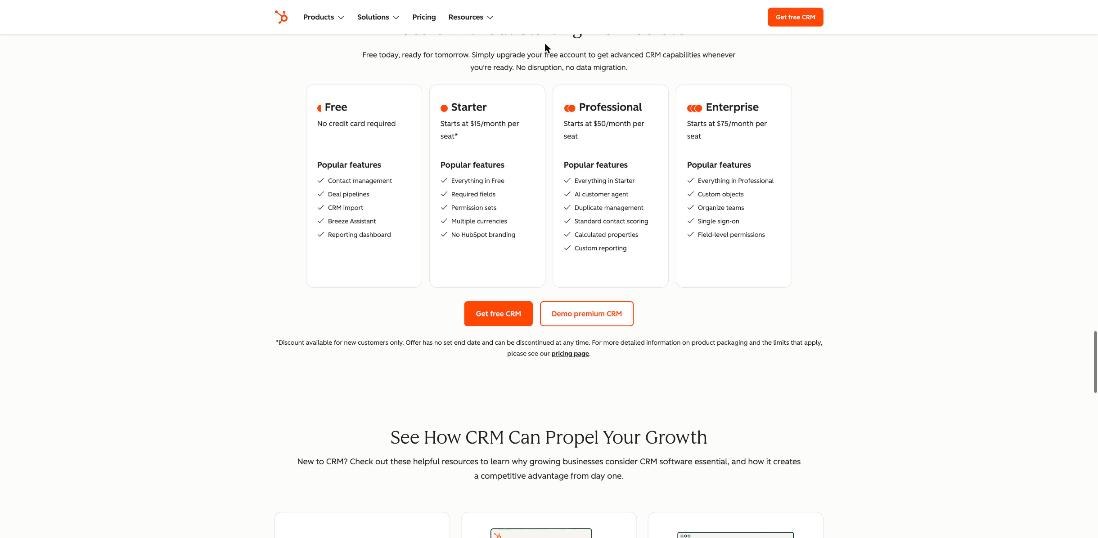
On HubSpot’s CRM page, Smart CRM Starter is listed from $15 per seat per month, with a note that this is a discount for new customers that can end at any time. Starter adds required fields, permission sets, multiple currencies and removes HubSpot branding. Professional is listed from $50 per seat per month and Enterprise from $75.
HubSpot’s broader pricing page also sells a Starter bundle across its products. It shows a struck-through list price of $20 per seat per month with lower promotional prices that change with monthly or annual billing, so check the live page before you budget.
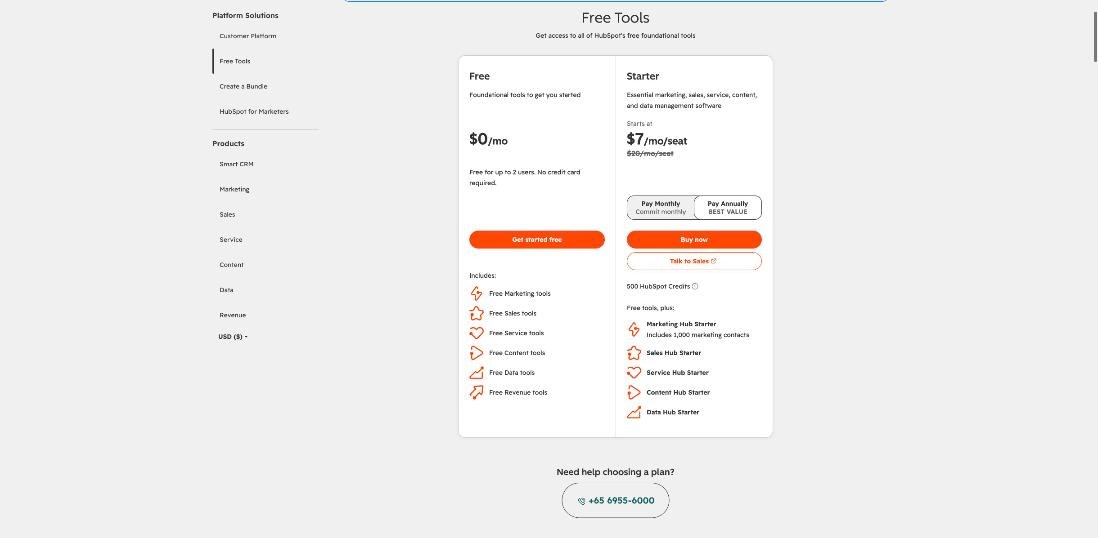
For a freelancer, the realistic triggers for upgrading are multiple currencies on deals, removing HubSpot branding from emails and meeting links, and needing more than three email templates. If none of those bother you, the free CRM can stay free for years.
Who should keep the spreadsheet
HubSpot is not the right home for every freelancer. If your work is mostly retainers and you care more about a sales pipeline than about contacts, Pipedrive for freelancers who sell retainers may suit you better. If your main goal is staying in touch with past clients rather than tracking deals, folk CRM’s approach to a past-client list is lighter. And if you like the spreadsheet but want structure, Airtable’s free plan keeps the grid while adding linked records. Keep the spreadsheet if you have fewer than a dozen active leads a year and no plans to grow that. A CRM pays off when you have enough contacts that you start to forget who said what.
FAQ
Is HubSpot’s free CRM really free for freelancers?
Yes. HubSpot says its free CRM is free with no expiration date and no credit card required, and free tools cover up to two users.
Can I import an Excel file into HubSpot’s free CRM?
Yes. HubSpot accepts .csv, .xlsx and .xls files with one sheet and a header row. On free tools, files can be up to 20MB, with up to 50 imports per day.
Why did my deals fail to import?
Deals need a Deal name, Pipeline and Deal stage, and the pipeline and stage must match options that already exist in your account. Create your stages first, then import.
Can HubSpot’s free CRM handle clients in different currencies?
Multiple currencies is listed as a Starter feature. On the free plan, keep deal amounts in one currency and store the original quote in a separate property if you need it.
What is the most useful limit to know on the free plan?
For most freelancers it is the three email templates per account, followed by HubSpot branding on one-to-one emails and the single meetings link.