Most freelancers send contracts the same way: export a PDF, attach it to an email, wait, chase, and then hunt for the signed copy in a downloads folder. Dropbox Sign for freelancers can replace that loop with something simpler for the documents you send to every client, using a feature that most e-signature comparisons skip: the template link.
A template link is a URL. You prepare a document once, and anyone who opens the link can fill in their details and sign it. Put that link in your booking confirmation or your proposal, and your standard terms get signed before the first call instead of after three reminder emails. This guide looks at Dropbox Sign from that one angle: which documents suit a signable link, which still need a normal signature request, and which plan you need. All prices and plan details come from Dropbox Sign’s pricing page and the Dropbox help center as they read today.
What a freelancer’s signing workload actually looks like
A typical solo service business signs three kinds of documents:
- Standard terms every client accepts: a project start agreement, payment terms, a revision policy, a simple NDA.
- Project-specific documents: a statement of work, a quote, a change order with that client’s scope and price.
- Documents the client sends you: their NDA or vendor agreement, which you sign in their system.
The first group is identical for everyone, and that is where a template link earns its keep. The second group changes per client and is better sent as a normal signature request. If you want to count how many signature requests a month of project documents actually uses, I did that exercise for a different tool in counting Docusign envelopes for freelancers. Here the question is different: how much of the routine paperwork can be moved out of email entirely.
Dropbox Sign plans and prices
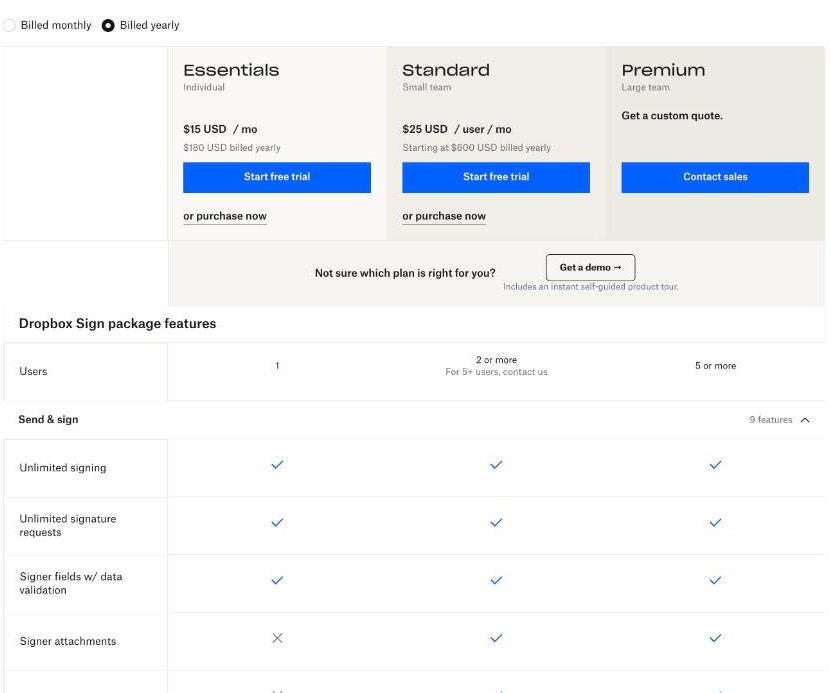
| Plan | Billed yearly | Billed monthly | Users | Templates |
|---|---|---|---|---|
| Free | $0 | $0 | 1 | None |
| Essentials | $15/month ($180 a year) | $20/month | 1 | 5 |
| Standard | $25/user/month (from $600 a year) | $30/user/month | 2 or more | 15 |
| Premium | Custom quote | Custom quote | 5 or more | Unlimited |
The Free plan lets you send 3 signature requests a month, renewing every 30 days from the day you sign up, plus unlimited self-signing. Every paid plan includes unlimited signature requests, an audit trail, reminders and notifications, signer fields with data validation, and integrations with Google Drive, Microsoft Word and HubSpot. Paid plans come with a 30-day free trial, and Dropbox Sign says you will not be charged if you end the trial within 30 days. Subscriptions renew automatically unless you cancel.
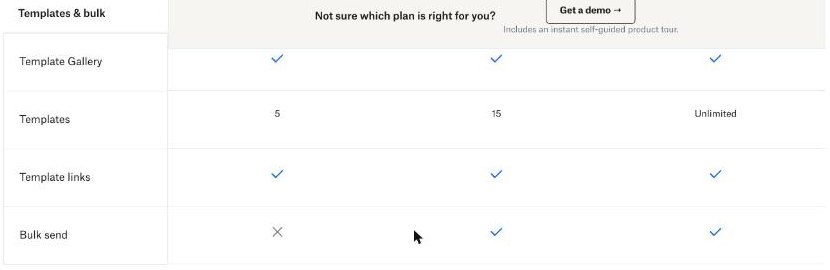
Two details matter for freelancers. First, your clients never pay anything: Dropbox Sign’s FAQ says signers do not need an account and signing costs them nothing. Second, templates and template links are only available on Essentials, Standard and Premium, so the workflow in this guide starts at $15 a month.
Template versus template link: the difference that matters
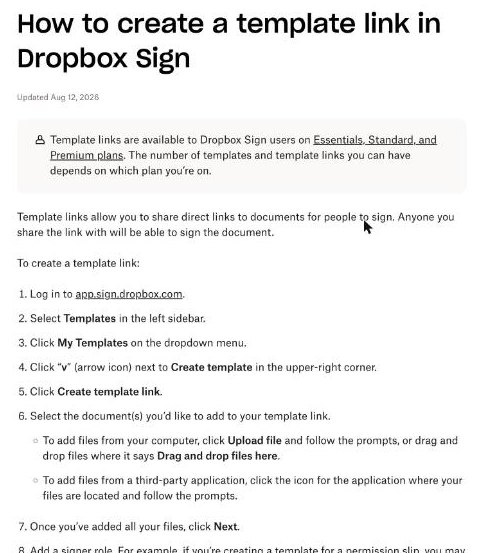
Dropbox’s help center describes the two side by side:
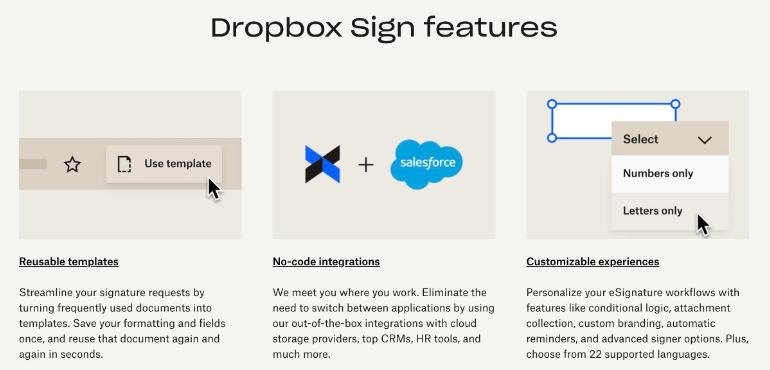
- A template saves a prepared document with its fields, so you can send it to specific signers by email again and again. It can have several signers at once.
- A template link is shared as a URL, and anyone with the link can sign. It supports only one signer role, and only one person signs at a time.
Dropbox’s own example is a waiver on a website that any visitor can sign. For a freelancer, the same idea fits any document where only the client needs to sign and the content is the same for everyone. If a document needs both your signature and the client’s, or several people on the client side, use a regular template instead.
Building a project start agreement as a template link
Here is the setup I would use. The click path comes from Dropbox’s help article on creating a template link; the document choices are my suggestion.
Step 1: write a one-signer document
Keep it to terms the client accepts: scope boundaries, payment schedule, revision rounds, what happens if a project pauses, and ownership on final payment. Leave project-specific prices out. Those go in the statement of work.
Step 2: create the template link
- Log in to app.sign.dropbox.com and open Templates, then My Templates.
- Click the arrow next to Create template and choose Create template link.
- Upload the document from your computer or a connected app, then click Next.
- Add one signer role, for example “Client”.
- Drag fields onto the document: name, company, email, date and signature.
- Give it a title and click Save template link.
Step 3: use data validation on the fields
Signer fields with data validation are included on every paid plan. Use them so the company name field cannot be left blank and the email field accepts only an email address. It saves a correction email later.
Step 4: put the link where clients already are
Good places for the link: the confirmation page or email of your booking tool, the last page of your proposal, and your onboarding email. If you automate onboarding, the link can be one step in the flow I described in Zapier client onboarding for a one-person business.
What stays a normal signature request
The statement of work and change orders carry a client’s name, scope and price, so they should go out as individual requests. Essentials includes 5 templates, and Dropbox’s help center says the number of templates and template links you can have depends on your plan, so plan your documents around that limit. A sensible split for a solo freelancer:
| Document | Format | Why |
|---|---|---|
| Project start agreement | Template link | Same for every client, client signs only |
| Mutual NDA | Template | Both sides sign |
| Statement of work | Template | Fields change per client; you countersign |
| Change order | Template | Short, reused often mid-project |
| Subcontractor agreement | Template | For freelancers who bring in help |
That uses all five Essentials slots. If you need more, the next step is Standard with 15, but Standard requires at least two users, so for a one-person business it roughly doubles the bill. In practice, it is usually better to merge documents than to upgrade.
Where Essentials falls short for freelancers
The pricing table marks several features as Standard and Premium only. The ones a freelancer is most likely to miss:
- Signer attachments. You cannot ask the client to upload a file, such as a purchase order or a brand guide, as part of signing.
- Branding. Signing pages and emails carry Dropbox Sign’s look, not yours.
- In-person signing on a shared device.
- Bulk send, which Dropbox’s help center says is for sending one document to many signers through a CSV file.
None of these blocks the template-link workflow. Branding is the one I would think about longest, because a signing page is one of the first things a new client sees from you.
Is the free plan enough?
For a freelancer with two or three new clients a month, the Free plan’s 3 signature requests can cover the contracts themselves, and a bundle of documents sent together counts as one request. Free does not include templates or template links, though, and a completed request comes with the signed PDF and an audit trail. If you only need to sign documents clients send you, Free plus unlimited self-signing is plenty. If you want the signable-link workflow in this guide, you need Essentials.
Legal standing
Dropbox Sign says its eSignatures are legally binding under the US ESIGN Act of 2000, and that its electronic signatures are legally binding in the United States, the European Union, the United Kingdom and many other countries. Each completed request carries a non-editable audit trail. If you work with clients in another country, check that country’s rules for the document type you are signing. I am not a lawyer, and this is not legal advice.
My verdict
Dropbox Sign Essentials at $15 a month billed yearly is a tidy fit for a one-person service business, mainly because of template links. Turning your standard terms into a link that clients sign before the first call removes one round of emails from every new project. The limits are clear: 5 templates in total, one signer per template link, and no branding or signer attachments below Standard. If you can live within five documents, Essentials is enough.
Pair it with a proposal tool if you want to know when a client reads your quote; my notes on Qwilr proposal analytics cover that side of the process.
FAQ
How much does Dropbox Sign cost for freelancers?
Essentials, the one-user plan, costs $15 a month billed yearly ($180 a year) or $20 billed monthly. Standard is $25 per user per month billed yearly or $30 monthly, with at least two users. There is also a free plan with 3 signature requests a month.
What is a Dropbox Sign template link?
A shareable URL for a prepared document. Anyone with the link can sign it. Template links support one signer role and one signer at a time, and they are available on Essentials, Standard and Premium.
Do my clients need a Dropbox Sign account?
No. Dropbox Sign says signers do not need an account and never pay anything to sign.
How many templates does Dropbox Sign Essentials include?
Five. Standard includes 15 and Premium is unlimited. Dropbox’s help center says the number of templates and template links you can have depends on your plan.
Does Dropbox Sign have a free trial?
Yes. Paid plans start with a 30-day free trial, and Dropbox Sign says you will not be charged if you end the trial within 30 days.