
Disclosure: some links in this guide are partner links. If you sign up through them, this site may earn a commission at no extra cost to you. It does not change what Teamwork.com charges you.
The day a freelancer hands part of a client project to a subcontractor, the tools that worked for one person start to creak. A to-do app cannot tell you whether the designer you hired logged her hours, a shared folder cannot show the client what is approved, and your invoice depends on time you never saw being tracked. Teamwork.com is built for agencies, but its user types and plan limits make it worth a look for exactly this moment, as long as you understand which helpers cost money and which do not.
This guide is not a general review. It looks at one situation: a solo freelancer bringing in one to three subcontractors and still dealing with clients directly. Everything about plans, prices and permissions comes from Teamwork.com’s pricing page and support documentation as they read today.
The question that decides everything: who needs a paid seat?
Teamwork.com has three user license types, and its support article sums them up in one line: standard users take a paid seat, client users are free, and collaborators are free with limited permissions.
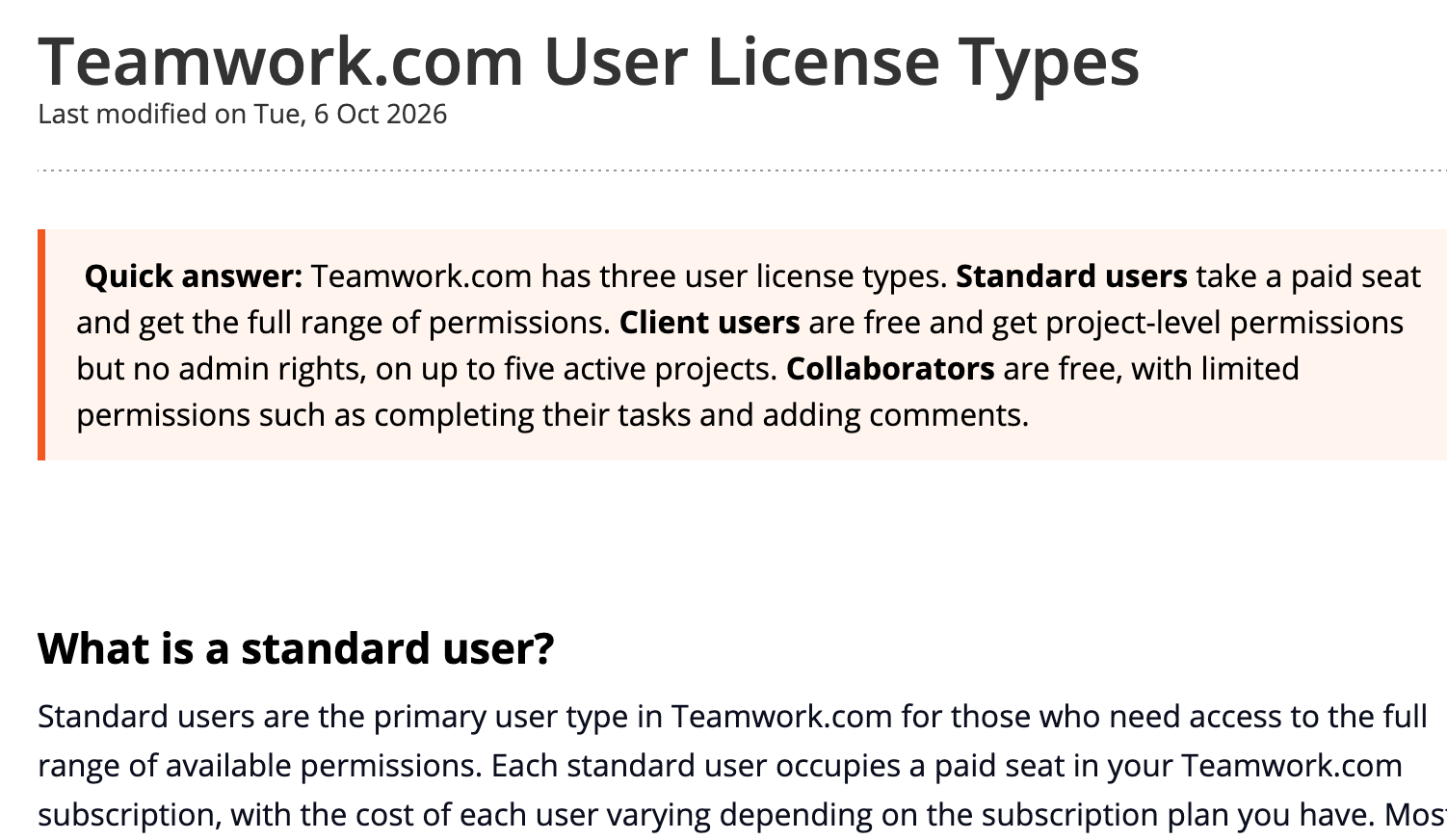
Here is what each type means when the person is a subcontractor or a client:
| License type | Cost | What they can do | Fits |
|---|---|---|---|
| Standard user | Paid seat | Full range of permissions | You, and any subcontractor who must log time or manage tasks |
| Client user | Free | Project-level permissions, no admin rights, up to five active projects; available on Basics and above; only for external companies | Clients who comment, add tasks or approve work |
| Collaborator | Free | Complete tasks assigned to them, add comments and messages, view files. Cannot add tasks, task lists or milestones, log time, set statuses or add tags | Light-touch helpers paid per deliverable |
The line that matters most for subcontracting is in the collaborator section: collaborators cannot log time. So the decision is simple. If you bill the client by the hour and the subcontractor’s hours go on that invoice, the subcontractor needs a standard seat. If you pay them a flat fee per deliverable and only need them to tick off tasks and leave comments, a free collaborator license works.
Teamwork.com plans for a small freelance crew
Teamwork.com lists a Free plan and four paid tiers. The two that matter for a small crew are Free and Basics; Accelerate becomes relevant if you start selling retainers or need timesheets.
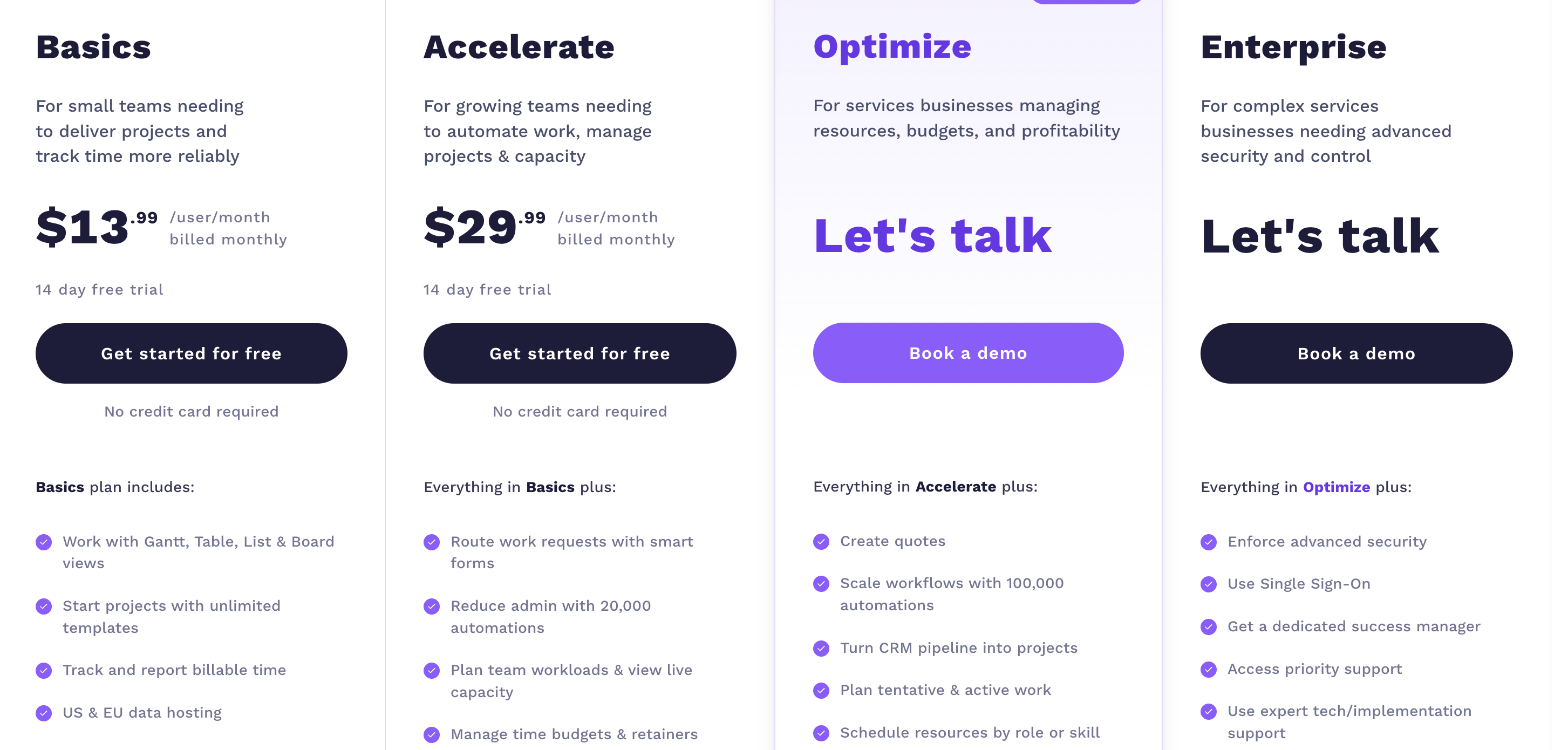
| Free | Basics | Accelerate | |
|---|---|---|---|
| Price per user/month (yearly) | $0 | $9.99 | $24.99 |
| Price per user/month (monthly) | $0 | $13.99 | $29.99 |
| Users | Max 5 | Min 3 | Min 5 |
| Projects | 5 | 300 | 600 |
| File storage | 100MB | 100GB | 250GB |
| Automations | 100 | 5,000 | 20,000 |
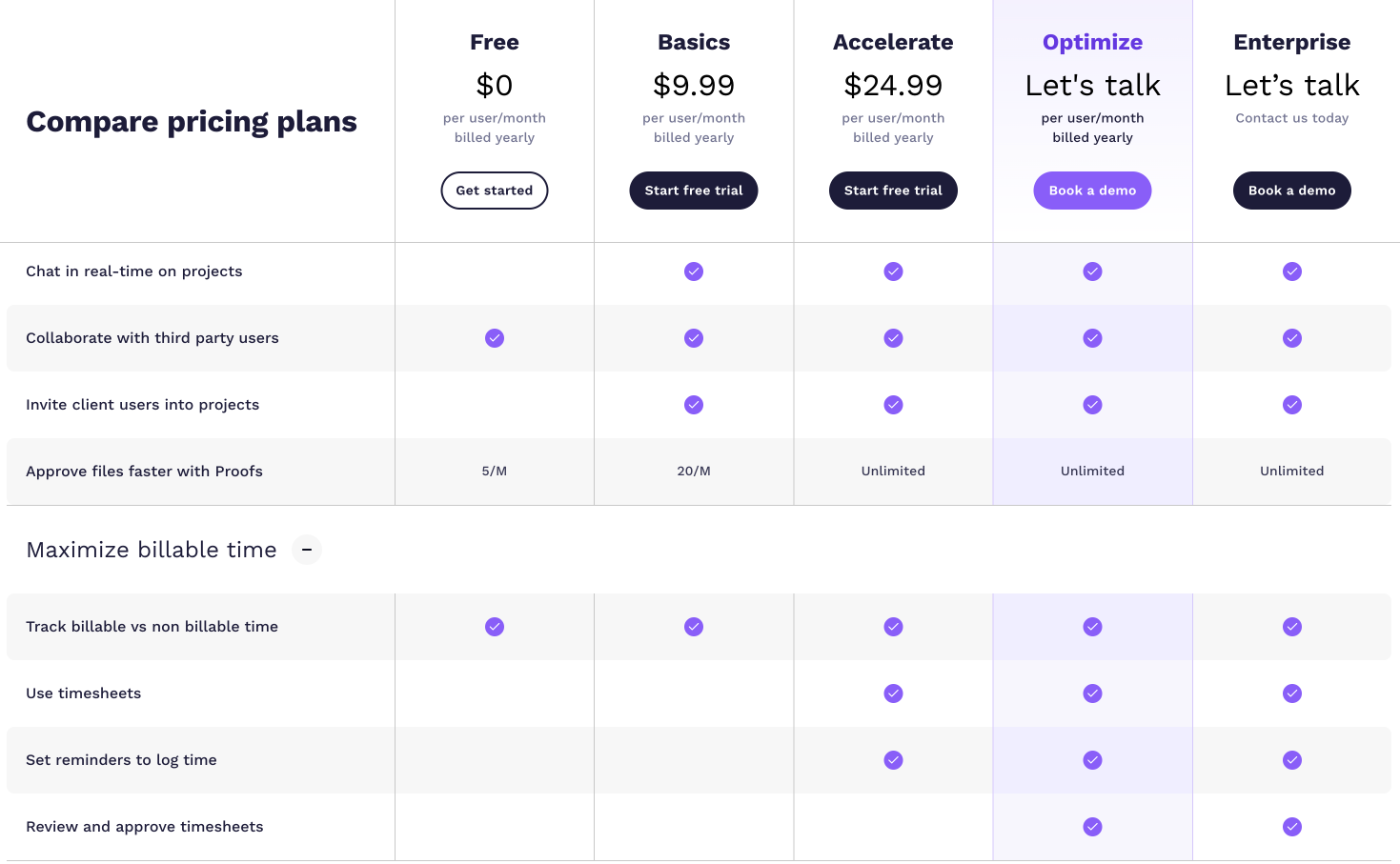
| Invite client users | No | Yes | Yes |
| Proofs | 5/month | 20/month | Unlimited |
| Timesheets and log-time reminders | No | No | Yes |
The pricing page says yearly billing saves 29%, every paid plan has a 14-day free trial, and no credit card is required. It also notes that Teamwork AI is included in all paid plans for an introductory period, with usage-based AI credits due to launch in November 2026, so check the page for how that affects your bill.
The minimum-seat catch
Basics has a minimum of three users. For a solo freelancer with one subcontractor, that means paying for three seats: $29.97 a month on yearly billing, or $41.97 on monthly billing, even though only two people use them. Accelerate’s minimum is five users, so it starts at $124.95 a month on yearly billing. The headline per-user price looks low; the real entry price depends on those minimums.
Three set-ups, from free to paid
Set-up 1: Free plan, flat-fee subcontractors
The Free plan allows up to five users and five projects, includes task, list, board, Gantt and table views, time logging, and organising work by client. Two things are missing for client-facing work: you cannot invite client users, and real-time project chat is a paid feature.
This set-up works if you run a handful of projects at a time, your subcontractors are paid per deliverable, and you report to clients by email rather than inviting them in. Your own time and that of anyone on a standard seat can still be tracked as billable or non-billable, which the compare table shows on every plan.
Set-up 2: Basics, clients inside the project
Basics is the first plan where you can invite clients as free client users. Teamwork.com’s client management page says you can add unlimited clients to projects at no extra cost, customise what they see, and let them add comments, tasks and milestones and log time. That last part comes from the marketing page; the support article adds the limits: client users get no admin rights and can join up to five active projects.
For a freelancer with a subcontractor, Basics gives you three standard seats (you, the subcontractor, and one spare for a second helper or a part-time assistant), free client users, project chat, 300 projects and 20 proofs a month. It does not include timesheets or log-time reminders, so you rely on timers and individual time entries.
Set-up 3: Accelerate, retainers and invoices from logged time
Accelerate adds timesheets, reminders to log time, time budgets and retainers, invoices built from logged time, and HubSpot and QuickBooks connections. Those are exactly the features a crew needs once billing gets complicated. With the five-seat minimum, it is a plan for a small studio, not a freelancer with one helper.
Running a subcontracted project, step by step
Here is how I would set up the first project with a subcontractor in Teamwork.com. The order is my suggestion; each feature is one the pricing or product pages list.
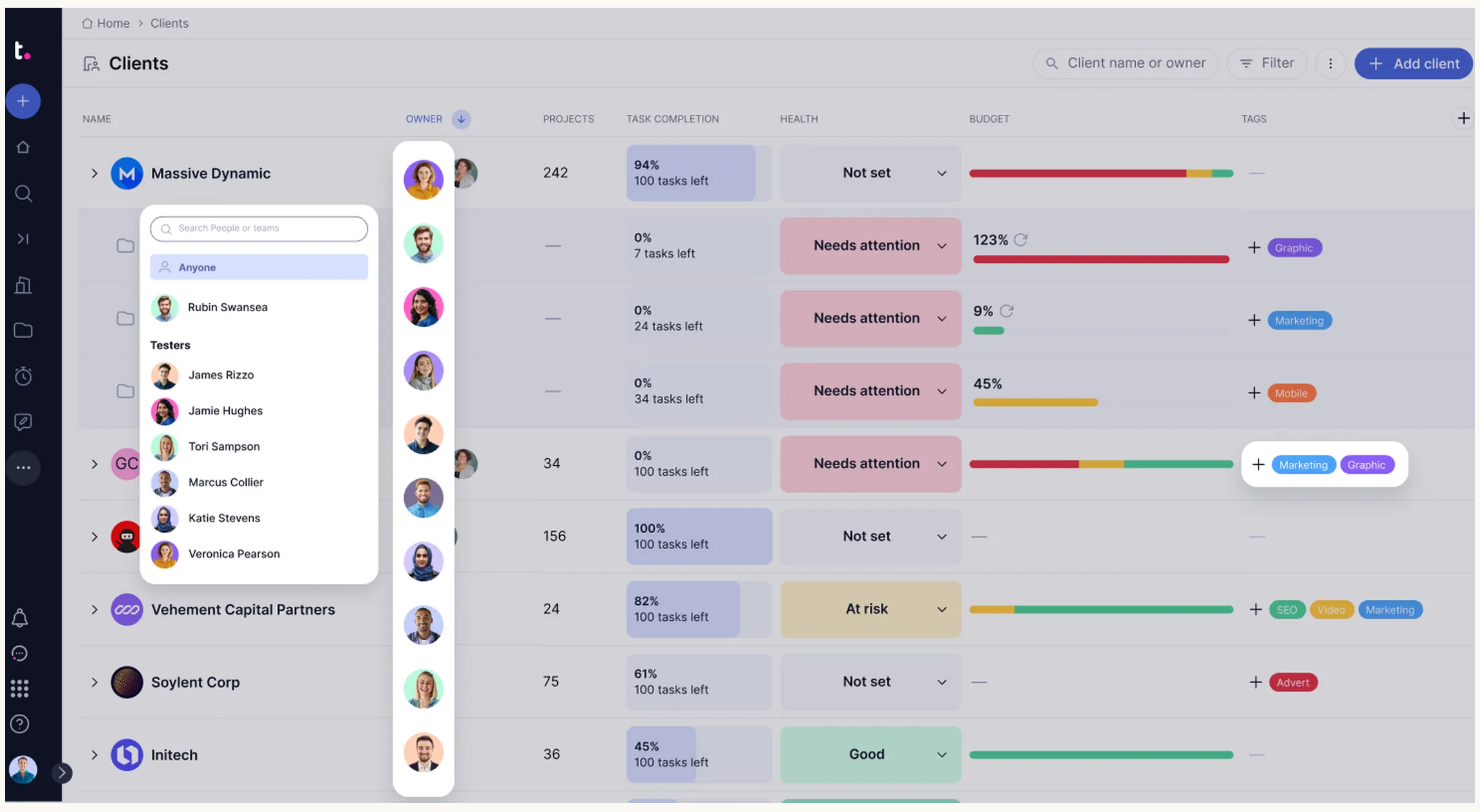
- Create the client first. Teamwork.com’s clients view lets you assign an owner, add client-level tags and keep notes, then rolls up metrics across that client’s projects. Set it up before the project so time and budget roll into the right place.
- Decide each subcontractor’s license before inviting them. Hourly helper whose time goes on the invoice: standard user. Flat-fee helper: collaborator. Changing later is possible through the People area, but deciding first avoids surprises on your bill.
- Split the work into task lists by who owns them. Collaborators can only complete tasks assigned to them, so assign their tasks clearly. They cannot create new ones.
- Use proofs for approvals. Teamwork.com’s Proofs feature keeps feedback in context and logs it over time. On Free you get five a month and on Basics twenty, so save proofs for the deliverables that genuinely need sign-off.
- Track time against the client. Use timers for live work. Teamwork.com says time tracking is built into every plan; timesheets and reminders arrive on Accelerate.
- Invite the client last, on Basics or above, once the project structure is clean and you have decided what they should see.
Time tracking when someone else does the work
The most common money leak when freelancers start subcontracting is hours that never reach the invoice. Teamwork.com’s time tracking page lists on-the-spot timers, bulk logging through timesheets, automated reminders, unique hourly rates per person, and timesheet approval. The plan table decides which of those you get: tracking billable and non-billable time is on every plan, timesheets and reminders start on Accelerate, and reviewing and approving timesheets starts on Optimize.
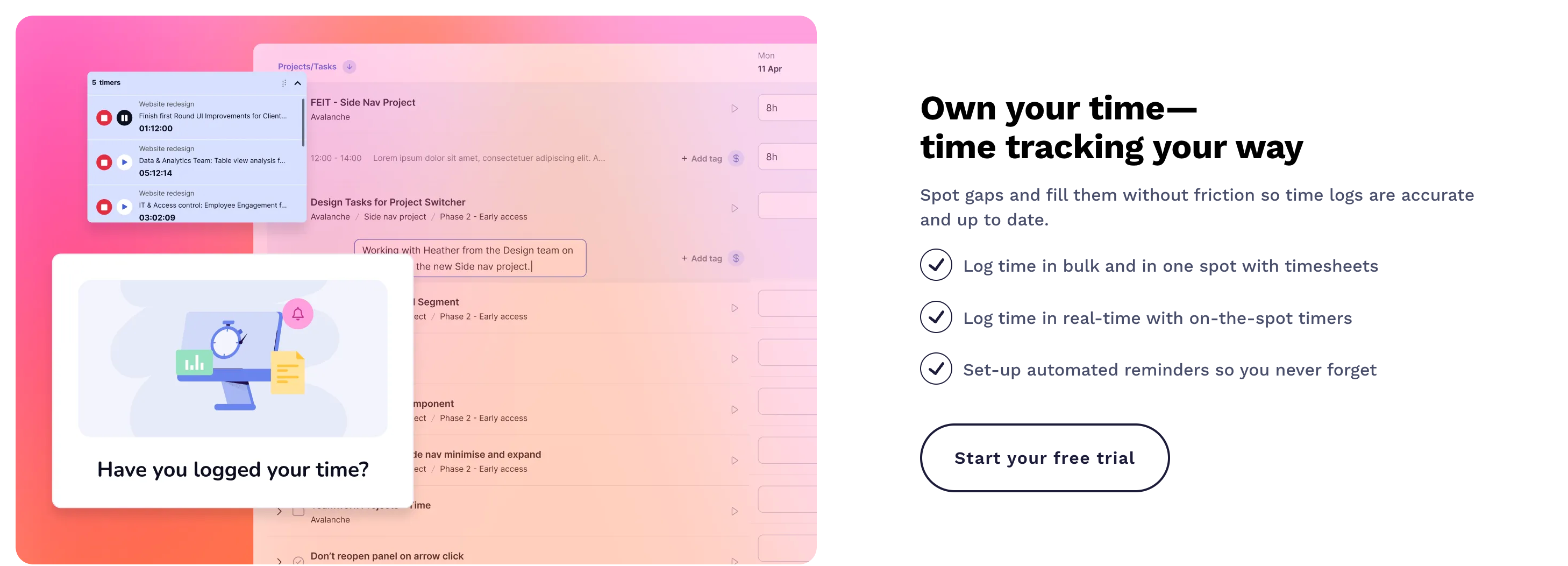
For a small crew on Free or Basics, the practical rule is: anyone whose hours you bill gets a standard seat and runs a timer, and you review their time entries every Friday before invoicing. If you already track your own hours with a separate app, my guide to RescueTime timesheets for multiple billable rates covers a different approach; the point of Teamwork.com is that subcontractor time lands in the same project as yours.
How it compares with what freelancers usually use
Most freelancers reach this point with a mix of a task app, a file-approval tool and a time tracker. If client approvals are your main pain, a dedicated proofing tool may still be simpler; I looked at one in how far the Filestage free plan stretches for client approvals. Teamwork.com’s argument is consolidation: clients, tasks, proofs and time in one place, with license types designed for outsiders. Whether that is worth it depends on how many projects involve a second pair of hands.
Who should not move to Teamwork.com
- Solo freelancers with no plans to subcontract. Most of what makes Teamwork.com interesting here, the license types and client views, is about other people.
- Freelancers who need client users but only have one helper. Client users start on Basics, which bills a minimum of three seats.
- Crews that need timesheets on a budget. Timesheets and reminders start on Accelerate, with a five-seat minimum.
- Anyone running more than five projects at a time on the Free plan. The cap is five projects and 100MB of storage.
Who it suits
Teamwork.com fits a freelancer who is turning into a small studio: two or three people on standard seats, clients who want to see progress and approve work, and a need to keep every billable hour inside the project. Start on Free to learn the structure, move to Basics when you want clients inside, and look at Accelerate only when retainers and timesheets become part of how you bill.
The short version
Before you invite anyone, decide who needs a paid seat. Subcontractors whose hours you bill need standard seats; flat-fee helpers can be free collaborators, as long as you accept that they cannot log time or create tasks. Clients are free on Basics and above. Then check the minimums: three seats on Basics and five on Accelerate. Do that sum first and Teamwork.com’s pricing becomes predictable.
FAQ
Is Teamwork.com free for freelancers?
Yes, there is a Free plan for up to five users and five projects, with time logging, client organisation and several project views. Client users and project chat need a paid plan.
How much does Teamwork.com cost?
Basics is $9.99 per user per month billed yearly or $13.99 monthly, with a three-user minimum. Accelerate is $24.99 yearly or $29.99 monthly per user, with a five-user minimum. Optimize and Enterprise are priced through sales.
Do clients cost extra in Teamwork.com?
No. Client users are free, available on Basics and above, and limited to five active projects each with no admin rights.
Can a free collaborator log time?
No. Teamwork.com’s support documentation says collaborators cannot log time, add tasks or add tags. A subcontractor whose hours you bill needs a standard (paid) seat.
Is there a free trial of the paid plans?
Yes. The pricing page lists a 14-day free trial for paid plans, with no credit card required.