
The first time a client asks “can I just see where things are?”, most freelancers using ClickUp hit the same question: how do I let this person in without paying for another seat, and without giving them the power to delete my tasks? The answer sits in how ClickUp guests work, and it changes a lot depending on whether you are on the Free Forever plan or a paid one. This guide walks through guest types, permission levels and the seat math for a one-person workspace, using ClickUp’s own pricing page and help center as they read today.
ClickUp guests in one paragraph
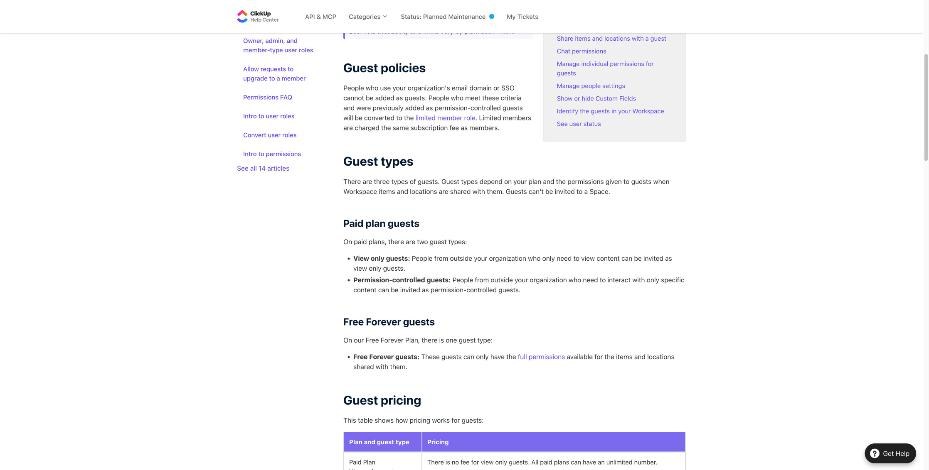
A guest is someone from outside your organization who you share specific work with. You do not invite a guest to your whole workspace, and ClickUp’s help center is clear that guests cannot be invited to a Space. Instead, you share an item or location with them, such as a Folder, a List or a single task. What they can do there depends on your plan and on the permission you choose when you share.
There are three guest types in total, and which ones you get depends on your plan:
- Free Forever guests (Free Forever plan only): no fee, unlimited number, but they can only have full permissions on whatever you share with them.
- View only guests (paid plans): no fee, unlimited number, read-only access.
- Permission-controlled guests (paid plans): you choose what they can do, and each one uses a guest seat.
The Free Forever trade-off: free guests, full permissions
On the Free Forever plan, inviting clients costs nothing and there is no cap on how many guests you add. The catch is in the permissions table: Free Forever guests get full permissions only, and no other permission level can be given. In ClickUp’s permission language, full edit means the person can edit and delete.
For a freelancer, that means a client you share a project Folder with could, by accident or on purpose, delete a task, change a due date or rewrite a description. Most clients will never do that. But if you share a List that also holds your internal steps, you are trusting the client with all of it.
The other Free Forever limits matter here too. ClickUp’s pricing page lists 60MB of storage and one Form on Free Forever. If clients upload briefs, logos or feedback files into tasks, 60MB goes quickly. ClickUp’s help center also notes that feature usage limits on a plan do not reset, apart from monthly allowances such as automation actions and AI credits on paid plans.
When Free Forever is still fine
- You only share a dedicated “client view” List that contains nothing you would mind them editing.
- Clients mostly check status and rarely touch anything.
- Files live somewhere else, such as a shared drive link in the task description.
Paid plans: view only for free, permission control by seat
On paid plans, ClickUp splits guests into two types. View only guests are free and unlimited on all paid plans. They can read what you share but cannot comment or edit. If you give a view only guest any extra permission, they become a permission-controlled guest.
Permission-controlled guests can be given one of four levels when you share an item or location with them:
- View only: read only, no comments or edits.
- Comment: can only comment.
- Edit: can edit, but not delete.
- Full edit: can edit and delete.
For client work, Comment is usually the sweet spot. Clients can leave feedback on deliverables and answer questions in the task thread without touching your structure. Edit fits clients who genuinely co-manage a project, for example updating content in a shared Doc, and it still protects you from deletions.
The seat math for a one-person workspace
This is the part that decides whether ClickUp stays cheap for a solo freelancer. ClickUp’s help center says each paid plan includes a number of permission-controlled guest seats, and that number grows with every member you invite.
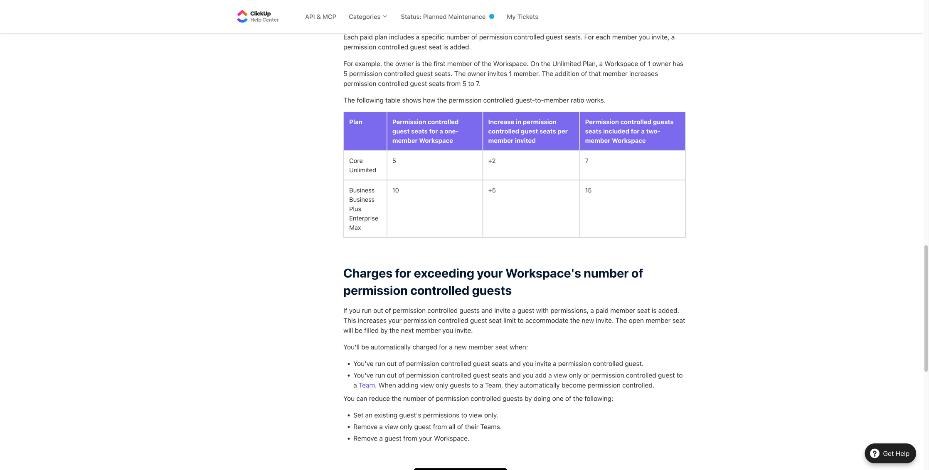
| Plan | Guest seats for a one-member workspace | Extra seats per member invited | Guest seats for two members |
|---|---|---|---|
| Core, Unlimited | 5 | +2 | 7 |
| Business, Business Plus, Enterprise, Max | 10 | +5 | 15 |
The table lists some plan names, such as Core and Max, that are not on the current pricing page. ClickUp notes that workspaces are being upgraded to new plans and not all have been upgraded yet, so check which plan name your own workspace shows under billing.
In practice, a solo freelancer on Unlimited can have up to five clients with comment or edit access at no extra cost, plus any number of view only clients. On Business, that becomes ten.
What happens when you run out
If you invite one more permission-controlled guest than your seats allow, ClickUp adds a paid member seat automatically. That raises your guest seat limit to fit the new invite, and the open member seat is filled by the next member you invite. You are also charged a new member seat if you add a view only or permission-controlled guest to a Team once guest seats are used up; ClickUp says view only guests added to a Team automatically become permission-controlled.
To bring the count back down, ClickUp lists three options: set an existing guest’s permissions to view only, remove a view only guest from all of their Teams, or remove a guest from your workspace.
The email domain rule
One policy surprises small agencies. People who use your organization’s email domain or SSO cannot be added as guests. If they were previously added as permission-controlled guests, ClickUp converts them to the limited member role, which is charged the same subscription fee as a member. A subcontractor using a free email address can be a guest; a subcontractor you gave an address on your own domain cannot.
What each plan costs
Here are ClickUp’s listed prices per user per month. Guests do not count as users unless they push you past your guest seats.
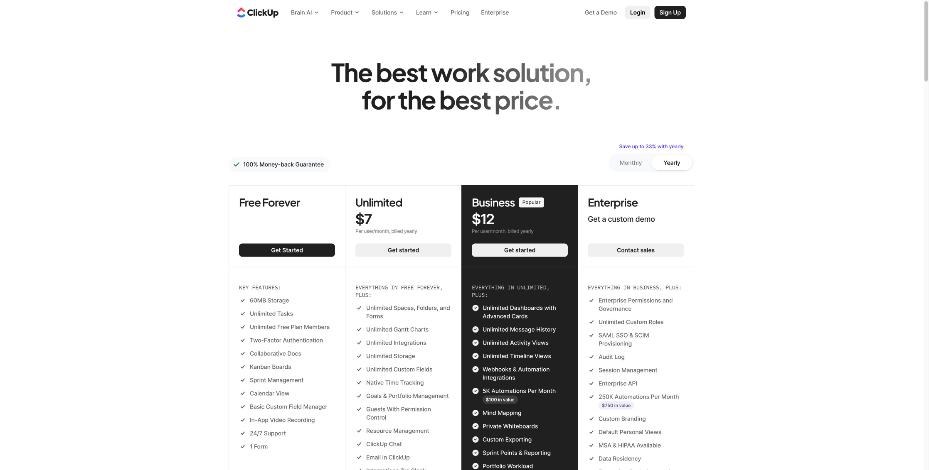
| Plan | Billed yearly | Billed monthly | Guest-relevant features |
|---|---|---|---|
| Free Forever | Free | Free | Unlimited free guests with full permissions only, 60MB storage |
| Unlimited | $7 | $10 | Guests with permission control, unlimited storage, unlimited Spaces, Folders and Forms |
| Business | $12 | $19 | Everything in Unlimited, plus Google SSO, unlimited dashboards, private whiteboards and custom exporting |
| Enterprise | Custom | Custom | Enterprise permissions and governance, unlimited custom roles, custom branding |
For a solo freelancer, Unlimited at $7 per month billed yearly is the cheapest way to get permission control and unlimited storage. ClickUp also lists a 30-day satisfaction guarantee: new customers can request a full refund within 30 days of buying their first paid plan.
A client setup that keeps your workspace tidy
Because guests are shared into items and locations rather than Spaces, the cleanest structure for a freelancer is one Folder per client inside a single “Clients” Space.
- Create a Folder per client with Lists for each project or phase.
- Keep internal work out of shared Lists. Put your own checklists, drafts and pricing notes in a separate List that you do not share.
- Share the client Folder with each contact and pick the permission: view only for stakeholders who just want status, comment for the person who approves deliverables.
- Hide sensitive Custom Fields. ClickUp lets you hide individual Custom Fields from all guests in your workspace, which is useful for fields such as hourly rate, internal estimate or profit margin.
- Review guest settings. Admins and owners can edit individual guest permissions for time estimates, time tracking, adding or removing tags and creating views.
If you use ClickUp Chat, guests can access the Channels they are invited to once an owner or admin turns on the Chat ClickApp. They cannot create Channels, and they can only message people who share access to their Channels. That keeps a client inside their own project conversation.
You can spot guests in your workspace by the square marker in the top-right corner of their avatar; members show a circle in the lower right.
If you prefer a lighter board-only setup for client visibility, compare this with my notes on Trello for freelancers. And if the client portal is really a front desk for inquiries, forms and scheduling, Moxie covers that side in one tool.
Which option fits which freelancer
The occasional collaborator
You work with two or three clients who check progress now and then. Free Forever works if you share a dedicated client List and keep files elsewhere. Accept that every guest has full edit rights.
The feedback-heavy freelancer
Designers, writers and developers who need clients to comment on deliverables should move to Unlimited. Five permission-controlled seats cover five active approvers at once, and view only access for everyone else costs nothing. When a project ends, switch that client to view only to free the seat.
The freelancer with a small team
If you bring in subcontractors as members, each member adds guest seats: two per member on Unlimited, five on Business. Watch the email domain rule, and remember that limited members are billed like members.
Common mistakes
- Sharing a whole workspace area instead of a Folder. Guests cannot be invited to a Space anyway, so plan your structure around Folders and Lists.
- Leaving finished clients on permission control. They keep using a seat until you change them to view only or remove them.
- Adding guests to Teams without checking seats. It can convert view only guests and trigger a paid member seat.
- Uploading client files on Free Forever. The 60MB limit fills up fast.
Ready to set up client access? You can start on the free plan from the ClickUp website and upgrade when you need permission control.
FAQ
Are ClickUp guests free?
On Free Forever, guests are free and unlimited but always get full permissions. On paid plans, view only guests are free and unlimited, and permission-controlled guests are free up to your plan’s guest seat count.
How many ClickUp guests can a solo freelancer add on Unlimited?
A one-member workspace on Unlimited includes five permission-controlled guest seats, plus unlimited view only guests. Each member you invite adds two more guest seats.
Can a ClickUp guest delete my tasks?
On Free Forever, yes, because guests only get full permissions. On paid plans, choose View only, Comment or Edit; only Full edit allows deleting.
Can I invite a guest to a whole Space?
No. ClickUp’s help center says guests cannot be invited to a Space. You share Folders, Lists or tasks with them instead.
Why was my guest turned into a limited member?
People who use your organization’s email domain or SSO cannot be guests. ClickUp converts them to limited members, who are charged the same fee as members.
What happens if I run out of guest seats?
Inviting another permission-controlled guest adds a paid member seat automatically, which raises your guest seat limit.