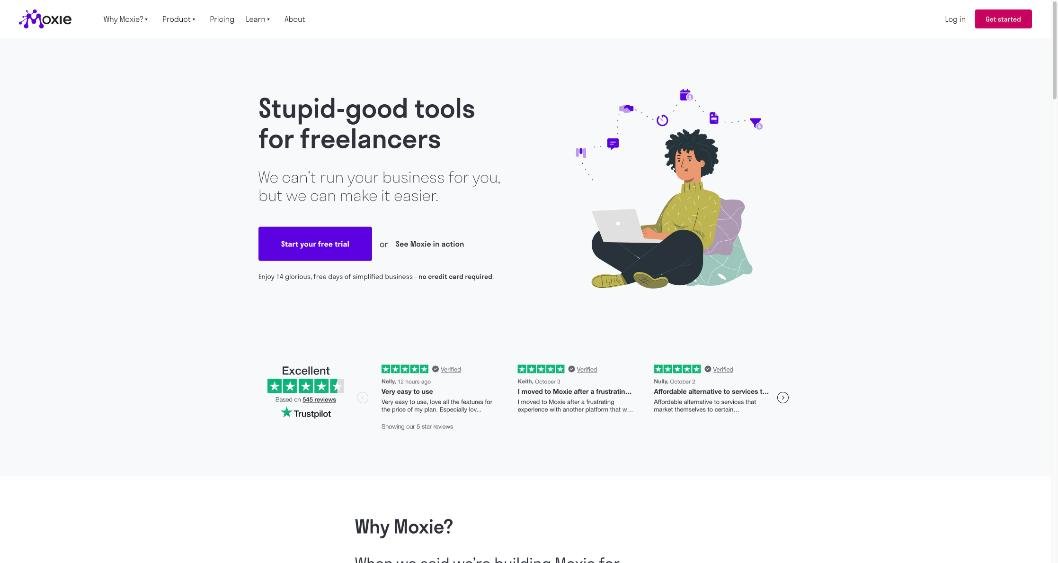
Most freelancers judge business software by what happens after a client signs: projects, time tracking, invoices. The part that costs the most time often comes earlier. An inquiry arrives by email, you reply with a few questions, the client answers half of them, you send three possible call times, one of them works, and you go into the call without knowing the budget. Moxie for freelancers is usually described as an all-in-one alternative to HoneyBook, Dubsado or Bonsai. This guide looks at it from a narrower angle: Moxie as a front desk, the layer that receives new work, asks the right questions and books the first conversation before any project exists.
Everything below about plans, prices and features comes from Moxie’s own pricing and product pages as they read today. Moxie updates its product regularly, so check those pages before you rely on a specific detail.
What a front desk needs to do
Think of a small design studio or a consultant’s office. Someone at the front desk greets new visitors, takes their details, checks the calendar and books a slot. They do not do the work; they make sure the work starts well. For a solo freelancer, the same job breaks down into four tasks:
- Receive: a single place where inquiries arrive, whether from your website, email or phone.
- Qualify: a short set of questions that tells you whether the project fits, before you spend time on a call.
- Book: a scheduling link that shows real availability and adds the video link automatically.
- Follow up: a record of where each lead stands, so nothing goes quiet without a decision.
Moxie has a tool for each of these on its entry plan. The interesting question is which parts work well on Starter and which parts only become a real front desk on Pro.
Moxie for freelancers: the four front-desk tools
1. Forms that do the first interview for you
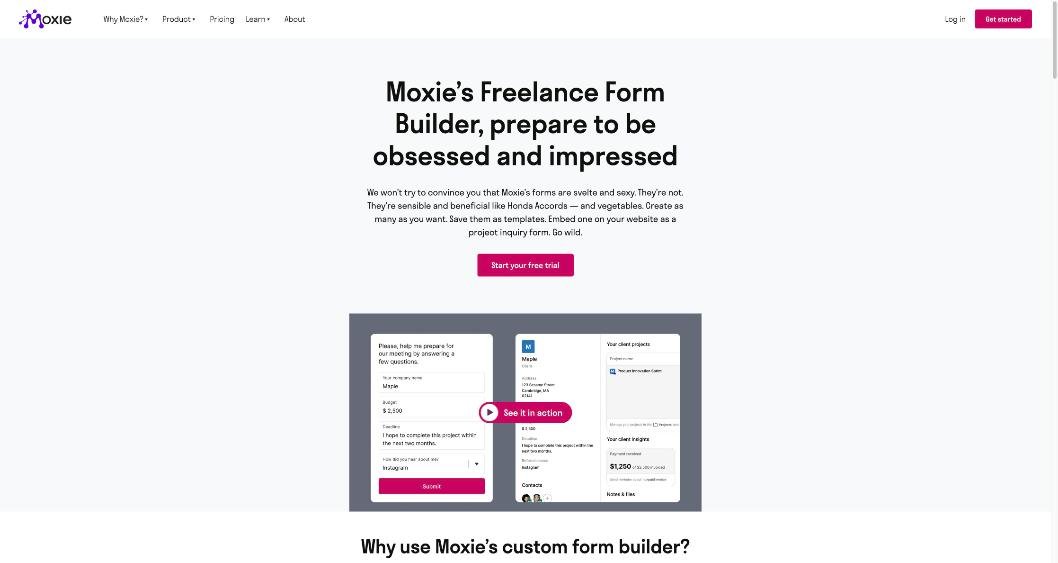
Moxie’s form builder is included on every plan. According to Moxie, you can create as many forms as you need, save them as templates, and embed one on your website as a project inquiry form. Clients do not need a login to fill one in, which matters for a first contact: any extra step at this stage loses people.
A good inquiry form asks only what you need to decide whether to take a call. For most freelancers that is five or six questions:
- What do you need, in one or two sentences?
- What budget range have you set aside? Offer ranges rather than an open box.
- When does it need to be finished?
- Who else will be involved in decisions?
- How did you hear about me?
Moxie says forms can be paired with the meeting scheduler, proposals, contracts and invoices, and that the answers stay inside Moxie rather than in a separate tool. If you have already built an intake form elsewhere, my guide to designing a client intake form in Jotform covers how to choose questions around the decisions they need to support. The same thinking applies here.
2. A scheduler that asks questions before the call
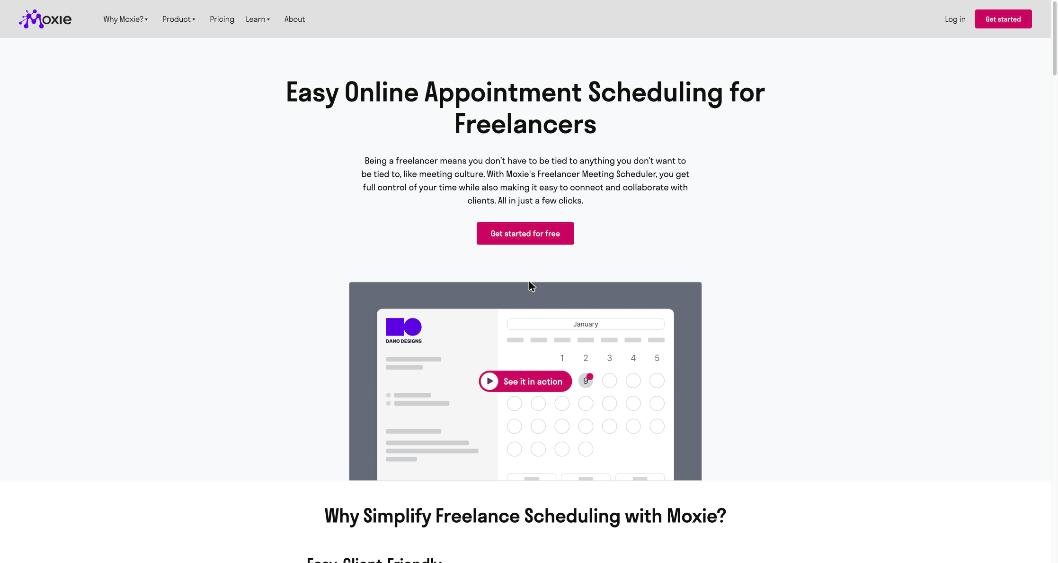
The meeting scheduler is also on every plan. The details on Moxie’s scheduling page are the ones that matter for a front desk:
- You can create different meeting types with their own length, buffer time and availability, for example a 15-minute intro call and a 60-minute strategy session.
- It syncs with Google Calendar, Microsoft Outlook, iCloud and CalDAV, so bookings respect what is already in your calendar.
- It connects to Zoom and Google Meet, and adds the video link to the confirmation email and calendar event automatically.
- You can attach an intake form to any meeting type, so the person booking answers your questions as part of booking.
- Clients receive email reminders before the meeting, based on your settings.
- You can embed the scheduler on your website, share a link, or put it in your email signature.
The form-on-booking option is the one I would set up first. It turns “book a call” into “book a call and tell me your budget and deadline”, which is the difference between a useful first call and a polite one. If you are weighing a dedicated scheduler instead, I wrote about setting up Calendly for client intake; the main reason to use Moxie’s scheduler instead is that the booking lands in the same system as the client record and the pipeline.
3. One inbox for client messages
Moxie’s pricing page lists a universal calendar and inbox on Starter. Its Communicator page describes the idea: Moxie recognizes your client contacts and pulls your work email into one searchable place, with tags and filters. Moxie is clear that this does not replace your normal email account; you keep using Gmail or your usual inbox, and Moxie organizes the client-related messages.
The business phone line is a separate matter. Moxie lists a Communicator phone line on Pro, not Starter. The pricing page names the US, Canada and the UK, while the Communicator page’s footnote mentions the US and Canada, so check availability for your country before you count on it. With the phone line you get calls, texts and voicemail in the same inbox, and working-hours rules that divert calls after hours.
4. A pipeline to see where every lead stands
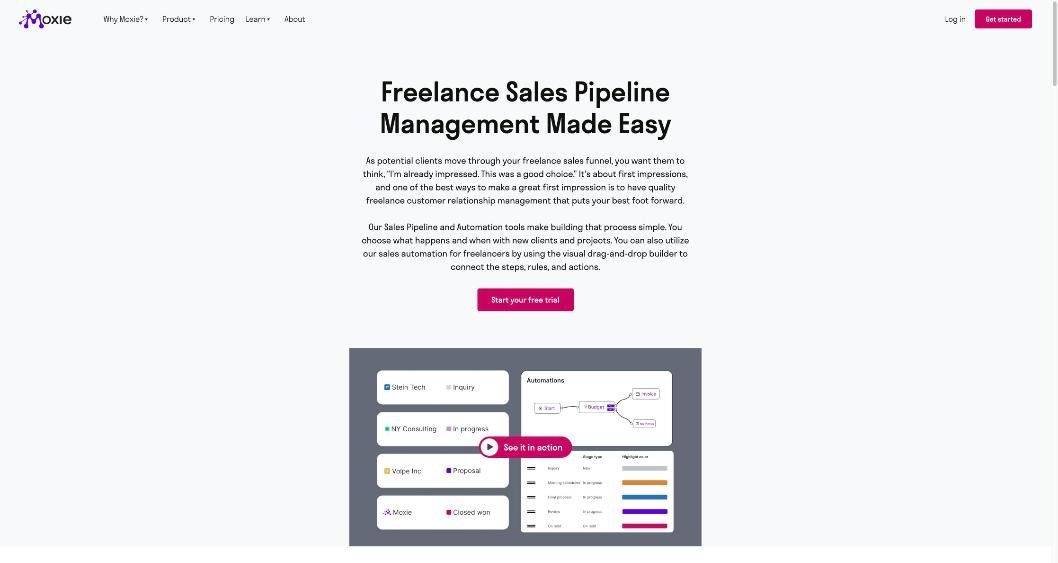
The sales pipeline is on Starter too. Moxie describes it as a visual board where you define your own stages, move leads between them and see which ones are close to signing. A simple front-desk version might use five stages: Inquiry, Call booked, Proposal sent, Won, Not now.
On Starter you move leads yourself. The automation that makes the pipeline feel like a front desk, such as sending a meeting link when someone submits a form, or moving a lead to follow-up after seven days without a reply, is a workflow automation. Moxie lists workflow automations as a Pro feature on its pricing page.
Starter or Pro: where the front desk line falls
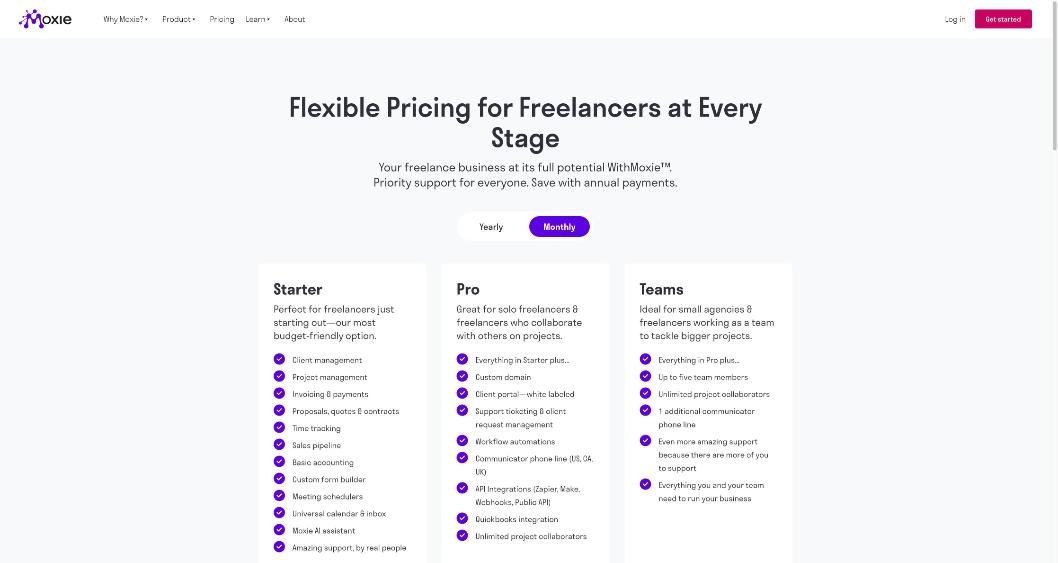
Moxie’s plans, with current prices from its pricing page:
| Plan | Monthly billing | Annual billing | Front-desk features |
|---|---|---|---|
| Starter | $12/month | $10/month ($120 a year) | Custom forms, meeting schedulers, universal calendar and inbox, sales pipeline, client management, proposals and contracts, invoicing |
| Pro | $25/month | $20/month ($240 a year) | Everything in Starter plus workflow automations, Communicator phone line, white-labeled client portal, custom domain, support ticketing, API integrations (Zapier, Make, webhooks, public API), QuickBooks integration |
| Teams | $40/month | $32/month ($385 a year) | Everything in Pro plus up to five team members and one additional phone line |
Moxie offers a 14-day free trial, and its homepage says no credit card is required. You can pay monthly or annually and cancel at any time. Moxie also mentions location-based and need-based scholarships for freelancers who cannot afford a plan.
For the front desk specifically, the split is simple:
- Starter is a manual front desk. Forms, the scheduler, the inbox and the pipeline all work. You connect them by hand: you read the form, send the booking link, move the lead.
- Pro is an automated front desk. The same tools, linked by automations, plus a business phone number and a branded portal for clients once they sign.
A useful test: count your inquiries. If you get a few a month, Starter’s manual steps take minutes and the $13 difference on monthly billing buys you little. If inquiries arrive every few days, or you lose leads because you reply slowly, automations are the reason to pay for Pro.
Setting up the front desk in one afternoon
Here is the order I would follow during the trial, so that the first real inquiry runs through the whole system.
- Connect your calendar and video tool. Link Google, Outlook or iCloud, plus Zoom or Google Meet, so bookings never clash and links are added automatically.
- Build one inquiry form. Five or six questions, budget as ranges, save it as a template.
- Create two meeting types. A short intro call with the inquiry form attached, and a longer paid or project call for clients who have already signed.
- Set your pipeline stages. Keep them few and named after decisions, not activities.
- Put the entry points where clients look. Embed the form or scheduler on your contact page and add the scheduler link to your email signature.
- Run a test inquiry. Fill in your own form from a personal email address, book a call, and check what the client sees at each step.
- On Pro, add one automation. The most valuable first one is usually a reply to new form submissions with your booking link.
Check what happens at the end of the trial before you start it. Moxie’s FAQ says that when you cancel a paid plan, you keep access until the end of the billing cycle, after which workspace access is disabled. If you are comparing several tools at once, my notes on what stops working when the Dubsado trial ends show why it is worth planning the last few days of any trial.
When Moxie is not the right front desk
- You already have a scheduler and form tool you like. Moxie’s value comes from everything living in one place. If you only want better scheduling, a dedicated tool may be enough.
- Your clients arrive through a marketplace. If most work comes through a platform with its own messaging and contracts, the front desk lives there, not in Moxie.
- You need a business phone line outside the listed countries. Check Communicator availability first.
- You want automations but only want to pay for Starter. That combination does not exist; workflow automations are listed on Pro.
Verdict
Moxie for freelancers is usually sold as a full back office, but the front of the business is where it saves the most awkward time. Forms, the scheduler, the inbox and the pipeline on Starter already turn scattered inquiries into a single process, at $12 a month or $10 on annual billing. Pro is worth it when the volume of inquiries makes manual follow-up the bottleneck, or when you want a separate business number. Set up one form, one intro call type and five pipeline stages during the free trial, send yourself a test inquiry, and you will know within a week whether Moxie belongs at your front desk.
FAQ
How much does Moxie cost?
Starter is $12 a month, Pro $25 and Teams $40 on monthly billing. On annual billing they are $10, $20 and $32 a month, charged as $120, $240 and $385 a year.
Does Moxie have a free trial?
Yes. Moxie offers a 14-day free trial, and its homepage says no credit card is required.
Are forms and the meeting scheduler included on Starter?
Yes. The custom form builder, meeting schedulers, sales pipeline and universal calendar and inbox are all listed on Starter.
Which Moxie plan includes automations?
Workflow automations are listed on Pro and Teams, not on Starter.
Do clients need a Moxie account to fill in a form or book a call?
No. Moxie says clients can fill in and submit forms without logging in, and the scheduler can be shared as a link or embedded on your website.
Which calendars does the Moxie scheduler sync with?
Google Calendar, Microsoft Outlook, iCloud and CalDAV, with Zoom and Google Meet links added to bookings automatically.