Disclosure: some links on this page may be affiliate links. If you sign up through them I may earn a commission at no extra cost to you.
A typical freelance Tuesday: one client sends feedback by email, another drops a change request in a shared Slack channel, a third assigns you a card in their ClickUp or Notion workspace, and your own to-do list lives somewhere else entirely. None of these requests is hard. The hard part is that they never meet in one place, so your day gets planned by whichever app pinged you last.
Akiflow for freelancers is pitched at exactly this problem. It pulls tasks from your other tools into one inbox, then lets you drag them onto your calendar as time blocks. The question for a freelancer is not whether that is clever, but whether it is worth paying for when you are the one covering the subscription. This review looks at what Akiflow actually does, what it costs, how I would set it up around client work, and who should not bother.
What Akiflow does, in one paragraph
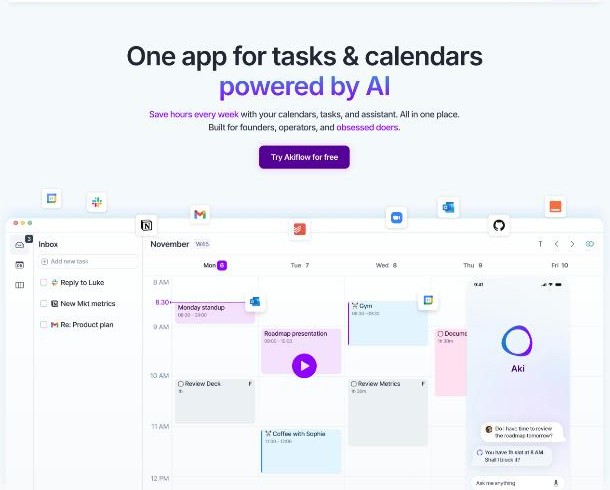
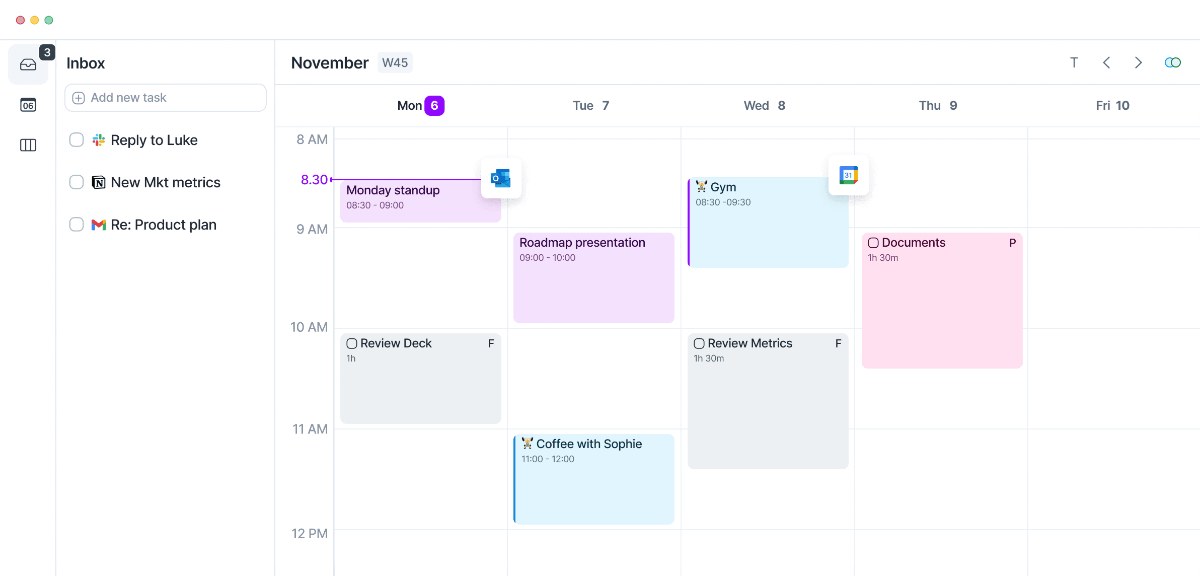
Akiflow combines a task manager and a calendar in one app. Tasks arrive in a Universal Inbox, either typed in by you or pulled in from connected tools. You then plan them by dragging them onto your calendar, which syncs with Google Calendar and Outlook Calendar, so a task becomes a block of time rather than a line on a list. On top of that sit features like recurring tasks, labels and tags, availability sharing for meetings, productivity analytics, desktop and mobile apps, keyboard shortcuts and an AI assistant called Aki. Akiflow describes the whole thing as calendar, tasks, inbox and AI in one flow.
Why the Universal Inbox matters more than the calendar
Plenty of apps can put tasks on a calendar. What makes Akiflow interesting for freelancers is the step before that: getting client requests out of the tools your clients choose and into one list you control.
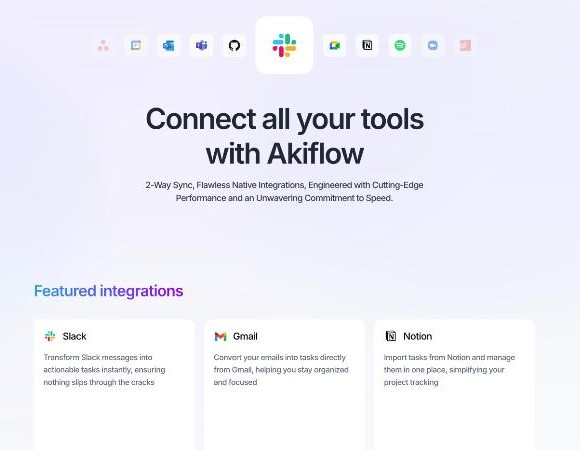
On its integrations page, Akiflow lists native connections with Slack, Gmail, Notion, Asana, ClickUp, Zoom, Google Calendar, Trello, Todoist, Jira, GitHub, Microsoft Teams, Outlook Calendar, Outlook Email and Linear, plus Zapier and IFTTT for everything else. The homepage describes this as 10+ native integrations plus thousands more through Zapier and IFTTT. The specific jobs it highlights:
- Emails into tasks in one click, from Gmail or Outlook.
- Save Slack messages and reply later, which turns a message into a task instead of something you forget after scrolling.
- Two-way sync with your favourite tools, so work you import from apps like Notion, ClickUp or Asana can stay connected to its source.
- Zapier automations for tools without a native integration.
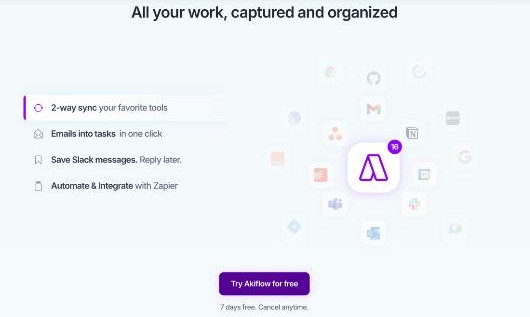
For a freelancer, this is the difference between “I’ll check every client’s workspace each morning” and “every client request lands in one list”. If you work inside two or three client workspaces at once, that alone can be the reason to pay.
A client-first Akiflow setup for freelancers
Here is how I would set Akiflow up if my work came from several clients through different channels. It is built around one rule: every request goes through the inbox before it touches the calendar.
1. Connect only the channels clients actually use
Start with the two or three sources that produce most of your requests, typically email plus whichever workspace your biggest client uses. Connecting everything on day one fills the inbox with noise, and a noisy inbox gets ignored.
2. One label per client
Akiflow supports labels and tags. Give each client a label as soon as their task lands in the inbox. That way, when you look at the week, you can see at a glance whether one client is swallowing time you had promised to someone else. It also makes it easier to compare planned time against what you bill.
3. A short daily triage, then time blocks
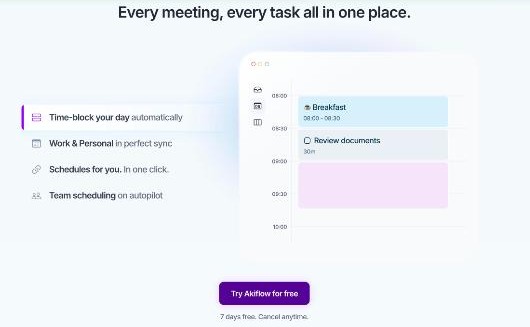
Akiflow promotes a daily planning ritual, and for freelancers this is where it earns its price. Each morning, empty the inbox: label each task, estimate how long it takes, and either drag it onto the calendar, schedule it for later in the week or park it. Akiflow’s site also mentions “Someday”, “This week” and “This month” style planning views, which suit work that is real but not urgent.
4. Keep personal and client calendars in one view
Akiflow highlights work and personal calendars in sync. For a freelancer this matters more than for an employee: the dentist appointment and the client call share the same day, and you are the only one protecting both. Seeing them together stops you from booking deep work on top of a school run.
5. Share availability instead of trading emails
Availability sharing lets you send times a client can book without the “does Thursday work?” back-and-forth. If you already use a dedicated booking tool, you may not need this, but if you only need it now and then, it is one less subscription.
6. Recurring admin as recurring tasks
Invoicing, timesheets, monthly reports and backups are the tasks freelancers forget until the end of the month. Set them up once as recurring tasks so they appear in your plan automatically.
Where the AI assistant fits
Akiflow’s AI assistant, Aki, is included in the Pro plan, along with an MCP Connector. The site describes AI that plans and prioritises, assigns tasks to projects automatically, auto-schedules while leaving you in control, handles recurring tasks and lets you plan directly from your AI tools. It also lists voice commands and daily briefings and reminders, and shows phone calls, where Aki can call you or your contacts, as coming soon.
For a freelancer, I would treat the AI as a convenience rather than the reason to buy. The core value is still getting scattered requests into one place and onto a calendar. If the auto-scheduling suits how you work, it is a bonus; if you prefer to place every block yourself, nothing forces you to use it.
Akiflow pricing for freelancers
Akiflow’s pricing is simple in structure: there is one paid plan, Pro, offered with monthly or yearly billing, and a 7-day free trial. Both billing options include the same things according to the pricing page: tasks, subtasks, meetings and integrations, the Aki AI assistant and MCP Connector, and all power features. You can cancel anytime.
The numbers need a little care:
- Yearly billing: the ROI calculator on Akiflow’s official pricing page uses $19 per month as the cost of the yearly plan, which comes to $228 a year.
- Monthly billing: the pricing page says yearly billing saves 44%, which puts monthly billing at roughly $34 a month.
- Regional pricing: Akiflow says it supports purchasing power parity. When I opened the pricing page, it showed a regional banner with a discount code and lower local prices, so what you see may differ depending on your country.
- Students and researchers can contact Akiflow about discounts, and teams are asked to get in touch for team plans.
There is no free plan listed on the pricing page, only the 7-day trial. That makes the trial week important. Use it to connect your real client channels and run the daily triage for every working day of the trial, rather than just clicking around the interface.
Is $19 a month worth it for a freelancer?
At $228 a year on yearly billing, Akiflow costs more than many freelancers spend on a task app. A simple way to judge it: if consolidating requests and planning your day in one place saves you even one billable hour a month, the yearly plan pays for itself at most freelance rates. If your requests already arrive in one place and your days are fairly predictable, it probably will not.
My suggestion is to stay on monthly billing for the first month after the trial, even though it costs more, then switch to yearly only once you are sure the habit has stuck.
Check Akiflow pricing in your region
Who should skip Akiflow
- Freelancers with one client channel. If almost everything comes by email, an email-focused tool or a simple task app will cover you. If email overload is the real problem, my look at the SaneBox Snack plan for freelancers may be a better starting point.
- Anyone who is happy with a list. If you do not want to time-block your day, you are paying for the part of Akiflow you will not use. A list-based app like Todoist can be organised by client with labels and filters, which I covered in Todoist for freelancers.
- Freelancers on a tight budget. With no free plan, Akiflow is a commitment. If regional pricing makes it affordable where you live, the maths changes, so check the pricing page from your own location.
- People who will not do the daily triage. An unprocessed Universal Inbox is just one more inbox. The tool only works if you empty it.
My take
Akiflow is not a cheap to-do app, and it should not be judged as one. Its value for freelancers is the Universal Inbox: client requests from Gmail, Slack, Notion, ClickUp and other tools land in one place, get a client label and a time estimate, and go onto a calendar that also holds your personal life. If you juggle several clients across several tools, that is a real problem solved, and the AI features are a bonus on top.
If your work is simpler, with one main channel and predictable days, Akiflow is more structure than you need. Use the 7-day trial with your real client channels, keep to the daily triage, and decide based on whether your week felt more under control, not on how many features you tried.
FAQ
Is there a free version of Akiflow?
The pricing page does not list a free plan. Akiflow offers a 7-day free trial of Pro, and you can cancel anytime.
How much does Akiflow cost?
Akiflow’s official pricing page uses $19 per month as the cost of the yearly plan. It says yearly billing saves 44%, which puts monthly billing at roughly $34. Akiflow also supports purchasing power parity, so prices can be lower in some countries.
Can Akiflow pull tasks from my clients’ tools?
Akiflow lists native integrations with Slack, Gmail, Notion, Asana, ClickUp, Trello, Todoist, Jira, GitHub, Microsoft Teams, Outlook, Linear and others, plus Zapier and IFTTT. Whether you can connect a client’s workspace also depends on the access that client gives you.
Does Akiflow work with Google Calendar and Outlook?
Yes. Akiflow lists Google Calendar sync and Outlook Calendar sync among its features.
Is the AI assistant an extra cost?
No. The pricing page lists the Aki AI assistant and MCP Connector as part of the Pro plan on both monthly and yearly billing.