Disclosure: some links on this page may be affiliate links. If you sign up through them I may earn a commission at no extra cost to you.
Most freelancers start with one booking link and paste it everywhere: in the email signature, on the portfolio, in replies to new leads and in messages to existing clients. That single link ends up doing four different jobs badly. A stranger can book the same slot a long-term client needs, a discovery call has no screening questions, and paid consultations are handled by invoice after the fact.
This guide looks at the Cal.com free plan from a different angle than the usual feature list. Instead of asking “what does Cal.com do?”, I map the four booking links a typical one-person business needs and check, using Cal.com’s official pricing and feature table, whether each one can be built on the free Individual plan. Then I cover the three features that would push you to the paid Teams plan, so you know where the free plan stops before you build your client flow on it.
What the Cal.com free plan includes
Cal.com’s pricing page calls the Individual plan “free forever”. It is limited to one user, which is exactly the freelancer case, and the headline features are generous:
- Unlimited event types and calendar connections
- Email and SMS notifications
- Integrations with 100+ apps
- A mobile app and a browser extension
- Stripe and PayPal payments
- Two-way Salesforce and HubSpot sync
- One-click import of Calendly events
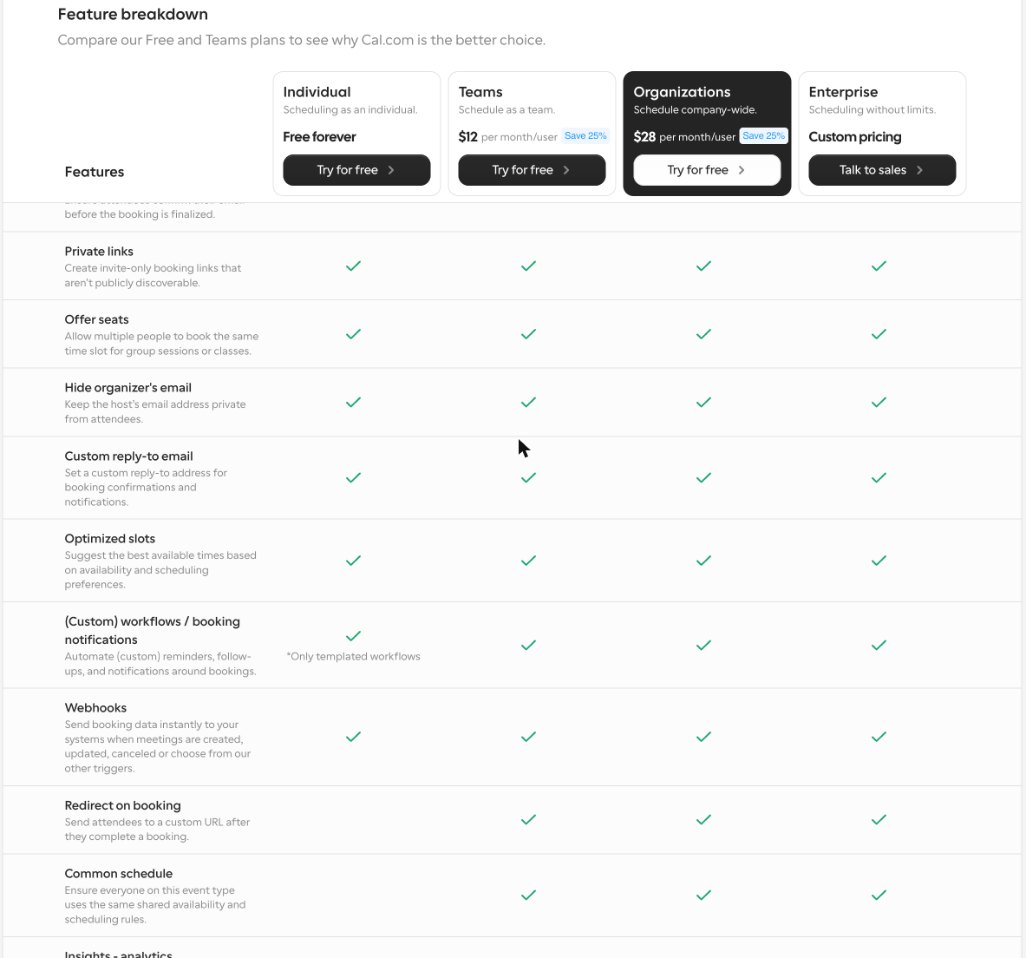
The feature breakdown table further down the pricing page adds the details that matter for client work. On the free plan it ticks buffer time before and after events, custom booking questions, “requires confirmation”, private links, seats for group sessions, hiding the organiser’s email, a custom reply-to email, optimised slots, webhooks, minimum notice and meeting limits. Workflows (automated reminders and follow-ups) are included too, with a note that the free plan gets templated workflows only.
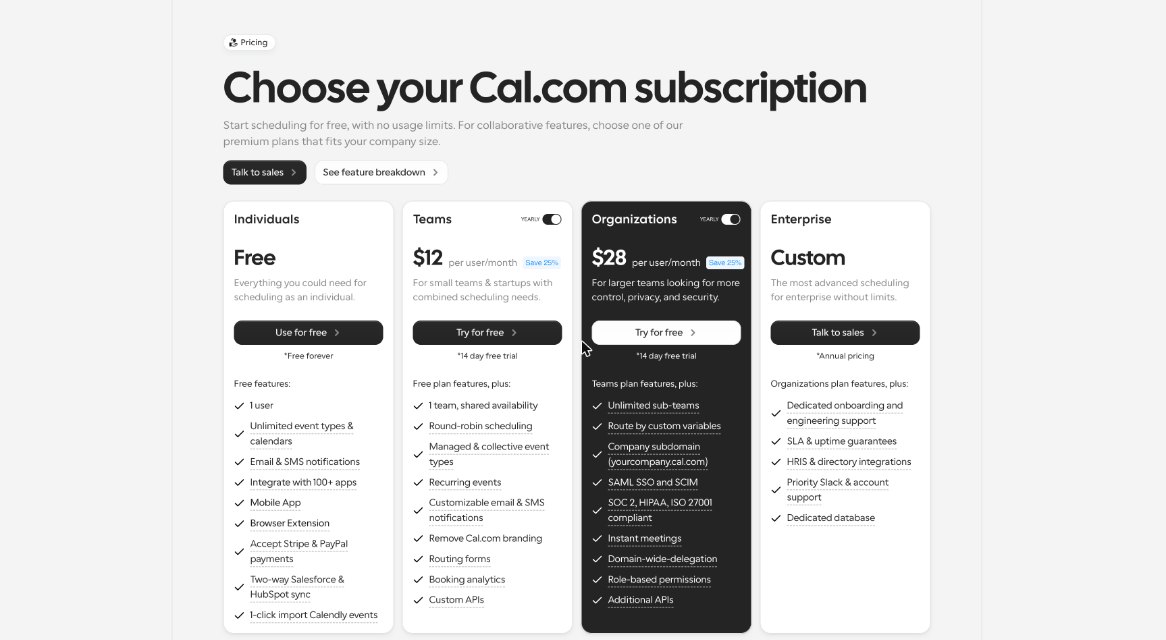
For comparison, the Teams plan is listed at $12 per user per month on yearly billing (the page says yearly billing saves 25%), with a 14-day free trial. Organizations is $28 per user per month on yearly billing, and Enterprise is custom.
Link 1: The free discovery call
Job: let a potential client book a short intro call without wasting your time on poor fits.
How to build it on the free plan:
- Create a 15 or 20 minute event type and set the location to Zoom, Google Meet, phone or whatever you use. Custom meeting locations are included on the free plan.
- Add booking questions that do your screening: budget range, timeline, a link to the project or website, and how they found you. This is the cheapest qualification step a freelancer can add.
- Set a minimum notice so nobody books a call for twenty minutes from now.
- Use meeting limits to cap discovery calls per day or week, so sales calls do not eat your production time.
- Add a buffer after the call for writing notes.
Free plan verdict: fully covered. This is the link that goes on your website and in your email signature.
Link 2: The paid consultation
Job: sell an hour of your time (an audit, a strategy session, a code review) and collect payment at booking, not after.
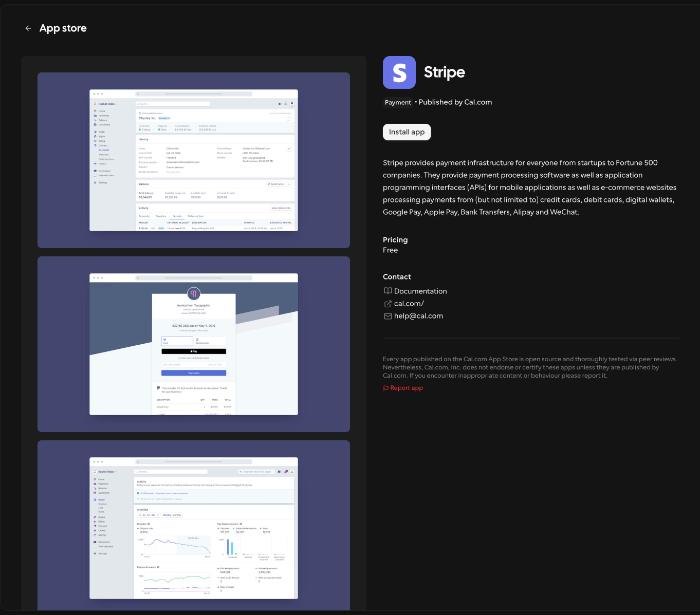
How to build it on the free plan: Cal.com lists Stripe and PayPal payments among the free plan features. In the Cal.com App Store, the Stripe app is published by Cal.com and its pricing is shown as free. Once it is connected, you can attach a price to an event type so the client pays when booking. Stripe’s normal processing fees still apply on Stripe’s side.
Two settings make paid sessions smoother:
- A longer minimum notice, so you have time to prepare for a session someone has paid for.
- A clear cancellation and rescheduling policy in the event description. Cal.com lets attendees cancel or reschedule through a secure link on every plan, so put your refund rules where they will see them before paying.
If you need to bill after the work rather than before it, an invoice is still the better tool. I covered that route in how Stripe Invoicing works for freelancers without a website.
Free plan verdict: covered, as long as you are happy to take payment through Stripe or PayPal.
Link 3: The client-only link
Job: give existing clients access to times you do not offer to strangers, such as a weekly check-in slot or late-evening calls for clients in another time zone.
How to build it on the free plan:
- Create a separate event type with its own availability rules. Availability per event type is included for free, so this link can show hours your public link hides.
- Turn on private links. Cal.com describes them as invite-only booking links that are not publicly discoverable. Send the link only to current clients.
- Turn on requires confirmation if you want to approve each request before it is booked.
- Use a custom reply-to email so confirmations route to the inbox you actually check.
Free plan verdict: covered. This is the link that does the most to protect your calendar, and many freelancers never set it up.
Link 4: The group session or office hours
Job: run a small workshop, a cohort call or open office hours where several people book the same slot.
How to build it on the free plan: enable seats on an event type. Cal.com describes this as allowing multiple people to book the same time slot for group sessions or classes, and it is ticked for the free plan. Combine it with a price if the workshop is paid, and with booking questions to collect what each attendee wants to cover.
One limitation: recurring events are listed as a Teams plan feature, so if you want people to book a weekly series in one go, the free plan will not do it. You can still publish one session at a time.
Free plan verdict: mostly covered. Single group sessions are fine. Recurring series need Teams.
Set up your four booking links on Cal.com
Three features that need the Teams plan
The free plan covers a lot, so it is more useful to know exactly where it stops. Based on the pricing page and the feature table, these are the gaps a solo freelancer is most likely to notice:
1. Removing Cal.com branding
“Remove Cal.com branding” is listed under the Teams plan. On the free plan your booking pages carry Cal.com’s branding. For most freelancers that is fine. If you sell a premium service and want a fully white-label experience, it is the first reason to upgrade.
2. Routing forms
Routing forms are listed as a Teams feature. They let you ask a few questions first and then send the visitor to the right event type. A freelancer can work around this on the free plan by using booking questions on the discovery call and sending the right link manually afterwards.
3. Redirect on booking and booking analytics
The feature table does not tick “redirect on booking” for the free plan, which means you cannot send people to your own thank-you page after they book. Insights and booking analytics are also Teams features. If you track conversions from ads or want to see which event types get booked most, that matters. If you do not, you will not miss them.
Teams also adds round-robin scheduling, managed and collective event types and shared availability, but those are built for more than one person and are not relevant for a solo freelancer.
Moving from Calendly
If you already use Calendly, the free plan lists a one-click import of Calendly events, which saves rebuilding every event type by hand. I would still rebuild around the four-link structure above rather than copying a single all-purpose link. If you want to compare how the same intake flow looks in Calendly, see my guide to setting up Calendly for freelancers from inquiry to paid session.
A simple setup order
- Connect your main calendar and any client calendars so availability checks for conflicts.
- Build Link 1 (discovery call) with booking questions, minimum notice and a daily limit.
- Connect Stripe or PayPal and build Link 2 (paid consultation).
- Build Link 3 (client-only) as a private link with its own hours and confirmation turned on.
- Add Link 4 (group session with seats) only when you actually run one.
- Turn on a templated reminder workflow so clients get a reminder before each call.
- Book a test call on each link from a second email address before sharing them.
Who should skip the Cal.com free plan
- Freelancers who need a fully white-label booking experience. Branding removal is a Teams feature.
- Anyone whose service is sold as recurring weekly sessions that clients must book as a series.
- Freelancers who rely on a redirect to their own thank-you page for ad conversion tracking.
- People who want an all-in-one client portal with proposals, contracts and invoices. Cal.com is a scheduling tool, so pair it with your invoicing and contract tools instead.
My verdict
For a solo freelancer, the Cal.com free plan is unusually complete. All four booking links in this guide (a screened discovery call, a paid consultation, a private client-only link and a group session) can be built without paying, using booking questions, minimum notice, limits, private links, seats and Stripe or PayPal payments. The free plan stops at white-labelling, routing forms, redirects, analytics and recurring series. If none of those are part of how you sell, start free and only look at Teams when one of them becomes a real need.
FAQ
Is the Cal.com free plan really free forever?
Cal.com’s pricing page describes the Individual plan as free forever for one user, with unlimited event types, calendars and meetings.
Can I take payments on the Cal.com free plan?
Yes. Stripe and PayPal payments are listed among the free plan features, and the Stripe app in the Cal.com App Store is listed as free. Stripe’s own processing fees still apply.
Can I create private booking links on the free plan?
Yes. Private, invite-only links that are not publicly discoverable are ticked for the free Individual plan in Cal.com’s feature table.
Can I remove Cal.com branding for free?
No. Removing Cal.com branding is listed as a Teams plan feature.
How much is the Cal.com Teams plan?
The pricing page lists Teams at $12 per user per month on yearly billing, with a 14-day free trial.
Can I move my Calendly event types to Cal.com?
The free plan includes a one-click import of Calendly events.