Disclosure: some links on this page may be affiliate links. If you sign up through them I may earn a commission at no extra cost to you.
Most Raycast reviews treat it as a faster Spotlight: open apps, do quick math, look at your calendar. That is true, and it is also the least interesting thing about it for someone who works for several clients at once.
My day as a freelancer is not organized by app. It is organized by client. Client A lives in a Trello board, a shared Google Drive folder and a Slack workspace. Client B uses Asana, Dropbox and email only. Every switch between them costs a few minutes of clicking around before I am actually doing the work. So this piece looks at Raycast for freelancers from that angle: can you set it up around your clients instead of around your apps, and is the free version enough to do it?
What Raycast is, briefly
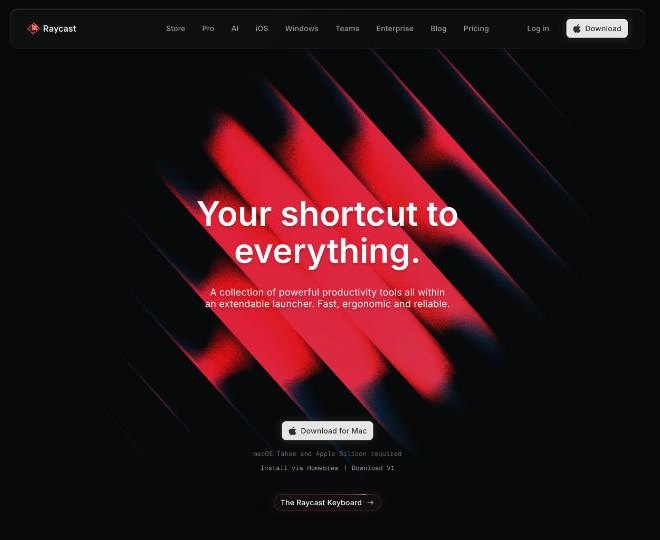
Raycast is a launcher you open with a keyboard shortcut. You type a few letters and it runs a command: open an app, search files, paste from your clipboard history, insert a text snippet, move a window, or run one of the thousands of community extensions in the Raycast Store. It started on the Mac; the site now also lists Windows and iOS apps.
One practical note before you download: on the homepage today, the current Mac download says it requires macOS Tahoe and Apple Silicon, and there is a separate link to download version 1. If you work on an older Intel MacBook, check that line first.
The idea: one small “kit” per client
Instead of learning every Raycast feature, I set up the same four pieces for each active client:
- Quicklinks that open that client’s tools in one step.
- Snippets for the messages I send that client again and again.
- Window positions I can snap into place for that client’s work.
- A naming rule so all of it is findable by typing the client’s short name.
The naming rule is the glue. If every item starts with a short client code, typing “acme” in Raycast shows everything for Acme and nothing else. Here is how each piece works, based on Raycast’s own documentation.
Quicklinks: open a client’s whole world from the keyboard
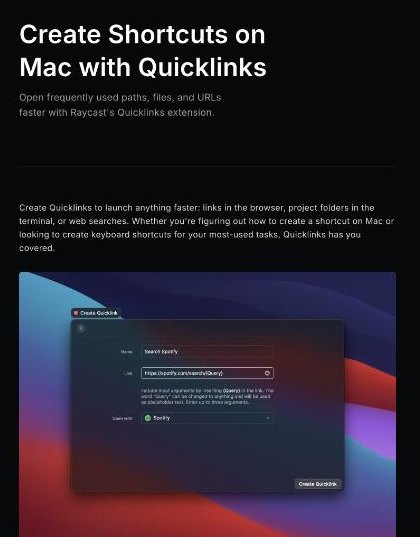
A Quicklink is a saved link, file path or web search that you launch from Raycast’s root search. You create one with the “Create Quicklink” command by entering a name, the link, and the app it should open with. That last field matters for freelancers: you can open a client’s Figma file in Figma, their folder in Finder, or their admin panel in a specific browser profile.
For each client I usually create:
acme board→ the project board URLacme drive→ the shared folderacme site→ the staging site’s adminacme invoice→ the client page in my invoicing tool
You can also assign a global hotkey to a Quicklink, so your most-used client board opens with a single key combination, without opening Raycast first.
Make Quicklinks smarter with arguments
Raycast supports dynamic placeholders in Quicklinks. The useful one here is {argument}, which prompts you for a value in the search bar and drops it into the link. Raycast’s manual says you can use up to three arguments, give them names, and set default values or a fixed list of options.
Two freelancer examples:
- Search inside a client’s help desk or wiki: a link with
{argument name="query"}in the search URL, so typing “acme kb refund policy” jumps straight to results. - Open a specific ticket number: a link ending in the ticket ID as an argument.
Raycast automatically percent-encodes placeholder values in Quicklinks so the link stays valid. There is also a “Quick Search” option: select text in any app, press the Quicklink’s hotkey, and the selected text is passed to the first argument. It needs macOS Accessibility permission to read the selected text.
Snippets: the client messages you keep retyping
Raycast’s Snippets feature stores reusable text and inserts it either from Raycast’s search or by typing a keyword. If you have read my notes on auditing a freelancer’s Mac apps against Setapp, you know I am careful about paying twice for overlapping tools. Snippets overlap with a dedicated text expander, so the question is whether Raycast’s version is enough.
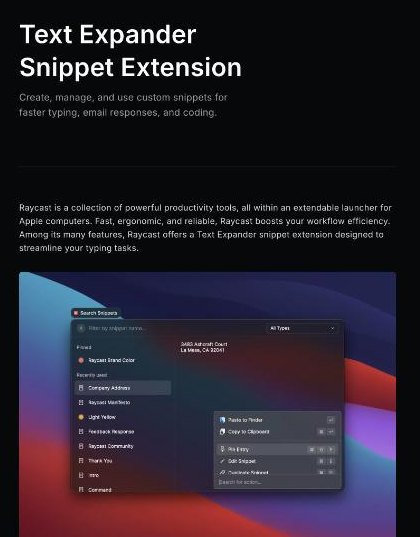
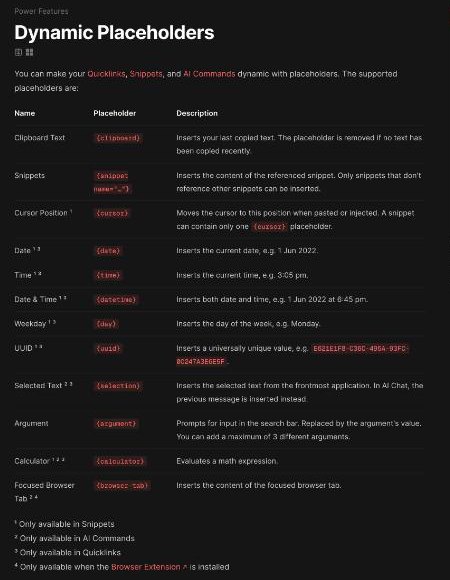
For client work, the placeholders make the difference. According to Raycast’s manual, snippets can include:
{clipboard}to insert your last copied text, for example a link you just copied.{cursor}to place the cursor at a specific spot after pasting (one per snippet).{date}and{time}, with offsets such as{date offset="+3d"}and custom formats such as{date format="MMM d, yyyy"}.{snippet name="..."}to reuse one snippet inside another.{argument}to ask for a value when you insert the snippet.
That is enough to build the messages freelancers send constantly:
- “Ready for review”: a short note with
{clipboard}for the preview link and a review deadline of{date offset="+3d"}. - “Invoice sent”: the payment terms in a fixed paragraph, with the due date calculated by a date offset.
- “Weekly update” skeleton: headings for done, next and blockers, with
{cursor}placed under “done”.
My test for “is it enough”: if most of your snippets are plain text with a date or a pasted link, Raycast covers it. If you rely on complex fill-in forms, conditional sections or a shared team library with permissions, a dedicated text expander still has more depth.
Window management: a layout per type of work
The Window Management extension moves and resizes windows with commands such as halves, maximize and center, and Raycast’s tip is to assign global hotkeys to the ones you use most. For freelancers, the real win is consistency: the client brief on the left half, the work on the right, every time, without dragging.
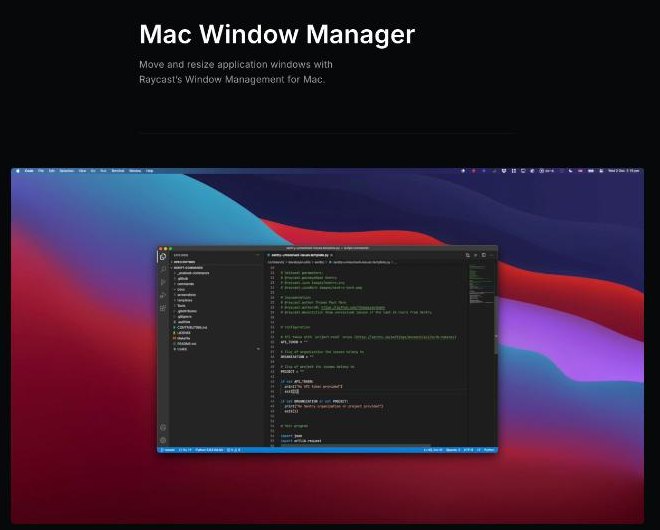
The free plan includes the standard window commands. The pricing page lists custom window management commands as a Pro feature, which is what you would want if you have a very specific layout in mind, such as a narrow chat column next to a wide design file.
Clipboard history: the quiet time saver
I did not expect this to matter, but clipboard history is the feature I would miss first. When you are copying an invoice number from one place, a link from another and a client’s address from an email, being able to search what you copied earlier saves real time. The free plan keeps clipboard history for three months; Pro makes it unlimited.
One privacy habit: be careful about copying client passwords or API keys. Clipboard history is convenient precisely because it remembers, so I copy credentials from my password manager and clear them, rather than leaving them sitting in history.
Raycast Free vs Pro for freelancers
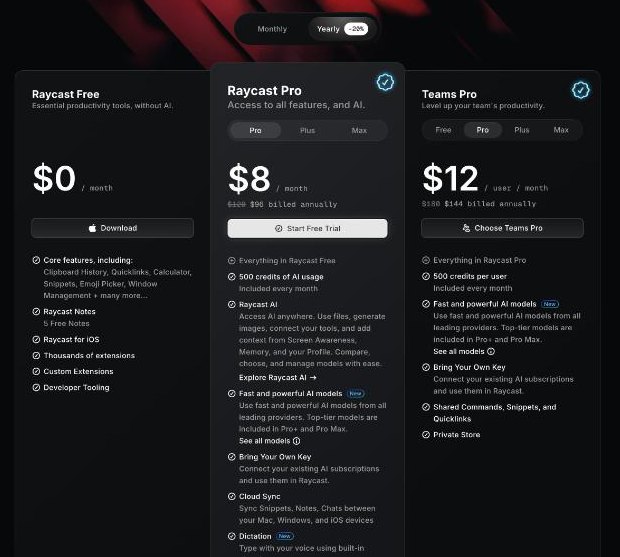
Here is what the official pricing page shows today:
| Plan | Monthly | Annual | AI credits per month |
|---|---|---|---|
| Raycast Free | $0 | $0 | No AI |
| Pro | $10 | $96 per year | 500 |
| Pro Plus | $20 | $192 per year | 3,000 |
| Pro Max | $50 | $480 per year | 7,500 |
Free already includes everything in my client-kit setup: Quicklinks, Snippets, Window Management, Clipboard History (three months), the calculator, five Raycast Notes, the extension store, custom extensions and the iOS app.
Pro adds Raycast AI with monthly credits, Cloud Sync for snippets, notes and chats across Mac, Windows and iOS, unlimited clipboard history, unlimited notes, custom window management commands, dictation, a translator and custom themes. Raycast’s FAQ says there is no Pro plan without AI, but you can switch AI off in settings. It also says Raycast offers a 50% student discount on Pro.
About AI credits: the FAQ explains that each model spends credits at its own rate, unused monthly credits roll over for one extra billing cycle, and top-up packs require an active paid plan. If you only want AI for occasional email rewrites, the base Pro allowance is the one to try first.
So which one should a freelancer pick?
- Stay on Free if you work on one Mac and your client kits are Quicklinks, simple snippets and standard window snapping. That is most solo freelancers.
- Consider Pro if you work across two machines and want snippets synced, if you live in your clipboard history, or if you want AI inside the launcher for drafting and summarizing.
- Look at Teams only if you subcontract regularly. The free Teams plan is not a trial and allows up to 30 shared snippets, 30 shared Quicklinks and 5 shared commands, which can be enough for a small studio.
Who should skip Raycast
- Freelancers who rarely switch between clients or tools. The setup time won’t pay back.
- Anyone on an older Intel Mac who doesn’t want to stay on the version 1 download.
- People who prefer the mouse. Raycast rewards keyboard habits; without them it is just another icon in the menu bar.
- Heavy text-expansion users with complex forms, who will likely keep a dedicated expander anyway.
A one-week plan to try it
- Day 1: install Raycast, set the launcher hotkey, and create four Quicklinks for your busiest client.
- Day 2: add three snippets for that client: review request, invoice note, weekly update.
- Day 3: assign hotkeys to left half, right half and maximize. Use them all day.
- Day 4: repeat the kit for a second client with a different short code.
- Days 5 to 7: notice which pieces you actually use. Delete the rest.
If, at the end of the week, you are opening client tools from the keyboard without thinking, Raycast has earned its place. If you also capture screens for clients, it pairs well with the workflow I described in CleanShot X for client updates.
My take
Raycast is easy to underrate because its headline features sound small. Set up around clients instead of apps, it turns into a switching tool: one short code opens a client’s boards, folders and messages, and the free plan covers almost all of it. I would start on Free, build kits for your two busiest clients, and only pay for Pro when you notice yourself wanting synced snippets, unlimited clipboard history or AI in the same window.
You can download Raycast from the official Raycast website.
FAQ
Is Raycast free for freelancers?
Yes. Raycast Free costs $0 and includes Quicklinks, Snippets, Clipboard History (three months), Window Management, the calculator and the extension store. Raycast’s FAQ says the free plan can also be used for organizational work.
How much is Raycast Pro?
On the pricing page today, Pro is $10 per month or $96 per year. Pro Plus is $20 per month or $192 per year, and Pro Max is $50 per month or $480 per year, with more AI credits at each step.
Can I get Raycast Pro without AI?
No. Raycast says all Pro plans include AI, but you can turn AI off completely in settings.
Does Raycast work on Windows?
Raycast’s website now lists a Windows app alongside Mac and iOS, and Pro’s Cloud Sync covers snippets, notes and chats across Mac, Windows and iOS.
Can Raycast replace a text expander?
For many freelancers, yes. Raycast snippets support keywords and placeholders for clipboard text, cursor position, dates with offsets and arguments. If you rely on complex fill-in forms or a large shared library, a dedicated expander may still fit better.