Most freelancers set up a task app the same way: one list per client, maybe a list for admin, and a long scroll every morning to work out what actually needs doing today. It works until you have four clients with overlapping deadlines. Then the question is no longer “what does Client A need?” but “which of all these things matters most right now?”, and a client-by-client list cannot answer it.
That is the problem the Eisenhower Matrix was designed for, and it is one of TickTick’s built-in views. This guide looks at TickTick for freelancers from that angle: keep your clients as lists, but run your day from a matrix whose quadrants you define yourself. You will see how TickTick’s matrix rules work, a quadrant setup that fits client work, where the free plan runs out, and who would be better served by a different tool.
Why a client list is the wrong place to start your day
Lists per client are good for storage. Everything for one client lives in one place, and you can share it if needed. They are bad for prioritising, because each list only knows about itself. A “high priority” task for a small client and a “high priority” task for your biggest retainer look identical, and neither list tells you that one of them is due tomorrow and the other in three weeks.
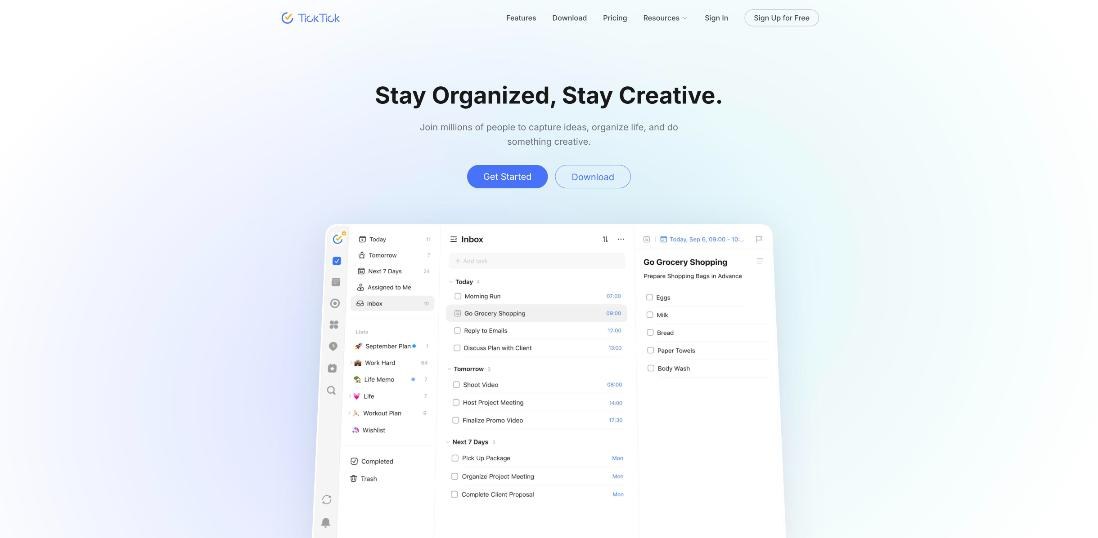
The Eisenhower Matrix sorts tasks into four boxes: urgent and important, important but not urgent, urgent but not important, and neither. In TickTick, it is not a separate list you have to maintain. It is a view that pulls tasks from your existing lists according to rules. That distinction is what makes it useful for freelance work: you keep one list per client and still get a single cross-client priority board.
How TickTick decides which quadrant a task belongs in
According to TickTick’s help center, each quadrant has its own set of rules, and tasks appear in a quadrant automatically when they match. Two rule combinations are provided by default.
Rule combination 1: priority only (the default)
Tasks are placed by priority level. A high-priority task lands in Urgent & Important. When you drag a task into another quadrant, its priority changes to match that quadrant.
Rule combination 2: time plus priority
Here priority decides how important a task is and the due date decides how urgent it is. A high-priority task due today appears in Urgent & Important; a low-priority task due later appears in Neither. Dragging a task changes both its date and its priority. TickTick also notes that tasks move between quadrants automatically as their due dates approach, so something that started out “not urgent” can climb into an urgent quadrant on its own.
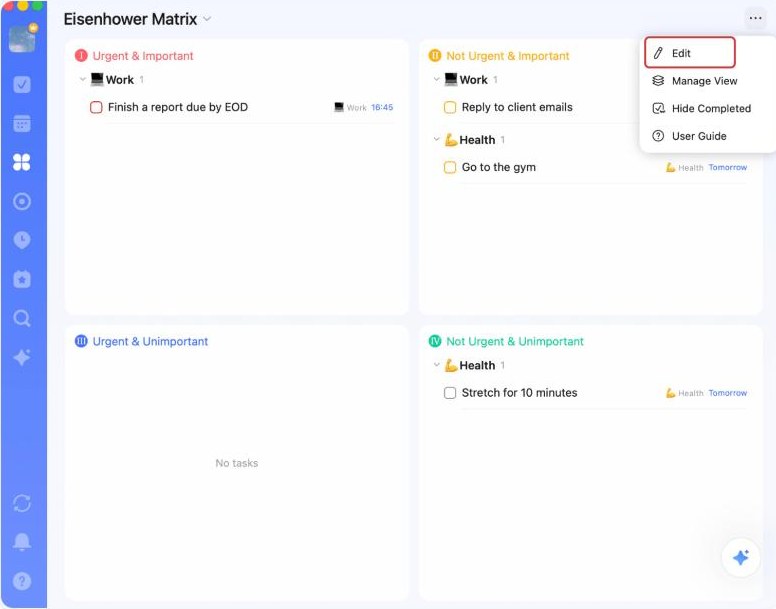
For freelancers, combination 2 is the better starting point. Client work is driven by deadlines, and you want a task to escalate without you remembering to move it. Priority alone means every client’s “high” task is shouting at you on the same day.
Custom quadrant rules: where it gets useful for client work
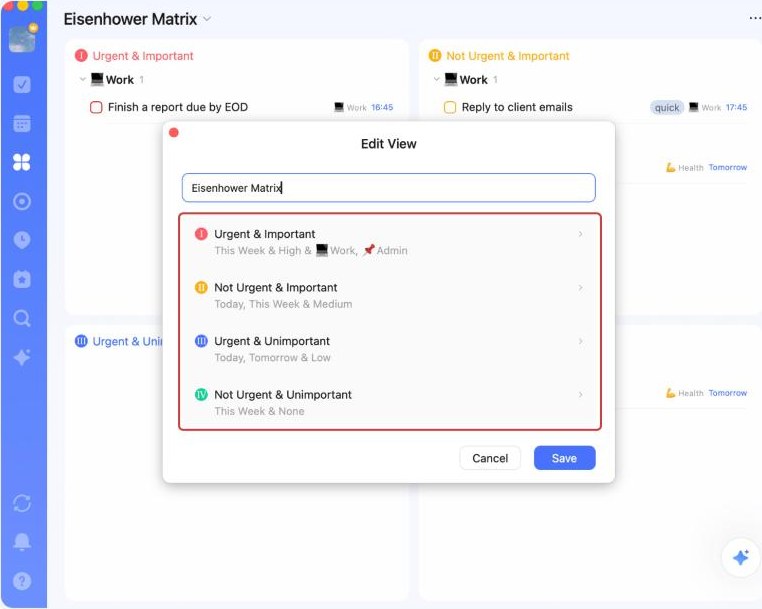
Beyond the two presets, you can edit the rules for each quadrant. On desktop, click the “···” menu in the top-right of the matrix and choose Edit, then pick a quadrant. TickTick lets you filter each quadrant with four kinds of conditions:
- Lists and tags – for example, only tasks from certain lists, or only tasks with a given tag.
- Time – a date range such as Today–Tomorrow, or Day After Tomorrow–Next 7 Days.
- Priority – which priority levels count for that quadrant.
- Assignee – assigned to you or unassigned, available only when the view includes shared lists.
One limitation worth knowing early: if a quadrant’s rules require tasks assigned to another member, dragging a task into it may fail. TickTick’s fix is to change the task’s assignee directly. If you work alone, this never comes up. If you share lists with a subcontractor, keep assignee rules out of the quadrants you drag into most.
A four-quadrant setup for a freelancer with several clients
Here is a setup that maps the matrix onto freelance work. It assumes one list per client plus an Admin list, and two tags: billable and admin.
| Quadrant | Suggested rule | What lands here |
|---|---|---|
| Urgent & Important | Client lists, Today–Tomorrow, High priority | Deliverables due in the next two days |
| Not Urgent & Important | Client lists, Next 7 Days, High and Medium priority | Next week’s deliverables, proposals, the work that keeps clients happy |
| Urgent & Unimportant | Admin list or admin tag, Today–Tomorrow | Invoices to send, contract replies, scheduling emails |
| Not Urgent & Unimportant | No priority | Ideas, someday tasks, portfolio updates |
A few notes on why it is set up this way:
- Admin is “urgent but unimportant” on purpose. Sending an invoice today matters to your cash flow, but it rarely needs deep focus. Putting admin in its own quadrant stops it from crowding out real client work in the top-left box.
- The top-right quadrant is the one to protect. In freelance terms it is next week’s deadlines. If that box keeps growing, you have overbooked, and the matrix shows it before a client does.
- Bottom-right is a parking lot, not a guilt list. Review it once a week and delete freely.
If you would rather sort client work by labels and filters than by quadrants, I covered that approach in Todoist for freelancers with labels, filters and email forwarding. And if your bigger problem is protecting time on the calendar rather than ordering tasks, see Reclaim.ai for freelancers juggling client calendars.
Making the matrix work on mobile
The same matrix exists in the mobile app, with an Edit Matrix screen and built-in examples of rule sets you can apply. That matters for freelancers who capture tasks on the go: you add a task with a client list, a date and a priority, and it lands in the right quadrant without opening the matrix at all.
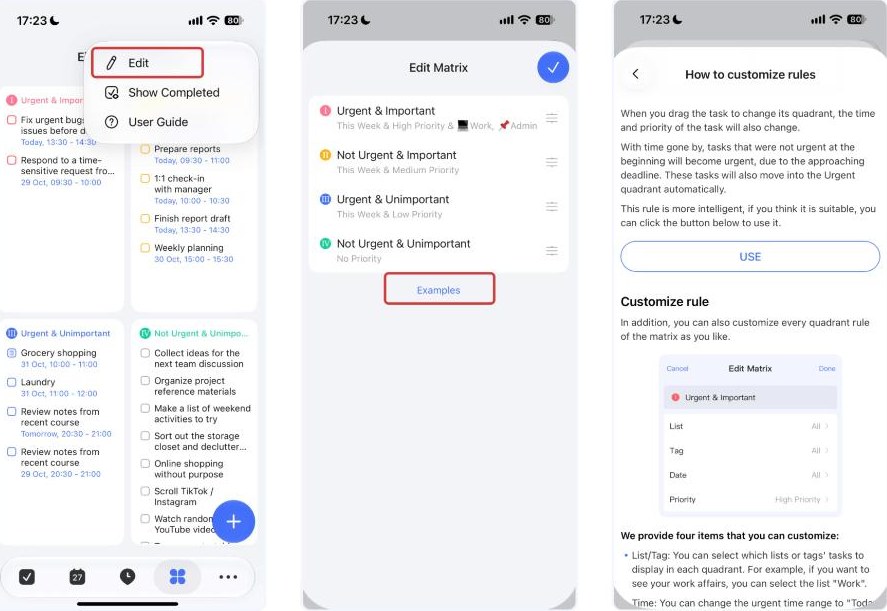
A practical habit: add the client list and a due date every time you create a task, even a tiny one. With the time-plus-priority rules, a task without a date or priority has nowhere useful to go and ends up in the bottom-right quadrant, where it is easy to forget.
A daily routine built on the matrix
- Start in the top-left quadrant. Only work from it until it is empty or blocked.
- Batch the bottom-left. Pick one fixed slot, for example after lunch, for all the “urgent but unimportant” admin.
- Move one top-right task forward every day. This is how next week’s deadlines stop becoming next week’s emergencies.
- End the day by dragging. If something will not get done, drag it to the quadrant where it really belongs. With time-plus-priority rules, that also updates its date and priority, so your client lists stay honest.
Free plan or Premium for this setup?
TickTick has two plans. Here is what its pricing page lists today:
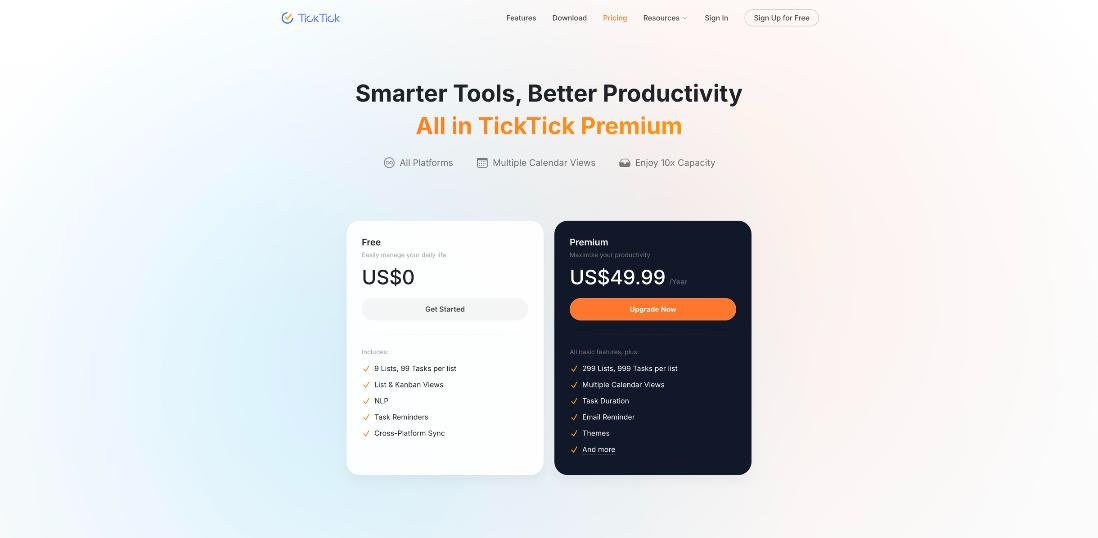
| Feature | Free | Premium (US$49.99/year) |
|---|---|---|
| Lists | 9 | 299 |
| Tasks per list | 99 | 999 |
| Reminders per task | 2 | 5 |
| Members | 2 | 29 |
| Eisenhower Matrix | Basic | Unlimited |
| Calendar views | Basic | Multiple calendar views, task duration |
For the setup in this guide, the number that decides it is 9 lists. One list per client plus Admin, Inbox-style capture and a personal list fills the free plan quickly once you pass five or six clients. If you only have two or three regular clients, the free plan is a fair test of whether the matrix suits you. The pricing page marks the matrix as “Basic” on Free and “Unlimited” on Premium without spelling out the difference, so try your rule setup on Free before assuming you need to upgrade.
Two policy details from the same page are useful before paying. If you buy Premium through Google Play, PayPal or Stripe, you can request a refund within 14 days of purchase; App Store purchases go through Apple. And if Premium expires, TickTick says your data is fully retained and you continue as a free user without Premium features.
Where TickTick falls short for freelancers
- No invoicing or proper time tracking. TickTick organises work; it does not bill it. You will still need a separate tool for timesheets and invoices.
- Nine lists on Free. A one-list-per-client structure outgrows the free plan fast.
- Matrix rules need tidy data. Tasks without a date or priority fall to the bottom quadrant, so the system only works if you add both every time.
- Not a client-facing tool. Sharing a list with a client is possible, but TickTick is built as a personal planner, not a project portal.
Who should use TickTick this way, and who should not
A good fit if you juggle several clients, your work is deadline-driven, and your main problem is deciding what to do next rather than collaborating with a team. The matrix gives you one board across every client, and the time-plus-priority rules do the reshuffling for you as deadlines approach.
Not a good fit if you need clients to see project progress, if you bill hourly and want tracking in the same app, or if you prefer planning your day on a calendar timeline. In that last case a daily planner such as Sunsama, mapped to client hours, will suit you better than a matrix.
Verdict
TickTick is often reviewed as a cheaper all-in-one to-do app, and it is. For freelancers, its most useful feature is the Eisenhower Matrix used as a rules-based view across client lists. Set the time-plus-priority rules, give admin its own quadrant, and protect the top-right box, and you get a daily plan that reflects every client at once. Start on the free plan; upgrade when you hit the nine-list limit or need the full calendar views.
FAQ
Is TickTick good for freelancers?
Yes, for planning and prioritising across several clients. It does not include invoicing or detailed time tracking, so most freelancers pair it with a separate billing tool.
Does the TickTick free plan include the Eisenhower Matrix?
Yes. TickTick’s pricing page lists the Eisenhower Matrix as “Basic” on the Free plan and “Unlimited” on Premium.
How much is TickTick Premium?
The pricing page lists Premium at US$49.99 per year.
Can I customise the quadrants in TickTick’s matrix?
Yes. Each quadrant can be filtered by lists and tags, time range, priority and, for shared lists, assignee. There are also two default rule combinations: priority only, and time plus priority.
What happens to my tasks if Premium expires?
TickTick says all your data is retained and you continue as a free user, without Premium features.