Dictation is one of those habits that sounds odd until you try it. You talk through a client update while pacing the room, and a tidy paragraph appears in Gmail or Slack. The catch for freelancers is that what you dictate is rarely just yours. It is a client’s product roadmap, a draft proposal with their budget in it, notes about a launch that is still under NDA. So before I recommend Wispr Flow for freelancers, I want to answer a narrower question than most reviews do: what does Wispr Flow hear, what does it keep, and what does it learn from, and which settings should you change before you dictate your first line of client work?
This is not a speed test or a “voice vs keyboard” piece. Everything below comes from Wispr Flow’s own pricing and privacy pages as they read today, plus how I would set it up for a one-person business that handles other people’s information.
What Wispr Flow Is, Briefly
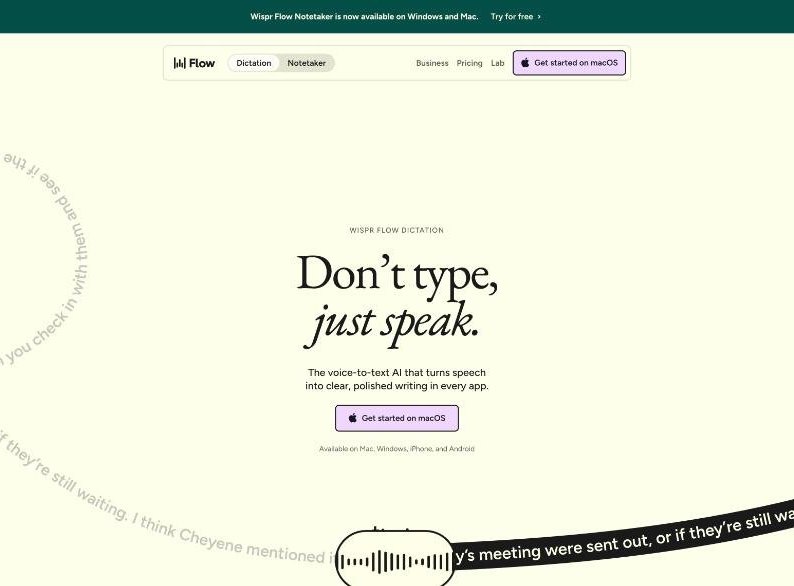
Wispr Flow is a voice-to-text app that turns speech into clean, edited writing in whatever app you are using: email, docs, chat, a project tool. It runs on Mac, Windows, iPhone and Android, supports 100+ languages, learns names and jargon, and has a personal dictionary and text snippets. There is also a newer product, Wispr Flow Notetaker, that records meetings and voice memos (Mac and Windows only for now).
For freelancers, the appeal is obvious. Much of the job is writing that is not the deliverable itself: status updates, scope clarifications, follow-ups, invoice notes, proposal drafts. If you can talk those out while your hands rest, you get time and energy back for the real work.
Why Confidentiality Is the Real Question for Freelancers
When you work for clients, three things are often true at once:
- You have signed an NDA or a contract clause about confidential information.
- You work inside the client’s tools (their Slack, their Notion, their Google Workspace) as well as your own.
- You have no IT department to vet a new app for you.
A dictation app sits between your voice and every one of those tools. So the useful review question is not “is it accurate?” (most modern dictation is good) but “what happens to the audio and the text, and can I control it?” Wispr Flow answers that more directly than most, with four settings on its privacy page.
The Four Data Controls, Read for Client Work
1. Improve the model for everyone
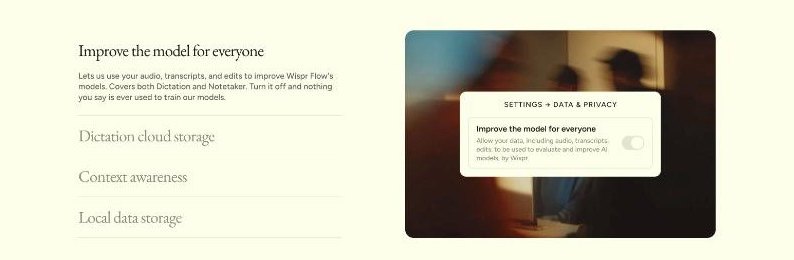
This setting lets Wispr use your Dictation data (audio, transcripts and your edits) to evaluate, train or improve its AI models, and Wispr says it covers both Dictation and Notetaker. Turn it off and, in Wispr’s words, nothing you say is ever used to train its models. You manage it in Settings, then Data and Privacy.
My setting for client work: off. Even if your contract does not mention AI training, most clients would not expect their project details to help train someone else’s model. Switching it off costs you nothing in features.
2. Dictation cloud storage
When this is on, Wispr stores your dictation transcripts, audio and history on its servers so they are available across devices. When it is off, your dictation stays on your device, and Wispr says audio is discarded once it is transcribed.
My setting: off, unless you truly need history on several devices. Cross-device history is convenient, but for most freelancers the smaller footprint is worth more than syncing old dictations.
3. Context awareness
This one is easy to overlook. With context awareness on, Wispr Flow reads limited text from the app you are dictating into, so names and jargon come out right. With it off, Wispr transcribes without reading anything on your screen.
My setting: depends on the app. Context awareness is what makes a client’s product names and colleagues’ names come out correctly, which is a real benefit. But it also means the app looks at what is on screen in that window. If you are dictating into a client’s confidential document, you may prefer to turn it off and rely on your personal dictionary for names instead.
4. Local data storage
This saves your dictation history on your computer so you can revisit what you said. You can keep it, auto-delete it after 24 hours, or never save it. Wispr notes that mobile history, Notetaker and cloud storage are managed separately.
My setting: auto-delete after 24 hours. It is a good middle ground: you can still rescue yesterday’s dictation if an app crashes, but old client details do not pile up on your laptop.
What Happens to One Dictation
Wispr’s privacy page walks through a single dictation in four steps, and it is worth knowing them if a client ever asks.
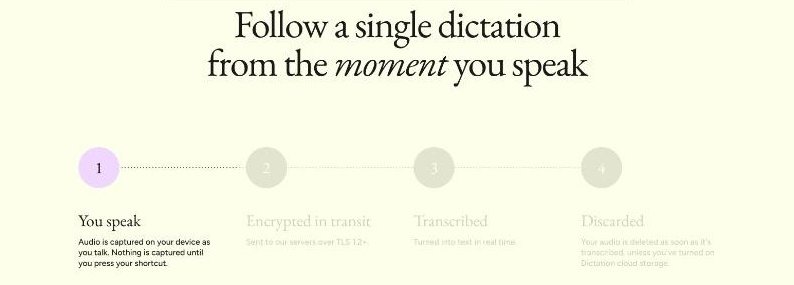
- You speak. Audio is captured on your device, and nothing is captured until you press your shortcut.
- Encrypted in transit. It is sent to Wispr’s servers over TLS 1.2+.
- Transcribed. It is turned into text in real time.
- Discarded. The audio is deleted as soon as it is transcribed, unless you turned on Dictation cloud storage.
Two practical points follow. First, dictation is processed in the cloud, so it needs a connection and it does leave your device briefly. Second, the “nothing until you press your shortcut” detail matters on calls: Wispr Flow Dictation is not listening in the background while you talk to a client. Anything stored is encrypted at rest with AES-256, according to the same page, and Wispr holds SOC 2 Type II and ISO 27001 certifications covering every product on every plan.
Free or Pro: Where the Word Limit Bites
Here is Wispr Flow’s pricing as listed on its pricing page today:
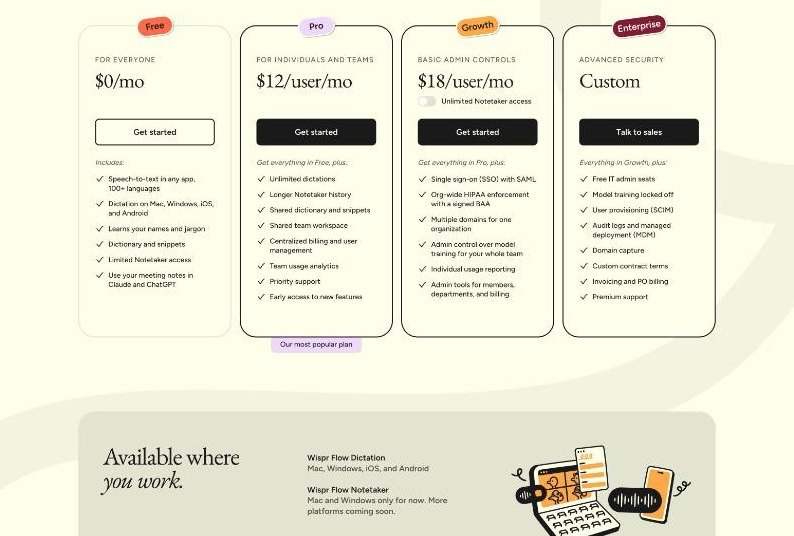
| Plan | Price | What matters for a freelancer |
|---|---|---|
| Free | $0 | 2,000 words a week on desktop, limited weekly use on mobile, dictionary and snippets, limited Notetaker |
| Pro | $12 per user per month billed annually ($15 on monthly billing) | Unlimited dictation, longer Notetaker history, priority support |
| Growth | $18 per user per month billed annually ($23 on monthly billing) | SSO, org-wide HIPAA enforcement with a signed BAA, admin control over model training |
| Enterprise | Custom | Model training locked off, audit logs, SCIM, custom contract terms |
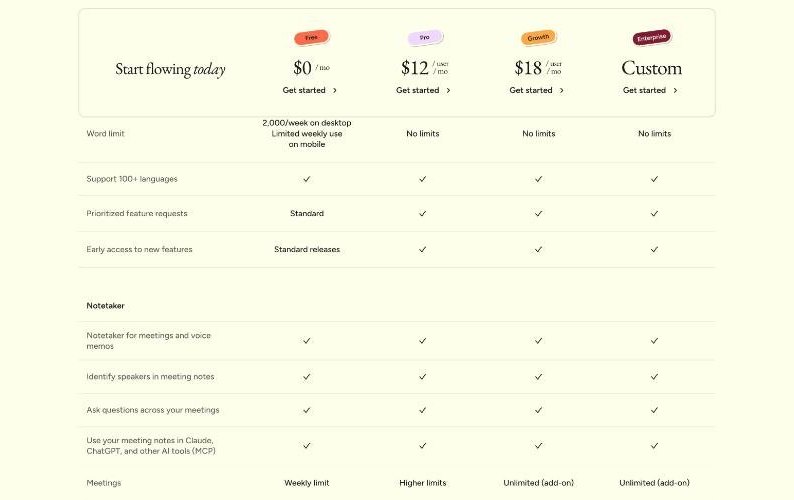
Is 2,000 words a week enough? For a freelancer who only dictates the odd email, yes. But a typical working week of client communication adds up faster than you think: a few status updates, a proposal draft, Slack replies, meeting follow-ups. If you start dictating proposals or briefs, you will likely hit the cap mid-week. My suggestion is to use Free for a full week of normal work and watch how quickly the counter moves, then decide.
Note that the privacy controls described above are not a paid feature. Wispr says you can opt out of model training at any time on every plan. What Growth and Enterprise add is enforcement: model training is off by default and locked, so nobody on the team can turn it back on. For a solo freelancer, Pro plus the right personal settings is usually enough.
Notetaker and Client Calls
Wispr Flow Notetaker records meetings and voice memos and can identify speakers. It does not use a bot: Wispr says it works right on your device, so nothing joins the call and there is nothing for other participants to admit. The Free plan includes it with a weekly meeting limit, and quick recordings under five minutes do not count toward it.
That is convenient, but “no bot” also means the other people on the call get no automatic signal that you are recording. Ask for consent at the start of every client call, follow the recording laws where you and your client are, and keep Notetaker off for calls where the client has said no. I made the same point in my post on bot-free client call notes with Krisp, and it applies to any invisible note taker.
One more detail for anyone handling health information: Wispr offers HIPAA support for dictation with a signed Business Associate Agreement on any plan, but accepting a BAA turns off Notetaker and Scratchpad.
A Setup Checklist Before Your First Client Dictation
- Turn off Improve the model for everyone in Settings, Data and Privacy.
- Turn off Dictation cloud storage unless you need cross-device history.
- Set Local data storage to auto-delete after 24 hours.
- Decide on context awareness: keep it for your own tools, consider turning it off when working in a client’s confidential documents.
- Add each client’s names, product names and jargon to your personal dictionary, so accuracy does not depend on reading your screen.
- Create snippets for things you type constantly, like your booking link or payment terms.
- Check your client contracts for clauses about third-party tools or AI, and ask if unsure.
- Agree on a recording rule for calls before you use Notetaker.
If you dictate a lot of client email, pairing Wispr Flow with a fast email client helps too. I covered one option in Superhuman Mail Starter vs Business for a one-person business.
Who Should Skip Wispr Flow
- Freelancers whose contracts forbid cloud processing of client data. Dictation is transcribed on Wispr’s servers, even if audio is then discarded.
- People who work offline often. Cloud transcription needs a connection.
- Anyone who writes very little. If you send ten emails a week, built-in dictation on your phone or computer may be enough.
- Linux users. Wispr lists Mac, Windows, iOS and Android only.
Pros and Cons
Pros
- Clear, user-facing controls for model training, cloud storage, screen context and local history.
- Audio discarded after transcription unless you opt into cloud storage.
- SOC 2 Type II and ISO 27001 certified across every plan.
- Works in any app on Mac, Windows, iPhone and Android.
- Free plan is generous enough to test properly.
Cons
- Free plan caps desktop dictation at 2,000 words a week.
- Transcription happens in the cloud, so it needs a connection.
- Context awareness reads on-screen text unless you switch it off.
- Bot-free Notetaker puts the burden of asking for recording consent on you.
Verdict
Wispr Flow is one of the easier dictation tools to defend to a client, because its privacy controls are visible and simple, and the defaults can be tightened in a couple of minutes. For freelancers, the right setup is model training off, cloud storage off, local history on a 24-hour timer, and a deliberate choice about context awareness. Start on Free for a week of real client work. If you hit the 2,000-word cap, Pro at $12 a month on annual billing is a fair price for a habit that takes most of the typing out of client communication.
FAQ
Is Wispr Flow free?
Yes. The Free plan includes dictation on Mac, Windows, iOS and Android, with 2,000 words a week on desktop and limited weekly use on mobile, plus limited Notetaker access. No credit card is needed to start.
Does Wispr Flow train on my dictation?
Only if “Improve the model for everyone” is on. You can turn it off in Settings, Data and Privacy on any plan. On Growth and Enterprise, model training is off by default and locked.
Does Wispr Flow store my audio?
Wispr says audio is deleted as soon as it is transcribed, unless you turn on Dictation cloud storage.
Is Wispr Flow safe for confidential client work?
It offers strong controls and SOC 2 Type II and ISO 27001 certification, but dictation is processed in the cloud. Check your client contracts, and apply the settings checklist above before dictating sensitive material.
How much is Wispr Flow Pro?
Pro is $12 per user per month on annual billing, or $15 on monthly billing, with unlimited dictation.
Does the Wispr Flow Notetaker join meetings as a bot?
No. It works on your device without a bot joining the call, which is why you should ask participants for consent before recording.