
Disclosure: some links in this guide are partner links. If you sign up through them I may earn a commission, at no extra cost to you. It does not change what I recommend.
The handover call is where a lot of client websites start to break. I show the client how to change a heading, they nod, and three weeks later the hero section has a second column nobody asked for and the brand colour has become “a slightly nicer blue”. That is not the client’s fault. I gave them an editor with every design control switched on.
If you build with Bricks Builder, you do not have to do that. Bricks has a permission system that lets you decide exactly what a client can touch inside the builder, and a separate interface profile that decides what they see. This guide is how I would set it up for a typical small-business client, based on the current Bricks Academy documentation, plus the licence questions that come up at the same moment.
Why the builder, not WordPress, is the risk
On a classic WordPress site, an Editor role can change content but cannot redesign the theme. A visual builder changes that, because content and design live in the same canvas. Every text element also has typography, spacing and layout controls one click away.
Bricks handles this with what it calls Builder access. The Academy describes two ways to manage it: assign one of three predefined capabilities, or create your own custom capability with exactly the permissions you enable.
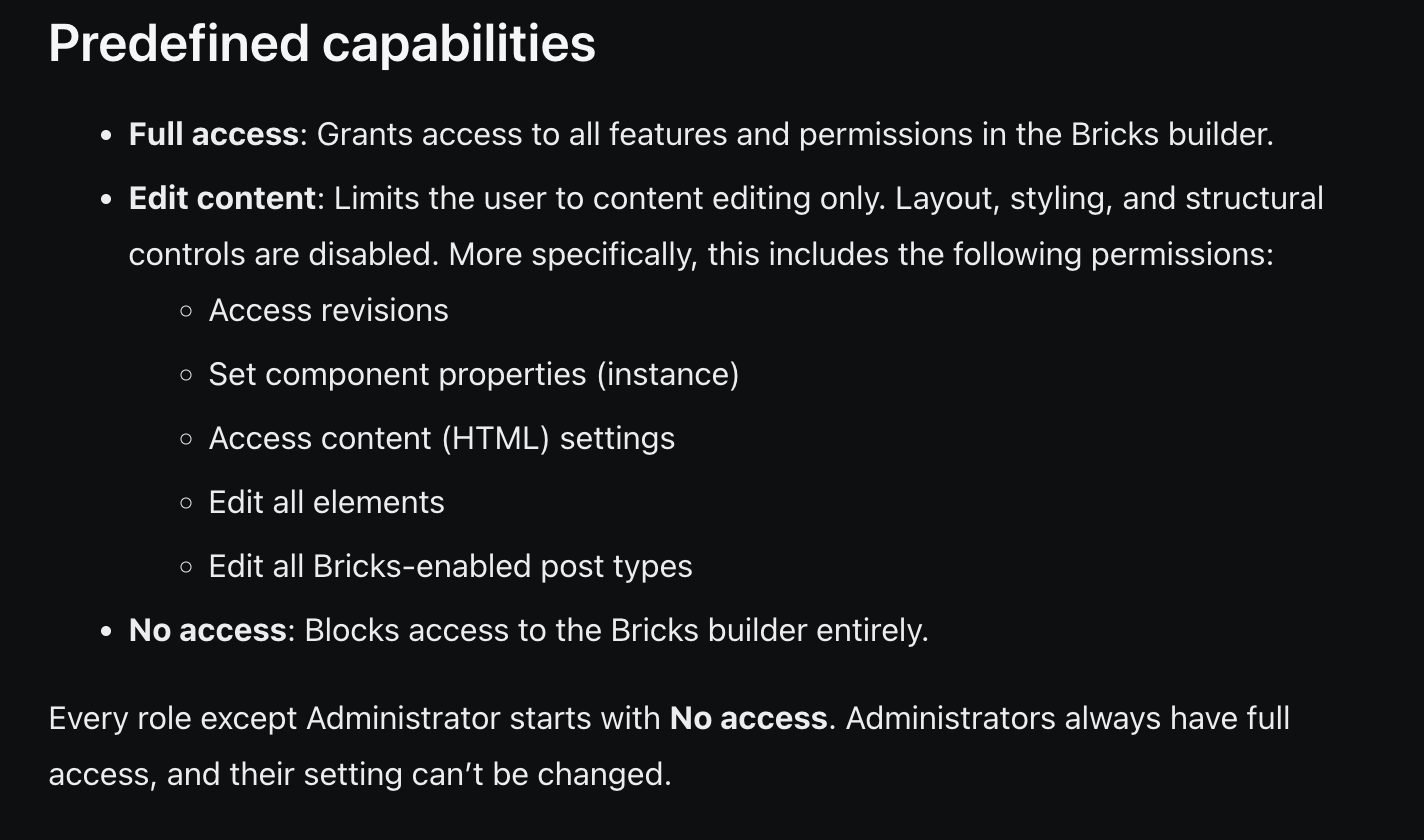
The three predefined options are:
- Full access to every feature and permission in the builder.
- Edit content, which limits the user to content editing. Layout, styling and structural controls are disabled. It includes access to revisions, setting component properties, content (HTML) settings, editing all elements and editing all Bricks-enabled post types.
- No access, which blocks the builder entirely.
Two details matter for client work. Every role except Administrator starts at No access, so nothing is opened up until you decide. And Administrators always have full access; that setting cannot be changed. Which leads to the first rule of the handover.
Step 1: do not give the client an Administrator account
If the client’s login is an Administrator, none of the restrictions below apply to them. I give clients the WordPress Editor role and keep the Administrator account for myself or for whoever maintains the site.
The Academy also points out that Builder access works on top of the WordPress role. Bricks only opens a page in the builder if the user’s role can edit that page in WordPress. An Editor can edit all pages. An Author cannot edit pages at all, whatever builder capability they have. So the Editor role is the natural base for a client who updates their own pages.
Step 2: decide between “Edit content” and a custom capability
For many clients, the predefined Edit content capability is enough. Assign it to the Editor role and you are done. I reach for a custom capability when I want to be tighter than that, for example:
- The client should edit Pages but not a custom post type such as Events.
- Revisions should stay with me, so the client cannot roll a page back to an old draft.
- The client should never be able to add new elements, only change existing ones.
Custom capabilities live under Bricks > Settings > Builder access. You click Add new capability, give it a name and description, enable the permissions you want, close the popup and click Save Settings. The Academy is explicit that the capability is only stored once the settings are saved, which is easy to miss.
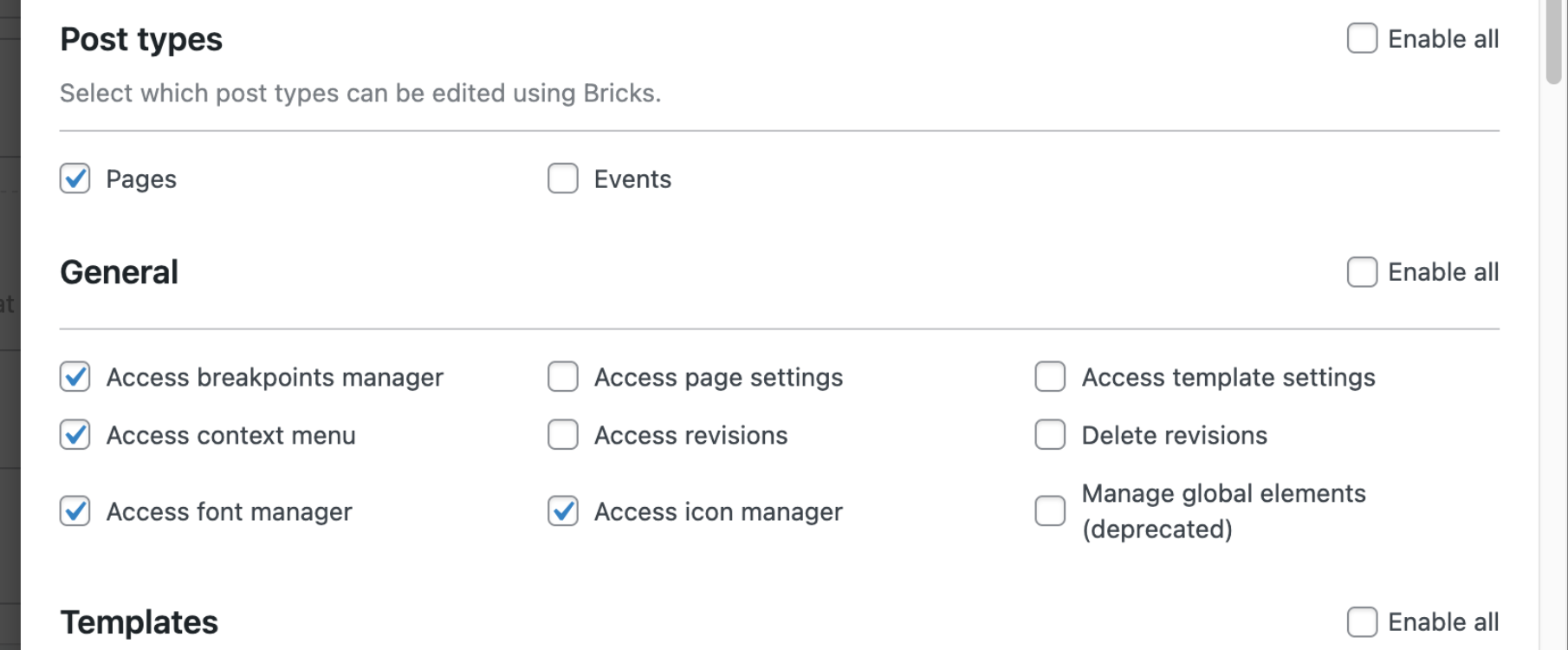
The “Client editor” recipe from the Bricks Academy
The Academy includes a worked example for exactly this situation: a client who keeps names, job titles and photos up to date without changing the design. Its settings are:
- Create a custom capability named something like “Client editor”.
- Under Post types, enable Pages.
- Under Element editing & styling, enable Access content (HTML) settings, and leave Access style (CSS) settings off.
- Under Edit elements, click Enable all, so the client can edit the content of every element.
- Leave everything else off, close the popup and save the settings.
That combination is the heart of a safe handover. Content settings on, style settings off. The client can change the words in a heading or swap a team photo, but the controls that would change font size, spacing or layout are not available to them.
Permissions I leave off on purpose
Going through the full permission list, these are the ones I never grant a client, and why:
- Global styles and classes (theme styles, colour manager, variable manager, class manager and the class permissions). One change here can restyle every page. The Academy notes that leaving the class permissions off is how you keep a user away from global classes; since Bricks 2.5 this replaces the deprecated “Disable global classes” interface setting.
- Templates (create, edit, delete, insert, import and export). Headers and footers live here.
- Delete, move and duplicate elements. Most layout accidents start with a drag.
- Element conditions and interactions. These change behaviour, not just content.
- Query loop builder. Blog and portfolio listings depend on it.
Step 3: hide what the client does not need to see
Permissions decide what a user can do. A builder interface profile decides what they see. In the Academy’s client example, you open the builder, go to Builder interface, set Structure to Hidden and Element quick access to Hide, remove toolbar items the client does not need, and save the layout as a profile called something like “Client”.
One version note: the Academy says these two options are available since Bricks 2.5, and in earlier versions you minimise the Structure panel instead, because the quick access bar cannot be hidden through a profile there. At the time of writing, the Bricks website banner announces Bricks 2.5 as a beta, so check which version your client site runs before promising this exact interface.
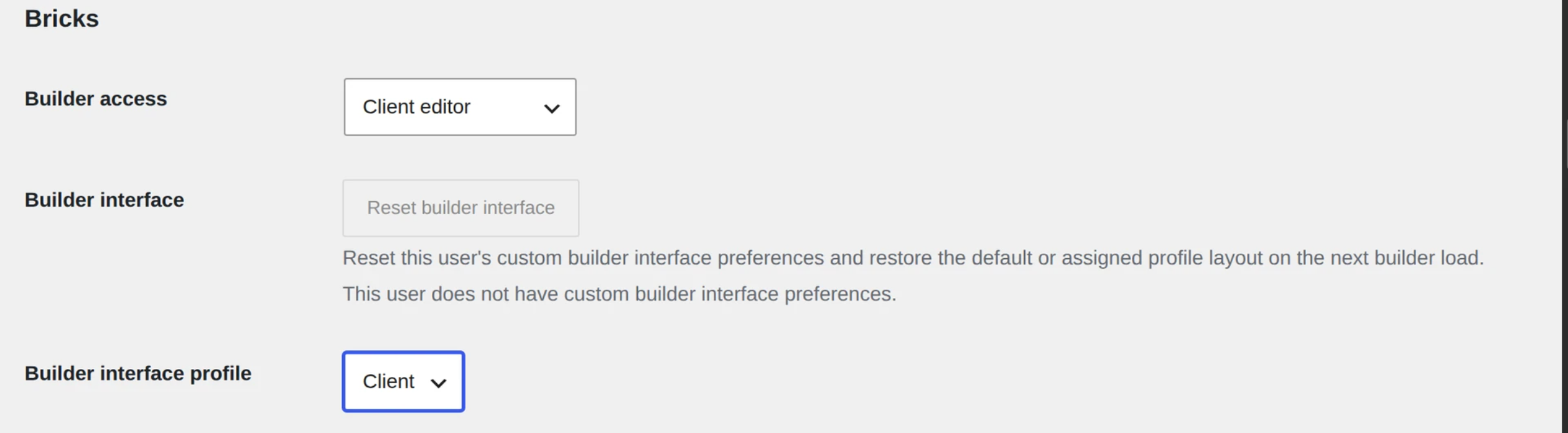
To connect everything, open the client’s WordPress user profile. Under Builder access, choose your custom capability. Under Builder interface profile, choose the client profile. Click Update User. If you want the same setup for every Editor on the site, set both for the Editor role under Bricks > Settings > Builder access instead.
A capability set on an individual user overrides the role’s capability. The user’s Builder access dropdown shows the role’s capability marked “(Default)”, and selecting it puts the user back on the role setting.
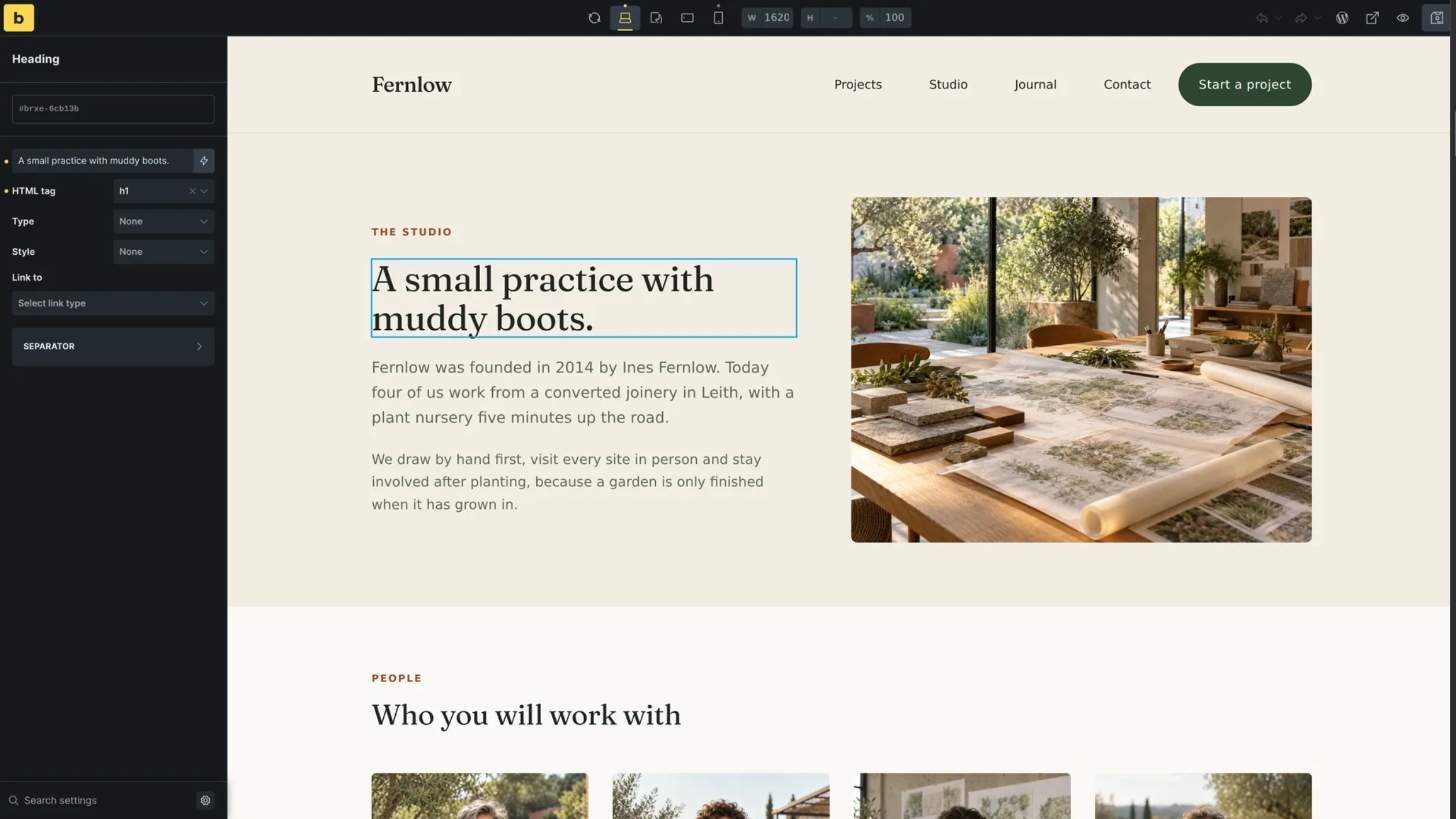
The result is a much calmer builder. According to the Academy, the client sees only the content settings of the selected element. There is nothing to add in the Elements panel, the Structure panel and quick access bar are hidden, and the toolbar shows only what the profile keeps.
A profile is not a lock
This is the line from the documentation I underline for myself: a profile only arranges the workspace and does not restrict anything. A command palette hidden from the toolbar, for example, still opens with its keyboard shortcut. What a user can change is always set by their builder capability. So the profile is for comfort, and the capability is for safety. Do not skip the capability because the interface looks simple.
Step 4: use review links for approvals, not logins
Not everyone who needs to see a change needs to edit it. The Academy describes review links as a separate, view-only preview for people without an editor login. They do not give reviewers builder access or permission to edit or publish.
For the client’s colleagues, a business partner, or the person who signs off copy, a review link is cleaner than another WordPress account. If you collect feedback with a visual tool, I compared plans for that in my BugHerd guide for multiple stakeholders.
Two more notes from the same page if you use Bricks drafts. A page draft is not private to its creator; other users with the same access can open it. Site versions, which span multiple pages, need builder access plus the WordPress permission to edit other users’ posts. Publishing also checks the rights required for every change in a draft, so having access to a draft does not mean a client can publish everything someone else added to it.
The licence questions that come up at handover
Once the client can edit, they usually ask who “owns” Bricks. Here is what the official pricing page says today.
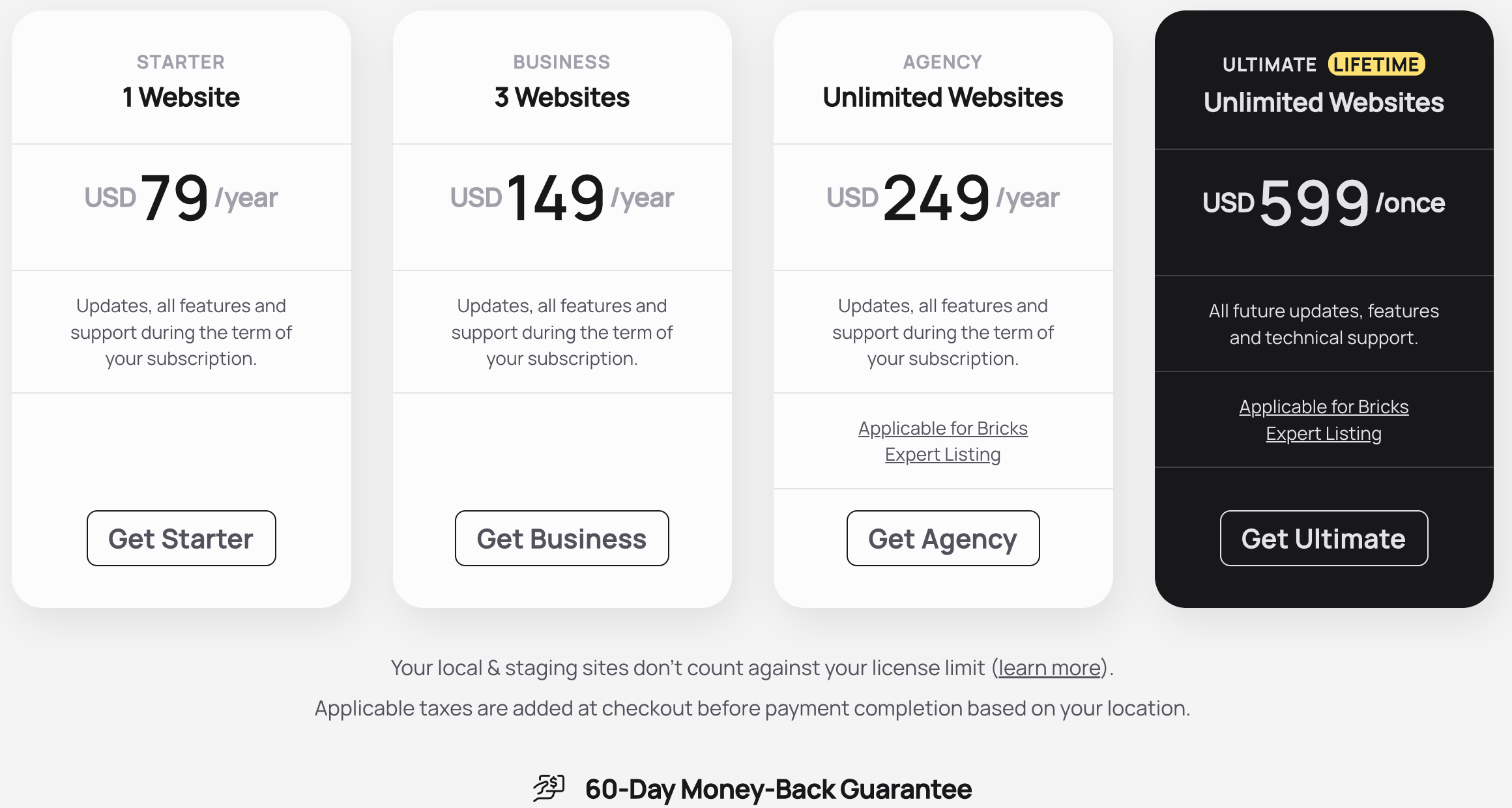
| Plan | Websites | Price | Term |
|---|---|---|---|
| Starter | 1 | USD 79 | Per year |
| Business | 3 | USD 149 | Per year |
| Agency | Unlimited | USD 249 | Per year |
| Ultimate | Unlimited | USD 599 | Once (lifetime) |
The points that matter for freelancers:
- Client sites are allowed. The FAQ says you can use your licence on your own and your clients’ websites. Reselling the licence itself is against the terms.
- Local and staging sites do not count against the licence limit. Subdomain activations do, because every WordPress installation or site URL needs an active licence.
- You can restrict activations to specific sites with the Whitelist URLs and Blacklist URLs options under the Sites tab of your Bricks account.
- If a subscription is cancelled, the licence stays active until the end of the billing period. After that you lose updates, support and community templates, but you can still edit Bricks sites as before. The FAQ adds the honest warning that running outdated software carries security risk.
- There is no downloadable trial, but you can try the latest version online at try.bricksbuilder.io, and all plans have a 60-day money-back guarantee.
That cancellation rule is what I put in the proposal. If the client’s site runs on my Agency or Ultimate licence and we part ways, the site keeps working, but it stops receiving Bricks updates unless the client buys their own licence. I wrote about putting this decision in writing for Elementor in who should hold the Elementor Pro licence on a client site, and the same proposal clause works for Bricks. If the site stays with me on a maintenance plan, updates are covered as part of that, which is how I structure my WordPress care plan tiers.
My handover checklist
This is the short version I run through before the handover call:
- Client account uses the Editor role, never Administrator.
- A custom “Client editor” capability exists, with content settings on and style settings off, and it has been saved.
- The capability is assigned to the client’s user (or to the Editor role).
- A “Client” interface profile hides Structure and quick access, if the site runs Bricks 2.5 or later.
- I log in as the client in a private window and try to break something: drag an element, open style settings, open a template. Nothing should work.
- Review links are used for anyone who only needs to approve.
- The proposal states whose Bricks licence the site uses and what happens to updates if the relationship ends.
Step five is the one people skip. Ten minutes logged in as the client tells you more than any settings screen.
Is Bricks Builder a good fit for client sites?
For freelancers who want clients editing content inside the visual builder, yes. The permission model is granular, the Academy documents a client setup step by step, and the licence terms are friendly to client work, with unlimited-site plans and a lifetime option.
The trade-offs are real, though. Bricks is a developer-leaning builder, so the initial site build takes more care than with some beginner tools. The cleanest client interface depends on Bricks 2.5, which is in beta as I write this. And the safety comes from the capability settings, not the interface profile, so it only works if you actually configure it.
If you set it up once and save it as part of your starter site, every future handover gets easier.
FAQ
Can I stop a client from changing the design in Bricks Builder?
Yes. Give the client the Edit content capability, or a custom capability with content (HTML) settings enabled and style (CSS) settings disabled. Do not give them an Administrator account, because Administrators always have full builder access.
Where are Bricks Builder access settings?
Under Bricks > Settings > Builder access for roles and custom capabilities, and in each WordPress user profile for individual users. A user-level setting overrides the role setting.
Does a builder interface profile restrict what a client can do?
No. The Bricks Academy says a profile only arranges the workspace. What a user can change is set by their builder capability.
Can I use one Bricks licence on client websites?
Yes. Bricks allows using your licence on your own and your clients’ sites, but not reselling the licence. Starter covers 1 site, Business 3, and Agency and Ultimate unlimited sites. Local and staging sites do not count.
What happens to a Bricks site if the licence is cancelled?
The licence stays active until the end of the billing period. After that, you lose updates, support and community templates, but you can still edit the site.