Disclosure: this article may contain affiliate links. If you buy through them, I may earn a commission at no extra cost to you.
Almost every review of Bonsai for freelancers is written from the freelancer’s chair: how fast you can build a proposal, how many templates there are, how the time tracker works. That is useful, but it skips the person who decides whether you get paid. Your client never sees your dashboard. They see an email, a proposal, a signature box, an invoice and maybe a portal. If any of those steps feels confusing or untrustworthy, the deal slows down.
So in this review I walk through Bonsai in the order a client experiences it, from the first proposal link to the paid invoice, and note what you need to set up on your side, and on which plan, for each step to look professional. Prices and fees come from Bonsai’s pricing page and help center as they stand today.
First, which plan your client is really dealing with
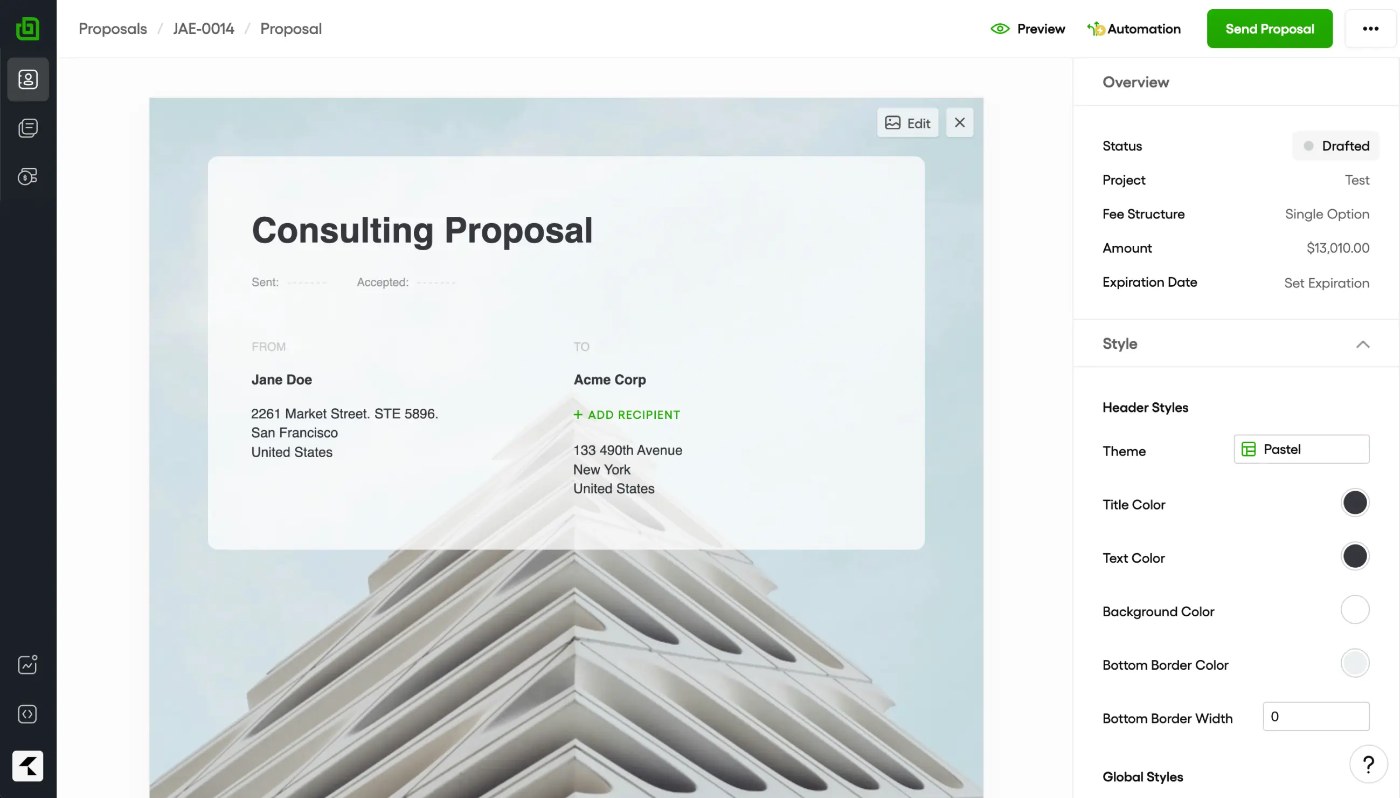
Bonsai’s cheapest plan does not include any of the client-facing documents. That surprises people, so it is worth stating up front.
| Plan | Billed annually | Billed monthly | What matters for the client side |
|---|---|---|---|
| Basic | $9/user/month | $15/month | Time tracking, tasks, CRM, unlimited clients. No invoices, proposals or contracts. |
| Essentials | $19/user/month | $25/month | Invoices and payments, proposals and contracts, forms and questionnaires, scheduling, client portal |
| Premium | $29/user/month | $39/month | Removes Bonsai branding, adds client tasks and messaging, deals pipeline and integrations |
| Elite | $49/user/month | $59/month | Team permissions and controls, three users minimum |
For a solo freelancer who sends proposals and invoices, Essentials is the real entry point. Premium is the plan to consider if you care about the client seeing only your brand, because “Remove Bonsai branding” is listed as a Premium feature. Bonsai offers a 7-day free trial with full access before you choose.
Step 1: The proposal lands in their inbox
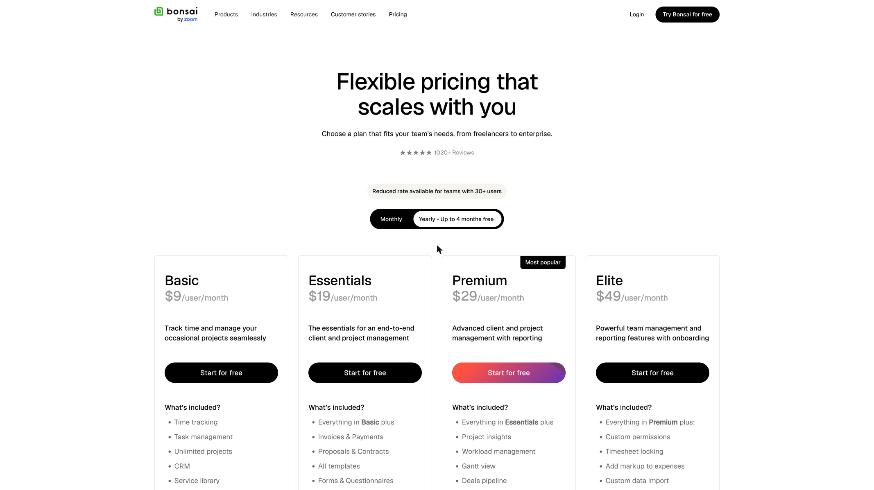
From the client’s side, the first contact is an email with a link to a proposal page. What they can do on that page depends on how you built it:
- Choose between packages. Bonsai lets you add single or multiple package options to one proposal. Offering two or three clear options (for example, a basic site, a site with copywriting, and a site with a monthly retainer) gives the client a decision to make instead of a yes-or-no.
- Approve in one click. Bonsai calls this client e-approval. There is no account to create before saying yes.
- Pay a deposit on approval. You can require a deposit when the client approves, which turns “sounds good” into money in the same moment.
On your side you get seen receipts, so you know when the proposal has been opened and read. That changes how you follow up: “I saw you had a chance to look at it” is a better message than “just checking you received it”.
What I would set up before sending the first one
Build your services into a reusable package list, write a short “what happens next” section, and decide on your deposit rule. Bonsai includes proposal, quote and scope of work templates, but the part a client actually reads is the scope and the price. Make those specific.
Step 2: The contract and the signature
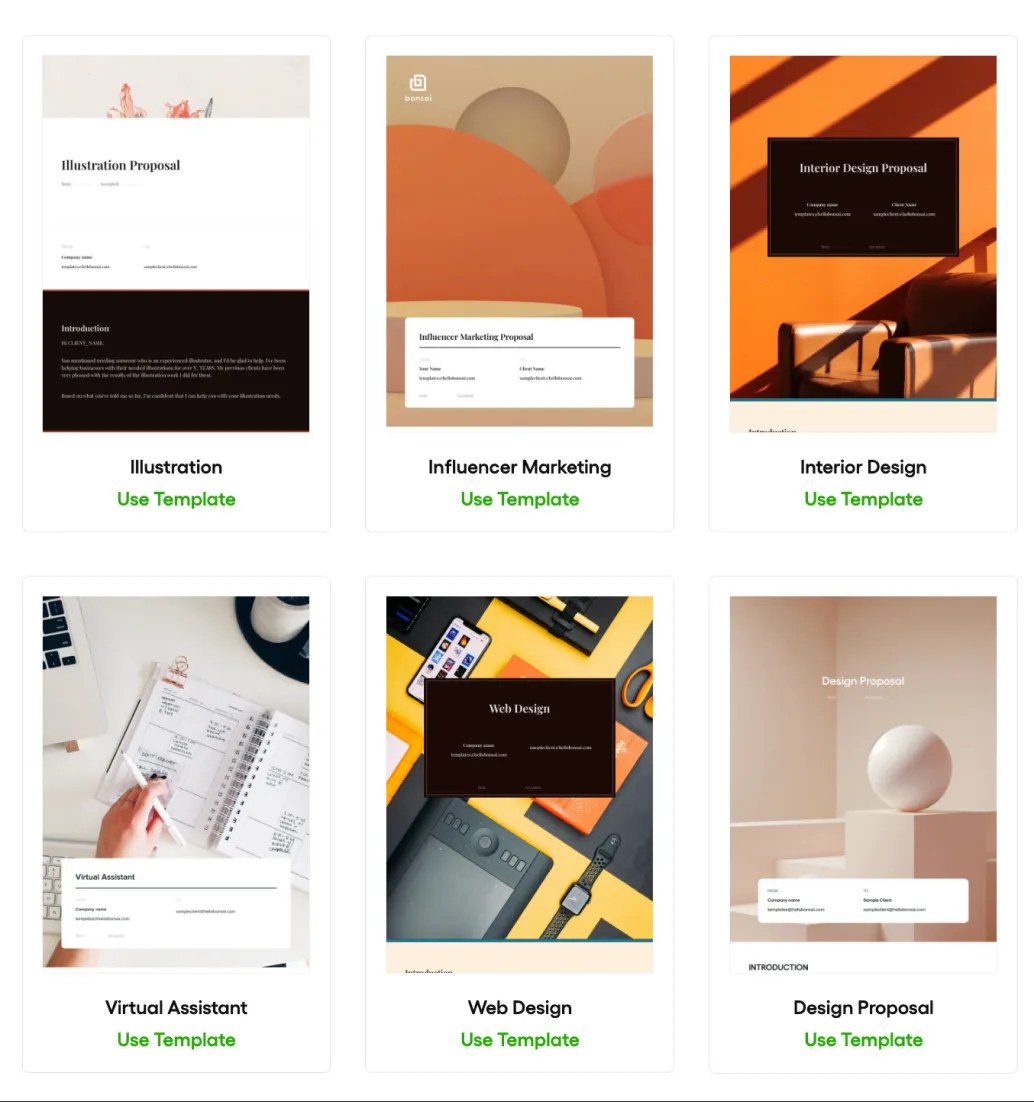
Once the proposal is approved, the client receives a contract. Bonsai offers ready-to-use contract templates that you can customize and save as your own, with integrated e-signing that it describes as legally binding.
Three contract features matter most from the client’s point of view:
- Electronic signature in the browser. No printing, scanning or separate signing service.
- Reminders. Bonsai can nudge clients who have not signed, so you do not have to chase them personally.
- Deposit capture. As with proposals, you can require a deposit when the client approves the contract.
A word of caution here. Bonsai’s own footer states that it is not a law firm and does not provide legal advice. A template is a starting point. If your work involves intellectual property transfers, retainers or anything unusual, have a lawyer check your version once, then save it as your template.
One sequencing tip: decide whether the deposit belongs on the proposal or the contract, not both. Asking a client to pay at the proposal stage and then sign a contract afterwards can feel backwards. My own preference is approve, sign, then pay.
Step 3: The client portal while the work happens
This is the part clients notice most, and it is the most underrated feature in Bonsai. The client portal gives each client one place to see project progress, milestones and deliverables, and to access shared contracts, proposals, invoices and files.
Bonsai says clients reach the portal through secure links without needing to create an account. For clients who already juggle a dozen logins, that is a real advantage. If you have ever had to explain to a client how to reset a password for a tool they use twice a year, you will appreciate it. (If password handling is a pain point in your work, I wrote a separate guide to 1Password for freelancers who manage client logins.)
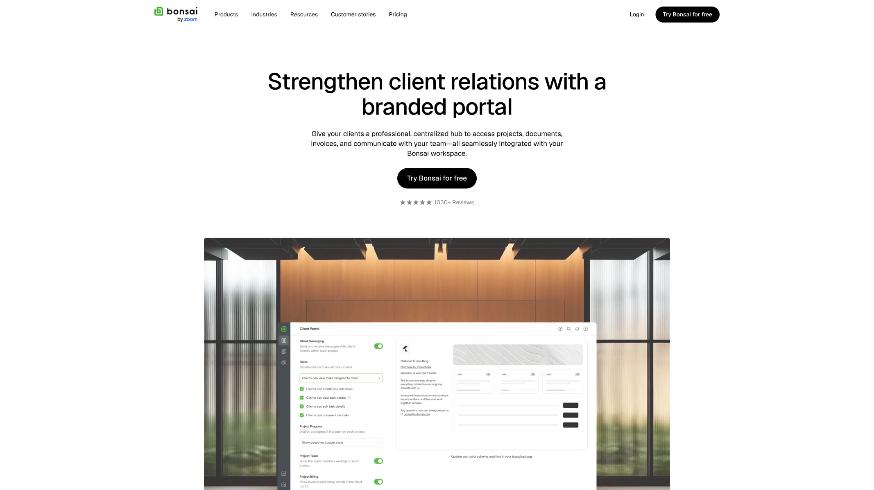
Two portal features depend on your plan. The portal itself is on Essentials, but client tasks and messaging are listed as Premium features. If you want clients to give feedback on deliverables and message you inside Bonsai rather than by email, budget for Premium.
What to put in the portal on day one
- The signed contract and approved proposal, so the client never has to search their inbox for them.
- A simple milestone list with dates.
- A folder for the files they owe you (logos, copy, logins), so the request is visible rather than buried in email.
Step 4: The invoice and the payment screen
When it is time to bill, the client receives the invoice by email with a secure payment link. Bonsai supports one-time and recurring invoices, retainer and subscription invoices, saved payment details for repeat clients, and billing in more than 100 currencies.
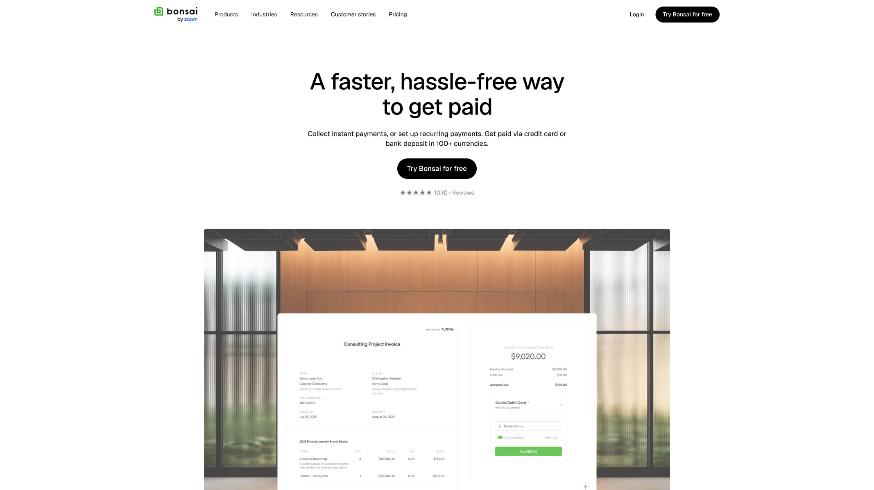
From the client’s side, the important question is how they can pay. That depends on your country and the payment method you enable. According to Bonsai’s help center, these are the current fees:
| Method | Fee | Notes |
|---|---|---|
| Bonsai Payments, cards | 2.9% + $0.30 | Available in the US, UK, Canada and Australia |
| Bonsai Payments, American Express | 3.25% + $0.30 | |
| Bonsai Payments, bank transfer (ACH) | 1.0% ($1 minimum) | Instant payouts add 1.5% |
| Stripe Payments | 2.9% + $0.30 cards, 1.0% ACH | Usable where Stripe is supported |
| PayPal | Typically 2.9% + $0.30 | Varies by country |
There is one fee that is easy to miss. In locations where Bonsai Payments is available, using another processor such as Stripe or PayPal adds a 1% platform fee to the payout. If you are in one of those four countries, Bonsai Payments is usually the cheaper route.
A quick fee example
Say you invoice a client $2,000. Paid by card through Bonsai Payments, the fee is 2.9% plus $0.30, or $58.30. Paid by ACH, it is 1%, or $20. For larger invoices, offering bank transfer as an option, and saying so on the invoice, can save you real money every month. I covered a similar trade-off for another invoicing tool in my FreshBooks payment reminders guide, and the logic is the same: the payment method you encourage shapes your margin.
See Bonsai’s invoicing and payments
Where the client experience can feel rough
No tool is perfect from the other side of the table. These are the points I would watch:
- Bonsai branding on Essentials. Since removing Bonsai branding is a Premium feature, clients on lower plans will see the Bonsai name alongside yours. Most clients will not mind, but agencies with a strong brand might.
- Too many emails. Proposal, contract, reminders, portal invites and invoices can add up. Turn on only the automations you need.
- Custom domain is not there yet. Bonsai’s comparison table marks custom domains as a feature expected to be released in 2026, so links currently point to Bonsai rather than your own domain.
- Scheduling is basic. Bonsai’s plan comparison lists scheduling with a single event type, so check the limit on your plan during the trial. If clients book several kinds of calls with you, a dedicated tool may still be needed. My Calendly setup for freelancers covers that route.
Bonsai or an all-in-one alternative?
If you are weighing Bonsai against HoneyBook, the question is less about features and more about what you already pay for. I compared HoneyBook’s plans against the tools it replaces in my HoneyBook pricing breakdown. Bonsai’s strength in that comparison is time tracking and project management on every plan, which suits freelancers who bill hourly as well as by project.
Pros and cons for freelancers
Pros
- A clean path from proposal to signed contract to paid invoice, with deposits possible at approval.
- Clients can use the portal through secure links without creating an account.
- Seen receipts and automatic reminders reduce awkward follow-ups.
- Time tracking, tasks and unlimited projects on every plan.
- Clear published payment fees, including low-cost ACH.
Cons
- The Basic plan has no invoices, proposals or contracts.
- Removing Bonsai branding and in-portal messaging need Premium.
- An extra 1% platform fee applies to Stripe or PayPal where Bonsai Payments is available.
- No custom domain yet.
My verdict
Seen from the client’s side, Bonsai does the important things well: a proposal that is easy to approve, a contract that is easy to sign, a portal that does not demand another login, and an invoice that is easy to pay. Those four moments are where freelancers lose time and sometimes lose deals, and Bonsai smooths all of them.
For most solo freelancers, Essentials is enough to give clients that experience. Move to Premium when your brand needs to stand alone or when you want client feedback and messages inside the portal instead of your inbox. Use the 7-day trial to send a full proposal, contract and test invoice to a friend, and look at every screen from their side before you send one to a real client.
FAQ
Is Bonsai good for freelancers?
Yes, especially for freelancers who want proposals, contracts, invoicing and time tracking in one place. Most solo freelancers will need the Essentials plan, since the Basic plan does not include invoices, proposals or contracts.
Do clients need a Bonsai account?
No. Clients can approve proposals with one click, sign contracts electronically and access the client portal through secure links without creating an account.
How much does Bonsai charge for card payments?
Through Bonsai Payments, cards cost 2.9% plus $0.30, American Express 3.25% plus $0.30, and ACH bank transfers 1% with a $1 minimum, according to Bonsai’s help center.
Can I remove Bonsai branding from client documents?
Removing Bonsai branding is listed as a feature of the Premium plan and above.
Does Bonsai have a free trial?
Yes. Bonsai offers a 7-day free trial with full access, after which you choose a paid plan to keep using it.