
Most freelance inquiry forms ask for a name, an email and “tell me about your project,” and then the real conversation starts: what does this cost? By the time you answer, you have spent a call or three emails on someone whose budget was never close. Using Typeform for freelancers as a quote calculator flips that order. The prospect answers a few questions about scope, Typeform does the maths, and the ending screen shows a price range before anyone writes to you.
This is not a general Typeform review. I look at one build only: a project quote calculator for a service freelancer, which Typeform features it needs, which plan it really requires, and where the setup trips people up. I have already covered screening leads with a Fillout intake form; this is a different job. An intake form decides who you talk to. A quote calculator sets price expectations before the talk.

Why a quote calculator beats a contact form for freelancers
A price range on your website does two useful things. Prospects with a much smaller budget quietly leave, which saves you a call. Prospects who stay arrive already anchored to a realistic number, which makes the proposal conversation shorter.
The usual objection is that every project is different. That is true, and it is why I would always show a range labelled as an estimate, never a fixed quote. The calculator is a filter and an anchor, not a contract.
The Typeform features a quote calculator relies on
Typeform’s help center describes calculations as a way to “total up prices, score leads” and more. The pieces that matter for this build:
- Variables. Typeform has built-in score and price variables, and you can create as many extra variables as you like and do maths between them.
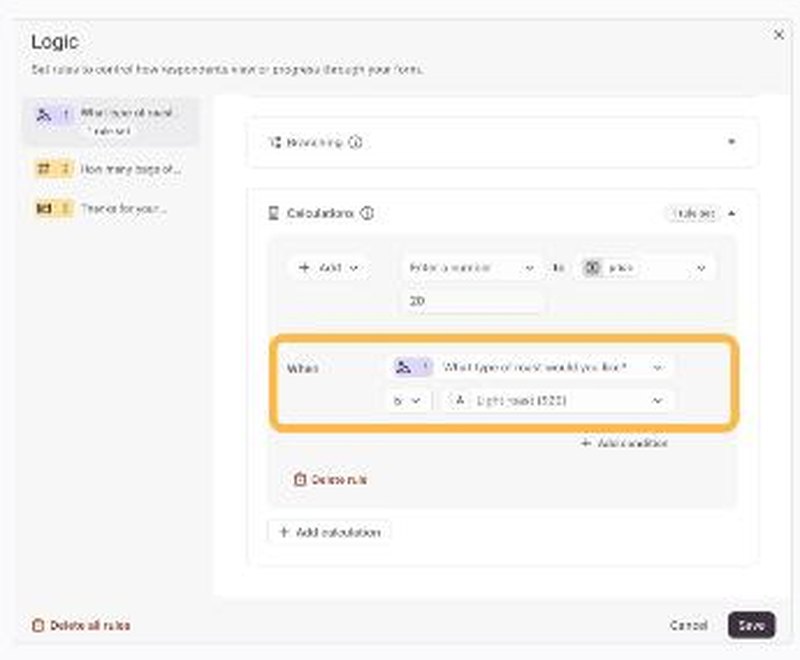
- Calculation rules. For each question you can add, subtract, multiply or divide a variable, either by a fixed number or by a number the respondent entered, and you can set a rule to run “Always.”
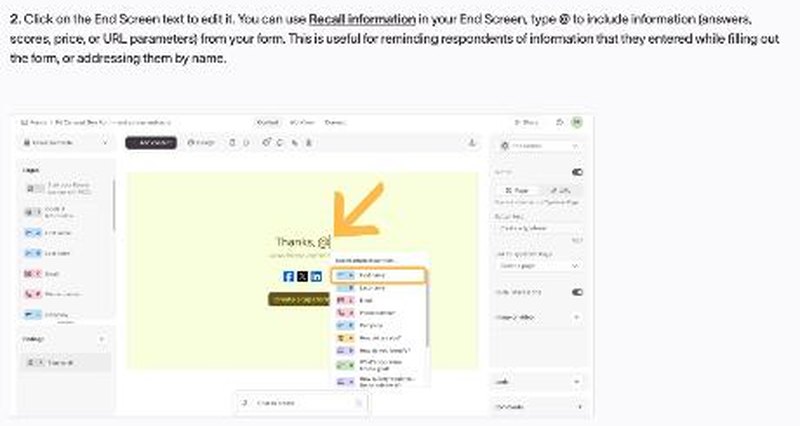
- Recall information. You can show a variable’s current value later in the form or on the ending screen by typing @ and choosing it.
- Multiple endings. You can show different ending screens based on answers or scores.
The price variable trap
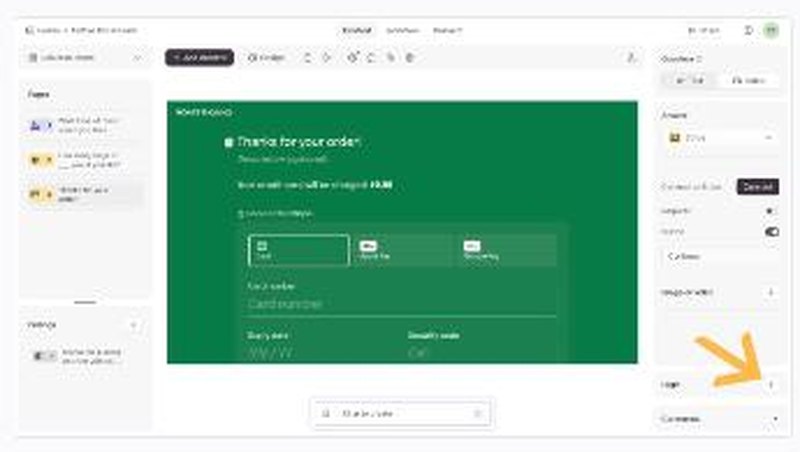
This is the detail that catches most people. Typeform’s help article says that to use the price variable, you must use the Payment question with Stripe or PayPal, which is available on Basic or higher plans. A freelancer’s quote calculator does not take payment, so the price variable is the wrong tool.
The fix is simple: create your own variable, for example estimate, and use that instead. Custom variables behave the same way in calculations and can be recalled on the ending screen, without needing a Payment question.
Questions that cannot feed a calculation
Typeform lists question types that do not work with variables in calculations: Contact Info, Email, Phone, Address, Video Answer, Clarify with AI, Ranking and Matrix. In practice, build the pricing logic from Multiple Choice, Yes/No, Dropdown, Picture Choice and Number questions, and collect contact details separately at the end.
Building the calculator, step by step
I will use a website designer as the example. The prices below are placeholders to show the mechanics; use your own rates.
Step 1: Create the variables
In the Workflow panel, open Variables and create three number variables: estimate (the low end), extra_pages (a helper) and estimate_high (the top of the range). Typeform starts variables at 0 by default.
Step 2: Set the base price with a multiple choice question
Ask “What are you looking for?” with options such as a one-page site, a small business site or an online store. For each option, add a calculation rule: Add [base amount] to estimate when the answer is [option]. This mirrors the coffee-order example in Typeform’s own help article, just with services instead of coffee.
Step 3: Price the variable part with a Number question
Ask “How many extra pages beyond the basics?” as a Number question. Add an Always rule that adds that answer to extra_pages (which starts at 0), then multiply extra_pages by your per-page rate, then add extra_pages to estimate. Typeform supports operations between variables, so you do not need workarounds.
Step 4: Add the yes/no extras
Use Yes/No questions for add-ons like copywriting, logo design or ongoing maintenance. Each “Yes” adds a fixed amount to estimate.
Step 5: Handle rush timelines with a multiplier
Ask “When do you need it live?” with options such as “in 2 weeks” and “in a month or more.” For the rush option, add a rule that multiplies estimate by 1.25 or whatever premium you charge. Typeform allows decimals up to two places in calculations.
Step 6: Turn one number into a range
At the last pricing question, add an Always rule that adds estimate to estimate_high (which also starts at 0), then multiply estimate_high by, say, 1.3. Now you have a low and a high figure from the same answers.
Step 7: Show the range on the ending screen
On the End Screen, type something like “Projects like yours usually land between @estimate and @estimate_high,” choosing the variables through Recall. Add one sentence explaining that this is an estimate and that the final quote follows a short call.
Step 8: Ask for contact details last
Put the Email or Contact Info question after the pricing questions, just before the ending. People are more willing to share an email once they have seen that the numbers make sense for them.
Sending people to a booking page from the ending
This is where plan limits start to matter. According to Typeform’s End Screens article, redirecting respondents to a webpage instead of showing an End Screen requires the Plus plan or above. The Free plan article also lists “Button links on End Screens” and “Redirects to a URL” as paid features.
There is a lighter option that the same help article mentions: URLs typed into End Screen text become clickable automatically, although HTML links are not supported. So a sentence like “If that range works for you, pick a time here: [your booking URL]” still gives the prospect a path forward. If you use a scheduler that the client experiences well, such as the one I covered in my SavvyCal for freelancers article, this plain link is often enough.
For a more polished flow, you can also use different endings: one for estimates within your usual range that includes the booking link, and one for very small estimates that points to a cheaper starter offer or a resource page.
Which Typeform plan the calculator really needs
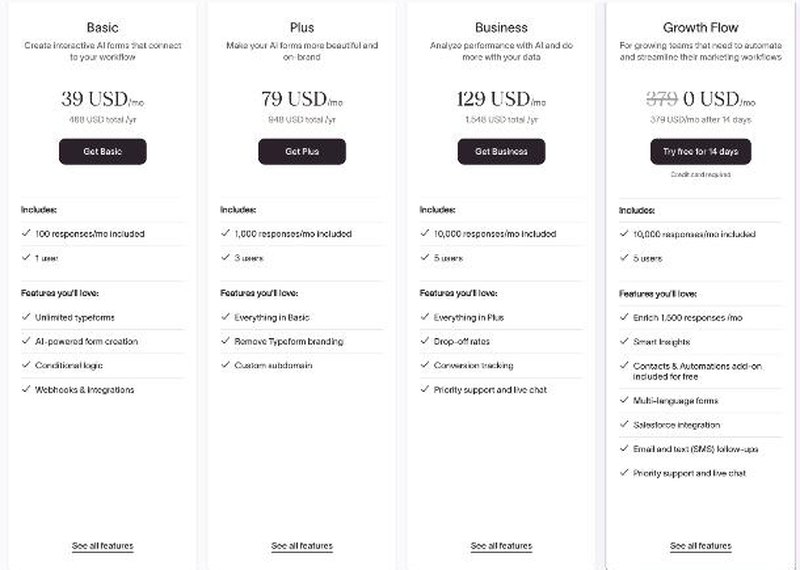
Here is what Typeform’s pricing page showed when I checked:
| Plan | Monthly billing | Yearly billing (per month) | Responses per month | Users |
|---|---|---|---|---|
| Free | $0 | $0 | 10 (across all forms) | 1 |
| Basic | $39 | $28 | 100 | 1 |
| Plus | $79 | $56 | 1,000 | 3 |
| Business | $129 | $91 | 10,000 | 5 |
Typeform also notes on its Free plan page that it sometimes experiments with pricing, so the plans in your account may differ slightly from what you see on the website.
Can the Free plan run it?
Technically, yes. Typeform’s Free plan includes logic with branching, calculations, scores and variables, custom endings, multiple endings, embedding and integrations such as Calendly, Zapier and Google Sheets. Everything in the build above works without paying.
The limit is volume: 10 responses a month across all your forms. If your website sends even a handful of visitors to the calculator each week, you will hit that quickly, and it also has to cover any other forms you run.
When Basic is the right call
For most solo freelancers, Basic is where a public quote calculator makes sense. It gives 100 responses a month for one user, which comfortably covers a portfolio site’s inquiries. You keep Typeform branding on Basic, though; removing it starts on Plus.
When Plus is worth it
Plus makes sense if you want a URL redirect after the estimate (for example, straight into your booking page), want to remove Typeform branding, or work with a partner who needs their own seat.
Mistakes I would avoid
- Showing one exact number. A single figure reads like a quote. A range reads like guidance.
- Using the price variable. Without a Payment question it will not work on a calculator like this. Use a custom variable.
- Asking for email first. Contact questions cannot feed calculations anyway, so place them last.
- Forgetting to test. Typeform recommends checking calculations in preview mode. Run through every path, including the rush option, before you share the form.
- Letting rates go stale. When you raise prices, update the calculation rules the same day.
Connecting the answers to the rest of your workflow
Each response stores the answers and the variables, and Typeform lets you download results or connect integrations such as Google Sheets and Zapier on the Free plan. I like to send each calculator response into the same place I track leads, so the estimate the prospect saw is in front of me before the call. If you already automate onboarding, my notes on Zapier client onboarding for a one-person business show where this step fits.
You can find the full feature list on typeform.com.
My take
Typeform is a natural fit for a freelancer’s quote calculator. Variables, calculation rules, Recall and multiple endings cover the whole build, and all of them are available on the Free plan, so you can design and test it without paying. The two things to plan for are the price variable rule, which you avoid with a custom variable, and response volume, which makes Basic the realistic plan once the calculator is public.
If your prospects keep asking “how much?” before anything else, give them the answer in the form itself. The calls you do take will be with people who have already seen the number.
FAQ
Is Typeform good for freelancers?
It works well for freelancers who want interactive forms with logic, such as quote calculators, intake forms or feedback surveys. The Free plan includes logic and calculations but only 10 responses a month, so most freelancers with steady traffic will need Basic.
Can Typeform calculate a price without taking payment?
Yes, if you use a custom variable or the score variable. Typeform’s built-in price variable requires a Payment question with Stripe or PayPal, which is a Basic plan feature.
How do I show the calculated total to the respondent?
Use Recall on the End Screen: type @ and choose the variable. Typeform updates the value once the respondent has answered the questions that change it.
Can I redirect people to my booking page after the quote?
Redirects to a URL require the Plus plan or above. On lower plans, you can type your booking URL into the End Screen text, and Typeform makes it clickable automatically.
How many responses does the Typeform Free plan include?
Ten responses per month in total across all your forms, according to Typeform’s Free plan help article.