
Most scheduling tool reviews are written from the host’s side: how many links you can make, which calendars connect, what the dashboard looks like. For a freelancer, that is only half the picture. The other half is the person on the receiving end of the link, usually a client or a prospect who is busy, slightly impatient and judging you a little on how easy you are to work with. This review looks at SavvyCal for freelancers from that side first: what your client actually sees and does when you send a SavvyCal link, and then which plan you need to make that experience work for a one-person business.
All plan details and features below come from SavvyCal’s own website and documentation as they read today.
Why the Client’s Side of a Booking Link Matters
A booking link is often the first thing a new client “uses” from you. If it makes them click through a calendar one day at a time, hunt for a slot that fits, then switch tabs to check their own diary, the small friction lands on them, not you. Some clients also find a bare “pick a time” link slightly abrupt in a first conversation.
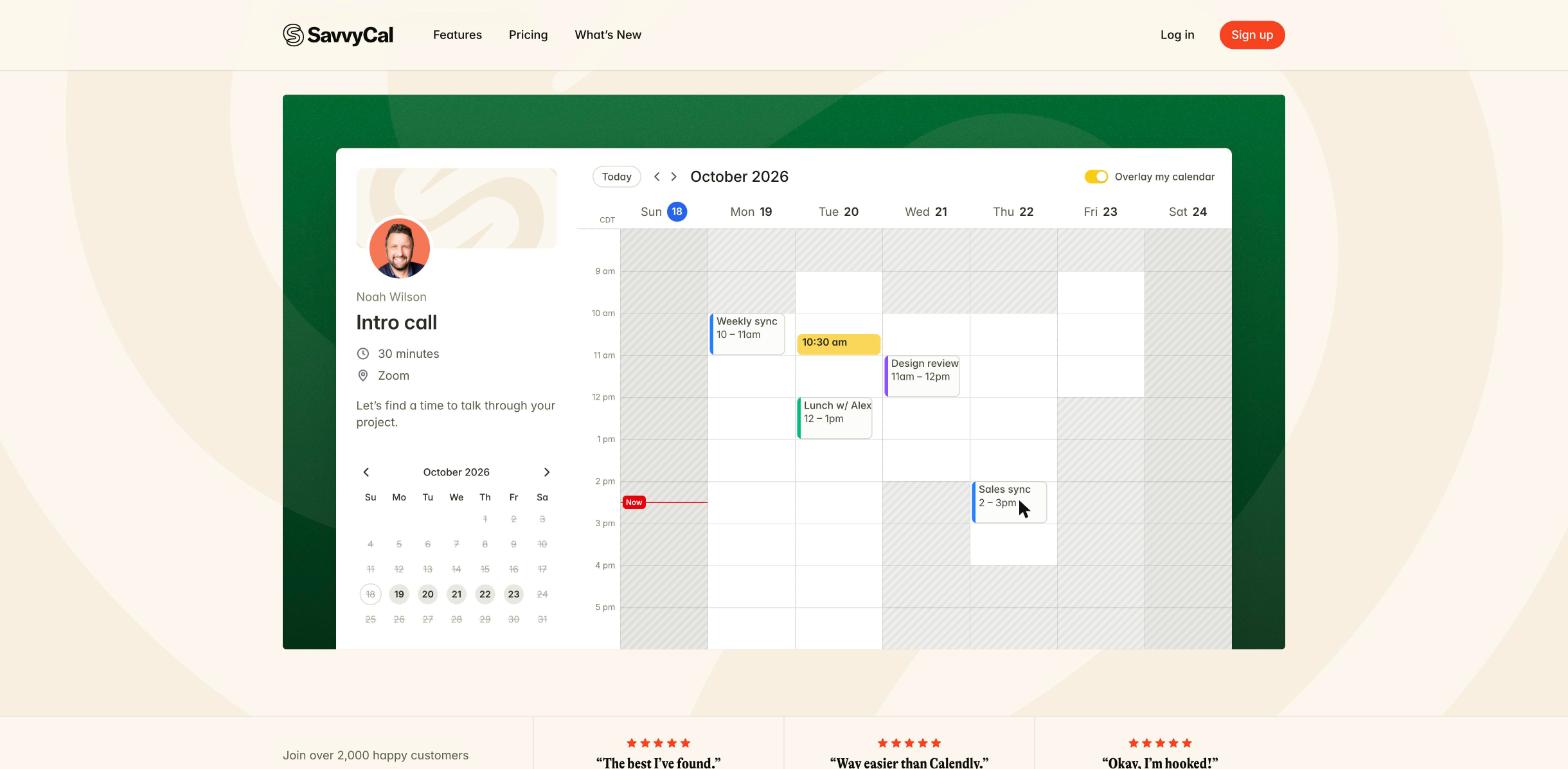
SavvyCal is built around reducing that friction for the recipient. Its homepage puts it plainly: the company says it replaced the “click-a-day, then click-a-time” routine with a week view, so recipients see every option at once. That design choice is the main reason to consider it over a more generic scheduler.
What the Client Sees: The Week View and Calendar Overlay
When a client opens your link, they see your available times laid out across the week rather than a month grid. The feature that sets SavvyCal apart is the calendar overlay. In SavvyCal’s words, recipients can lay their own calendar on top of your link and spot a time that works for both of you, without flipping between tabs.
For a client, that means connecting their own calendar on your booking page and seeing their meetings and your open slots on one screen. SavvyCal’s pricing page notes that invitees do not need an account or a paid plan to do this; overlaying is free for the person booking.
Why this matters for freelancers specifically:
- Clients with packed calendars book faster. Agency contacts and in-house marketing managers often have back-to-back days. Seeing both calendars at once removes the back-and-forth.
- Fewer reschedules. A slot chosen while looking at both calendars is less likely to clash with something the client forgot.
- It feels considerate. The link does some of the work for the client instead of handing them a task.
The overlay is optional for the client. If they would rather just pick a time, the week view still works on its own.
What the Client Sees: Your Brand, Not the Tool’s
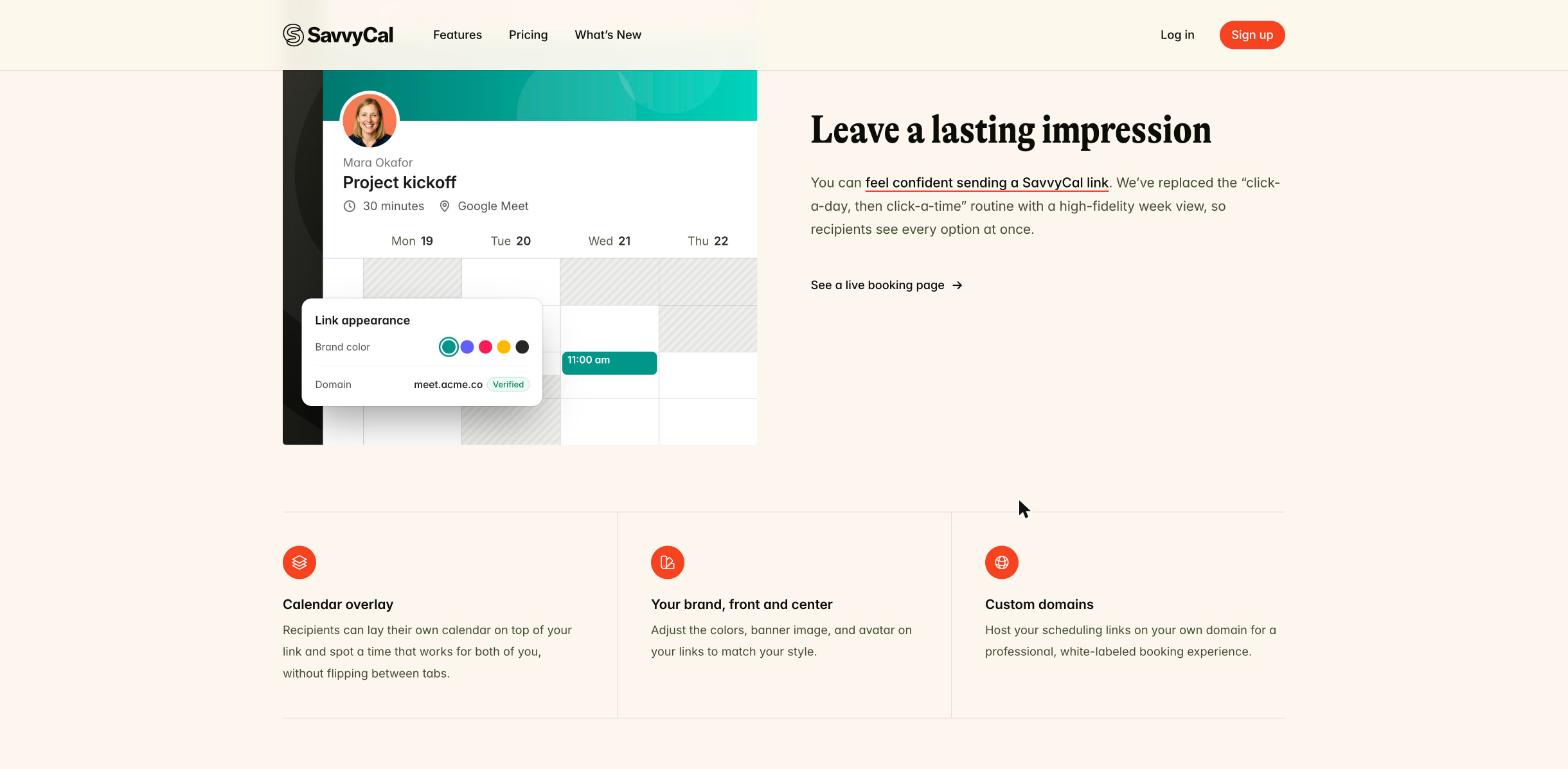
SavvyCal lets you adjust the colors, banner image and avatar on your links. On the Premium plan, you can also host scheduling links on your own domain and remove SavvyCal branding, and confirmation emails can come from your own sending domain. For a freelancer who sells a premium service, a link on your own domain looks more like part of your business and less like a third-party form.
Whether that is worth paying more for depends on your clients. A designer or consultant pitching larger companies may find it matters. A writer booking quick check-ins with long-time clients probably will not notice the difference.
What You Control Behind the Link
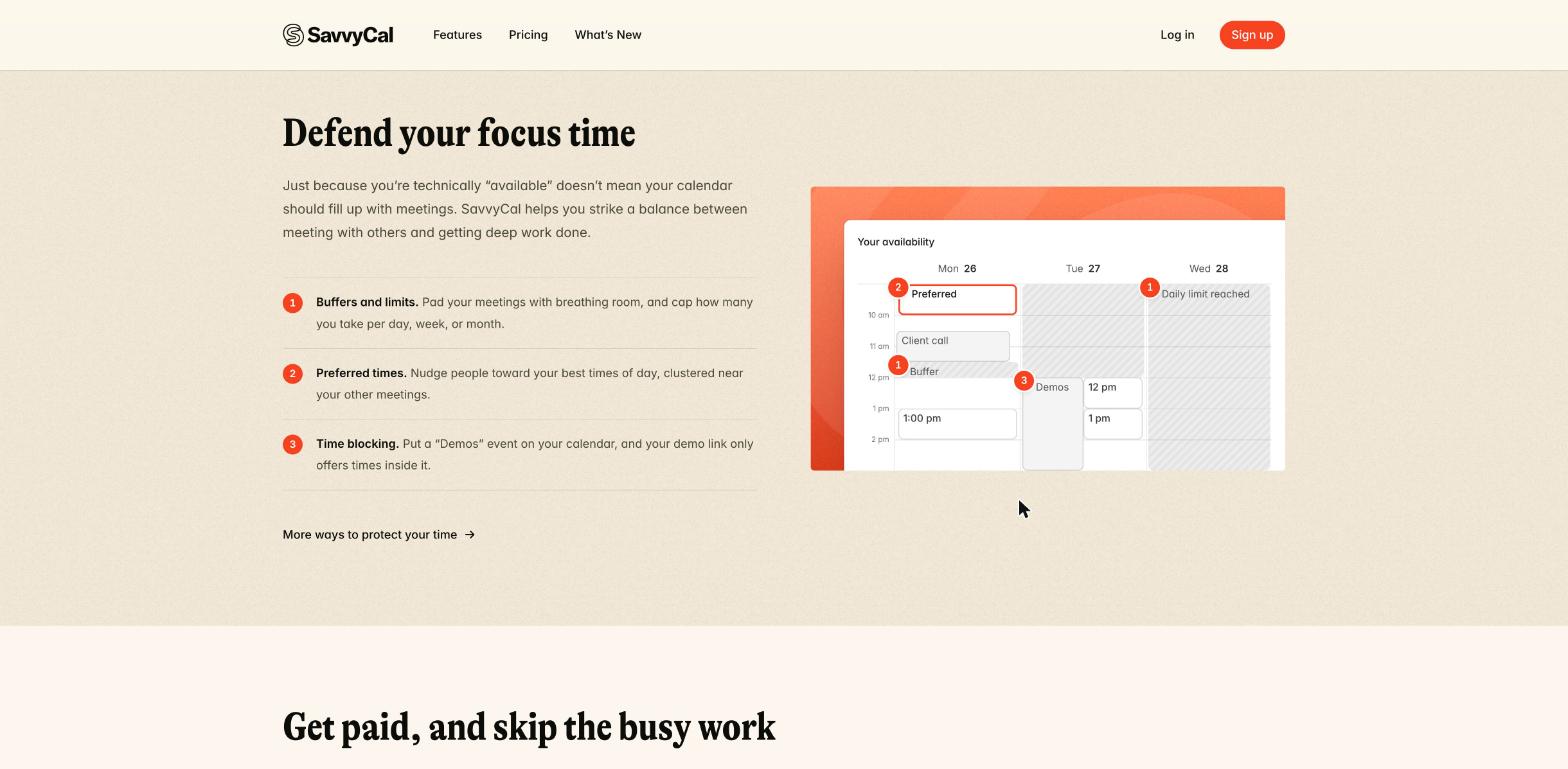
The client-facing view is only pleasant if the slots it shows are ones you actually want to fill. SavvyCal’s homepage groups these controls under “defend your focus time,” and they map well to how freelancers work.
Buffers and limits
You can add breathing room around meetings and cap how many you take per day, week or month. If you only want two discovery calls a week so they do not eat your production time, a weekly limit does that without you manually closing slots.
Preferred times
Preferred times nudge people toward your best times of day, clustered near your other meetings. For freelancers, this is a quiet way to keep mornings for focused work and steer calls into the afternoon without making the morning slots disappear entirely.
Time blocking
SavvyCal’s example is a “Demos” event on your calendar: the demo link only offers times inside it. Swap “Demos” for “Client calls” or “Office hours,” and you can decide each week exactly when clients can book you by placing one block on your calendar.
If you have read my look at Fantastical Openings for client booking links, this is the main difference: Fantastical adds booking links to a calendar app you may already use, while SavvyCal is a dedicated scheduler with more control over how and when people book.
Charging for a Session Before It Is Booked
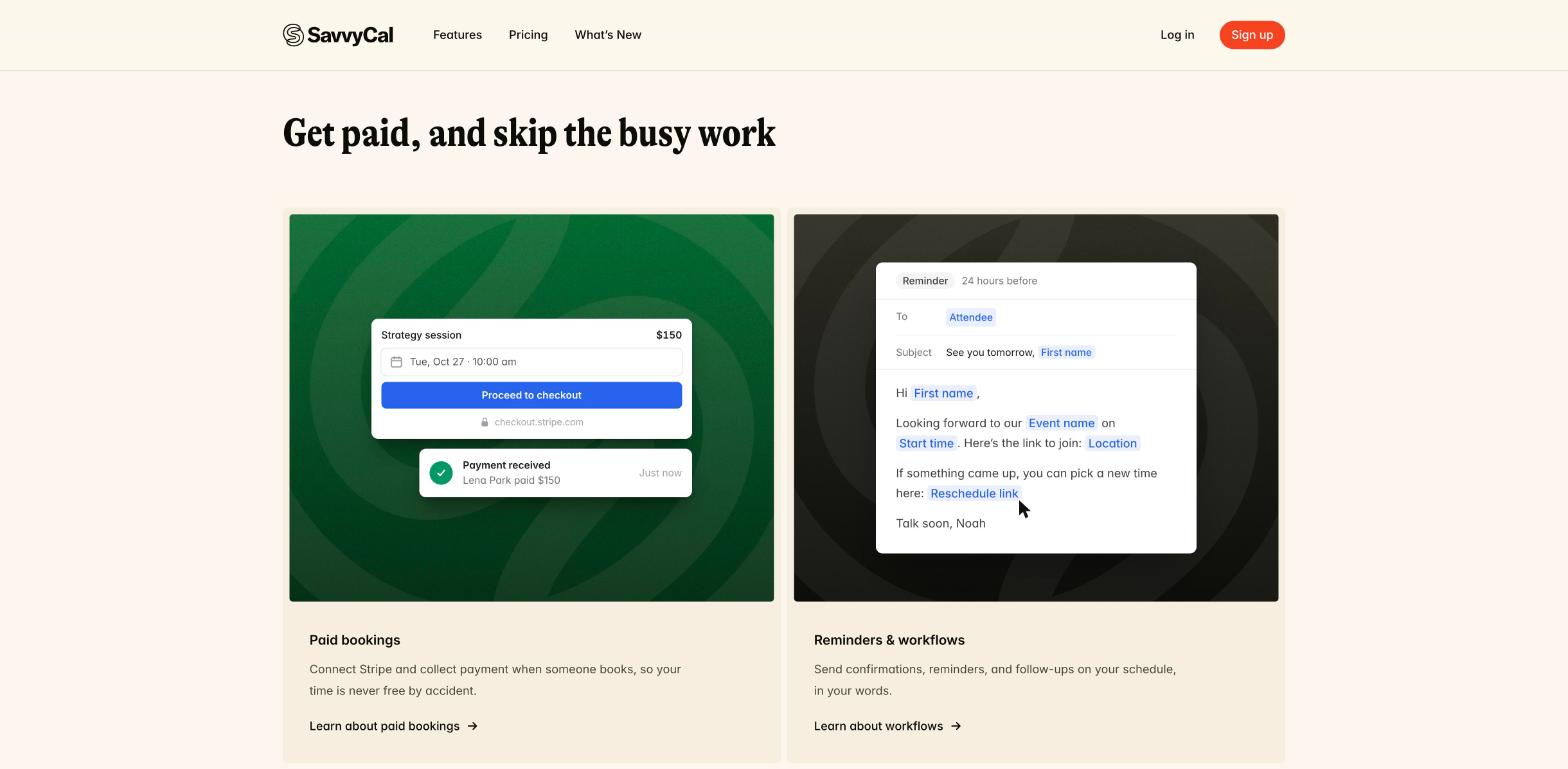
Many freelancers sell paid consultations, audits or strategy sessions. SavvyCal supports paid bookings: you connect Stripe and collect payment when someone books. Its documentation says the scheduler pays during booking, before the event is confirmed, which means no unpaid placeholder sits on your calendar while you chase an invoice.
The important detail is the plan. On SavvyCal’s pricing page, taking payment when people book through Stripe is listed under Premium, not Basic. If paid sessions are part of how you sell, budget for Premium from the start.
Reminders and Follow-Ups in Your Own Words
SavvyCal workflows send confirmations, reminders and follow-ups on your schedule. The homepage example is a reminder 24 hours before a meeting with the join link and a reschedule link. Workflows are listed on both plans.
For a freelancer, two workflows cover most needs: a reminder the day before with the call link, and a short follow-up after a discovery call with a link to your intake form. If you collect project details before the first call, my piece on a Fillout client intake form for freelance leads pairs well with this setup.
Group Times With Meeting Polls
Not every meeting is one-to-one. When a client wants you on a call with their team, SavvyCal includes meeting polls for finding a group time. The pricing page lists unlimited scheduling links and polls on both paid plans, and also says polls can be used for free.
SavvyCal Pricing for a One-Person Business
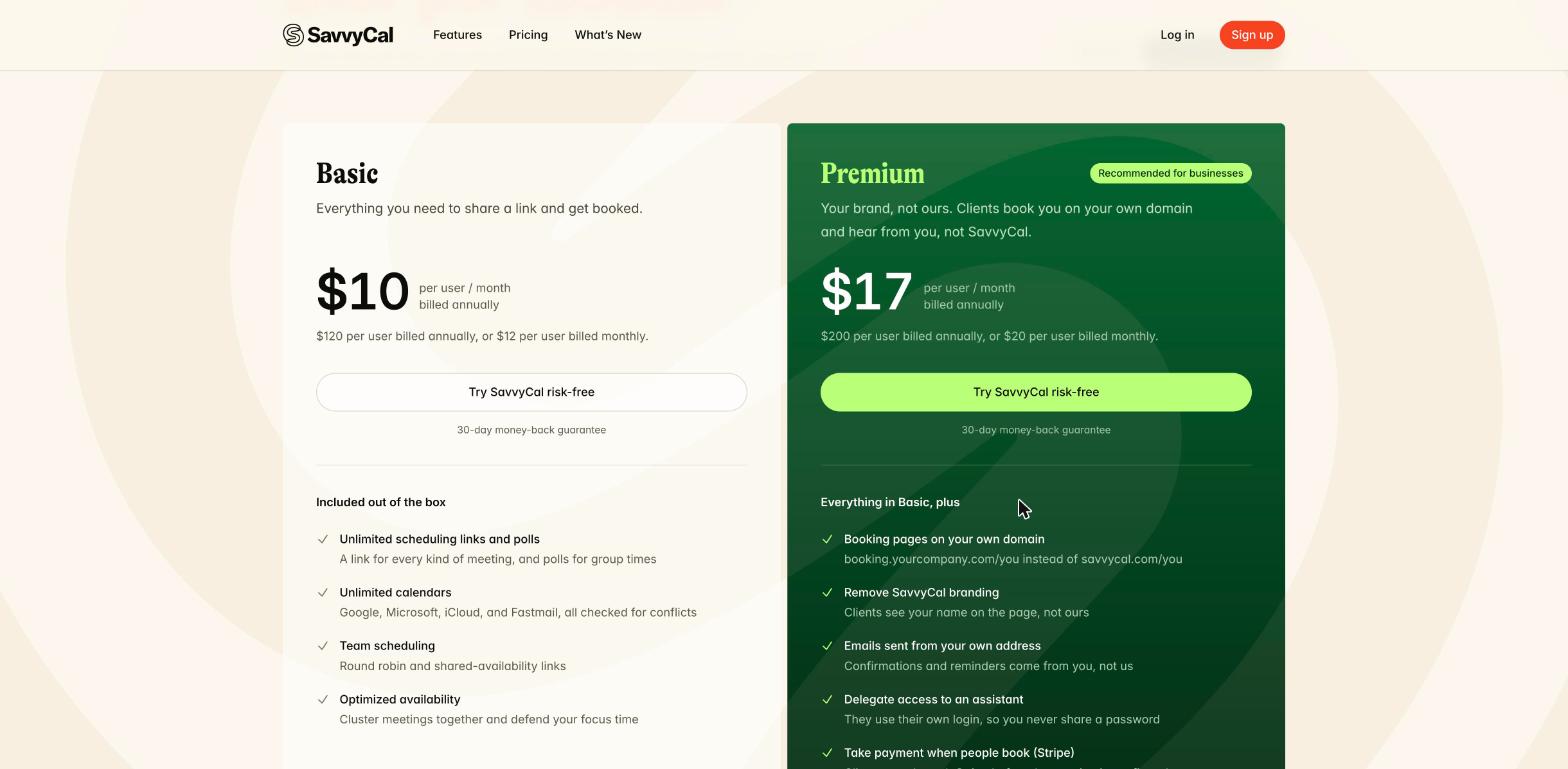
SavvyCal has two paid plans, priced per user. As a solo freelancer, you are one user.
| Plan | Billed annually | Billed monthly | What matters for freelancers |
|---|---|---|---|
| Basic | $10 per user/month ($120/year) | $12 per user/month | Unlimited links and polls, unlimited calendars (Google, Microsoft, iCloud, Fastmail), ranked availability, buffers and limits, time blocking, workflows, conferencing, website embedding |
| Premium | $17 per user/month ($200/year) | $20 per user/month | Everything in Basic plus custom domains, removing SavvyCal branding, custom sending domains, delegated access for an assistant, and Stripe payments at booking |
A few other pricing details from the same page:
- You can sign up for free, connect calendars and set up links, but booking through your links requires Basic or Premium.
- There is no self-serve free trial. Instead, every plan comes with a 30-day money-back guarantee.
- Students, educators and non-profits get 25% off on top of annual billing.
Which plan a freelancer actually needs
- Choose Basic if you book free discovery calls and client check-ins, invoice separately, and are fine with SavvyCal branding on your links.
- Choose Premium if you sell paid sessions, want links on your own domain, or have a virtual assistant who manages your calendar.
Compared with a lifetime-deal scheduler, SavvyCal is a recurring cost. If keeping software costs fixed is your priority, my breakdown of TidyCal pricing shows the trade-off on the other side.
See SavvyCal plans on the official site
A Simple SavvyCal Setup for Freelancers
- Connect every calendar you use. Personal and client calendars both count for conflicts; SavvyCal supports Google, Microsoft 365, iCloud and Fastmail.
- Create three links: a discovery call, a client check-in, and (on Premium) a paid strategy session.
- Set limits on discovery calls so new leads cannot fill your week.
- Use preferred times to guide clients toward afternoons, or whichever part of the day you protect least.
- Add a “Client calls” block to your calendar and use time blocking for the check-in link.
- Write two workflows: a day-before reminder and a post-call follow-up.
- Send yourself the link first and try the overlay from the client’s side, so you know what they will see.
Who Should Skip SavvyCal
SavvyCal is not the best fit for every freelancer. If you take very few meetings, a free booking feature built into your calendar or email app may be enough. If you need a free plan that accepts bookings, SavvyCal does not offer one. And if paid bookings are central to your business but you do not want to pay $17 to $20 a month, compare carefully, because Stripe payments are not on Basic.
Pros and Cons
Pros
- Week view and free calendar overlay make booking easier for clients.
- Strong focus-time controls: buffers, limits, preferred times and time blocking.
- Workflows for reminders and follow-ups on both plans.
- Paid bookings collected before the meeting is confirmed (Premium).
- Custom domains and unbranded links on Premium.
Cons
- No free plan for accepting bookings and no self-serve trial.
- Stripe payments require Premium.
- Per-user pricing adds up if you later bring in a partner or assistant seat.
Verdict
SavvyCal for freelancers makes the most sense when you care about how booking feels for your clients. The week view and calendar overlay remove the small frustrations that come with most scheduling links, and the focus-time controls keep those links from eating your working hours. Basic is enough for free calls and check-ins. Premium earns its higher price only if you sell paid sessions or want booking links that look fully like your own business. With a 30-day money-back guarantee instead of a trial, the practical test is simple: pay for a month, send the link to a few real clients, and see whether they book faster.
FAQ
Is SavvyCal good for freelancers?
Yes, especially for freelancers who book calls with busy clients. Its week view and calendar overlay make it easier for clients to find a time, and its limits and preferred times help protect your working hours.
Do my clients need a SavvyCal account?
No. Invitees do not need an account or a paid plan, and they can overlay their own calendar on your link for free.
Can I charge clients when they book with SavvyCal?
Yes. You can connect Stripe so the client pays during booking, before the event is confirmed. Stripe payments are listed on the Premium plan.
How much does SavvyCal cost for one person?
Basic is $10 per month billed annually or $12 monthly. Premium is $17 per month billed annually or $20 monthly. Prices are per user.
Does SavvyCal have a free trial?
There is no self-serve trial. You can sign up and set up links for free, but booking requires a paid plan, and every plan has a 30-day money-back guarantee.
Which calendars does SavvyCal connect to?
SavvyCal connects to Google, Microsoft 365 (Outlook), iCloud and Fastmail calendars, and checks all of them for conflicts.