
Every freelancer who bills by the hour knows the moment. It is Friday afternoon, the invoice is due, and the time tracker shows a neat four hours for a client you know you worked on for much longer. The timer was never started on Tuesday. The Wednesday call ran over and nobody logged it. Most time trackers assume you will remember to press start. This review looks at the Timing app for freelancers who do not, and at what it takes to turn its automatic activity log into hours you can actually invoice.
Timing is a Mac app that records what you do in every app, document and website in the background, then lets you assign that activity to client projects afterwards. That sounds like the perfect fix for a forgetful freelancer, and in many ways it is. But there is a catch that most reviews skip: the plan you pick decides whether Timing can produce billing-ready hours at all.
Why the Timing App for Freelancers Works Differently
Toggl, Harvest, Clockify and most of the trackers freelancers use are timer-first. You start a timer, you stop it, and the record is only as good as your memory. Timing flips that. Its own homepage puts it plainly: stay on top of your time “without timers”.
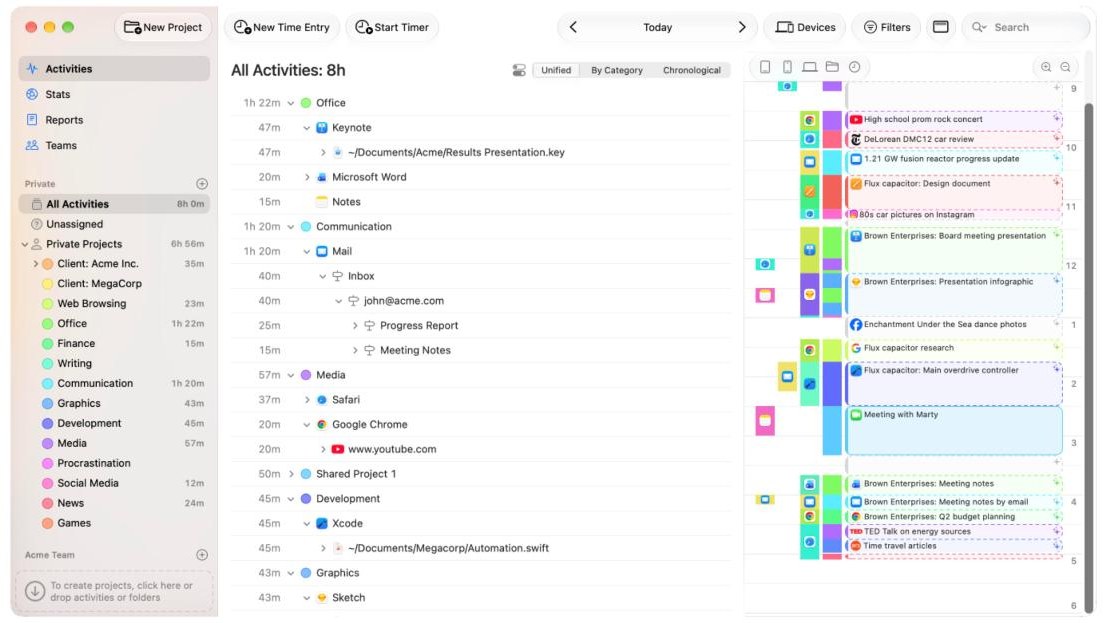
Here is what Timing records automatically, according to the official site:
- Every app, document and website you use, including the full file path or URL, so “Safari, 3 hours” becomes the actual client pages you had open.
- Idle time, so you can exclude the hour you spent away from the desk.
- Calls and meetings, with a prompt to record time after a video or audio call, plus calendar events and reminders you can assign in a click.
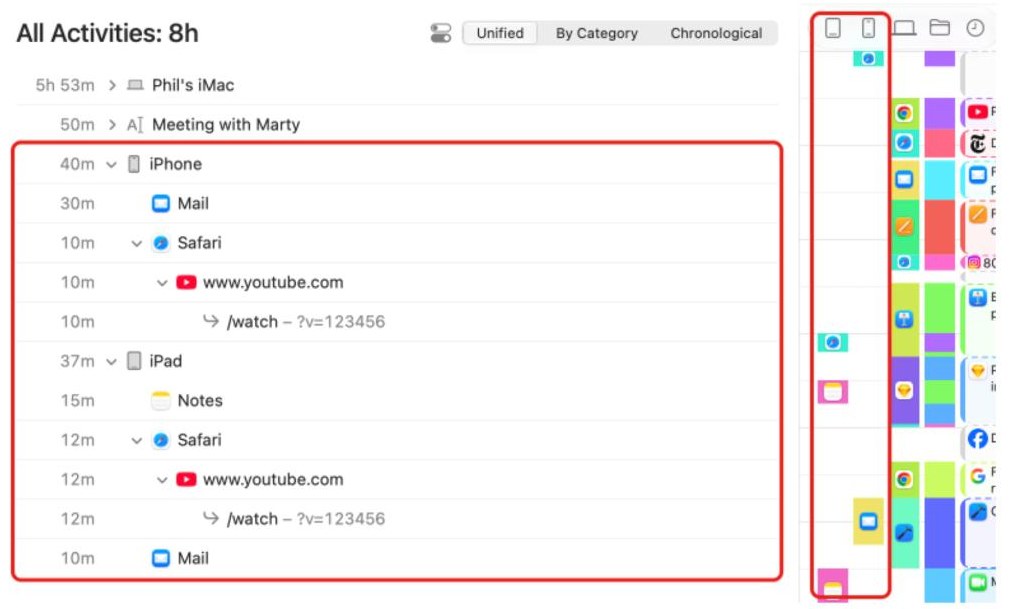
- iPhone and iPad usage imported from Screen Time, so time spent replying to a client from your phone is not lost.
The result is that you stop tracking and start reviewing. At the end of the day or week, you look at what happened and decide what belongs to which client. For a freelancer who keeps forgetting the start button, that is the whole value of the app.
Turning the Activity Log Into Billable Hours
An activity log is not an invoice. The real work is getting from “everything I did” to “hours for Client A”. This is the workflow I would set up in the first week.
1. Create one project per client, then sub-projects for billable and non-billable work
Start simple: a project for each client, and maybe one for admin and one for your own marketing. If a client pays for some work and not for other parts, such as revisions included in a fixed fee, split that into sub-projects now. It is much harder to separate later.
2. Drag activity into projects, and Option-drag to make rules
The first few days are manual. You drag a document, a website or an app session onto the client project. The trick that makes Timing sustainable is the rule: Timing’s site explains that if you hold the Option key while dragging, it creates a rule so similar activity is assigned automatically in future.
Good rules for freelancers are built around things that only belong to one client:
- A folder path, such as
~/Clients/Acme/. - A client’s domain or staging site in the browser.
- A Slack workspace, email thread or Figma file used only for that client.
After a week or two of rules, most of your day sorts itself. The remaining unassigned blocks are usually the ambiguous ones: generic research, email, or a tool you use for everyone.
3. Turn activity into time entries
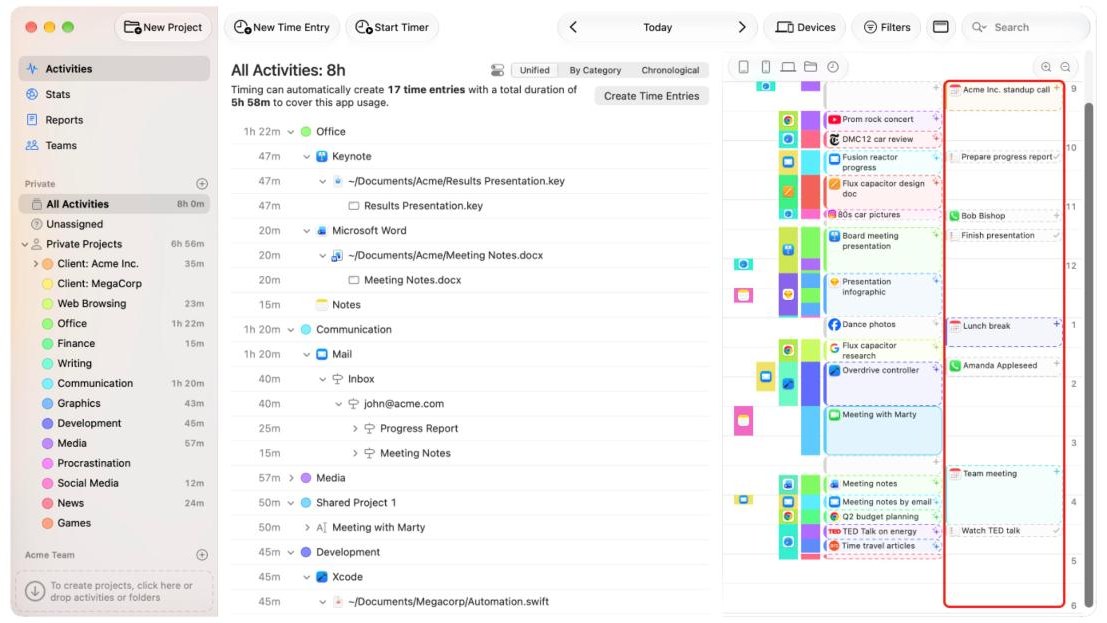
Timing separates raw activity from time entries. Activity is what the app saw; time entries are the blocks you are willing to bill. Timing’s timeline lets you create entries in a few clicks, and its AI groups related activity and suggests entries. On the Expert and Connect plans, AI activity summaries describe what you worked on, which makes it easier to write the line items on an invoice.
4. Add the time that happened away from the Mac
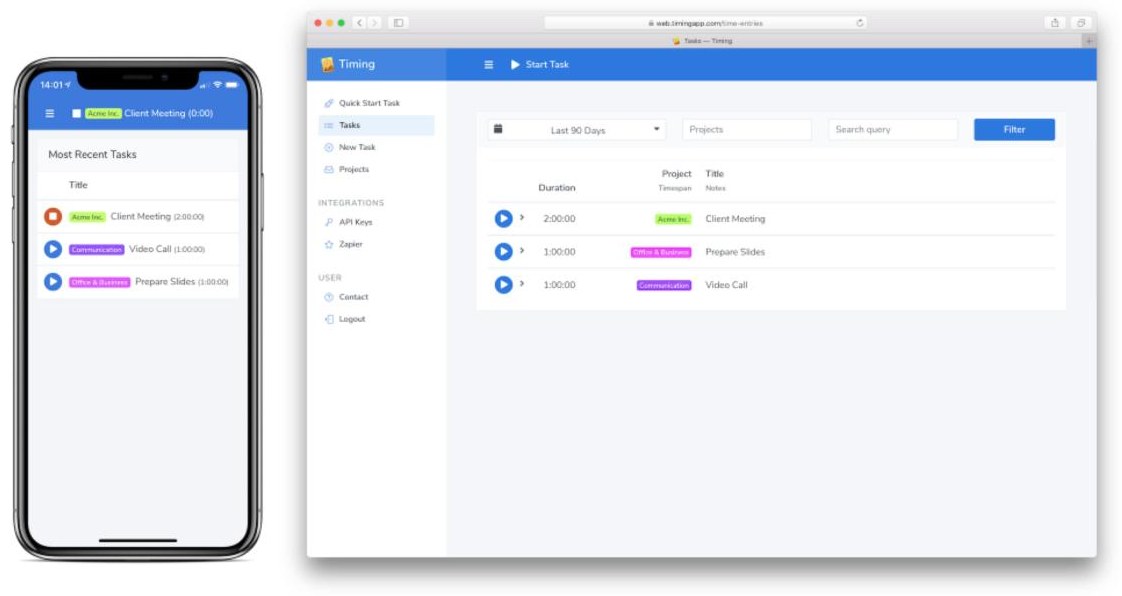
Phone calls, site visits and whiteboard sessions still need logging. Timing lets you add manual entries retroactively on the timeline, and the calendar integration lets you assign a client meeting straight from your calendar. If you work partly from an iPhone or iPad, the Screen Time import fills in that usage, though only on Expert and Connect.
5. Export the report your client expects
Timing exports reports as PDF, XLSX, CSV or HTML, which covers almost any client timesheet format. If you invoice with GrandTotal on the Mac, Timing offers a plug-in that imports tracked hours as billable items, but that integration is listed only on the Connect plan.
The Plan Question: Which Timing Plan Can Actually Bill?
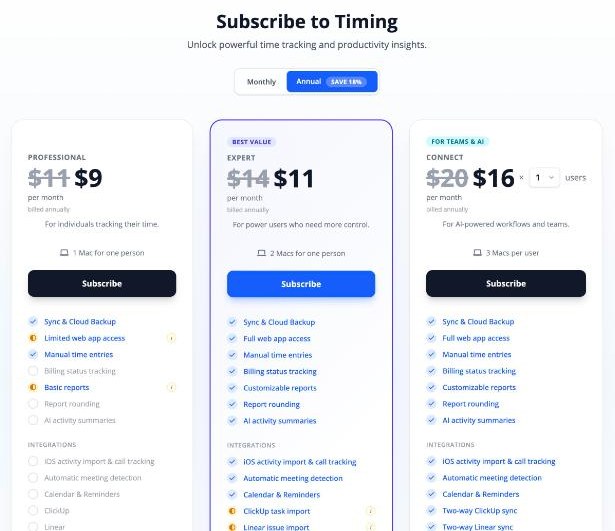
This is the part I would read twice before subscribing. Timing has three plans, and the cheapest one is missing several features a billing freelancer needs. Here is what the official pricing page shows today:
- Professional: $9 per month billed annually, or $11 month to month. One Mac for one person. Automatic tracking, timers, manual entries, sync and cloud backup, limited web app access and basic reports.
- Expert: $11 per month billed annually, or $14 month to month. Two Macs for one person. Adds billing status tracking, customisable reports, report rounding, AI activity summaries, iOS activity import and call tracking, automatic meeting detection, calendar and reminders, filters and Entry-O-Matic.
- Connect: $16 per user per month billed annually, or $20 month to month. Three Macs per user. Adds two-way ClickUp, Linear and Clio sync, the GrandTotal invoicing integration, scripting, a Web API and Zapier, AI integration via MCP, and team features.
Annual billing saves 18% according to the pricing page, and there is a 30-day free trial with no credit card required.
Why most freelancers should skip Professional
Look at what Professional leaves out: billing status tracking, report rounding, customisable reports, meeting detection and calendar integration. For a freelancer, those are not extras.
- Billing status tracking is how you know which hours are already invoiced. Without it, you are back to a spreadsheet.
- Report rounding matters if your contract bills in 15-minute or 6-minute increments.
- Meeting detection and calendar import catch the calls that forgetful freelancers miss most often.
So for a solo freelancer who bills hourly, Expert is the real starting plan. The difference is $2 a month on annual billing, and it is the cheapest way to get from activity log to invoice without workarounds. Professional suits someone who wants to understand where their time goes but does not bill by the hour.
When Connect is worth it
Connect makes sense in three cases: you invoice through GrandTotal, you manage tasks in ClickUp or Linear and want two-way sync, or you work with a small team that shares projects. Timing’s site also highlights MCP support on Connect, so AI agents such as Claude can file activity into projects and create rules for you. That is genuinely useful if you already work with AI agents, but it is a nice-to-have for most freelancers rather than a reason to pay more.
If you compare this with a client-imposed tracker, my look at joining a client’s Everhour or paying for your own covers the other side of the same decision.
Privacy: What Timing Sees and Keeps
A tracker that records every document and URL raises fair questions, especially when your clients’ work is confidential. Timing’s site says:
- Tracked times are stored locally and never leave your Mac unless you opt into sync.
- Private and incognito browser tabs have their information discarded automatically.
- You can add activities to an exclusion list so they are never tracked.
- Timing is not sold through the Mac App Store, because sandboxing would limit what it can track.
On team plans, Timing says admins only see aggregate times for team projects, not personal times or private details. For a freelancer, my practical advice is to exclude personal banking and health sites on day one, and to think before turning on sync if a client contract restricts where work data can be stored.
Where Timing Falls Short
- It is Mac-only for tracking. There is a web app for timers on the go, but automatic tracking needs a Mac. Windows and Linux freelancers should look elsewhere.
- The first two weeks take effort. Rules do not build themselves. If you will not spend ten minutes a day sorting activity at the start, the automatic log just becomes a long list.
- Professional is too limited for hourly billing, which makes the low entry price a little misleading.
- Annual plans are not refunded pro rata, according to Timing’s FAQ, so use the 30-day trial fully before committing.
- Seats are personal. One seat covers one person on one, two or three of their own Macs depending on the plan.
Who Should Use Timing, and Who Should Not
Timing suits Mac-based freelancers who bill by the hour and keep forgetting timers: designers, developers, writers, consultants and video editors whose work happens mostly in identifiable files, apps and client domains. It is especially good if you juggle several clients a day, because the timeline makes switching visible.
Timing is a weaker fit if you work on Windows, if you bill fixed project fees and never need hours, or if a client requires you to use their own tracker with screenshots. In that last case, you may end up running two systems. If your Mac setup is built around a launcher like Raycast, my guide to setting up Raycast around clients pairs well with a client-based Timing project structure.
Pros and Cons
Pros
- Automatic tracking of apps, documents and websites means forgotten timers stop costing you money.
- Option-drag rules make sorting faster every week.
- Meeting, call and calendar capture on Expert and Connect.
- Local-first data with private tab discarding and an exclusion list.
- Exports to PDF, XLSX, CSV and HTML for client timesheets.
- 30-day free trial without a credit card.
Cons
- Mac-only automatic tracking.
- Billing status and report rounding require Expert or higher.
- GrandTotal and two-way task sync only on Connect.
- Needs a setup period before the rules pay off.
Verdict
Timing is the best answer I know to a very specific freelancer problem: the hours you worked but never tracked. Because it records everything in the background, a forgotten timer stops being a lost invoice line. The trade-off is that you swap timer discipline for review discipline, and you need the Expert plan to turn the review into billing-ready reports. For a Mac-based freelancer who bills hourly, Expert at $11 a month on annual billing is the version worth trying, and the 30-day trial is long enough to see whether your rules and weekly review stick.
FAQ
Is the Timing app good for freelancers?
Yes, if you work on a Mac and bill by the hour. It tracks apps, documents and websites automatically so you can assign time to clients afterwards, which helps when you forget to start timers.
How much does Timing cost?
The official pricing page lists Professional at $9, Expert at $11 and Connect at $16 per user per month when billed annually, or $11, $14 and $20 month to month.
Which Timing plan do I need to bill clients?
Expert is the first plan with billing status tracking, report rounding and customisable reports, so it is the practical minimum for hourly billing.
Does Timing work on Windows?
No. Automatic tracking is for Mac. A web app lets you start and stop timers from other devices, including an iPhone.
Does Timing upload my activity to the cloud?
Timing says tracked data stays on your Mac unless you opt into sync, and private browser tabs are discarded automatically.
Is there a free trial?
Yes. Timing offers a 30-day free trial with no credit card required.